Make a personal Christmas card with family photos, simple crafts, or a digital collage. Learn how to prepare photos in Luminar and check your print layout.
The best Christmas postcard ideas begin with something personal: a favorite photograph, a shared memory, or a short message written for the recipient. You can keep the design simple and still make the greeting feel considered.
Choose the format before gathering materials. A flat postcard, a folded handmade card, and a digital greeting need different layouts and finishing steps. This guide covers practical ideas for each, including how to prepare photographs for a Christmas photo card.
Don’t feel like reading the whole breakdown? We’ve pulled together a quick summary below.
Key Takeaways
- A postcard is a flat card; a folded greeting card provides space inside and is usually sent in an envelope. Digital cards are shared as files or links.
- Combine one clear visual with a short greeting and a personal detail. More decoration is not always more effective.
- Flat paper designs are convenient for postcards. Buttons, pressed flowers, pop-ups, and electronics are better suited to protected cards or hand delivery.
- For photo cards, choose a sharp image with enough space for the intended crop and text. Edit the photograph before building the layout.
- Luminar can refine exposure, color, cropping, and selected backgrounds. Use a design application for text and card layout, and suitable tools for animation or video.
- Follow the print provider’s dimensions, bleed, safe-area, and file requirements. A 4 × 6-inch image at 300 ppi contains 1,200 × 1,800 pixels before bleed.
- Print one proof or view the finished digital file on a phone before sending the full set.
Choose Your Christmas Card Format
Choose a format that fits how the greeting will be delivered and how much information it needs to contain.
| Format | Best suited to | Layout considerations |
| Flat Christmas postcard | A photo or illustration with a brief greeting | Keep the mailing side clear for the required address and postage areas |
| Folded greeting card | A longer message or a handmade design | Plan the front, inside, and envelope together |
| Static digital card | A photo, illustration, or small collage | Make text readable on a phone screen |
| Animated or video greeting | Movement, spoken wishes, or a short story | Check playback, sound, and file size before sharing |
Before mailing, check your postal operator’s size, thickness, and packaging requirements. A decorative card is not automatically suitable for postcard mailing.
Your AI-Powered Photo Editor for MacOS and Windows
What to Include in a Christmas Postcard
Use a meaningful message, a clear image, and a restrained color palette. Together, they give the greeting a consistent direction.
Christmas Card Messages: Keep Them Personal

Begin with a greeting, add a detail about the relationship, and close with your name. You do not need a long message to make the card personal.
For example:
- For someone far away: “Missing our Christmas catch-ups. Sending love from here, and hoping we can share the next one together.”
- For a friend: “Thank you for the laughs and good company this year. Wishing you a peaceful Christmas and more adventures ahead.”
- For a family card: “Warm Christmas wishes from our family to yours. With love, the Martins.”
Choose “Merry Christmas,” “Happy Holidays,” or another greeting that suits the recipient. Keep the text short enough to remain comfortable to read in the finished layout.
A Photograph or Festive Illustration
A family portrait, a pet beside the tree, or a photograph of a favorite holiday activity can provide the main visual. One strong image is often easier to arrange than a crowded collage.
These Christmas card photo ideas can help you plan a picture that fits the greeting. Leave some uncluttered space if you intend to place text over the image.
A Consistent Color Palette

Choose two or three main colors, then check the contrast between text and background. Red, green, cream, blue, or muted metallic-inspired tones can all work; the palette should suit the photograph and message.
You can use Skylum’s color palette generator to draw colors from a selected image. Ordinary printing can suggest gold through color, but a metallic finish requires an appropriate material or printing process.
Eight Ideas for DIY and Homemade Christmas Cards
Choose a project that matches your materials and available time. Make one sample before preparing a full set.
| Handmade idea | Main materials | Most suitable format |
| Pressed-flower wreath | Fully dried flowers, cardstock, craft glue | Protected folded card |
| Button snowman | Buttons, cardstock, glue, markers | Folded card or hand-delivered greeting |
| Fingerprint reindeer | Washable paint, cardstock, markers | Flat design or folded card |
| Pop-up tree | Inner paper, outer cardstock, scissors, glue | Folded card |
| Chalkboard-style greeting | Dark cardstock, opaque white pen | Flat design or folded card |
| Paper collage | Paper scraps, scissors, glue | Flat design or folded card |
| Cookie-cutter shapes | Cookie cutters, pencil or paint, cardstock | Flat design or folded card |
| LED light-up design | Purpose-made paper-circuit kit and card materials | Protected card or hand-delivered greeting |
1. Pressed-Flower Cards
Arrange fully dried, pressed flowers or small leaves into a wreath or tree shape. Plan the placement first, then attach the pieces with small amounts of craft glue suitable for paper and dried materials.

Let the adhesive dry before closing the card. A delicate flower design benefits from a protective envelope; avoid treating it as an exposed mailing surface. You do not need to coat the entire arrangement in glue.
2. Button Snowman Cards
Arrange two or three buttons vertically to suggest a snowman. Glue them to the card and add a drawn hat, scarf, arms, or falling snow.

Keep the design simple enough that the buttons remain secure. For a flatter alternative, replace them with paper circles. Supervise projects involving small parts around young children.
3. Fingerprint Reindeer
Use a small amount of washable paint to make a fingerprint on the card. Once dry, add antlers, eyes, and a nose with markers. One print can become a reindeer’s face; several can create a small group.

Test the paint on spare paper first and leave room for the greeting. A flat fingerprint design is also easier to reproduce or scan than a raised decoration.
4. Pop-Up Christmas Cards
Create a simple support tab inside a folded card, then attach a paper tree or ornament to it.

- Fold an inner sheet in half.
- At the fold, make two short, parallel cuts extending into the sheet.
- Fold the strip between the cuts back to crease it, then reopen the sheet.
- Push the strip inward so it forms a step when the card opens.
- Attach a small paper design to the upright face of the step.
- Glue the inner sheet into an outer card, leaving the moving tab free.
Close the card gently to check that the decoration stays inside its edges. Try the mechanism on scrap paper before cutting your final materials.
5. Chalkboard-Style Cards
Use dark cardstock and an opaque white gel pen or paint marker to suggest chalk lettering. Test the pen first, then write a short greeting and add simple stars, snowflakes, or a border.

Leave enough space between letters and let the ink dry before stacking the cards. A restrained design keeps the message readable.
Exclusive Tools of Endless Possibilities in One Editor
6. Paper Collage Cards
Cut trees, stars, or ornaments from patterned paper, magazine scraps, or leftover wrapping paper. Arrange the shapes before gluing them to the card.

Use one main shape and a few supporting details rather than covering every empty area. If you plan to sell or reproduce the design, choose your own artwork or assets licensed for that purpose.
7. Cookie-Cutter Outlines and Stamps
Use a cookie cutter as a tracing guide: place it on the card, draw around the shape, then fill it with color or patterns. Alternatively, apply a thin layer of paint to the rim and press it onto spare paper to test a stamped outline.

A cookie cutter is an outline guide or stamp here, not a conventional flat stencil. Let painted shapes dry before adding text.
8. LED Light-Up Cards
An LED card is a more involved project. Use a purpose-made paper-circuit kit with compatible components and follow its circuit template rather than improvising from a battery, loose LED, and tape alone.

Keep the battery securely enclosed and inaccessible to children. Loose button and coin batteries can cause serious injury if swallowed, so they should not be handled by children or attached where they can easily come free. For a children’s craft, choose a paper-only light design instead.
Three Digital Christmas Card Ideas
Choose a static image for simple sharing, an animation for a short visual effect, or a video when the spoken greeting matters most.
1. Animated Christmas Greetings
Build a short animation around one idea, such as a greeting appearing beside a photograph or a small twinkling-light effect. Keep the message visible long enough to read.

Prepare the photograph first, then assemble the animation in an application designed for motion. Preview the exported file on the device or platform where you intend to share it.
2. Video Message Cards
Record a short greeting in a quiet room with the camera held steady. A family message, a pet moment, or a few clips from the year can work without elaborate effects.

These indoor Christmas photoshoot ideas can help you arrange the setting. Test sound before recording the full message, and use a video editor for trimming, captions, and any music.
3. Photo Collage E-Cards
Choose a small set of photographs that belong together, such as a family portrait, a pet picture, and one detail from the year. Give the images consistent spacing and reserve a clear area for the greeting.

If an isolated subject suits the design, a photo cut-out workflow can help prepare it for a new background. Check hair, clothing edges, and lighting so the composite fits the intended style. A background replacement is a creative alteration to the original scene.
How to Make a Christmas Photo Card
Prepare the photograph, build the layout, and check the final output as separate steps. This avoids editing an image around text that may later move or change size.
- Choose the final format. Use the intended card dimensions or the print provider’s template from the start.
- Select a suitable photograph. Check faces, focus, and whether the crop leaves room for the greeting.
- Refine the image in Luminar. Use Luminar’s photo editing tools to adjust exposure and white balance with Develop, refine saturation with Color, and crop the image as needed.
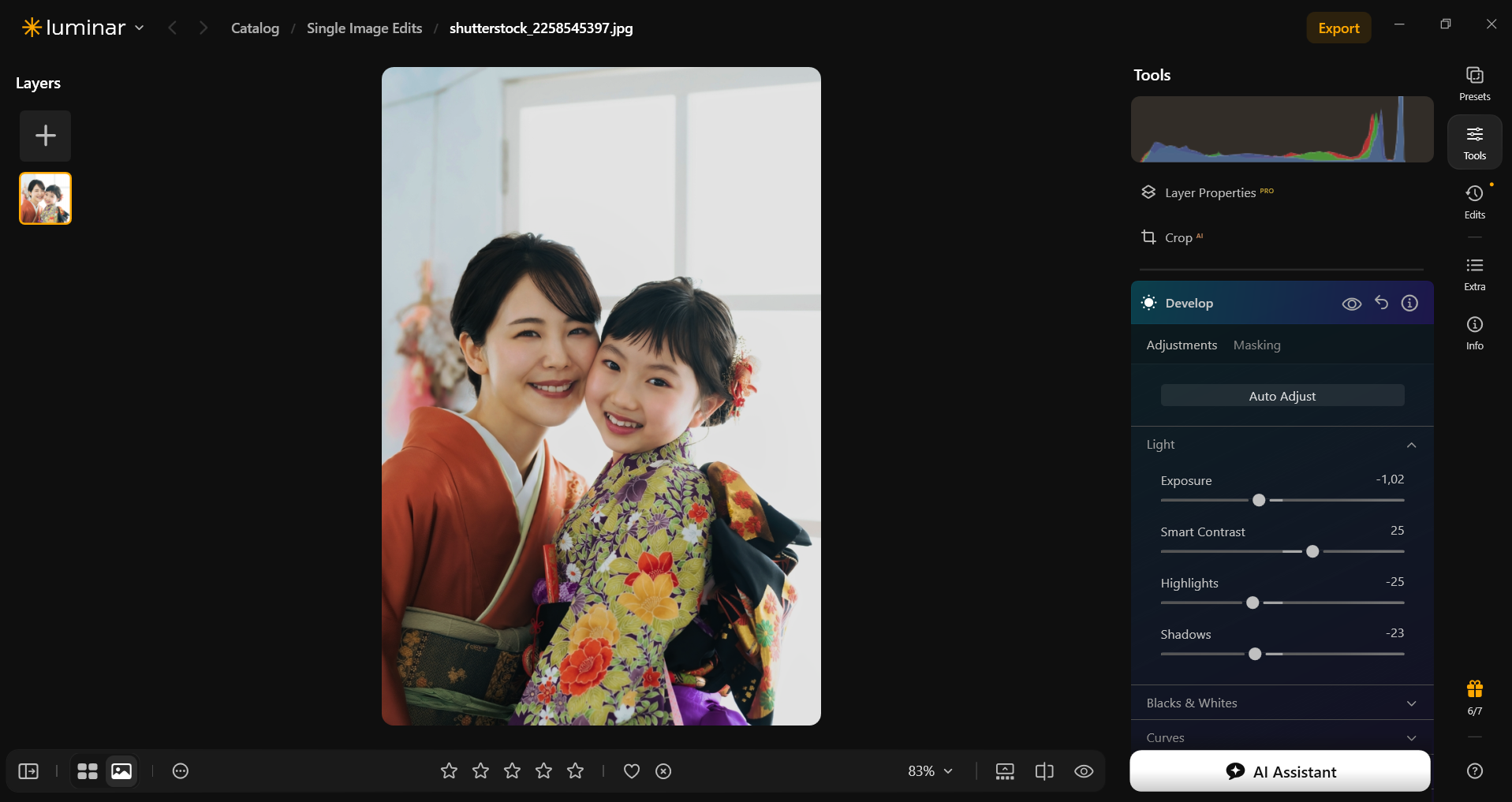
- Review the photograph. Keep skin tones believable and make sure adjustments have not obscured important details.
- Add the photo and text to a layout. Use a design application for fonts, text boxes, collage spacing, and the card’s front and back or inside pages.
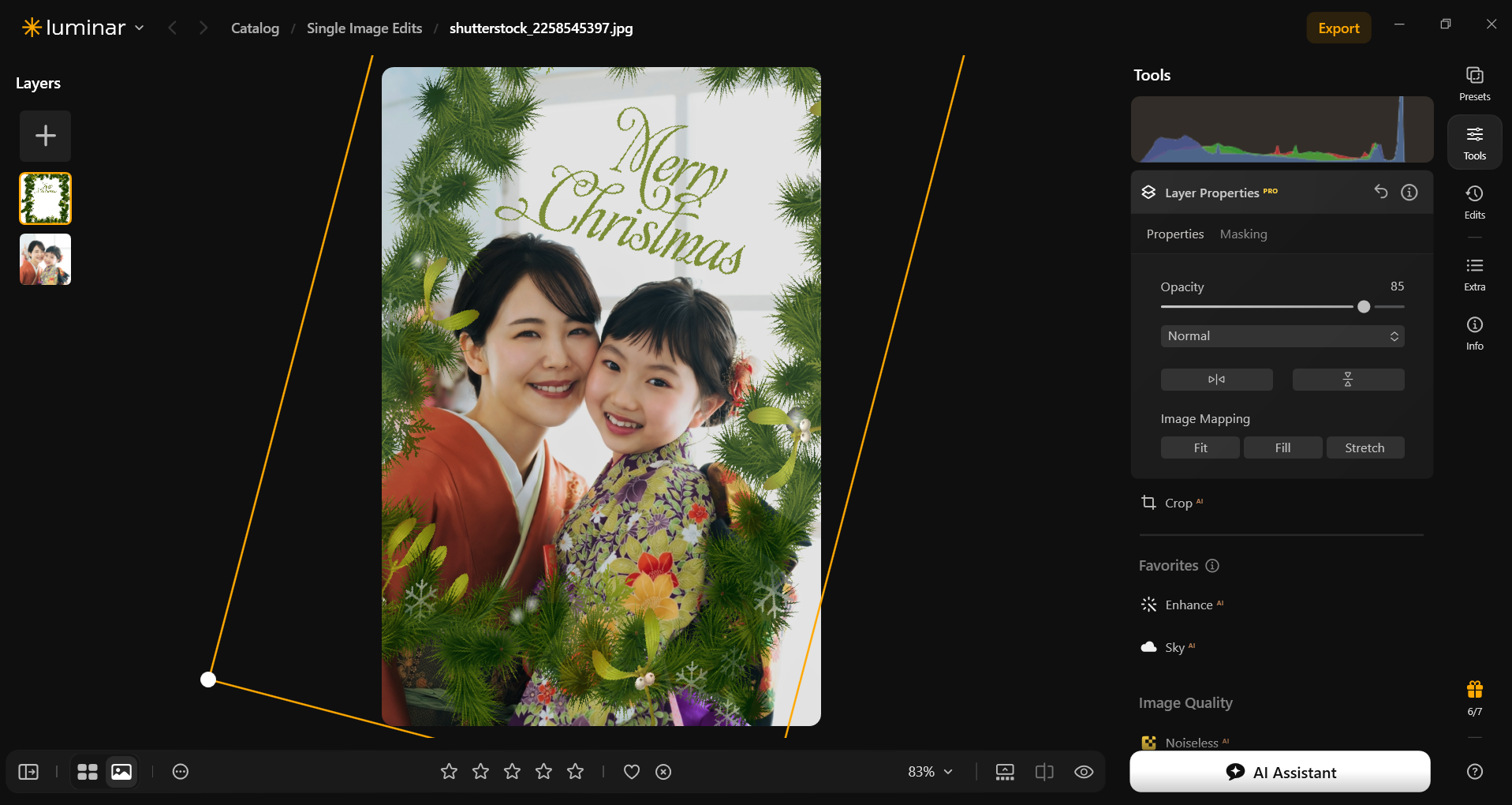
- Export and proof. Follow the printer’s file requirements for physical cards, or check a digital file on a phone before sharing.


Luminar is useful for preparing the image assets. Animation, video assembly, and card typography belong in tools suited to those tasks.
The Photo Perspective Correction Tool You've Been Waiting For
Printing Christmas Postcards and Photo Cards
Use the print provider’s template and specifications before finalizing the artwork. Card dimensions, bleed, safe areas, color requirements, and accepted formats can differ between services.
| Print consideration | What to check |
| Finished size | The dimensions after trimming; confirm the template uses the correct units |
| Image resolution | A common target for small photo prints is 300 pixels per inch at the final size |
| Bleed | Extend backgrounds beyond the trim line by the amount requested by the printer |
| Safe area | Keep text, faces, and essential details inside the provider’s safe boundaries |
| Color and file format | Use the profile and export format the provider requests |
| Proof | Check crop, text, color, paper, and the reverse side on a sample print |
For example, a 4 × 6-inch image at 300 ppi requires 1,200 × 1,800 pixels before bleed. The final artwork may need to be larger to include the printer’s requested bleed.
You can resize photos in Luminar during export to prepare an image for the layout. Changing the ppi label alone does not create additional detail in a small source file.
For home printing, confirm that the printer supports your chosen paper weight and dimensions. Raised decorations are best added after printing. For a mailed postcard, leave the required address and postage areas unobstructed.
Conclusion
Choose the format that fits the recipient and delivery method, then build around one meaningful image or handmade detail. Add a short personal message, keep the design readable, and check the finished card before making the full set.
For a photo-based greeting, Luminar can help prepare a consistent image. The final layout and proof are what ensure the photograph, message, and format work together.
Frequently Asked Questions
A postcard is a flat card, while a folded greeting card has an inside for the message. Postcards need suitable mailing areas; folded cards are usually sent in envelopes. Choose the format before deciding on raised decorations or a multi-page layout.
Use a greeting, one personal detail, and a closing. Mention a shared memory, thank the recipient, or send a wish appropriate to the relationship. A short, specific note is often easier to fit than a long generic message.
Yes, if the image is sharp and has enough pixels for the intended size. Use the original file rather than a screenshot or heavily compressed copy, and inspect the crop before printing.
Use the print provider’s requirement; 300 ppi at the final size is a common target for small prints. A 4 × 6-inch image needs 1,200 × 1,800 pixels at that resolution, with additional artwork area when bleed is required.
Use Luminar to prepare and edit the photographs, then finish the card in an appropriate design or animation application. That workflow gives you tools suited to typography, layout, and motion without treating a photo editor as a complete card-production system.