A clean cutout starts with the right selection tool. In this guide, I explain how to remove a background in Photoshop, fix difficult edges, and save an image with real transparency.
For a quick result, select an unlocked image layer and click Remove Background in the Properties panel or Contextual Task Bar. Photoshop creates a layer mask that hides the background. Check the outline before exporting: automatic removal can miss hair, gaps between objects, or areas with similar colors.
I recommend starting with this automatic option and switching to a manual technique only where the result needs correction.
Don’t feel like reading the whole breakdown? We’ve pulled together a quick summary below.
Key Takeaways
- Start with Remove Background. It creates an automatic cutout that you can refine through a layer mask.
- Choose a tool that suits the edges. Magic Wand works well with uniform backgrounds; the Pen Tool suits hard outlines; Select and Mask helps refine hair.
- Use a mask to keep edits reversible. White reveals the subject, black hides the background, and gray preserves partial visibility.
- Hide the original layer underneath. Otherwise, its background will remain visible even when your working layer is masked.
- Save a PSD and export a transparent PNG. PSD keeps your editable layers; JPEG cannot preserve transparency.
Photoshop: What You Get for Background Removal

Photoshop combines automatic subject detection with manual selections, editable masks, paths, and detailed edge refinement. I recommend it when you need control over individual parts of a cutout—for example, the outline of a product, strands of hair, and a shadow that should remain visible.
Its strength is flexibility. You can use an automatic mask for most of the subject, then correct a small area with a brush or a more precise selection. The trade-off is a more involved workflow: you need to understand which layer, selection, or mask you are editing.
| Pros | Cons |
| Automatic removal provides a quick starting point. | Difficult edges still need manual inspection. |
| Layer masks let you restore hidden details. | Working on the wrong thumbnail can alter the image instead of the mask. |
| Paths and channels offer additional selection control. | Advanced techniques take time to learn. |
| Layers and adjustments support detailed composites. | Photoshop requires a paid subscription. |
These instructions cover Photoshop on desktop. Panel placement and available shortcuts can vary by version.
Your AI-Powered Photo Editor for MacOS and Windows
Prepare Your Image
- Open your photograph through File > Open.
- Open Window > Layers if the Layers panel is hidden.
- Duplicate the image layer with Ctrl+J on Windows or Cmd+J on Mac.
- Hide the original layer by clicking its eye icon.
- Select your working copy and unlock it if necessary.

I keep the original underneath as a backup, with its visibility turned off. If it stays visible, it fills the transparent areas of the layer above.
On a layer mask, white shows pixels and black hides them. Painting black on the photograph itself changes the photograph; painting black on its mask hides that area without deleting the underlying pixels.
Which Background Removal Method Should You Use?
| Method | Best suited to | Main limitation |
| Remove Background | A quick first cutout | May miss small details or choose the wrong subject |
| Magic Wand | Solid or nearly uniform backgrounds | Can select similar colors inside the subject |
| Quick Selection | Subjects with distinguishable edges | Can spill into nearby background areas |
| Background Eraser | Background colors distinct from the subject | Deletes pixels on the working layer |
| Pen Tool | Products and other smooth, firm outlines | Unsuitable for tracing individual hairs |
| Channels | Fine details with strong tonal separation | Requires careful preparation of a grayscale mask |
Method 1: Remove Background Automatically
This is where I would start for a portrait or product image with a reasonably clear subject.
- Select your unlocked working image layer.
- Open Window > Properties.
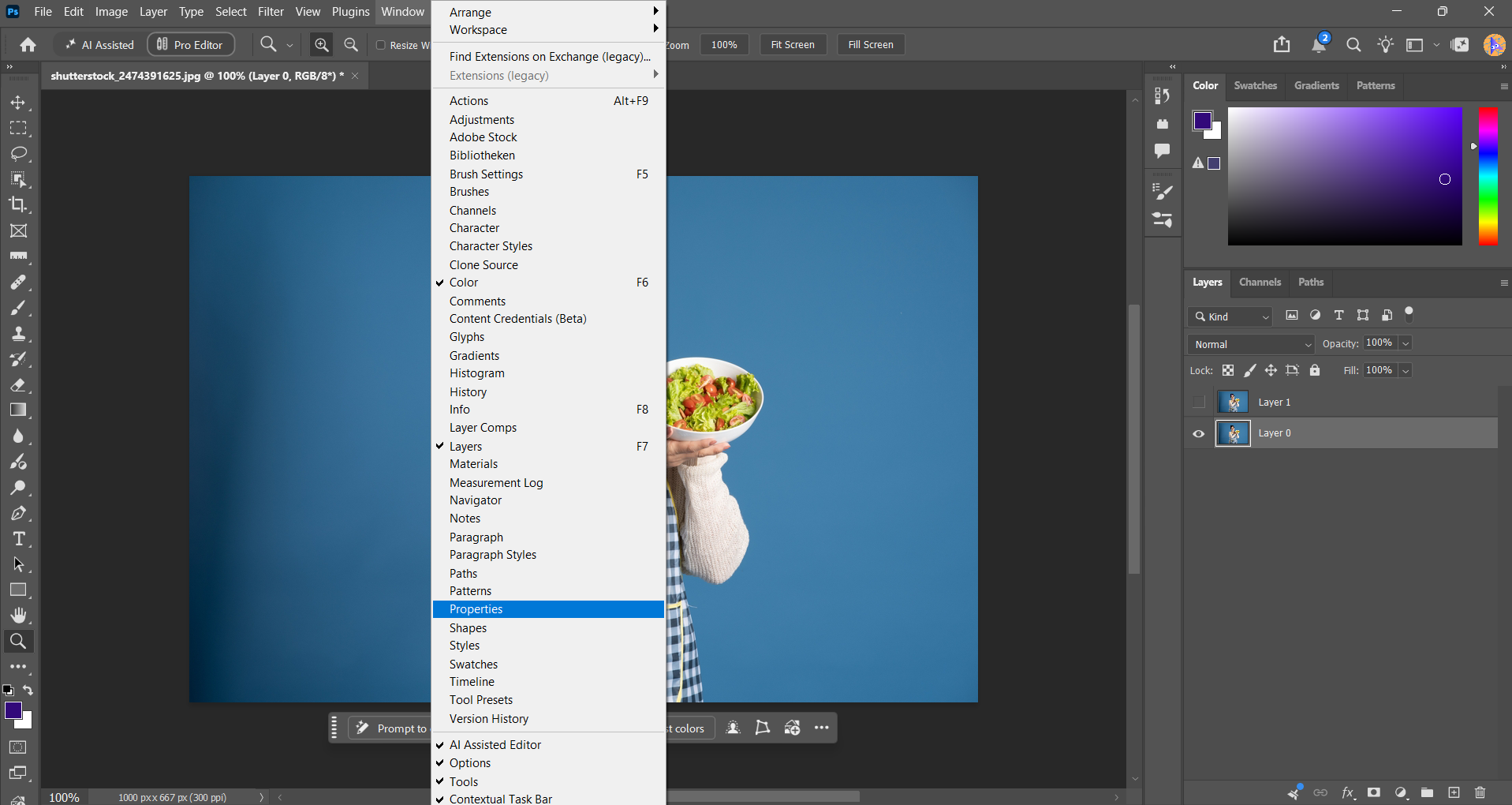
- Under Quick Actions, click Remove Background. The command may also appear in the Contextual Task Bar.
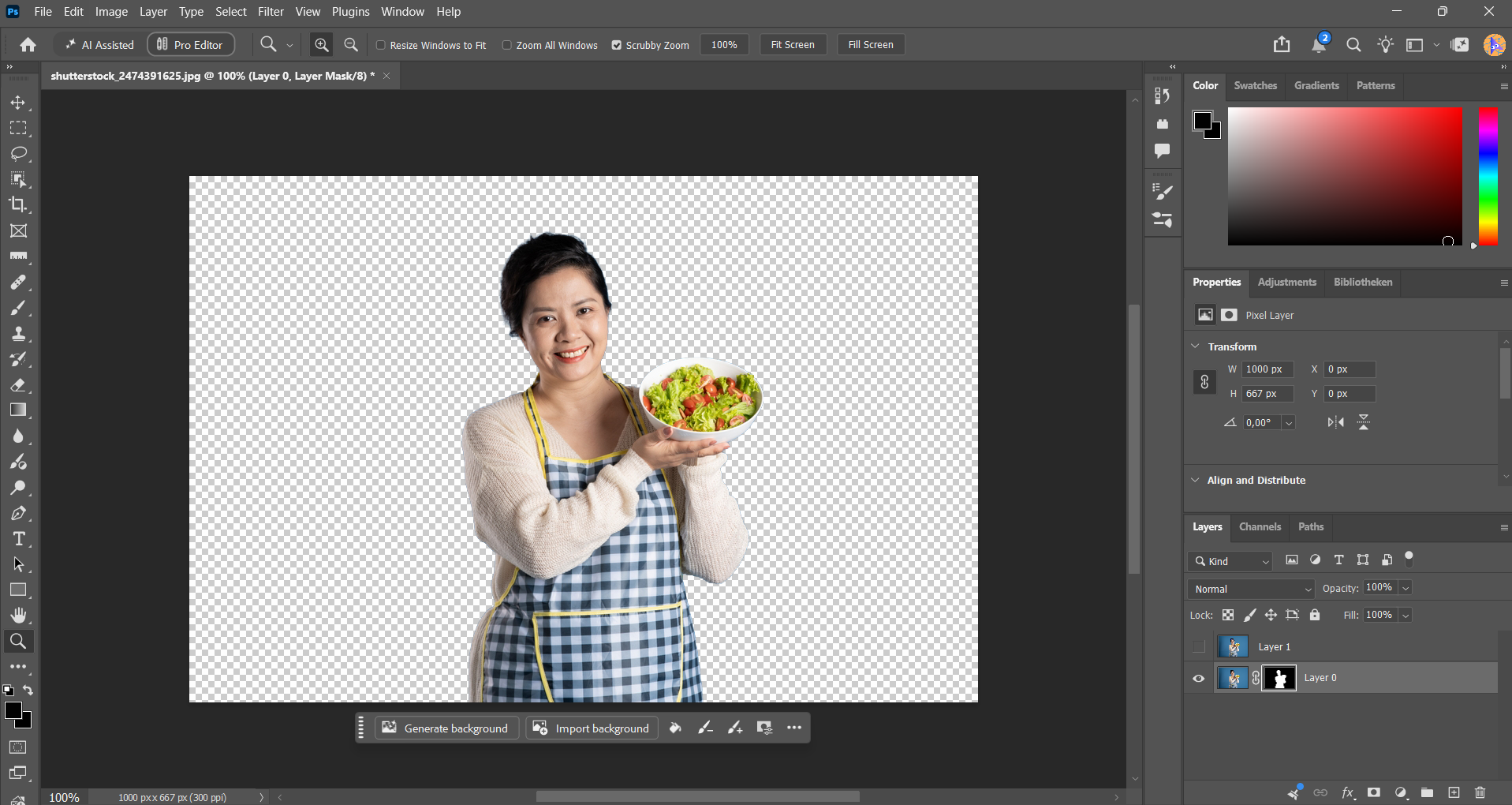
- Inspect the layer mask that Photoshop creates.
- Click the mask thumbnail, then use the Brush Tool to correct mistakes: paint black to hide unwanted areas and white to restore missing parts.


If the command is not visible, open Help > Photoshop Help to access the Discover panel, then go to Browse > Quick Actions > Remove Background.
Look closely at spaces between fingers, handles, or branches. A cutout can have a convincing outer outline while retaining background inside those gaps.
Method 2: Magic Wand for Uniform Backgrounds
Magic Wand selects pixels according to their color similarity. I recommend it for a plain backdrop when the subject does not contain large areas of the same color.
- Choose Magic Wand from the selection-tool group.
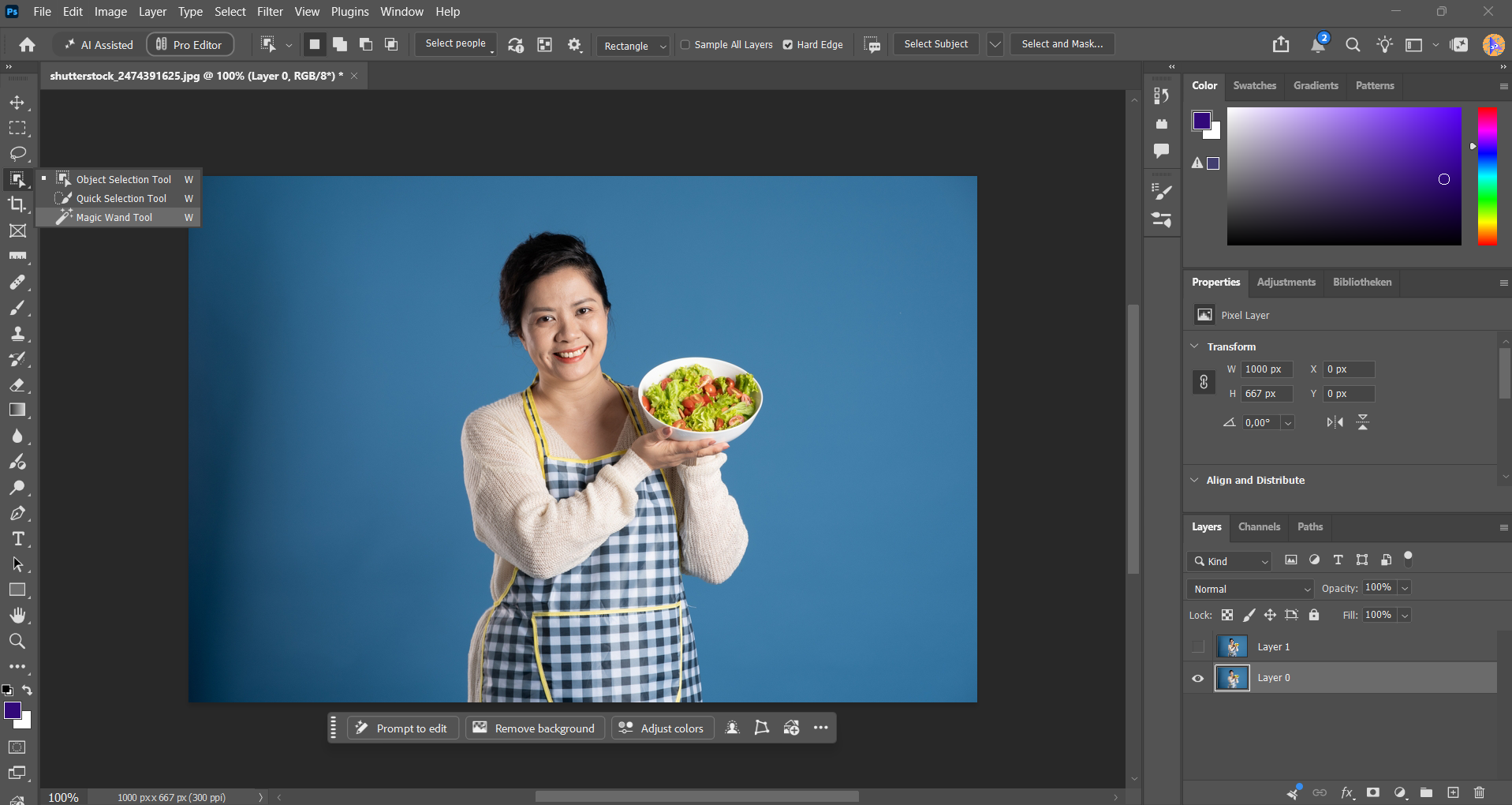
- Click the background.
- Adjust Tolerance to control how broad a color range is selected. Click again after changing the value to make a new selection.
- Hold Shift and click to add missed background areas.
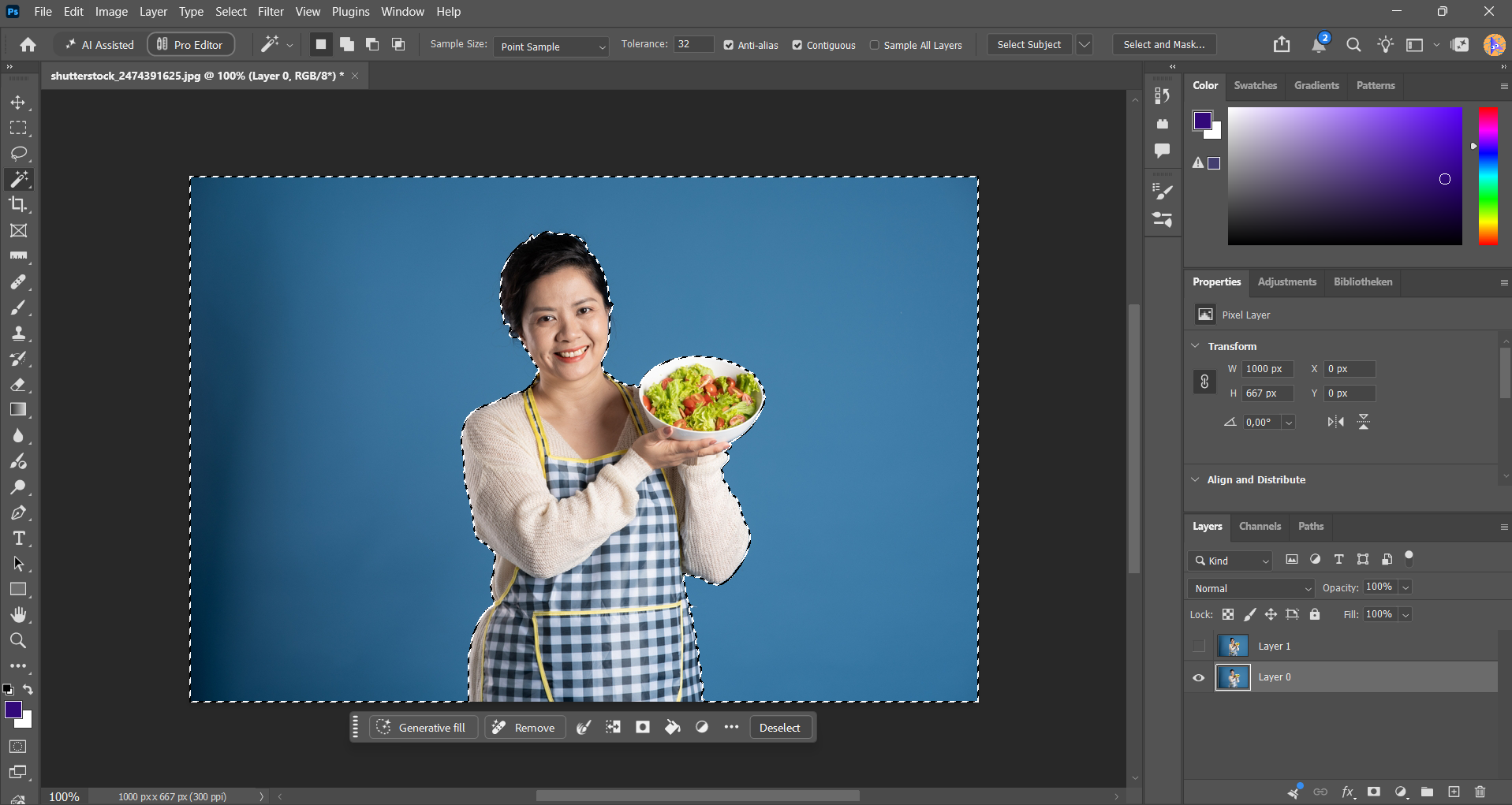
- Keep Contiguous enabled to select connected areas; disable it if you want matching colors selected across disconnected areas.
- Choose Select > Inverse so the subject becomes selected.
- Click Add Layer Mask in the Layers panel.
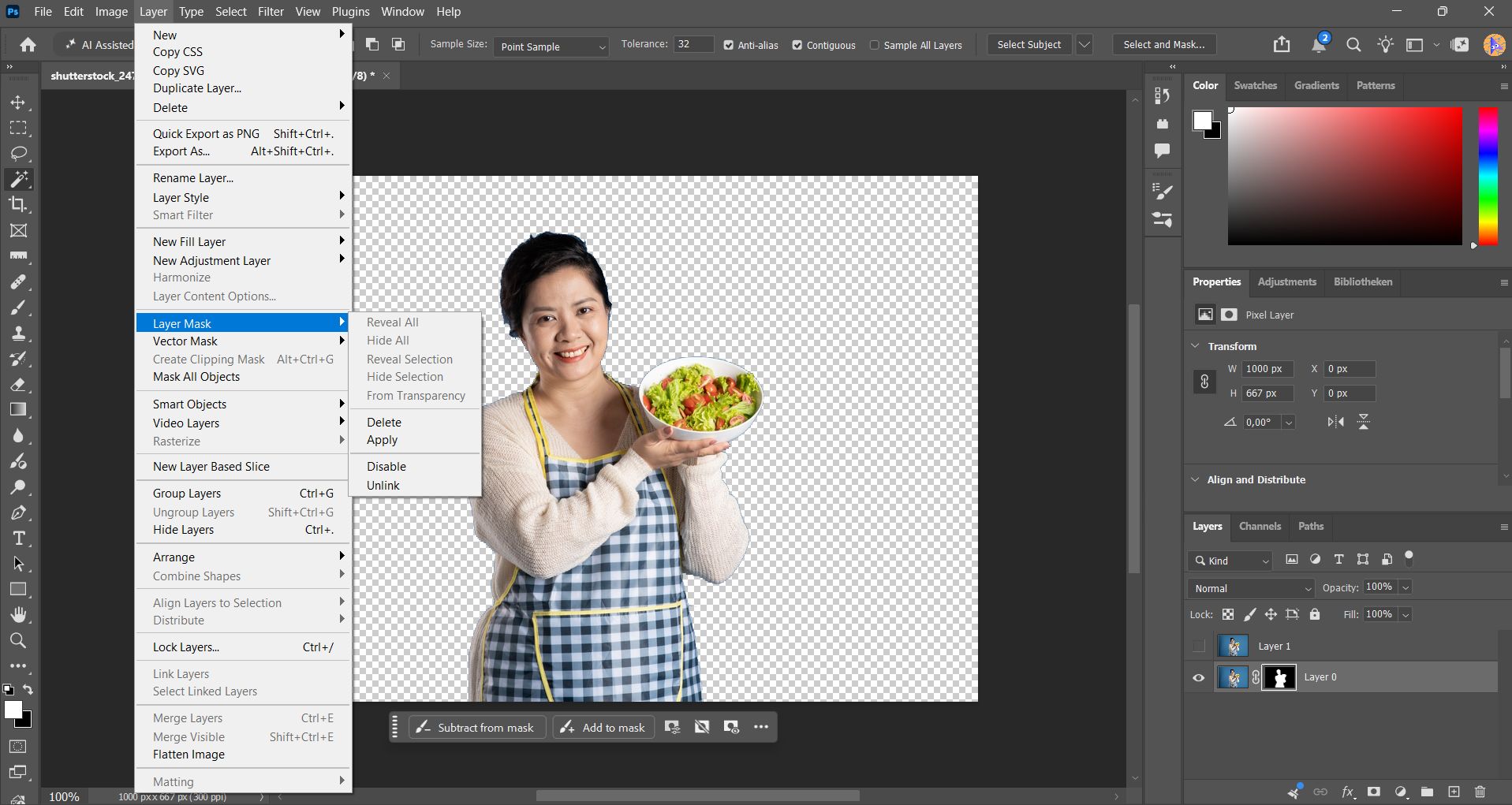


Inverting matters here: a standard mask created from a selection reveals the selected area. If the background is selected, you must invert the selection before masking to keep the subject visible.
A colored backdrop reflected along the subject’s edge may need additional cleanup. Raising tolerance excessively can remove those subject pixels too.
Method 3: Quick Selection for Clear Subject Edges
Quick Selection lets you build a selection by brushing across an area. I prefer selecting the subject directly because it makes the next masking step easier to follow.
- Choose Quick Selection from the toolbar.
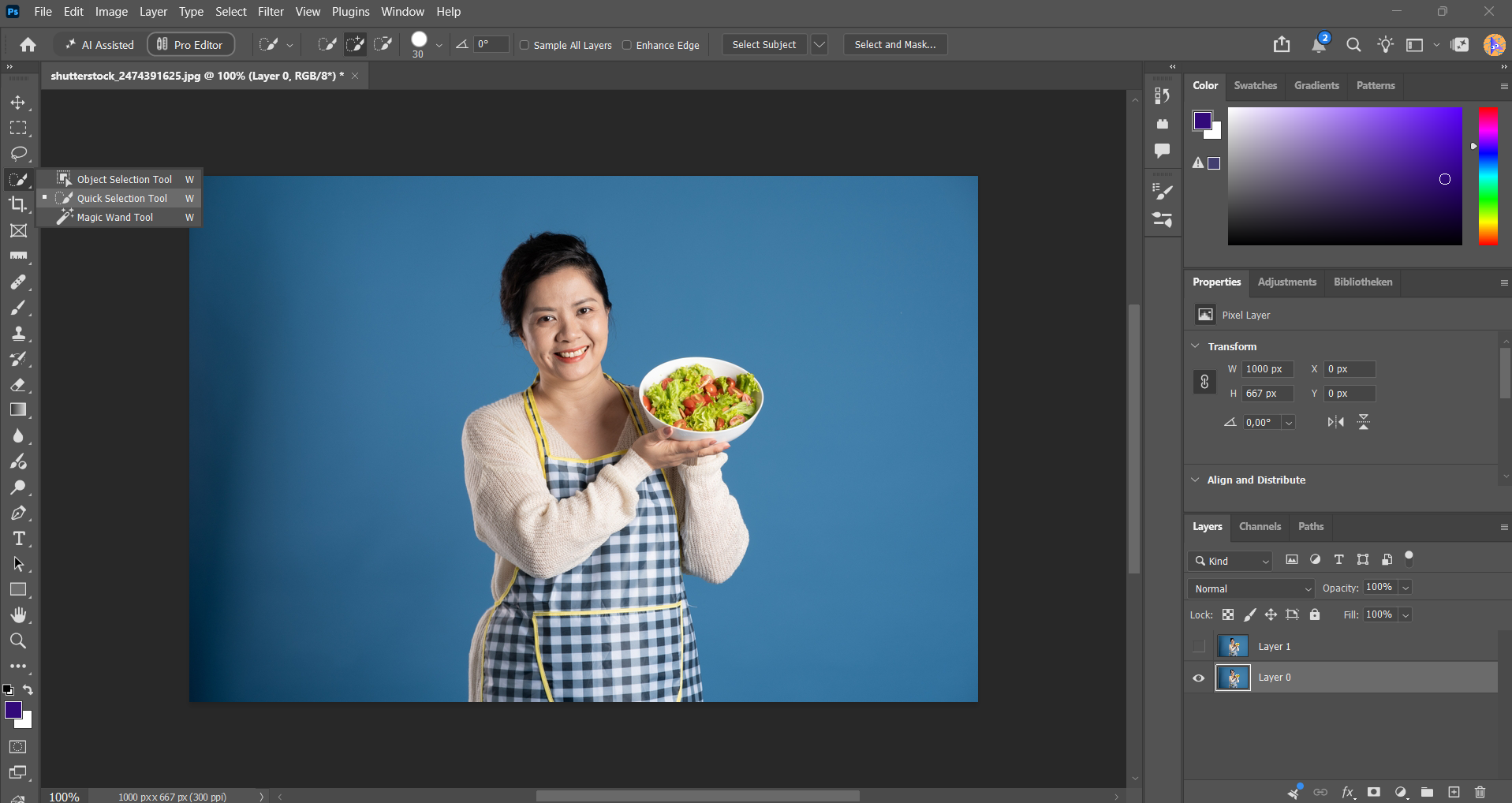
- Brush inside the subject, working from broad areas toward smaller details.Choose Quick Selection from the toolbar.
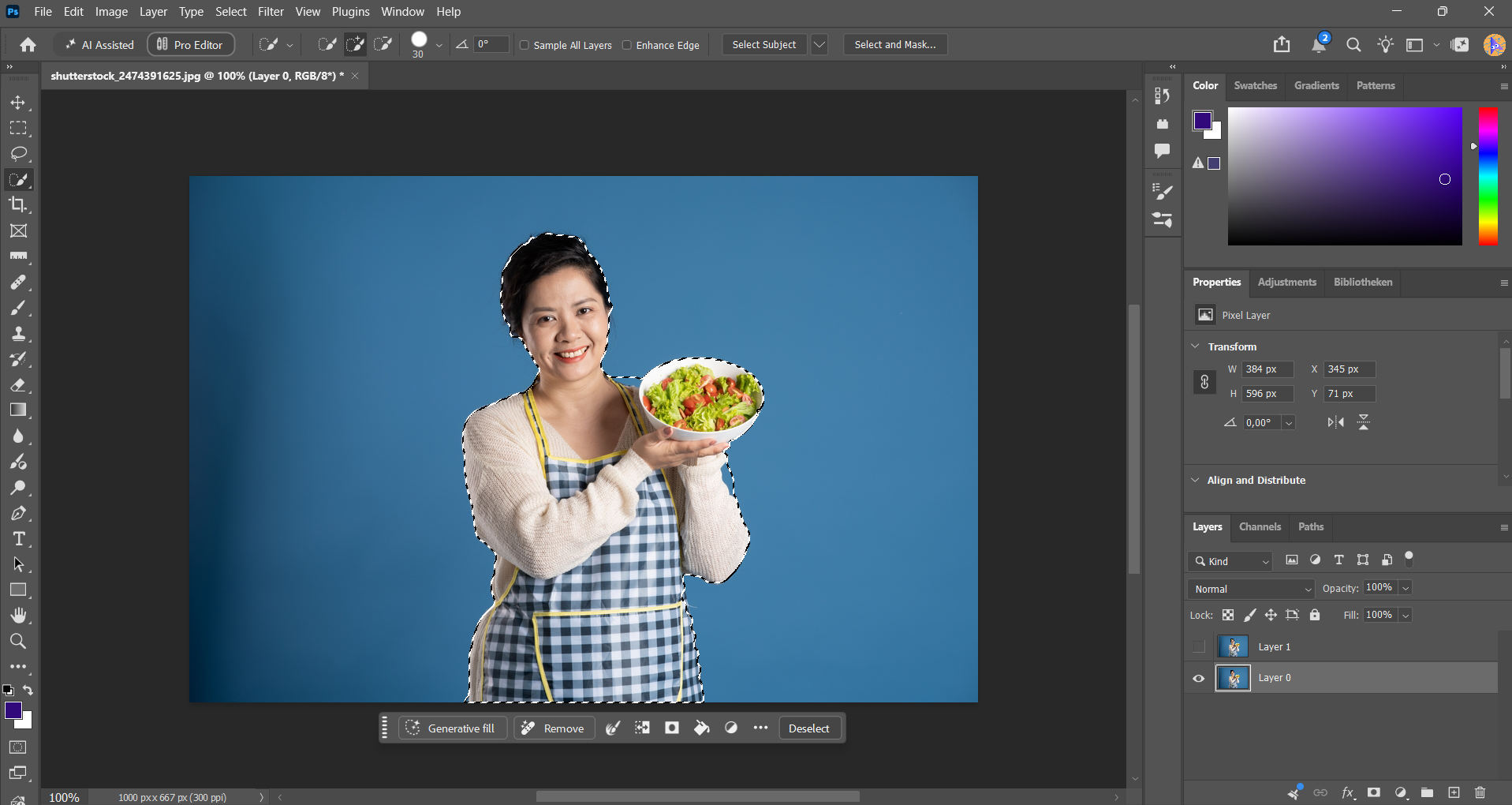
- Reduce the brush size around narrow edges.
- Hold Alt on Windows or Option on Mac and brush over unwanted selected areas to subtract them.
- Choose Select > Select and Mask.
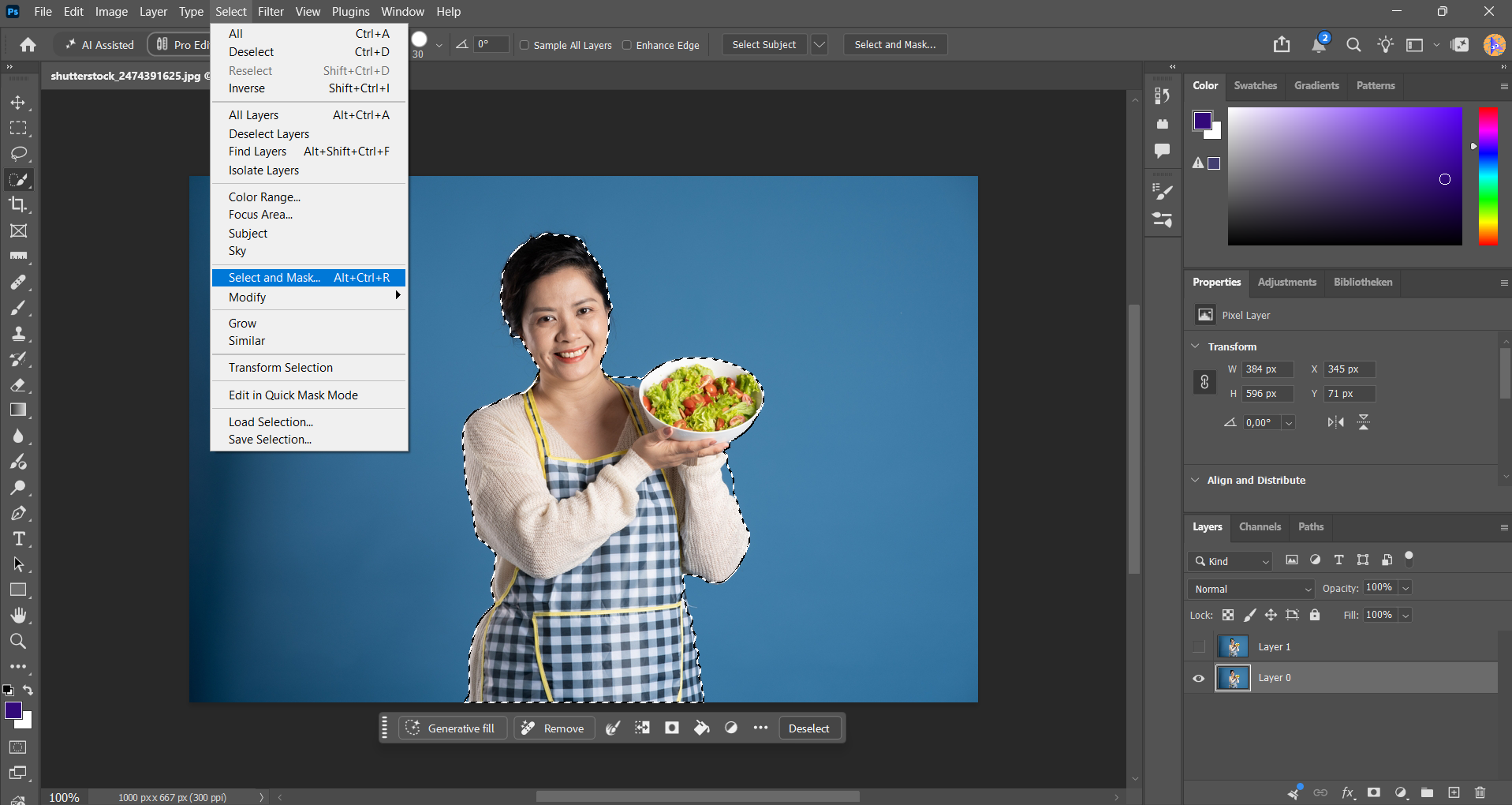
- Refine the boundary, then set Output To > Layer Mask.
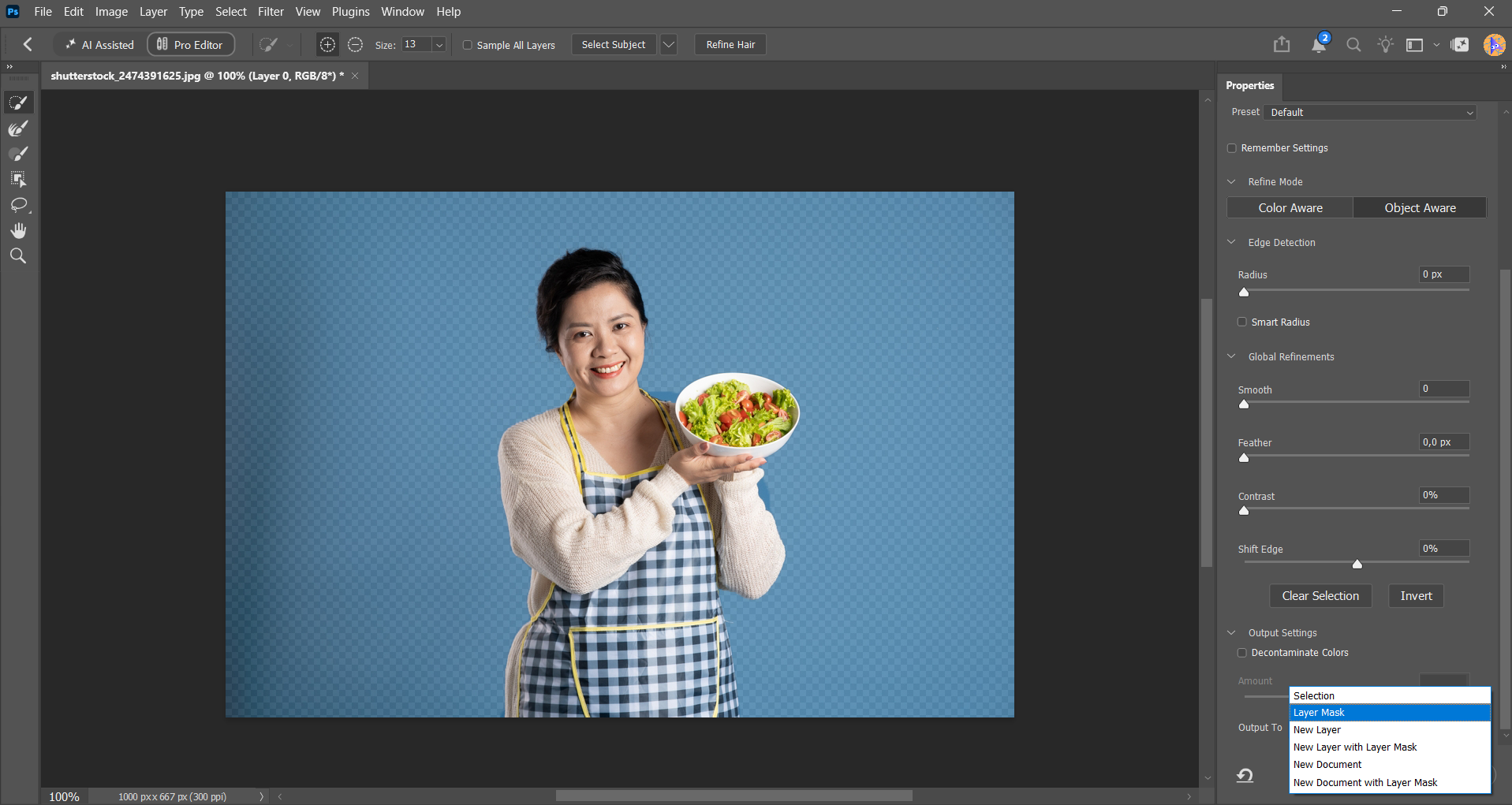


Use short strokes near difficult edges. A large brush dragged across both subject and background can make the selection harder to correct.
Quick Selection and Remove Background are separate tools: the first follows your brush strokes, while the second automatically creates a masked cutout.
Method 4: Background Eraser for Distinct Background Colors
Background Eraser samples a color under its crosshair and erases matching pixels within the brush according to its settings. It does not simply detect and remove everything behind a subject.
I would use this selectively, on a duplicate layer, when the background color is clearly different from the details I want to preserve.
- Choose Background Eraser from the Eraser tool group.
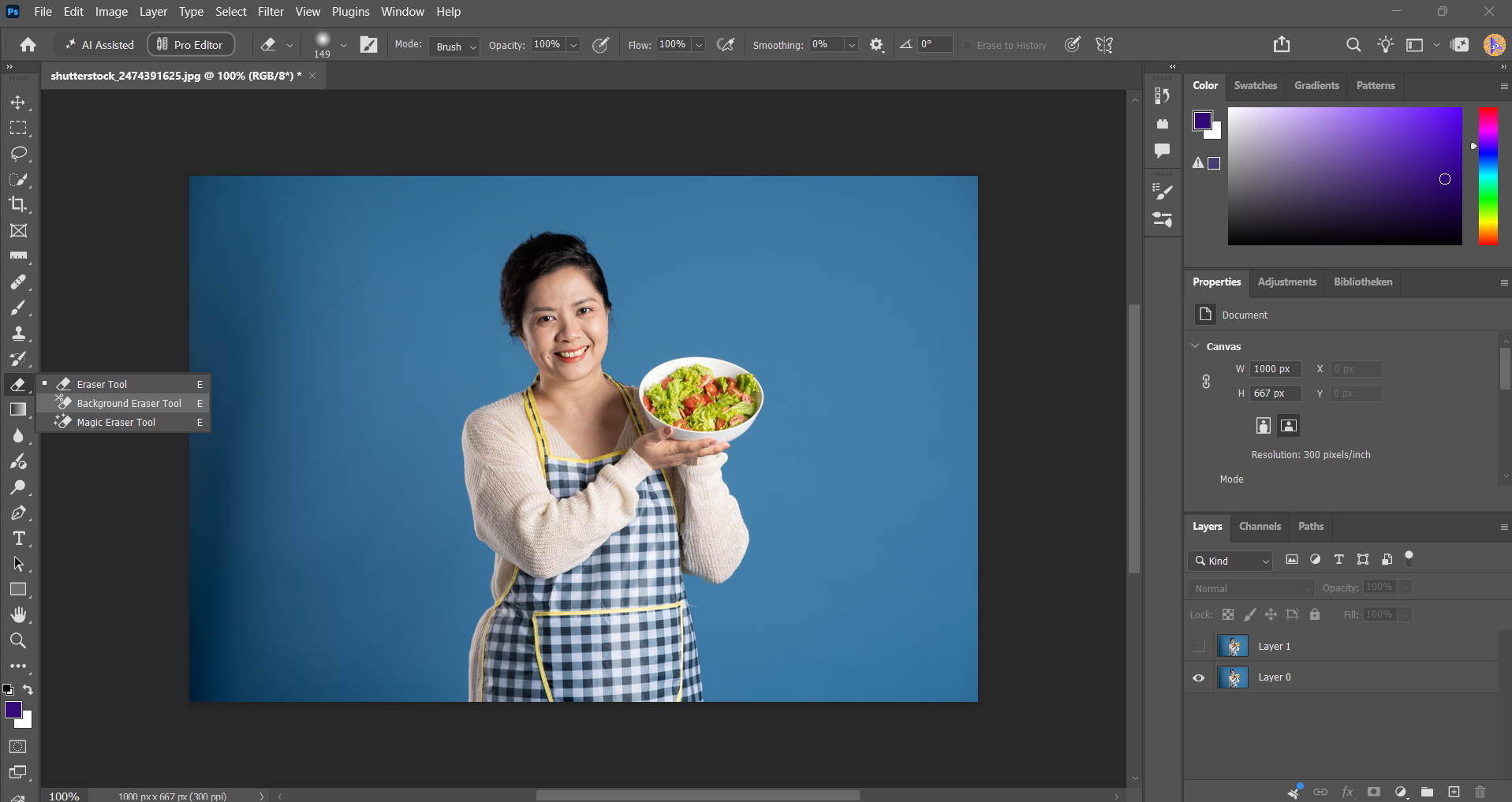
- Adjust the brush size to suit the area.
- Choose a sampling mode. Once uses the initial sampled color; Continuous updates the sample as you move.
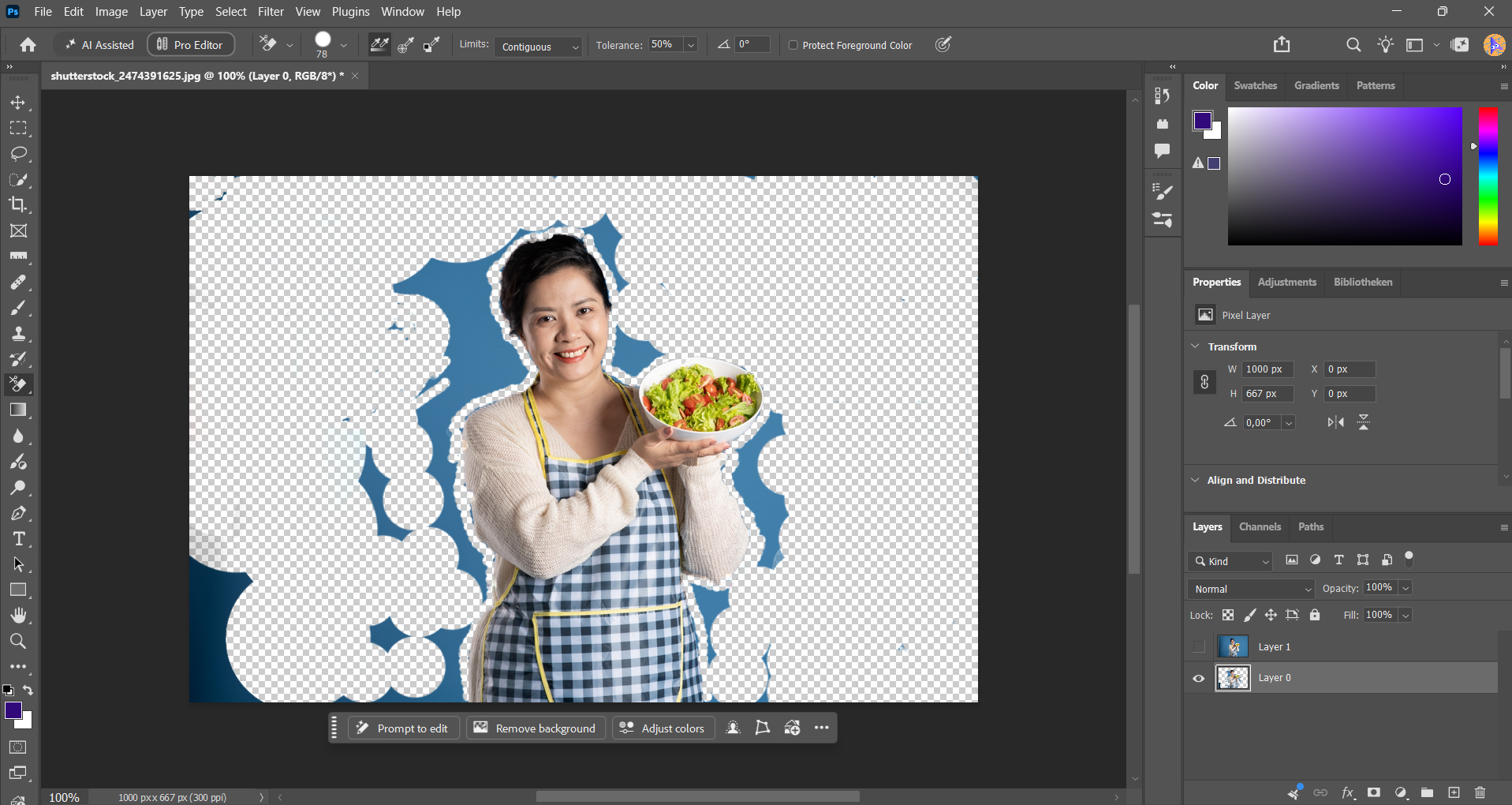
- Start with a conservative Tolerance and increase it only if background pixels remain.
- Keep the crosshair over the background as you brush.
- Experiment with Limits to control whether erasing affects connected or disconnected matching areas.
- Undo immediately if important subject details disappear.
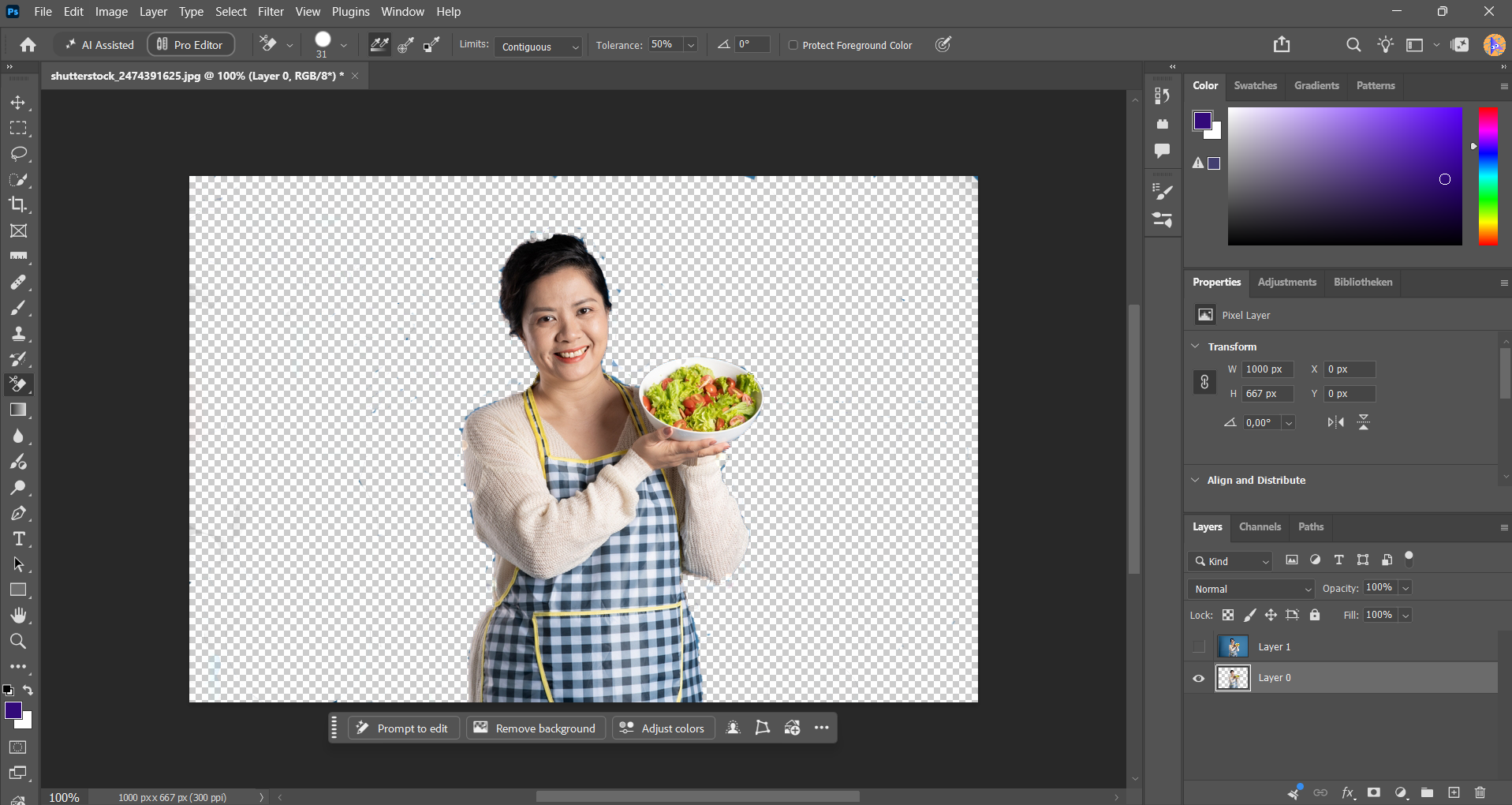


Protect Foreground Color can help preserve a chosen subject color, but it does not guarantee a clean result.
Unlike a layer mask, this tool removes pixels from the working layer. Keep your original copy available.
The Photo Perspective Correction Tool You've Been Waiting For
Method 5: Pen Tool for Products and Firm Outlines
The Pen Tool gives you control over a path rather than asking Photoshop to interpret a color boundary. I recommend it for bottles, furniture, packaging, and other objects with defined contours.
- Select the Pen Tool and set its mode to Path.
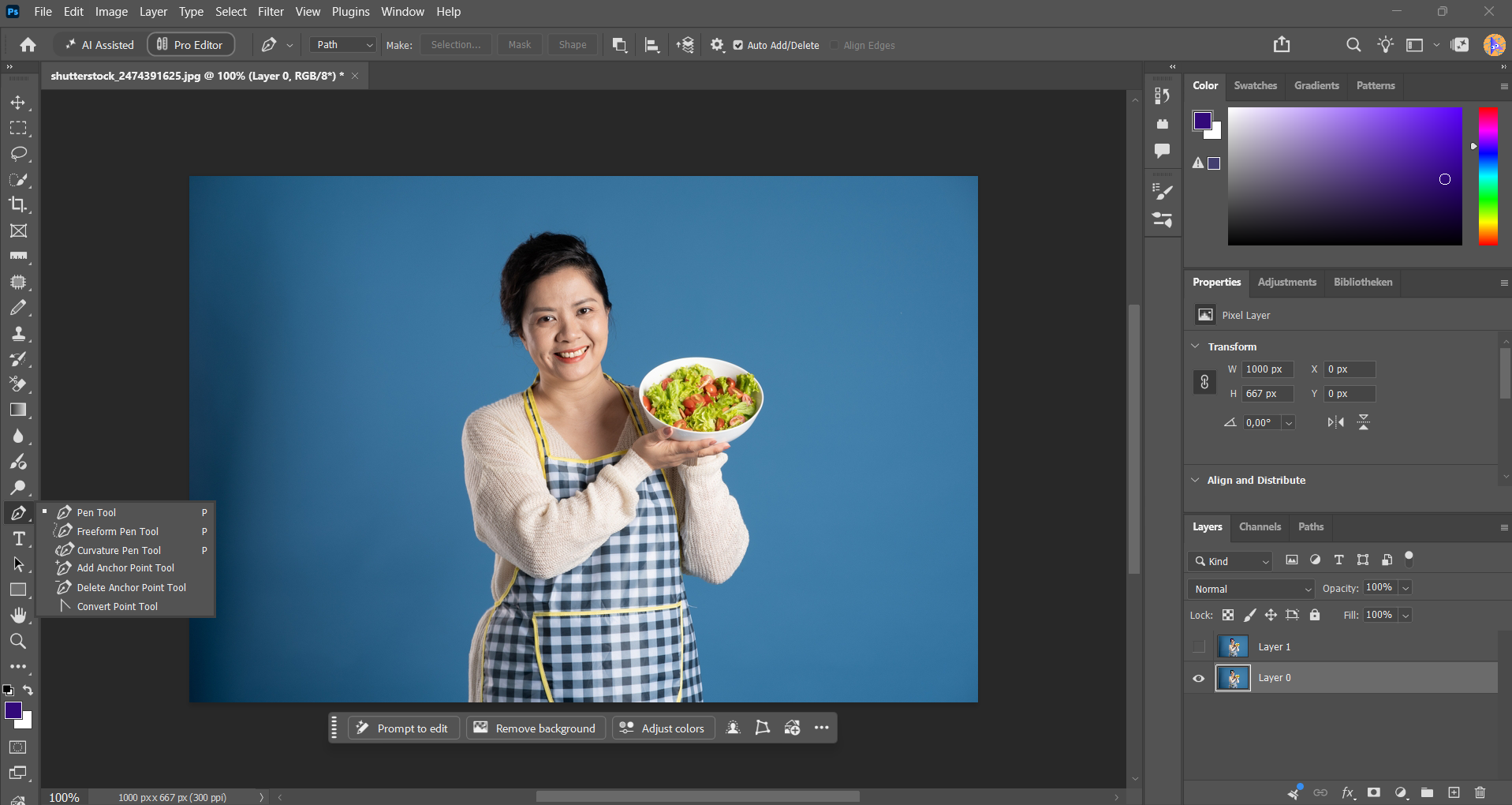
- Click to create points along straight edges.
- Click and drag to create curved segments.
- Continue around the subject and close the path.
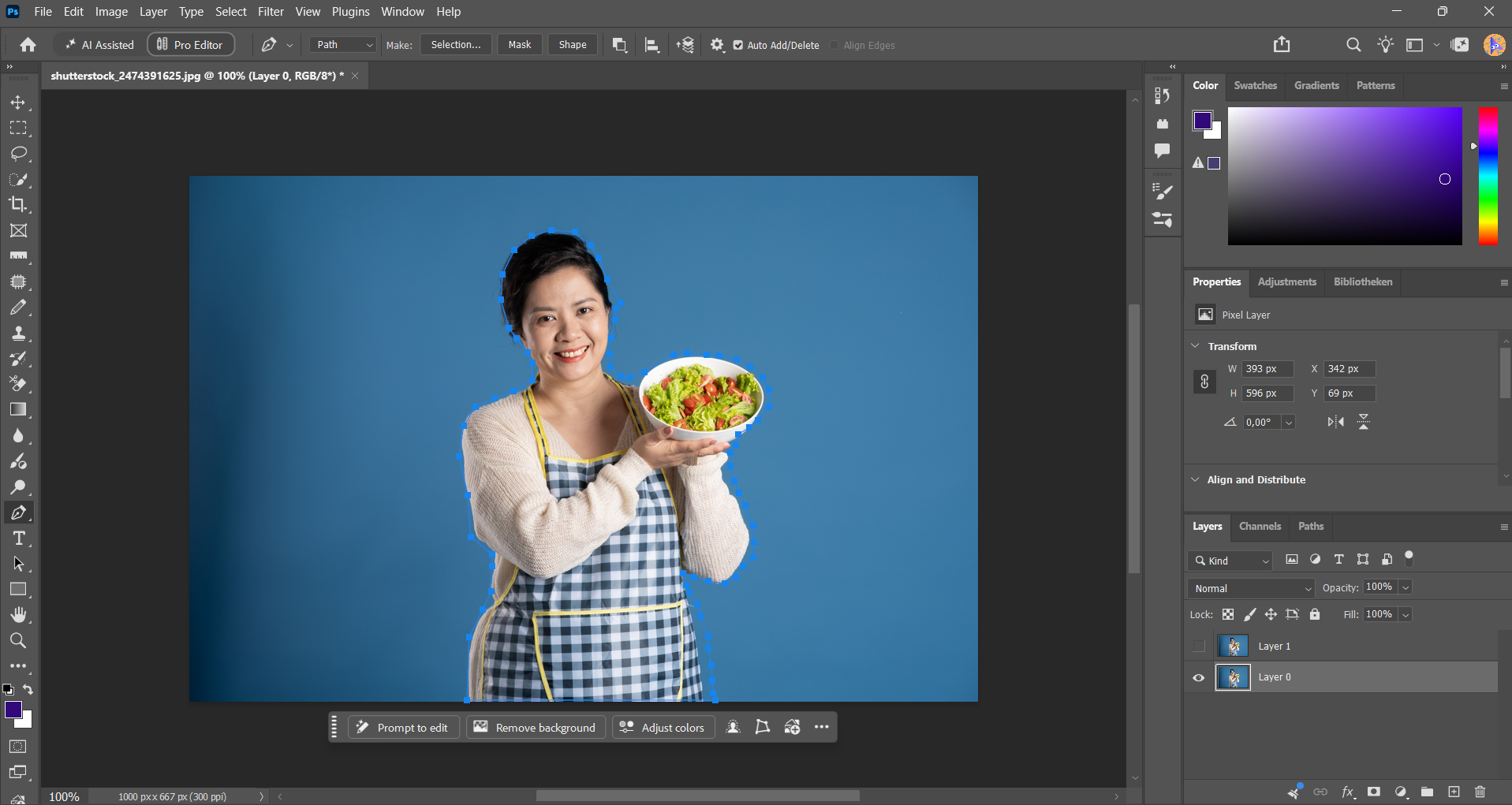
- Use Direct Selection to adjust individual points and handles.
- Right-click the path and choose Make Selection.
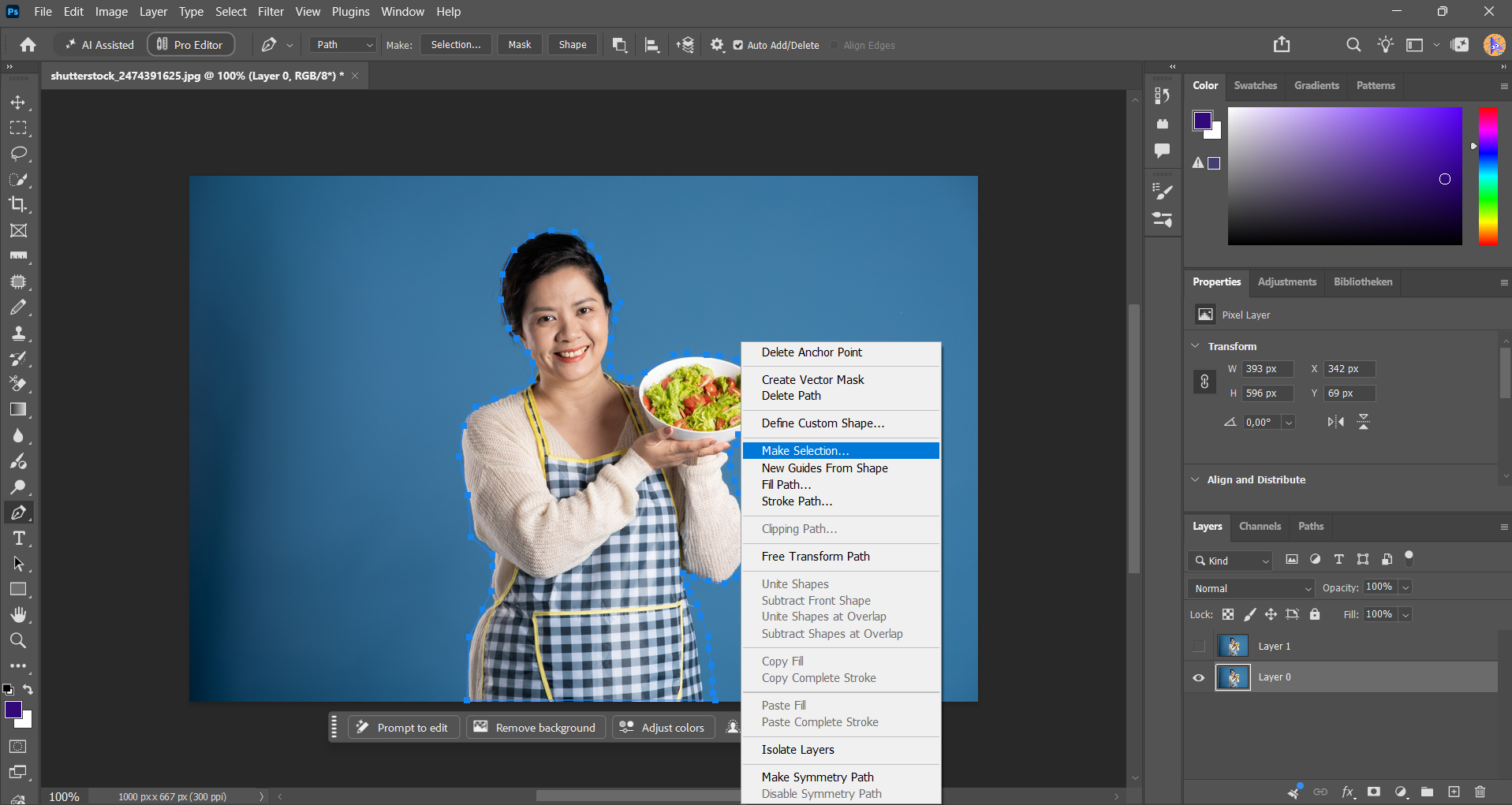
- Use a feather radius appropriate to the photograph. Start near zero for a sharp outline, then inspect whether a slight transition looks more natural.
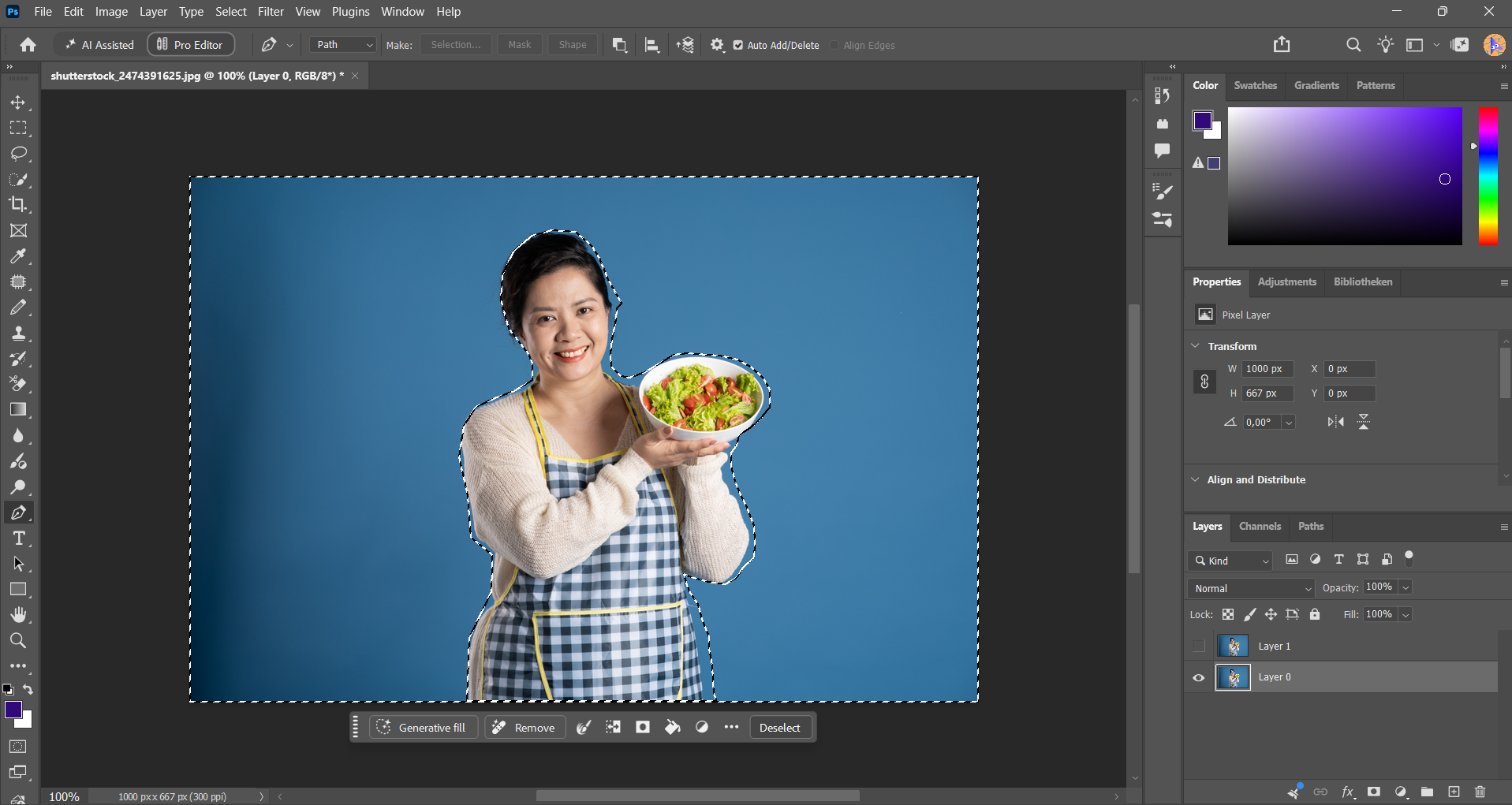
- Select the working image layer and click Add Layer Mask.


Use enough points to describe the shape without placing a point on every tiny irregularity. Fewer well-positioned points generally make curves easier to adjust.
The Pen Tool is not my first choice for hair or fur. A precisely drawn solid outline can still remove the fine detail that makes those edges look natural.
Method 6: Channels for Fine Detail With Strong Contrast
Channels can help separate hair, fur, or delicate structures when one color channel provides clear tonal contrast between the subject and background.
This technique depends on the photograph. There is no channel that always works best.
- Open Window > Channels.
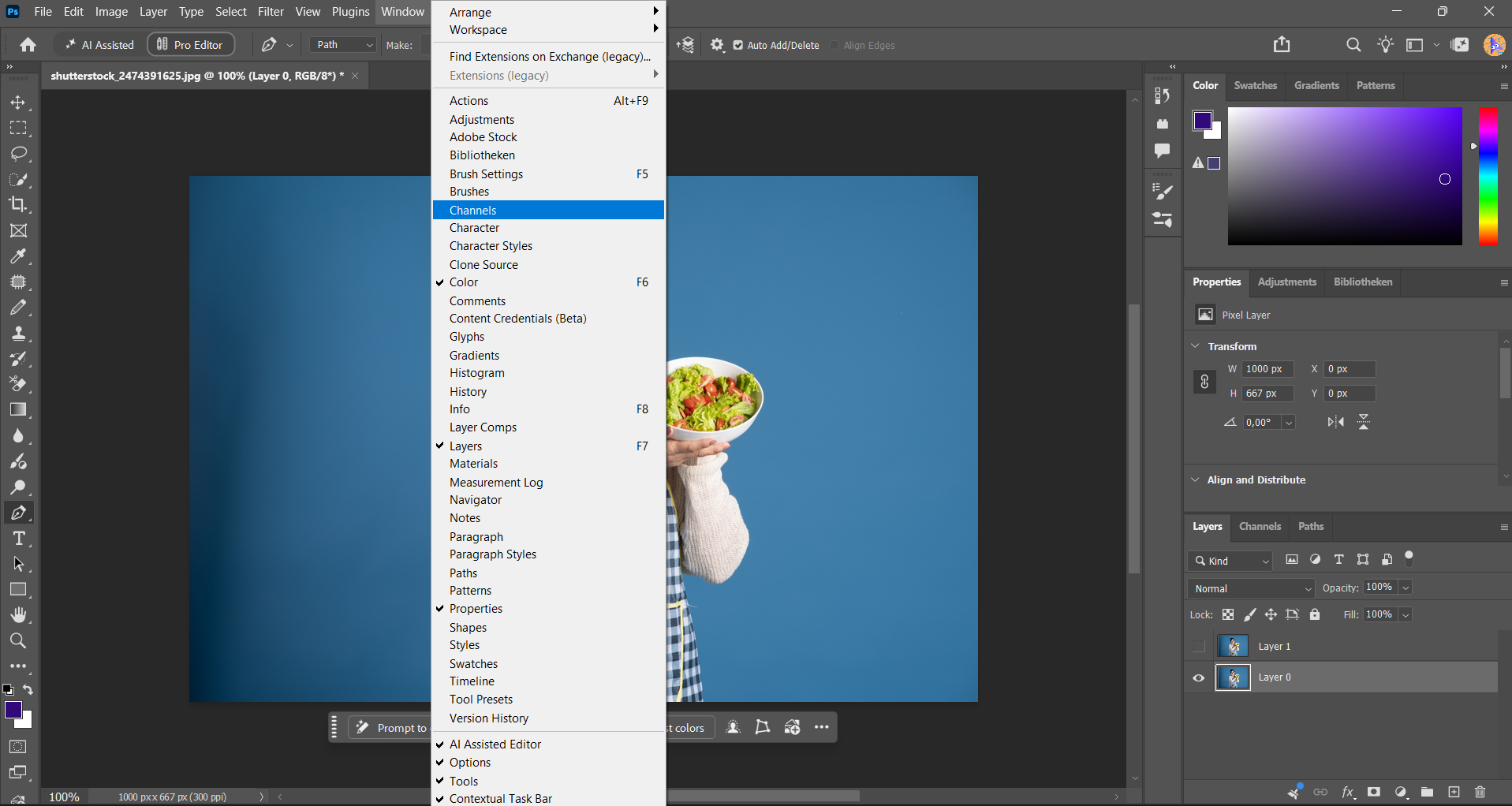
- Inspect the Red, Green, and Blue channels individually.
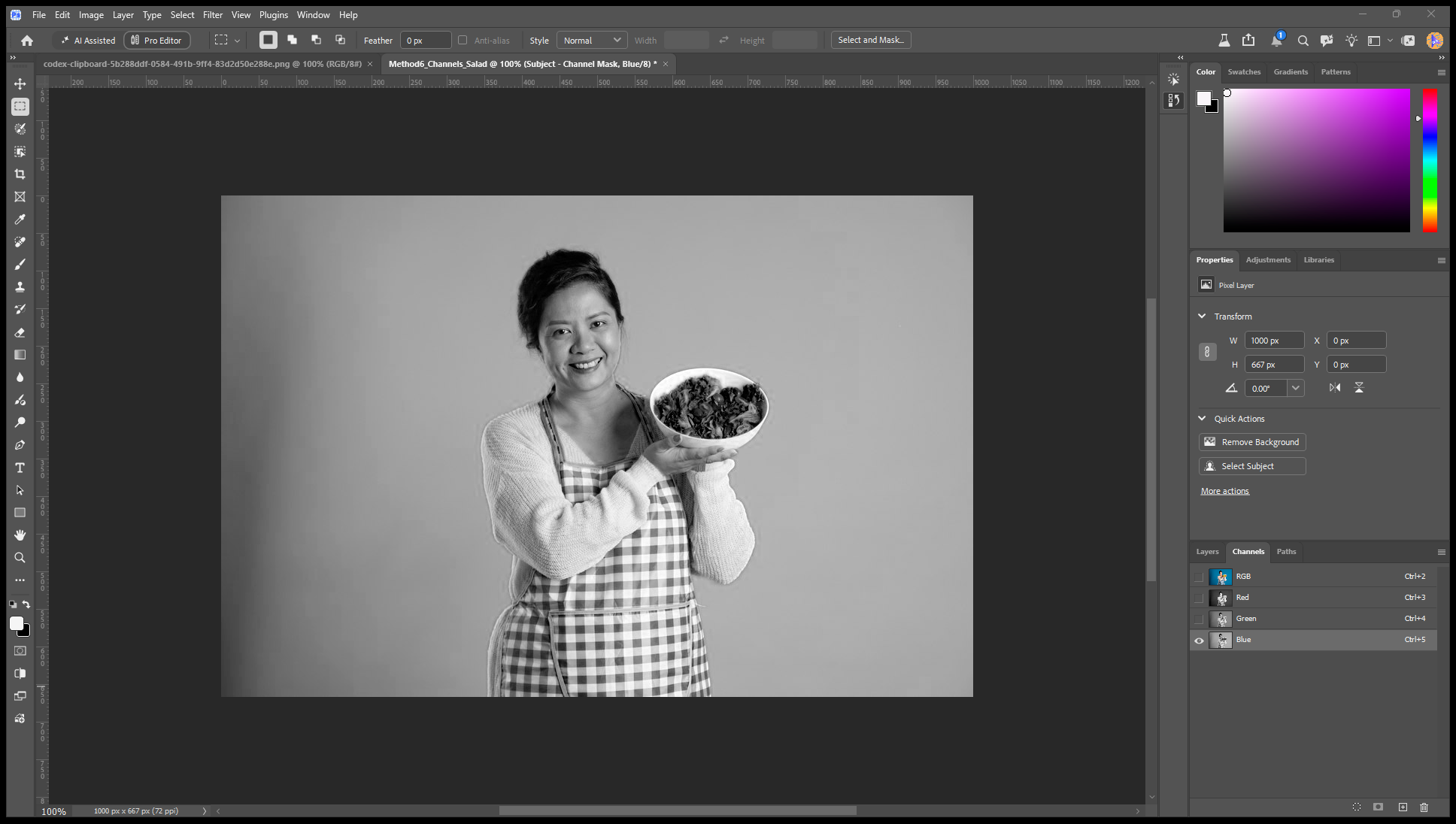
- Duplicate the channel with the strongest useful separation.
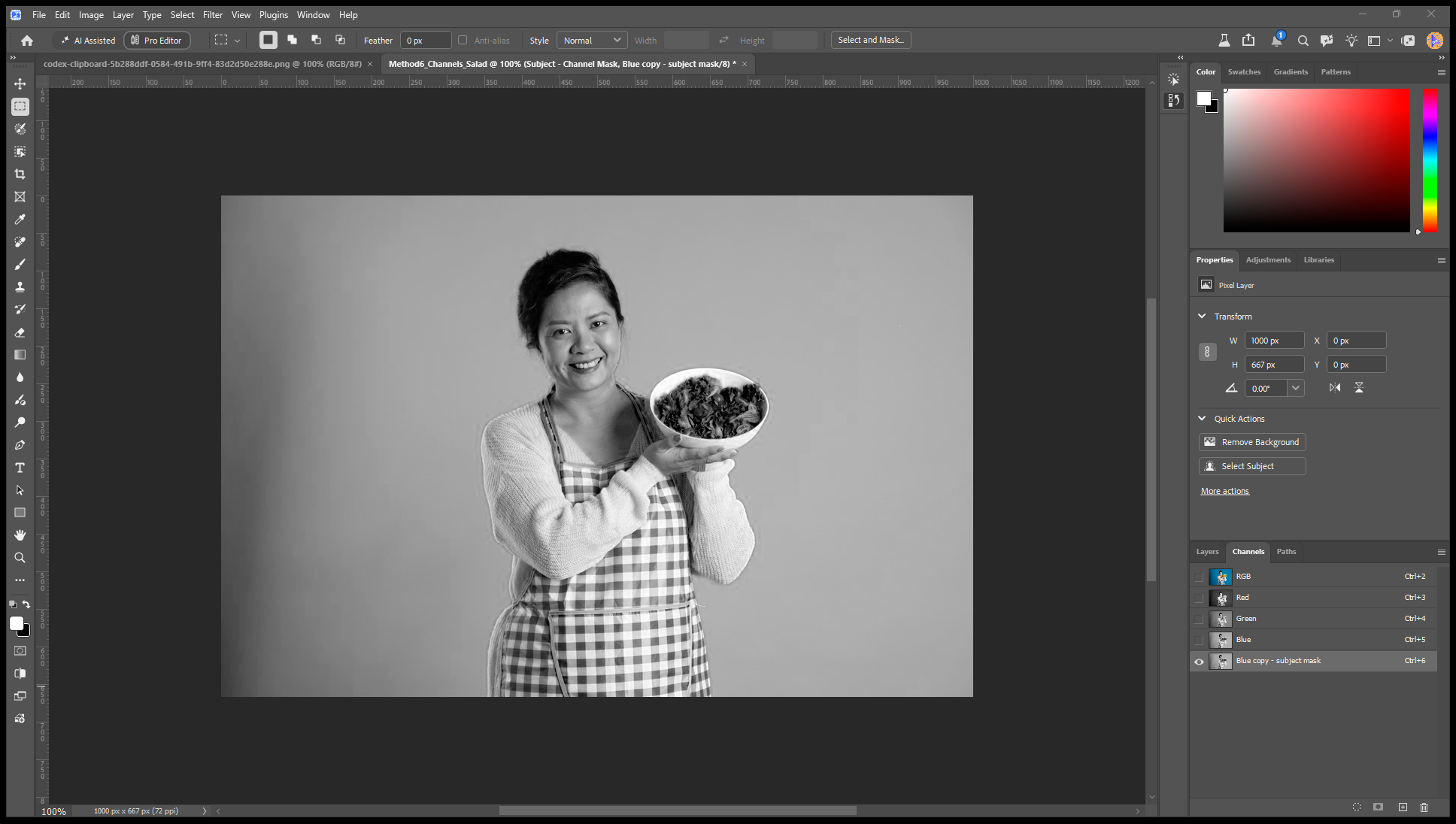
- Adjust Levels on that duplicate to strengthen the contrast.
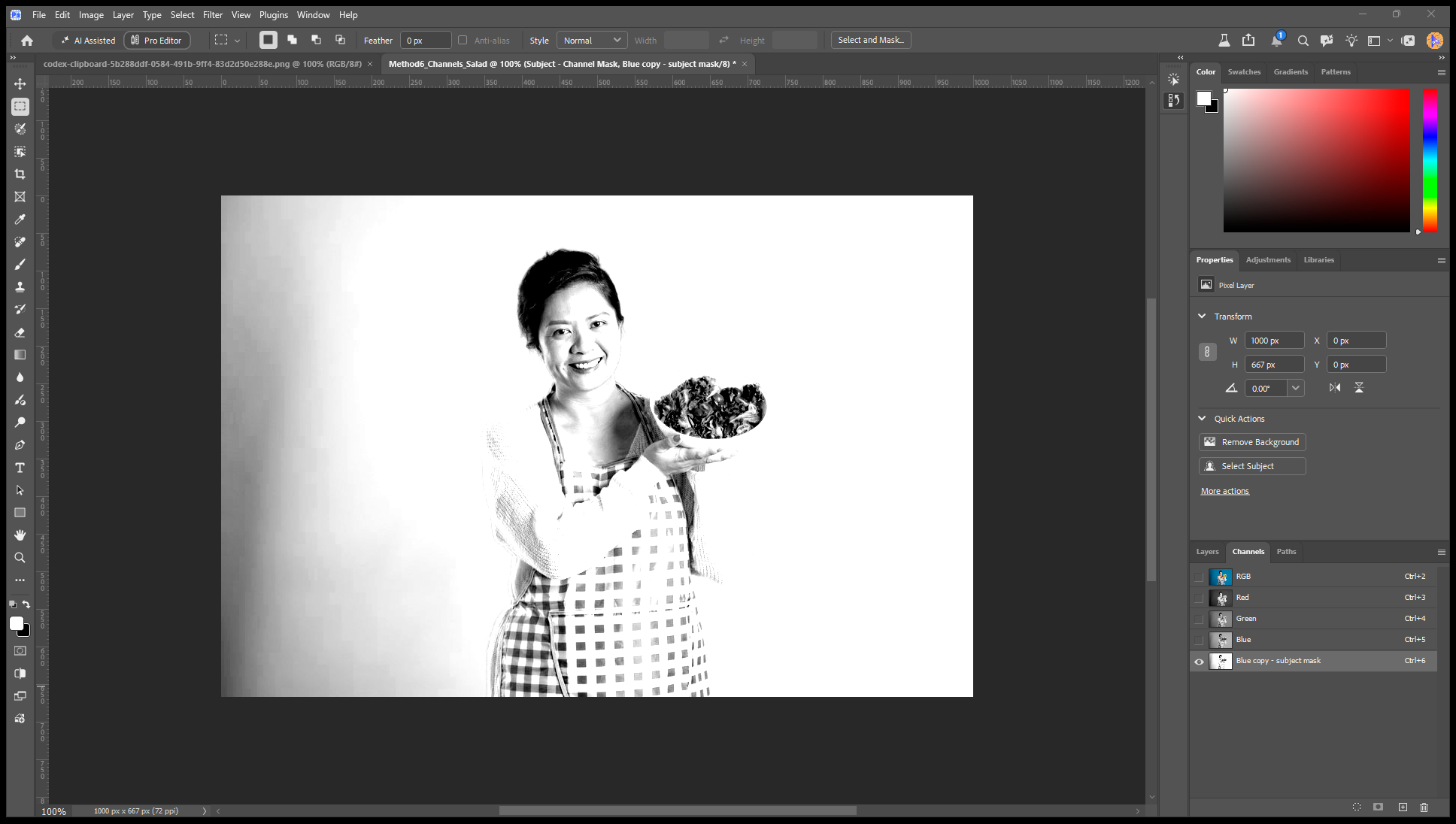
- Prepare the mask so the subject is white and the background is black. Invert the duplicate channel if necessary.
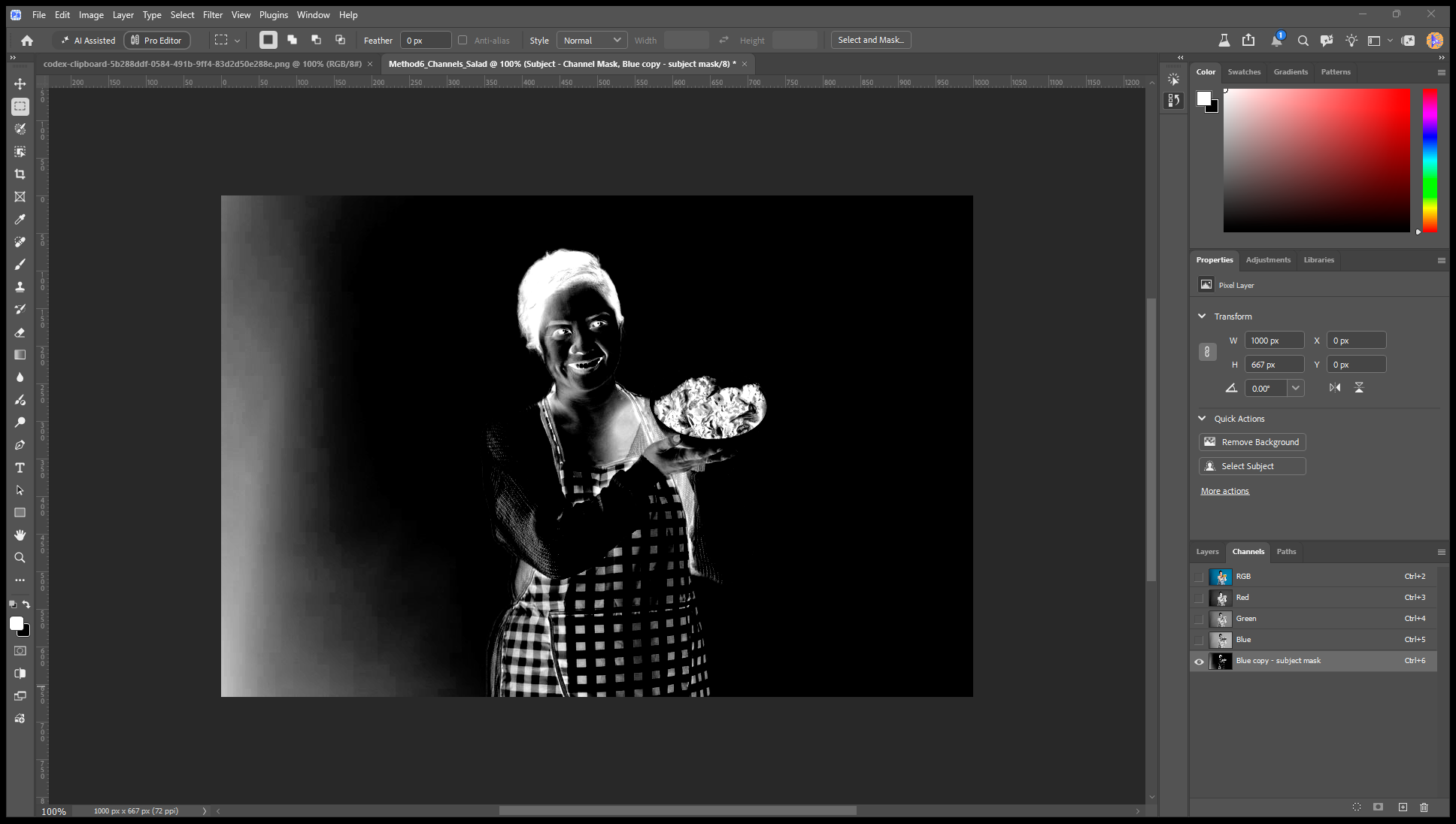
- Use a brush to clean up solid interior areas while preserving gray transitions around fine details.
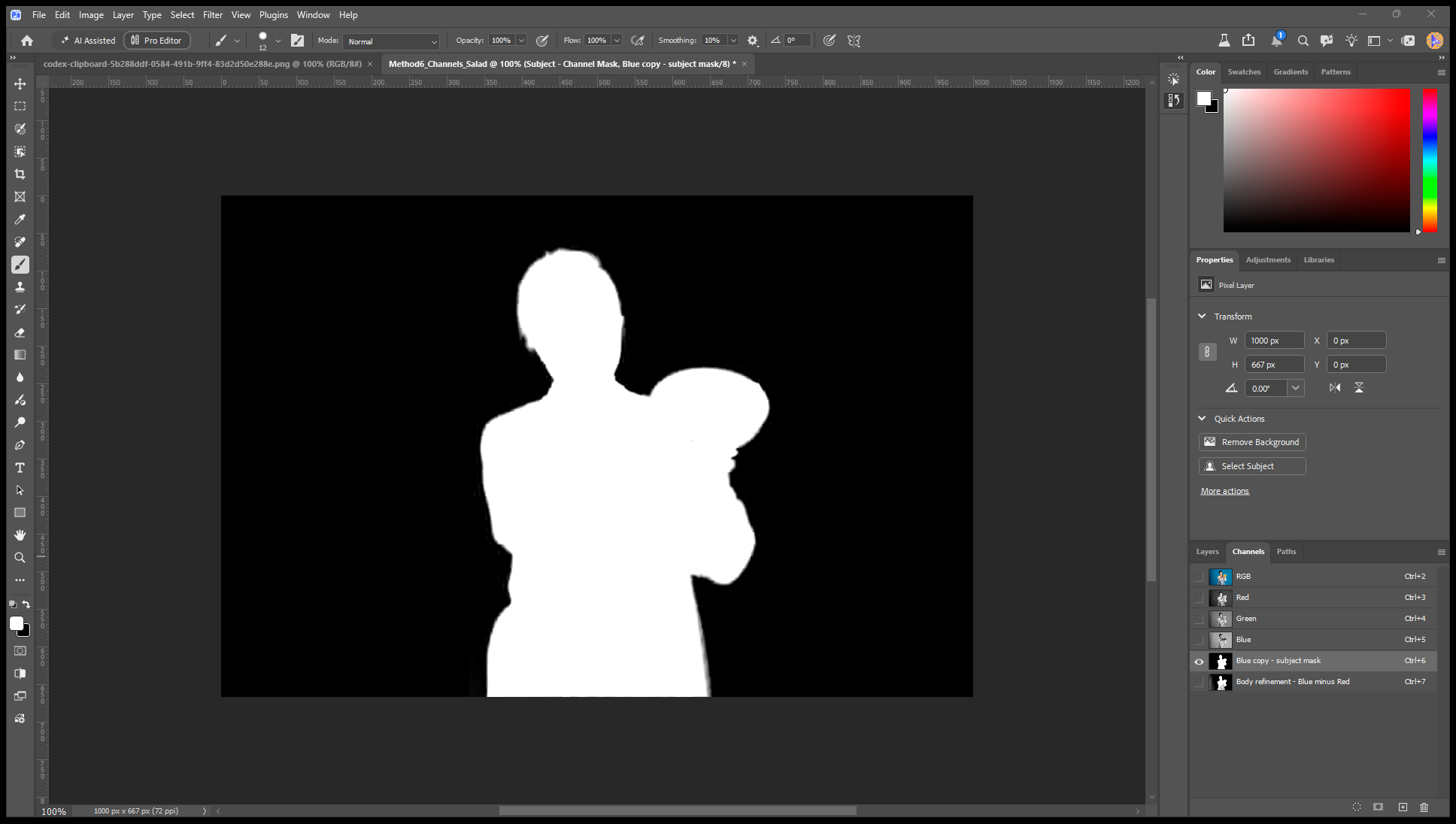
- Ctrl-click or Cmd-click the duplicate channel thumbnail to load its light areas as a selection.
- Click the RGB composite channel to return to the color image.
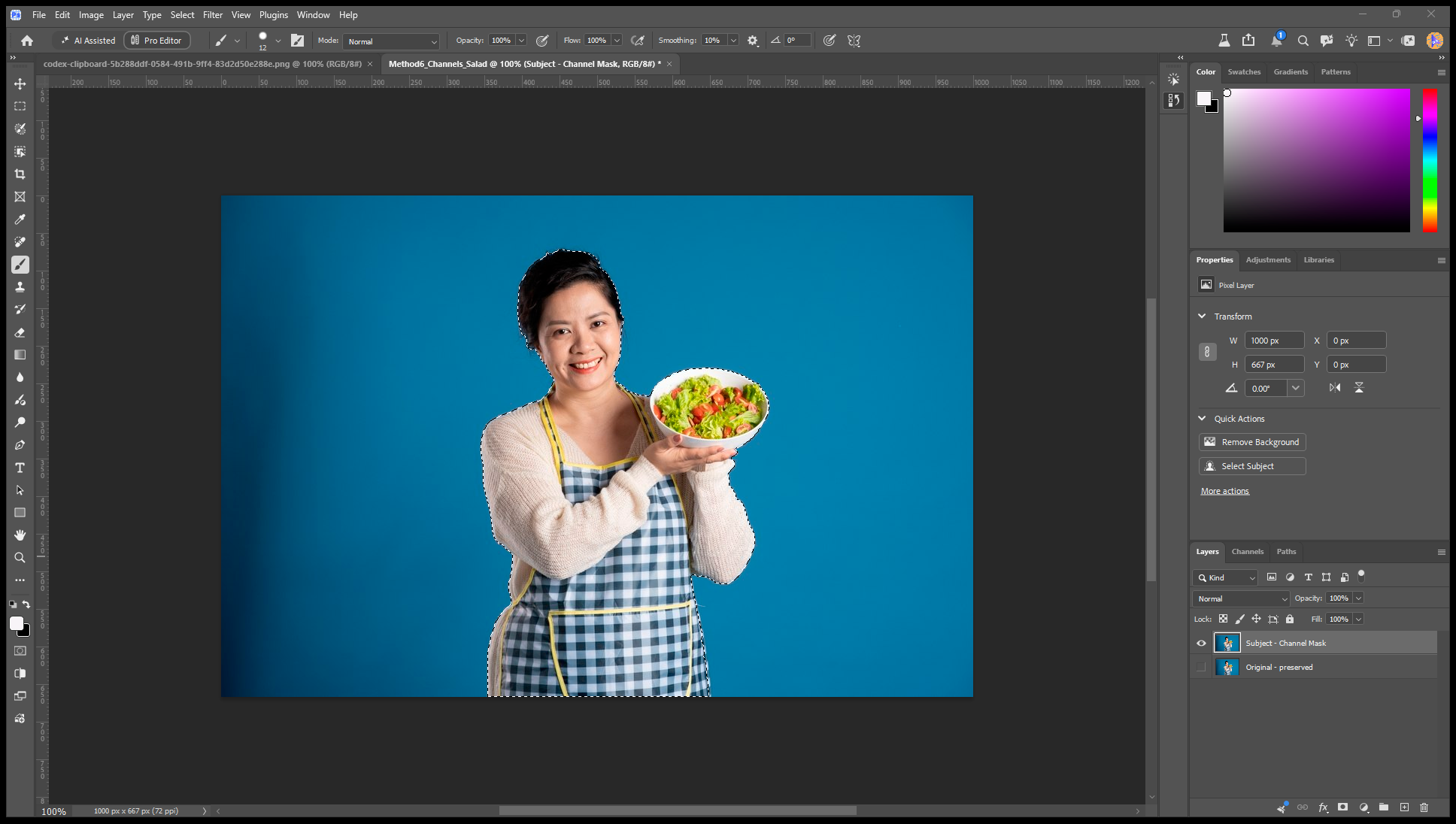
- Return to Layers, select your working image layer, and add a layer mask.
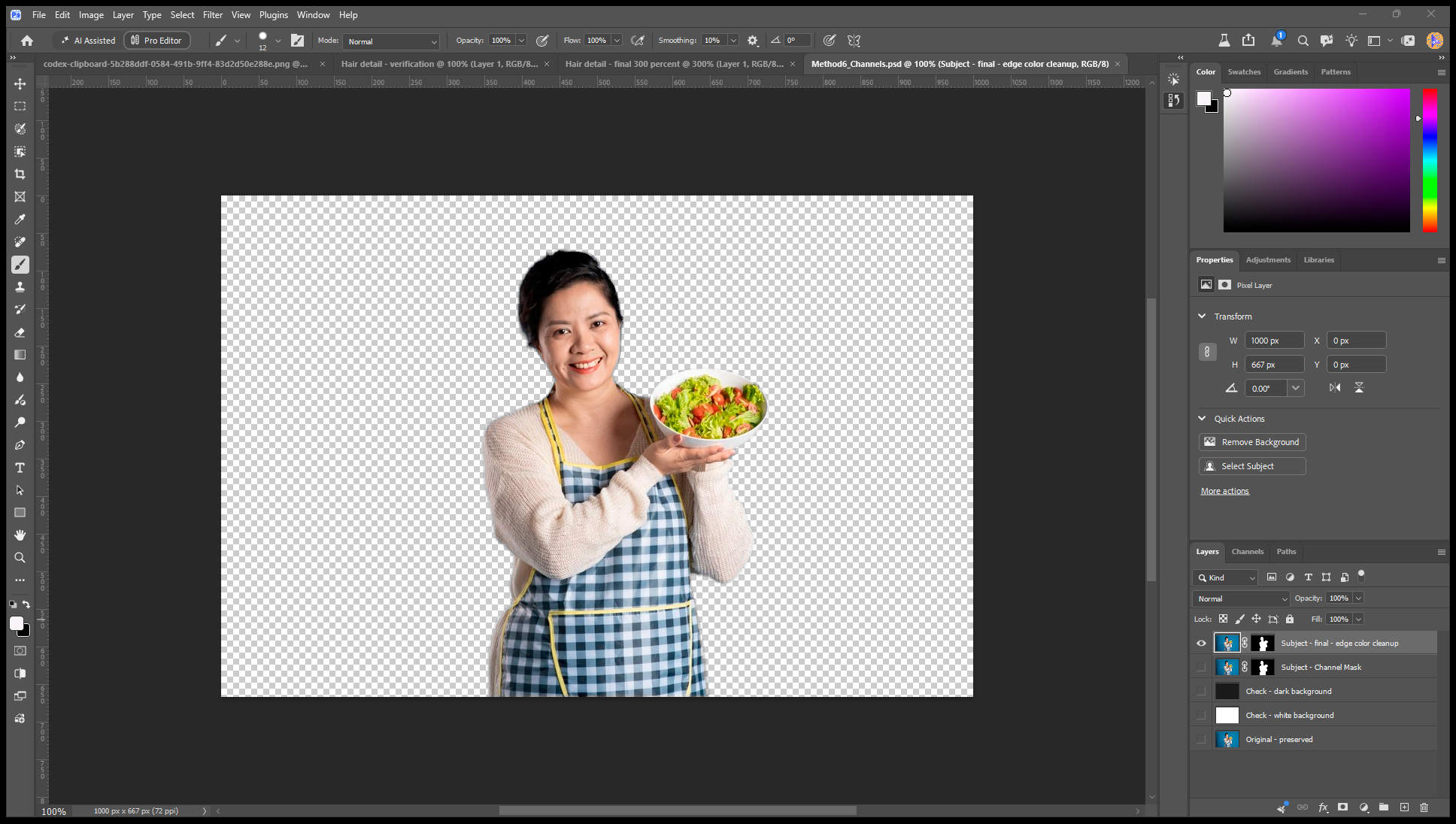


I would avoid forcing every edge to pure black or white. Gray values can preserve partial visibility in fine strands. Excessive contrast can turn a useful channel into a harsh, brittle outline.
Refine Hair and Other Difficult Edges

You can open Select > Select and Mask with an active selection. You do not need to separate the subject and background into different layers first.
Use a contrasting preview to inspect the boundary. Try a dark background for pale halos and a light background for dark fringes.
For hair or fur, apply the Refine Edge Brush around the transition between the subject and background. Avoid sweeping it across large, solid areas that already look correct.
Use refinement settings sparingly:
- Smooth can reduce small irregularities.
- Feather softens the boundary.
- Contrast makes a softened edge firmer.
- Shift Edge moves the boundary inward or outward.
I recommend checking the result both close up and at its intended display size. An edge that looks acceptable at high magnification can appear too soft in a small product image.
Output your result to a layer mask. If you enable Decontaminate Colors, choose an output that preserves your original because this option changes edge colors.
Add a New Background

Place your replacement image on a layer below the masked subject. Resize and position it to match the composition.
A clean selection is only part of a convincing composite. Check the direction of light, perspective, sharpness, and color temperature. Use adjustment layers clipped to the subject when you want to change its appearance without affecting the replacement background.
For a simpler alternative workflow, Luminar’s tools let you change a photo background using masking and layers.
I would also check the subject’s contact with the scene. A person or product standing on a surface may need a believable contact shadow rather than a floating outline.
Save an Editable File and a Transparent Copy

Save a PSD to preserve layers and masks for future changes.
For a transparent image:
- Hide the original photograph and any replacement background layers.
- Confirm that the surrounding area displays Photoshop’s transparency checkerboard.
- Go to File > Export > Export As.
- Choose PNG and enable Transparency.
- Export the file.
JPEG cannot retain transparency. Renaming a JPEG with a PNG extension will not fix that.
A transparent background is useful when placing the same subject into different layouts. For printing, follow the printer’s required dimensions, resolution, color profile, and file format.
Exclusive Tools of Endless Possibilities in One Editor
Luminar: An Alternative for Photo Cutouts
I recommend considering Luminar when background removal is part of a broader photography workflow: isolate a subject, refine the mask, place another image behind it, and adjust the photograph’s color and lighting.
Its cut out photo editor combines automatic background selection with a refinement brush. You still need to inspect difficult boundaries, especially when the subject and background overlap in color.
A typical workflow is:
- Open the photograph in Edit.
- Select its layer and open Layer Properties > Masking.
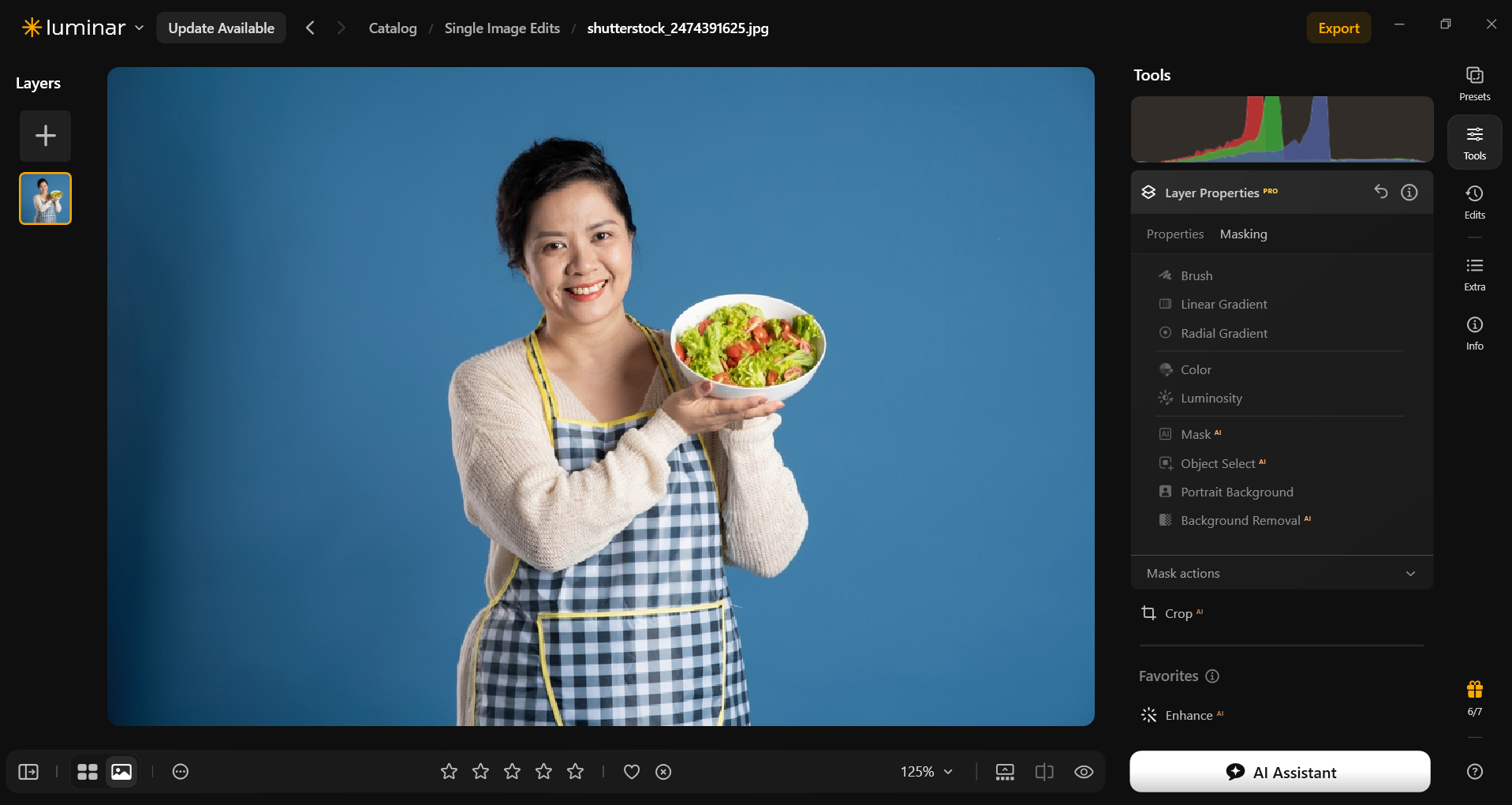
- Choose Background Removal AI.
- Select the subject or detected elements to keep, then click Remove.
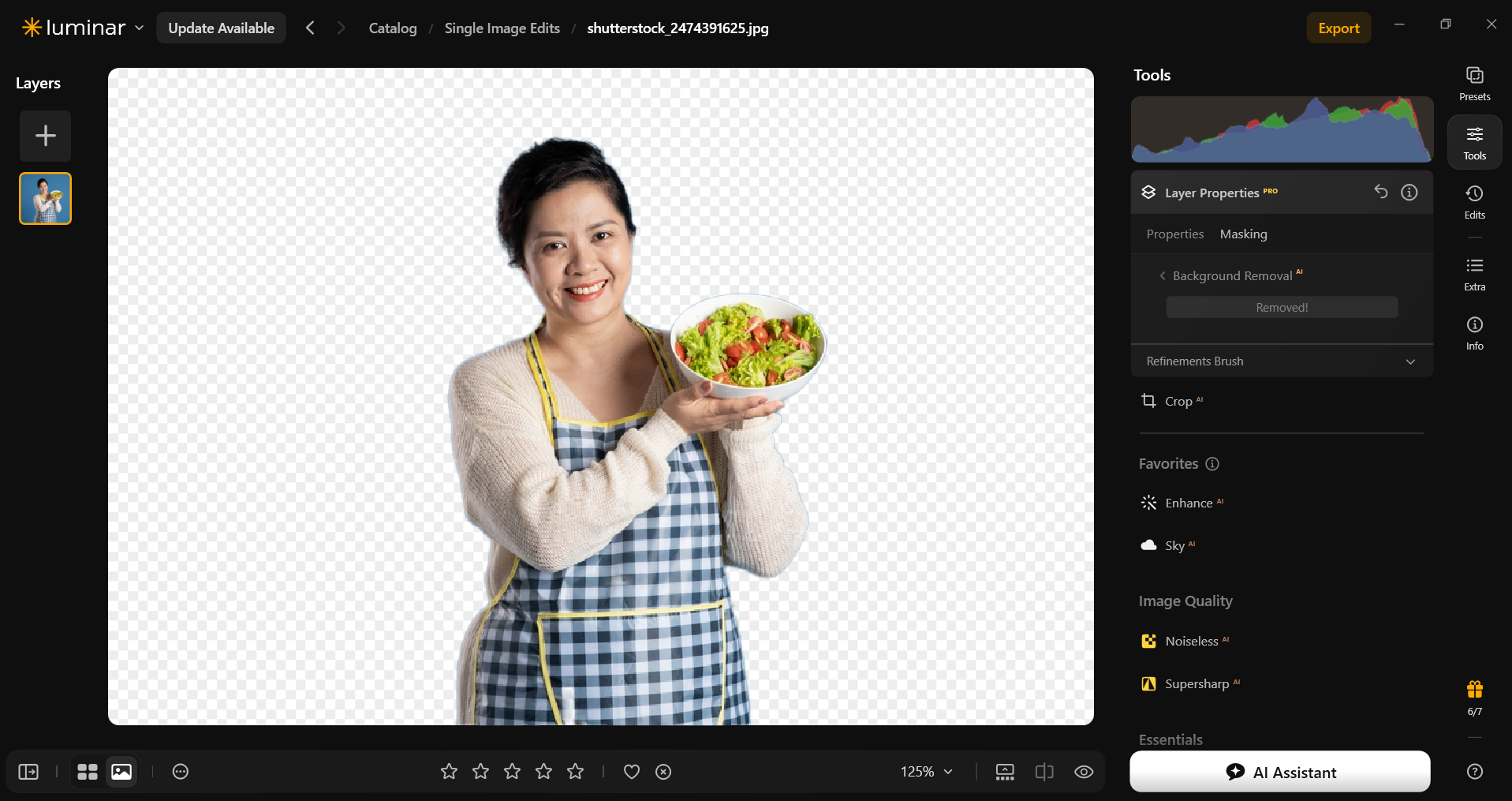
- Use the refinement brush to correct the object, background, and transition areas.
- Add your replacement image as another layer beneath the subject if needed.


Tool availability depends on your version and license; an unavailable feature may require an upgrade.
| Pros | Cons |
| Automatic selection reduces the amount of initial manual work. | Complex edges may still require brush corrections. |
| Refinement tools let you adjust the cutout. | Background Removal AI availability depends on your license. |
| Layers support combining the subject with another image. | It does not replace Photoshop’s full path and channel workflow. |
| Photo adjustments help prepare the finished image. | Luminar is paid software. |
If you are comparing workflows, this guide explains how to remove the background of a picture. Once the subject is isolated, you can add a background to an image and check how the two layers work together.
Choose the Simplest Method That Preserves the Detail
My recommendation is to start with automatic removal, refine the mask, and use a more specialized tool where needed. Magic Wand suits uniform backgrounds; the Pen Tool suits firm contours; channels can help with fine detail when the tonal contrast is strong.
Keep an editable copy and check your exported file. A good cutout preserves the subject’s important details and fits the background or layout where it will be used.
FAQ
Select an unlocked image layer and click Remove Background in Properties or the Contextual Task Bar. Inspect the mask before exporting.
A visible original layer underneath may be filling the masked area. Hide it and any other background layers. Also check that your mask hides the background rather than the subject.
Start with an automatic subject selection and refine it in Select and Mask using the Refine Edge Brush. Channels can help when the hair and background have strong tonal separation.
Hide all background layers and export a PNG with Transparency enabled. Save a PSD separately if you want to retain editable layers and masks.
Yes. Use its background removal and refinement tools, then inspect the cutout before adding a new background or exporting. Check whether your license includes the tool you need.