Outdoor portraits are a lot of fun to shoot. You have far more freedom than you do in a studio, and can really change up the theme and style depending on the location you choose. The one drawback, while also being one of the benefits, is the light. It doesn’t cost a thing, but you also have very little control over it. This can lead to issues such as flat images, unflattering harsh light, and dull tones.
That is where editing comes in to save the day, particularly with Luminar Neo. It’s an editing suite suitable for every kind of photographer, and no matter what type of outdoor portrait shoot you are doing, you can easily make it shine with the range of tools on offer. From basic adjustments, to colour grading, to even rescuing images that you may think have been ruined by a mistake, there is a lot you can do. Not only that, but it also comes with portrait-dedicated tools so you can give your images a polished and professional finish.
I’m going to take you through a step-by-step guide that can be applied to all outdoor portraits, no matter what style you are aiming for. Let’s get started.
Your AI-Powered Photo Editor for MacOS and Windows
Balance Your Exposure First
Everything begins well if the foundation is solid, and that is especially true for photo editing. Styling your image and refining your subject’s skin should all come after you’ve balanced the exposure first.
Head into the Develop tools and balance out your highlights and shadows.

I always recommend shooting portraits slightly underexposed, as it helps protect the skin tones and textures of your subject. Because of that, you may find that you need to lift the overall exposure slightly during editing.
As for contrast, I don’t usually use the standard Contrast tool inside Develop, because there is a much more powerful option available: Supercontrast.
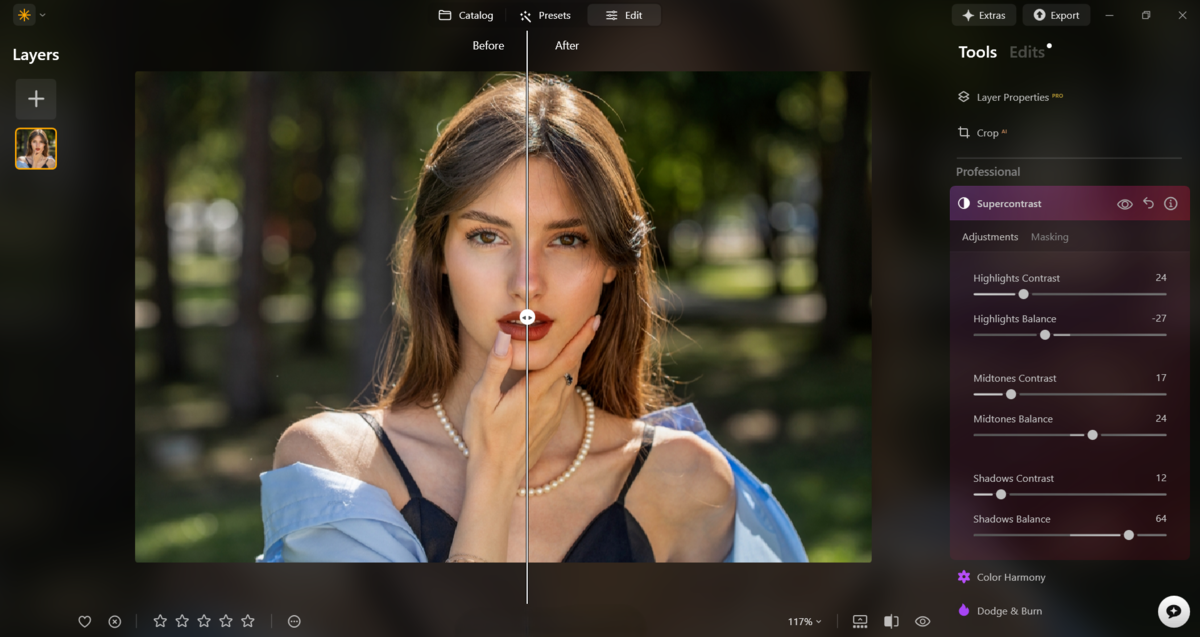
This gives you full control over contrast in the shadows, midtones, and highlights, helping you perfect the balance of your shot while also bringing back depth.
Use these sliders together to get the look you’re after, while keeping the number one rule in mind: a little can go a long way. From here, your image should already begin to pop, and now we can move on to building a style.
Improve Skin
First, however, it’s time to begin refining your subject, starting with the face. Let’s begin with the Face tools. One of the most important here is Face Light. Your model needs to be the centre of attention, and right now they may be blending into their surroundings and struggling to stand out. Face Light helps solve that by brightening the most important part of the portrait. The face is where your viewer should look first, and then be drawn in by the eyes.

Face and Eyes
So first, brighten the face, but only slightly. Too much and you risk the image looking unnatural. Then we can move on to the eyes.
The eye tools offer plenty of ways to make them stand out and hold the viewer’s attention. Eye Whitening will brighten the whites slightly, so find a balance where they stand out without looking unnatural.
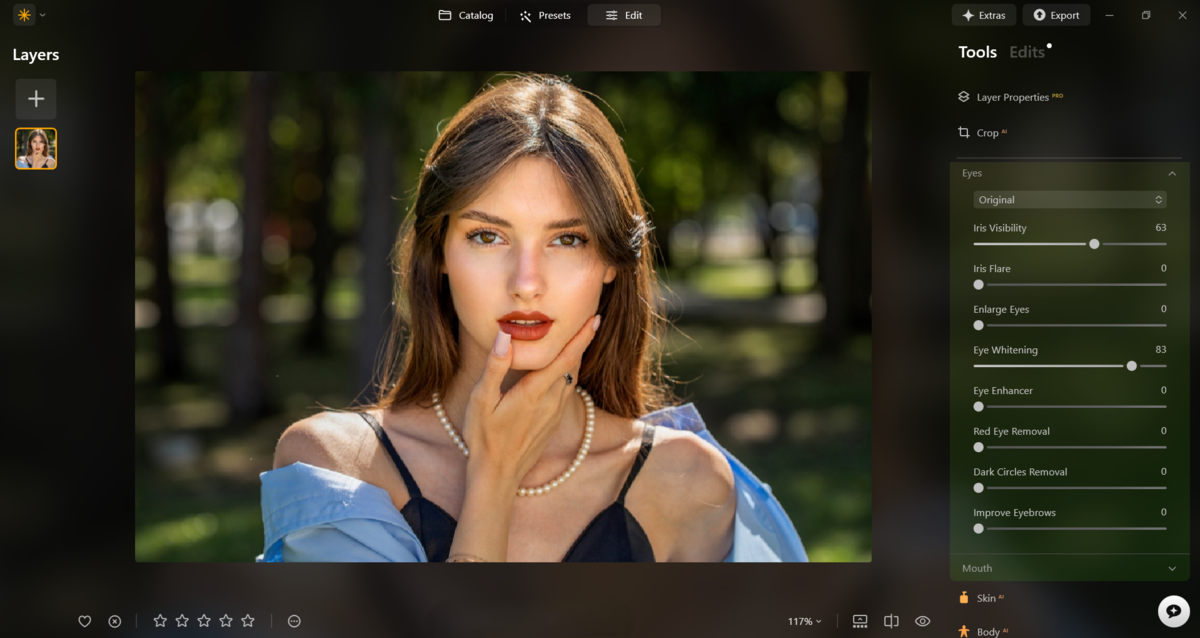
Eye Enhancer is also a great tool, helping to brighten the irises and bring more life into them.

I also tend to enlarge the eyes just a touch, making them slightly more noticeable. I will also enhance the eyebrows a little to define the eyes further and help frame them.

I can’t understate how important the face and eyes are in portrait photography, and with Luminar Neo’s range of tools to help them stand out, you should have no problem making them pop.
Skin
Next, we can move on to the skin for a more polished finish. Thankfully, this is really simple to do, whereas traditionally tasks like skin smoothing could be much more complex.
Again, less is more here, and that is especially true when it comes to skin smoothing. Going too far will make skin look plastic and unrealistic. The aim is to retain the natural texture of the skin, so as soon as you notice that texture starting to disappear, it’s time to pull things back a little.
The Shine Removal tool is also worth using, particularly if you’ve been shooting on a bright day. Shine on the face can be distracting, so it’s usually best to reduce it.
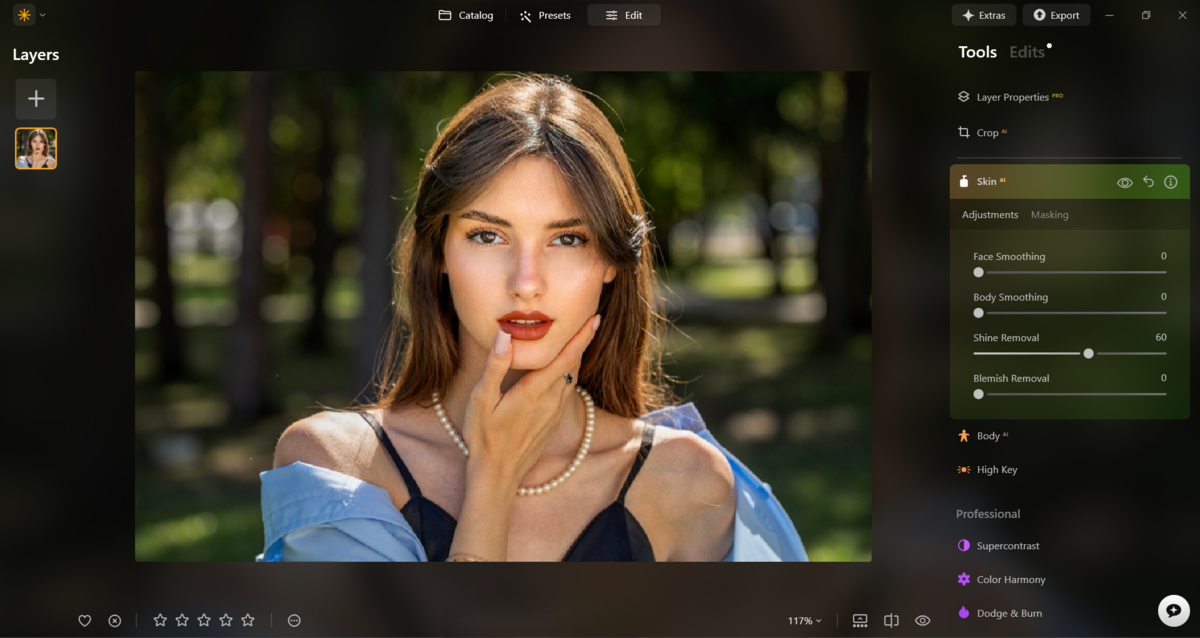
Equally distracting are blemishes. These too can be removed using the skin tools by simply checking the Skin Defects Removal option. The tool uses AI to detect and remove blemishes from your subject, all with one click.

Exclusive Tools of Endless Possibilities in One Editor
Colour Grading Outdoor Portraits
Now we move on to my favourite part of the edit, and that’s colour grading. This is where you can really begin to bring style into your shots. It’s also where you can start to develop a signature look. If you haven’t found yours yet, keep experimenting until you find something that really speaks to you, and then stay consistent with it across your edits.
Colour Harmony
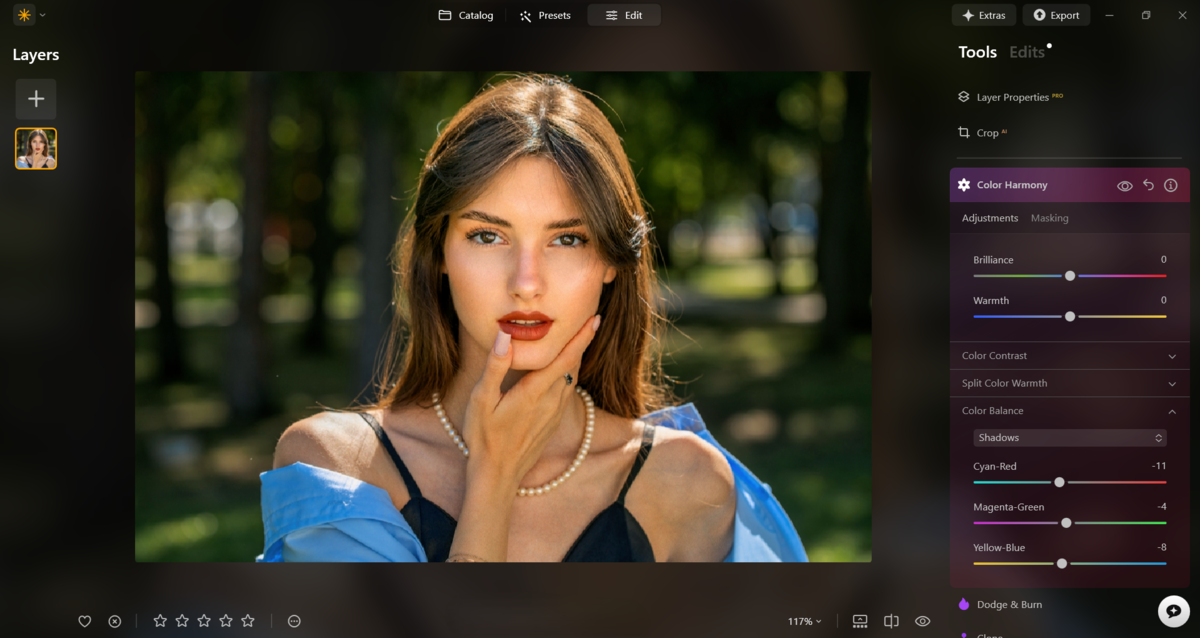
A lot of colour grading work can be done inside the advanced tools with Colour Harmony. Once you head in there, you’ll see a few different controls to work with, but my favourites are Split Colour Warmth and Colour Balance.
Split Colour Warmth is especially powerful because it allows you to fine-tune the temperature in your shot. If you want cooler tones, do you want them more blue or more purple? If you want warmer tones, do you want them more orange or more green? I should quickly add here that green tones in portraits are something to avoid, as they will make your subject look ill.
Typically, I start by pushing warm tones towards a golden orange, and cooler tones more towards blue. Then I use a little editing trick that I tend to apply to almost all of my shots.

Inside Colour Balance, I shift the shadows and midtones slightly towards cooler tones, usually a touch of cyan and blue. I rarely touch the magenta-green slider. Then in the highlights I do the opposite, shifting tones slightly towards red and yellow, and sometimes adding a touch of magenta depending on the scene. This creates a nice balance and tonal contrast so that everything isn’t fighting for attention. The cooler tones sit in their own lane, and so do the warmer ones. Warmer tones in the skin also tend to look more flattering, which is an added bonus.
Landscape Tool
No matter where you shot your outdoor portrait, be sure to give this tool a try.
I like to use the Golden Hour tool in almost all of my outdoor portraits because it does a wonderful job of bringing flattering tones into the subject’s face.
The Golden Hour tool adds warmth, but not in the same way that shifting the white balance would. Instead of warming the entire image globally, it mainly enhances the warmer tones already present. Because we’ve already introduced more warmth into the highlights through Colour Harmony, this tool can now help make those tones glow.
You only need a small amount, but it does a great job of adding a flattering finish to your model.

HSL
The final part of my colour grade is fine-tuning everything with HSL, which can be done inside the Colour tool.
I usually start with Hue, trying to get a more cohesive relationship between the tones in the shot. If certain colours are clashing, I’ll nudge them towards something more complementary.
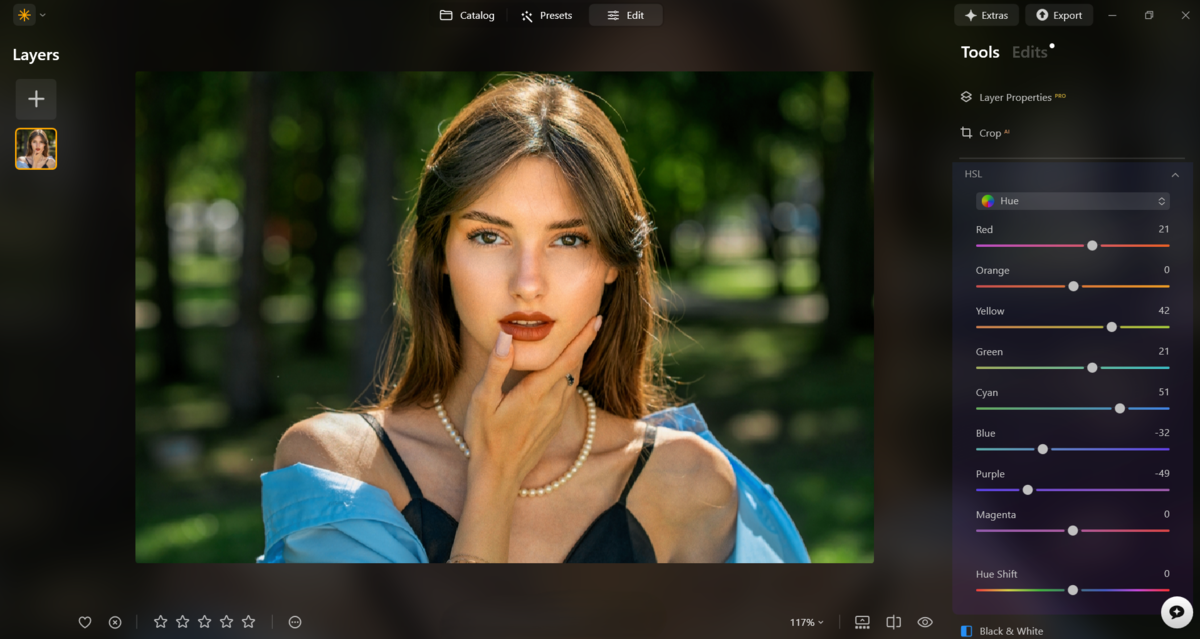
Then I move on to Saturation, where I can make the main colours stand out more while reducing those that are becoming distracting. Go too far here and the image will start to look over-processed, so it’s always best to be restrained.

Luminance is the last step. Here I can lift or darken individual colours to make them stand out more or sit back a little.

When it comes to colour, always remember that the subject is the most important part of the image. If your background starts dominating because of the adjustments you’ve made, then it’s time to pull them back.
Final Touches
There are a few more adjustments you can make to your image to really help it stand out and take it that little bit further.
Structure
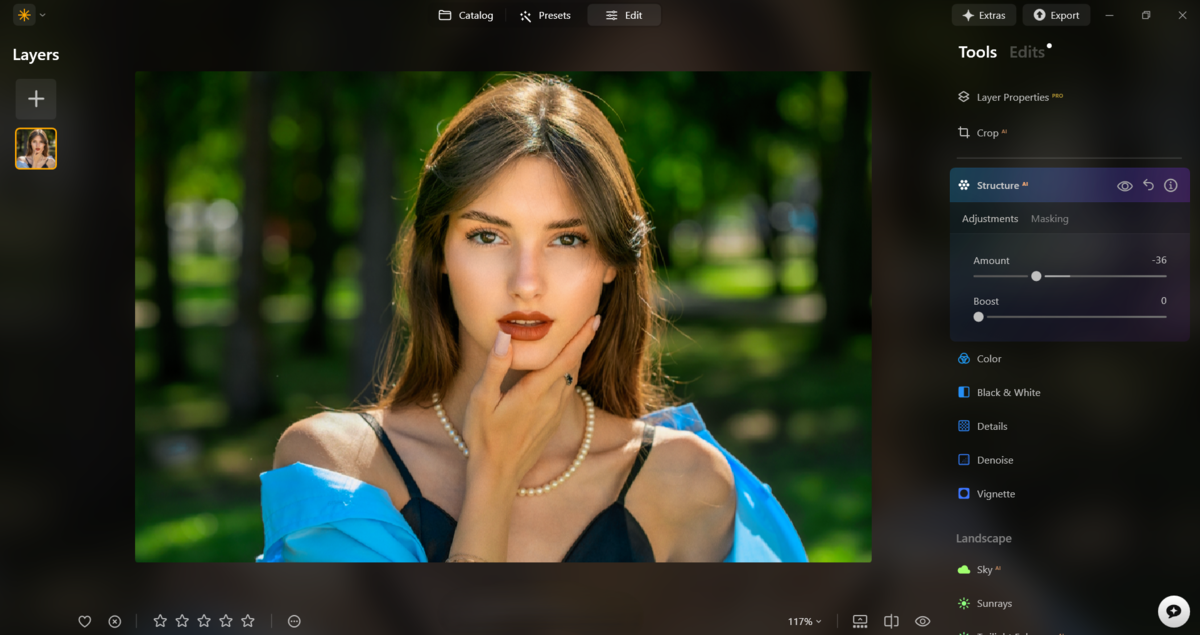
The first is the Structure tool, one of my favourites inside Luminar Neo. The slider starts in the middle. Push it to the right and you add more clarity and detail. But for portraits, I often go the other way. Moving it slightly to the left softens the detail, which can work beautifully for portraits.
Too much clarity can be unflattering on skin and make blemishes stand out more. Softening things slightly creates a much more pleasing look.
Glow
This one is optional, but depending on your scene it can work really well. Glow adds extra style to the highlights in your image, so if you’re working with stronger light, it may suit your shot nicely. There are also a few different glow styles to experiment with, so try them out and see what works best for your image.
Elevate Your Photography with Our Advanced Software
The Bottom Line
Outdoor portraits are incredibly fun to shoot, with endless freedom and possibilities no matter what style you enjoy. The downside, of course, is that you can’t control the light in the same way you can in a studio. But that’s where Luminar Neo comes in, with a wide range of tools that are perfect for bringing outdoor portraits to life.
Start by balancing your exposure so you have a strong base to work from. Then move on to the portrait refinements, such as skin smoothing and brightening the face and eyes. After that comes the styling stage, where colour grading really helps the image come to life.
With the warmer months on the way, it’s the perfect time to get back outside and start shooting portraits again. And once you’re done, be sure to open up Luminar Neo and get editing.