Three months after switching to the MacBook Air M5, it’s time to look beyond first impressions. In this long-term review, you’ll learn how it performs with Luminar Neo, what has improved over time, and whether it’s the right choice for photographers.
Three months ago, I published a first impressions review of the MacBook Air M5 on Them Frames after roughly a week of use. The verdict was positive, but a week is a honeymoon period. You’re still adjusting, still comparing everything to what came before, still noticing the things that feel new rather than the things that actually matter over time.
This is the follow-up. Ninety days of using the MacBook Air M5 as my primary machine, using Luminar Neo as my main editing tool. Here’s what held up, what surprised me, and what I’d tell a photographer who’s still sitting on the fence.
MacBook Air M5 Specs After 90 Days

The configuration I’ve been running sits at $1,299: That’s 16GB of unified memory, 512GB of storage, and a 10-core CPU and GPU. If your needs are more demanding, Apple scales the M5 Air up to 32GB of RAM and 4TB of storage at $2,899, though for photography-focused workflows, the base spec gets you further than you might expect.
One thing I flagged in my original review was heat. During heavier tasks in that first week, the base of the laptop got noticeably warm. Three months later, running macOS Tahoe 26.5.1, that issue was resolved. An hour into an editing session in Luminar Neo, the machine stays pretty cool, with only slight warmth if I’m pushing it hard. Passive cooling on a fanless machine will always have its limits, but in day-to-day use it’s no longer something I think about.
Battery life has also improved with software updates. In my first impressions piece, I was consistently getting around 13 hours of general use. More recently, two hours of editing in Luminar Neo drained the battery by just 13%. For context, the same session on my aging M1 would have taken more than half the battery. The M5 is in a different league.
One caveat I’d add to my original notes on build quality. I mentioned the Midnight Blue version was a fingerprint magnet, and that’s still true, but after 90 days, I’d also flag that it scuffs more easily than I expected. If keeping it looking pristine matters to you, a case or skin is worth applying from day one rather than as an afterthought.
Exclusive Tools of Endless Possibilities in One Editor
MacBook Air M5 Display: Is 500 Nits Enough for Photo Editing?

The 500 nits display hasn’t been an issue for me day-to-day. I edit indoors, in controlled light, and the Liquid Retina panel handles that well. But there’s a limitation worth being honest about.
Most modern smartphones now carry 1000 nit HDR screens. The gap between the two becomes obvious when you’re reviewing edits. Images that look balanced on the MacBook Air can appear noticeably different on a phone, with more contrast, more saturated colors, and greater perceived dynamic range. For personal work, it doesn’t bother me; however, for client deliverables, it’s something I need to account for.
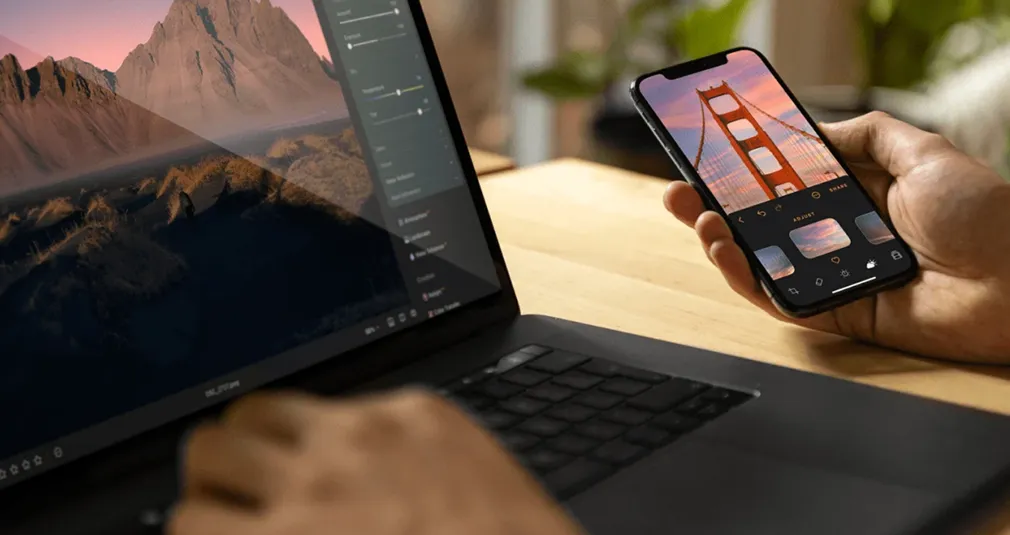
My current workaround is reviewing edits on my smartphone after finishing in Luminar Neo, and this process has been made significantly easier by Luminar Neo’s Spaces tool, which enables cross-platform editing. 
How the M5 Changed the Way I Use Luminar Neo?

This is where the 90-day perspective genuinely adds something a first impressions piece can’t.
In my early usage, I was running Luminar Neo smoothly and appreciating the speed. What I didn’t anticipate was how much the hardware would change my creative behavior over time. Features like Light Depth, Sky Replacement, Upscale, and HDR Merge all ran on my M1, but the friction was enough that I used them selectively. On the M5, that friction is gone.
The combination of the M5 chip and the jump from 8GB to 16GB of unified memory means these tools respond almost instantly. I’ve found myself reaching for them far more regularly, not because I’m forcing them into edits, but because they no longer slow down the process enough to make me think twice. That’s a subtle but meaningful shift in how I work.
Your AI-Powered Photo Editor for MacOS and Windows
Luminar Neo Export Speed on the M5
One of the most tangible advantages of the M5 for Luminar Neo users is export speed. Exporting 500 AI-edited images takes me around 10 to 13 minutes on this machine. On my M1, the same task took close to an hour. That’s not an incremental improvement; it’s a fundamental change in how quickly you can turn a shoot around.
For working photographers with client deadlines, that kind of time saving adds up fast. It’s one of the areas where the M5 earns its price most clearly.
MacBook Air M5 Drawbacks After 90 Days

Despite smooth multi-app performance in my initial usage, I’ve had to force quit applications more than I expected over the past three months. It hasn’t happened often, and it isn’t always tied to having too many apps running simultaneously. But it has been a reminder that the MacBook Air M5 is a base-level machine. It isn’t designed for heavy, sustained professional workloads, and occasionally it lets you know that.
To keep this in perspective: it’s happened less than a handful of times across 90 days of regular use. It hasn’t made me question the purchase, but if you’re planning to run intensive workflows as your daily baseline, it’s worth factoring in.
Elevate Your Photography with Our Advanced Software
Is the MacBook Air M5 Worth It for Photographers?

After three months, my view is largely consistent with where I landed in my original review, just with more evidence behind it.
The MacBook Air M5 is an excellent machine for photographers on aging MacBook Airs who want a meaningful step forward without paying MacBook Pro prices. If you’re comfortable with the trade-offs, a fanless design, a 500 nit display that doesn’t match HDR smartphone screens, and the occasional reminder that this is still a base-level machine, then $1,299 gets you a lot.
For heavy users, professionals running sustained demanding workloads, or anyone who needs color-critical screen accuracy out of the box, the MacBook Pro is the more honest recommendation. The active cooling system and additional chip headroom make a real difference at that level.
But for the majority of photographers using Luminar Neo as their primary editing tool, the new MacBook Air M5 handles it with room to spare. Ninety days in, I don’t regret the upgrade for a second.