Choose a photo editor around the work you do most. Compare 10 options for RAW processing, detailed retouching, creative edits, and everyday designs.
The best photo editing software depends on your main task. Lightroom and Lightroom Classic suit photo organization and RAW workflows; Photoshop and Affinity provide detailed layer-based editing; Luminar combines manual photo adjustments with AI-assisted tools. RawTherapee and GIMP offer free, open-source options for different stages of editing.
This guide compares published capabilities, supported platforms, and payment models. It is a workflow-based shortlist rather than a hands-on speed or image-quality ranking.
Don’t feel like reading the whole breakdown? We’ve pulled together a quick summary below.
Which Photo Editing Software Should You Choose?
Start with the type of work you need to complete most often. The following table highlights each editor’s main role.
| Software | Main use case | Platforms covered here | Payment model |
| Luminar | Photo adjustments and AI-assisted editing | Windows, macOS; also has mobile and web versions | Paid; package terms vary |
| Lightroom / Lightroom Classic | RAW editing and photo organization | Windows, macOS; Lightroom also has mobile and web versions | Subscription |
| Photoshop | Detailed retouching and composites | Windows, macOS | Subscription |
| Affinity | Layer-based photo editing and design | Windows, macOS | Free base app; optional paid Canva AI access |
| DxO PhotoLab | RAW processing and optical corrections | Windows, macOS | Perpetual license; editions differ |
| Capture One Pro | RAW editing and tethered photography | Windows, macOS | Subscription or perpetual license |
| RawTherapee | Detailed RAW development | Windows, macOS, Linux | Free and open source |
| GIMP | Retouching and image manipulation | Windows, macOS, Linux | Free and open source |
| Photopea | Layered editing and PSD work in a browser | Web browser | Free access; optional paid account |
| Canva | Photo adjustments within layouts and designs | Web, desktop, and mobile | Free and paid plans |
Prices, promotions, and included services vary by region and plan. A perpetual license also does not necessarily include every future upgrade or unlimited access to online features.
What Are the Main Types of Photo Editors?
Photo editors differ in how they organize images and apply changes. Understanding these categories makes the comparison easier.
- RAW development converts camera RAW data into a viewable image while allowing adjustments to exposure, white balance, color, and detail.
- Non-destructive editing preserves the source image and stores changes separately or in an editable document.
- Layers hold image content or adjustments separately so you can combine and revise them.
- Masks control where an adjustment or layer is visible.
- Photo management includes organizing, rating, searching, and retrieving images.
Some applications cover several categories, but no feature list tells you how comfortably an editor will fit your actual routine.
Exclusive Tools of Endless Possibilities in One Editor
1. Luminar: For Manual Adjustments and AI-Assisted Photo Editing
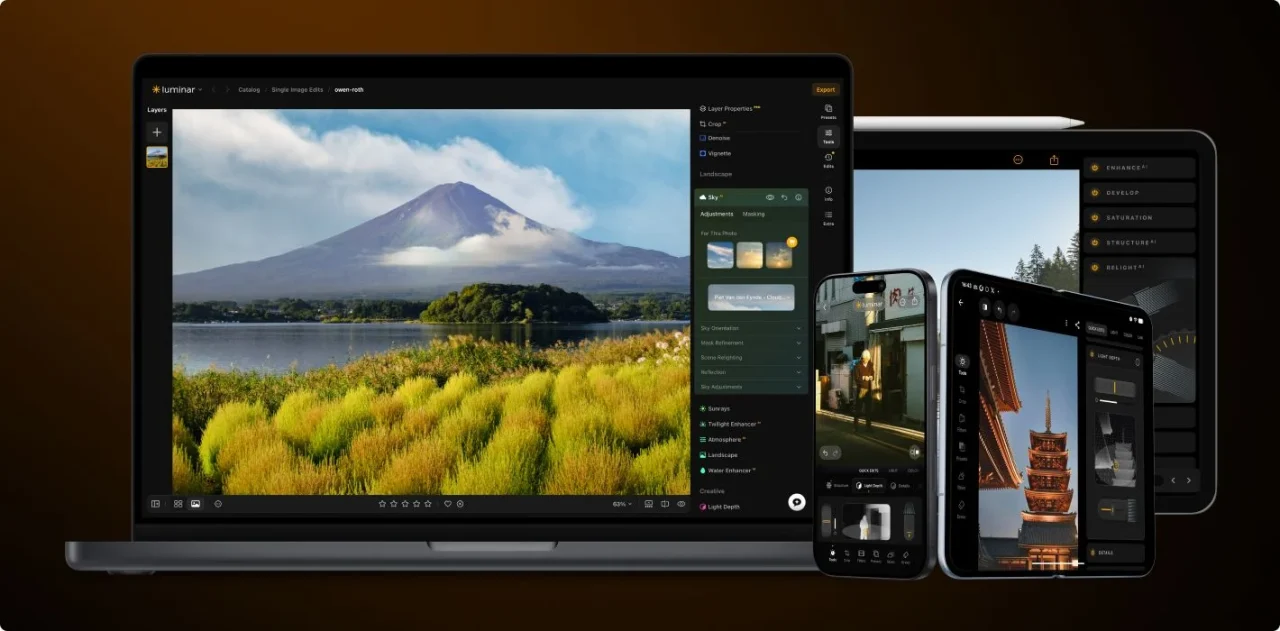
Luminar suits photographers who want conventional editing controls alongside tools that automate parts of the process.
The desktop application supports RAW development, image layers, masking, and adjustments to exposure, color, contrast, and detail. Develop provides foundational corrections, while tools such as Enhance AI help combine several adjustments through simpler controls.
For selective work, Luminar’s AI photo masking tools can help identify areas to adjust. Review and refine the selection around fine edges or difficult subjects.
| Pros | Cons |
| Combines manual adjustments with AI-assisted tools | AI features can require more processing time and capable hardware |
| Supports RAW development, layers, and selective editing | Its library tools may not cover every requirement of a complex catalog workflow |
| Presets provide starting points for a consistent look | Some online and generative services have separate access terms |
Choose Luminar if: Your main work involves developing photographs, making local adjustments, and exploring creative treatments.
Check the package carefully. Lifetime access to the desktop application should not be interpreted as permanent access to every online or generative service.
2. Lightroom and Lightroom Classic: For RAW Editing and Organization
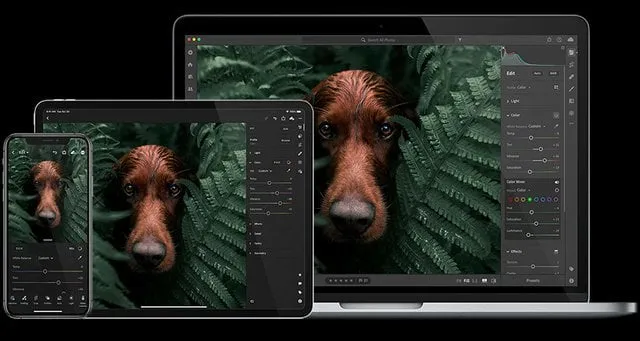
Lightroom and Lightroom Classic suit photographers who need to edit and organize collections of images.
Lightroom emphasizes cross-device access and cloud workflows, while also offering a local-file workflow on desktop. Lightroom Classic uses desktop catalogs and is oriented toward locally stored photo libraries.
Both provide RAW processing, presets, color adjustments, and selective masking. Their masks apply local adjustments; they do not provide Photoshop’s general-purpose image-layer compositing workflow.
| Pros | Cons |
| Combines photo organization with non-destructive development | Requires a subscription |
| Provides presets, profiles, and settings that can be applied across images | Lightroom and Classic differ in storage and workflow features |
| Lightroom supports editing across desktop, mobile, and web | Complex retouching or composites may require another application |
Choose Lightroom if: Access across devices is central to your workflow.
Choose Lightroom Classic if: You prefer desktop catalogs, local storage, and its broader desktop workflow controls.
Compare the two applications before moving an existing library. They are related products, not interchangeable interfaces.
3. Adobe Photoshop: For Detailed Retouching and Composites

Photoshop suits work that requires precise pixel editing, complex selections, and image construction.
Its layers, masks, adjustment layers, and retouching tools support tasks such as cleaning product photographs, combining exposures, and assembling composites. Camera Raw provides a route for developing RAW files before continuing with pixel-level work.
| Pros | Cons |
| Extensive controls for layers, selections, and retouching | Requires a subscription |
| Supports complex composites and editable documents | Learning a detailed workflow takes time |
| Integrates with Camera Raw and Lightroom workflows | Does not replace a dedicated photo catalog application |
Choose Photoshop if: You regularly need detailed retouching or multi-image compositions.
For straightforward exposure and color work across many photographs, a dedicated RAW workflow may require fewer steps.
4. Affinity: For Photo Editing and Design in One App
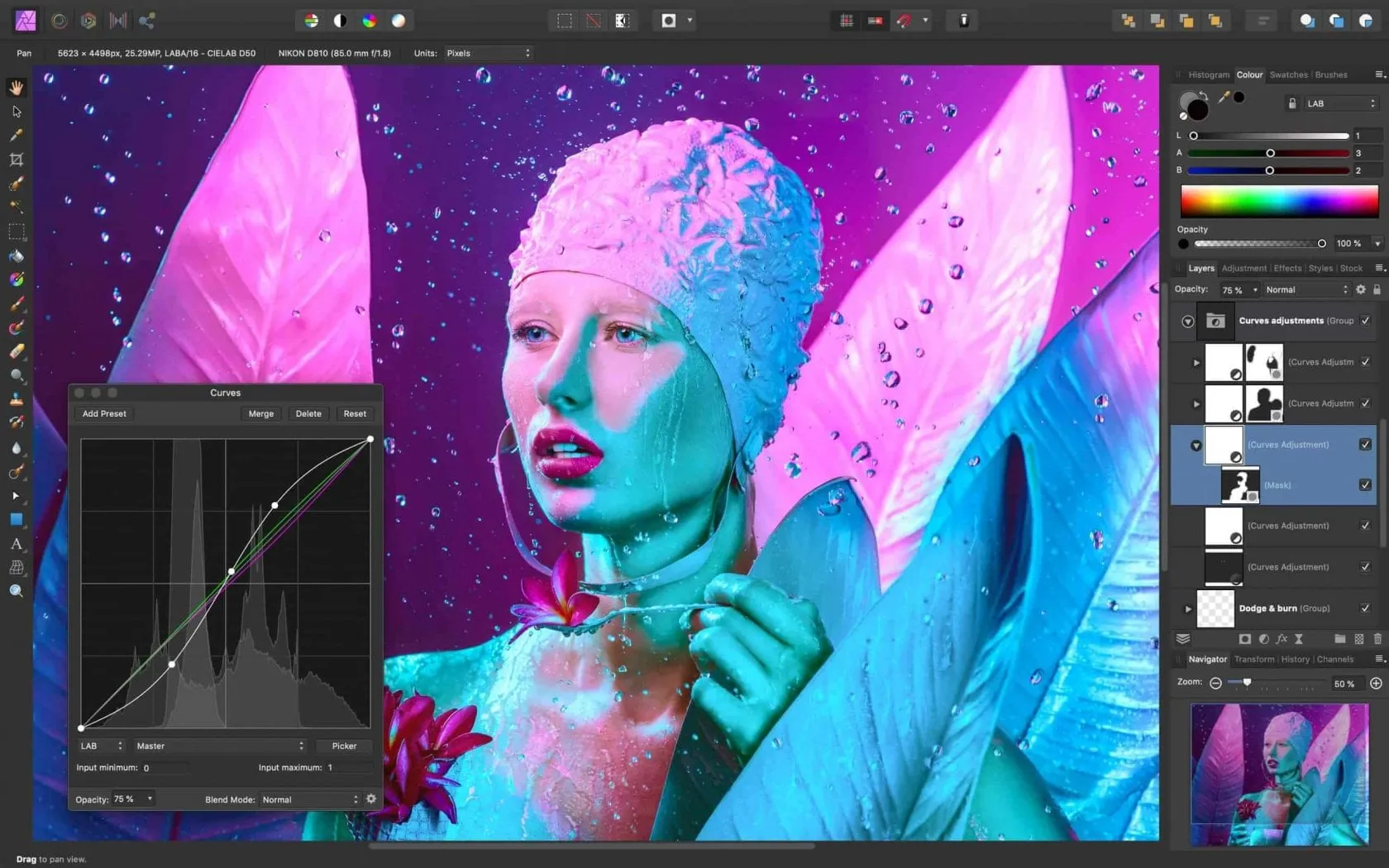
Affinity suits users who want layer-based editing together with vector and page-layout tools.
The current application brings these disciplines into one environment. Its photo tools include RAW development, retouching, masks, live filters, HDR merging, and batch processing.
The base application is free and requires a Canva account. Certain integrated Canva AI features require an eligible paid Canva plan.
| Pros | Cons |
| Free base application with extensive photo and design tools | Requires a Canva account for access |
| Supports RAW development and editable layered documents | The broad toolset takes time to learn |
| Combines pixel, vector, and layout work | It is not a dedicated photo-library catalog system |
Choose Affinity if: You need photo retouching and design capabilities in the same application.
Do not confuse the current unified desktop app with older Affinity Photo versions when checking tutorials, compatibility, or purchasing information.
5. DxO PhotoLab: For RAW Processing and Optical Corrections
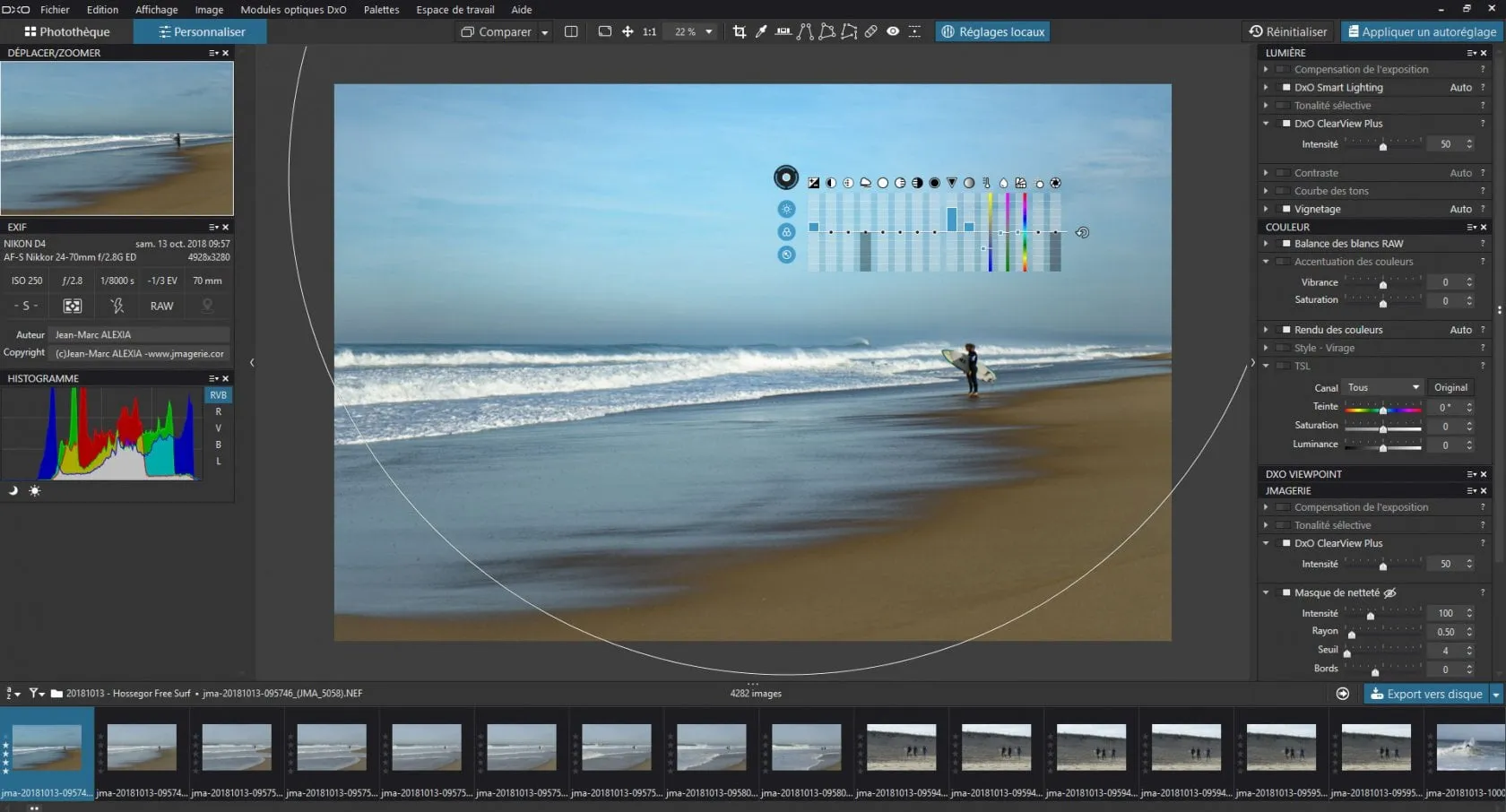
DxO PhotoLab suits photographers who prioritize RAW development, lens corrections, and noise reduction.
Its tools include camera-and-lens correction modules, local adjustments, and color controls. Advanced processing features differ between editions, so compare the relevant package rather than assuming all capabilities are included.
| Pros | Cons |
| Uses measured camera-and-lens modules for supported equipment | Support depends on the camera and file format |
| Provides RAW processing and advanced noise-reduction options | Some capabilities require a higher edition |
| Offers a perpetual-license model | Major upgrades can involve additional payment |
Choose DxO PhotoLab if: You want a RAW-focused workflow built around technical correction.
Check support for your exact camera and lenses before purchasing. RAW compatibility matters more than a general claim that an editor supports “hundreds of cameras.”
Elevate Your Photography with Our Advanced Software
6. Capture One Pro: For RAW Editing and Tethered Workflows
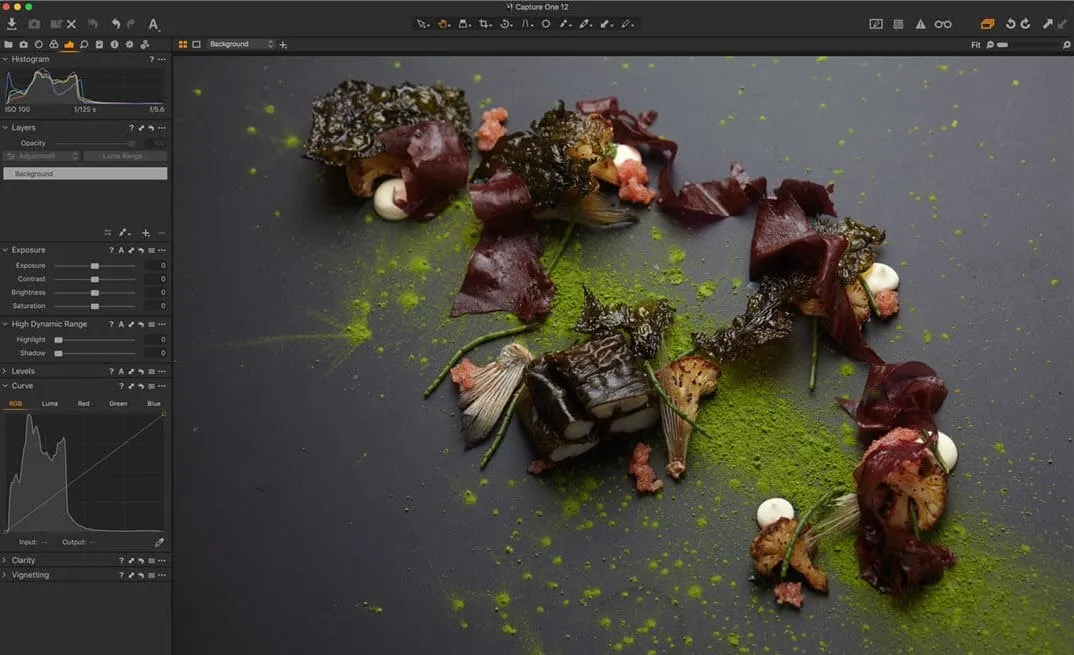
Capture One Pro suits photographers who need detailed color control and an organized shooting-to-editing process.
It provides RAW editing, masked adjustment layers, catalogs, Sessions, and tethered capture for supported equipment.
Tethered shooting connects a camera to a computer so images can be transferred and reviewed during a shoot.
| Pros | Cons |
| Provides detailed color controls and local adjustments | Its extensive workflow controls require learning |
| Supports tethered capture with compatible cameras | Tethering capabilities depend on equipment support |
| Offers catalog and Session-based organization | Subscription and perpetual licenses have different update terms |
Choose Capture One Pro if: Studio capture, repeatable color adjustments, or project-based image handling are important to you.
Check the current camera-support list and license terms. A perpetual license covers the purchased version under its stated conditions, rather than every future release.
7. RawTherapee: For Free RAW Development
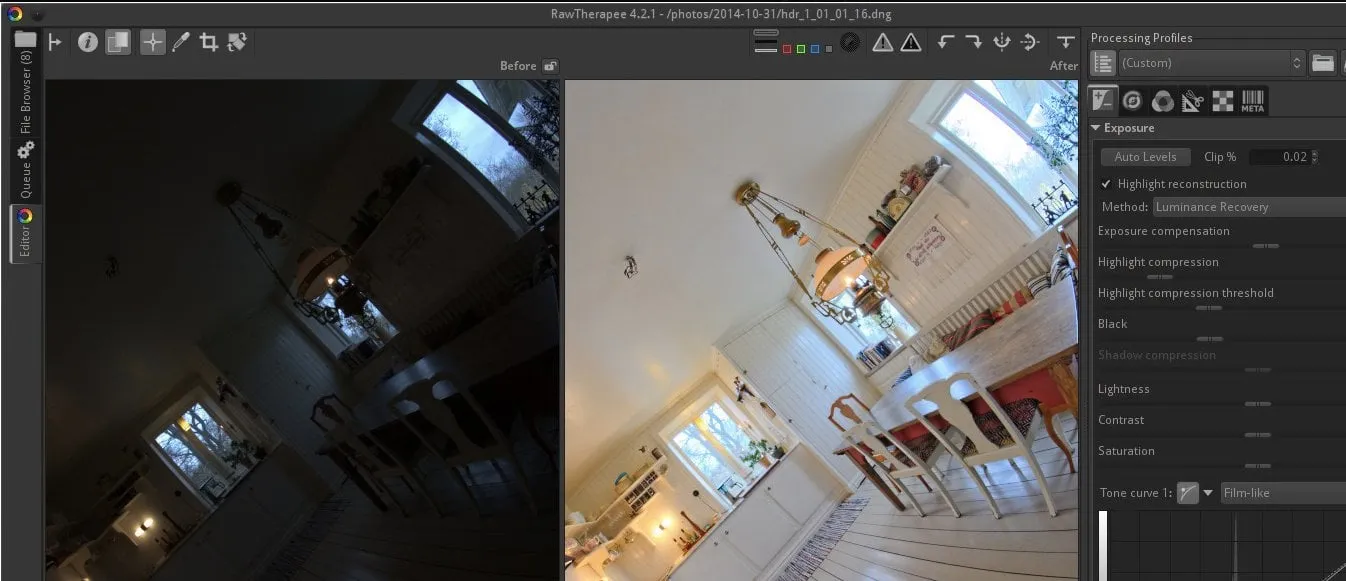
RawTherapee is a free, open-source RAW processor for photographers who want detailed control over image development.
It provides non-destructive processing, demosaicing options, exposure and color controls, sharpening, noise reduction, and batch output.
| Pros | Cons |
| Free and available on Windows, macOS, and Linux | Its detailed controls can overwhelm new users |
| Provides extensive RAW development options | It is not a general-purpose layered compositor |
| Preserves source files through non-destructive processing | Large-library organization may need separate software |
Choose RawTherapee if: You want to learn RAW processing without a software subscription.
It can also form the first stage of a free workflow: develop the RAW file, then continue retouching in a pixel editor.
8. GIMP: For Free Retouching and Image Manipulation
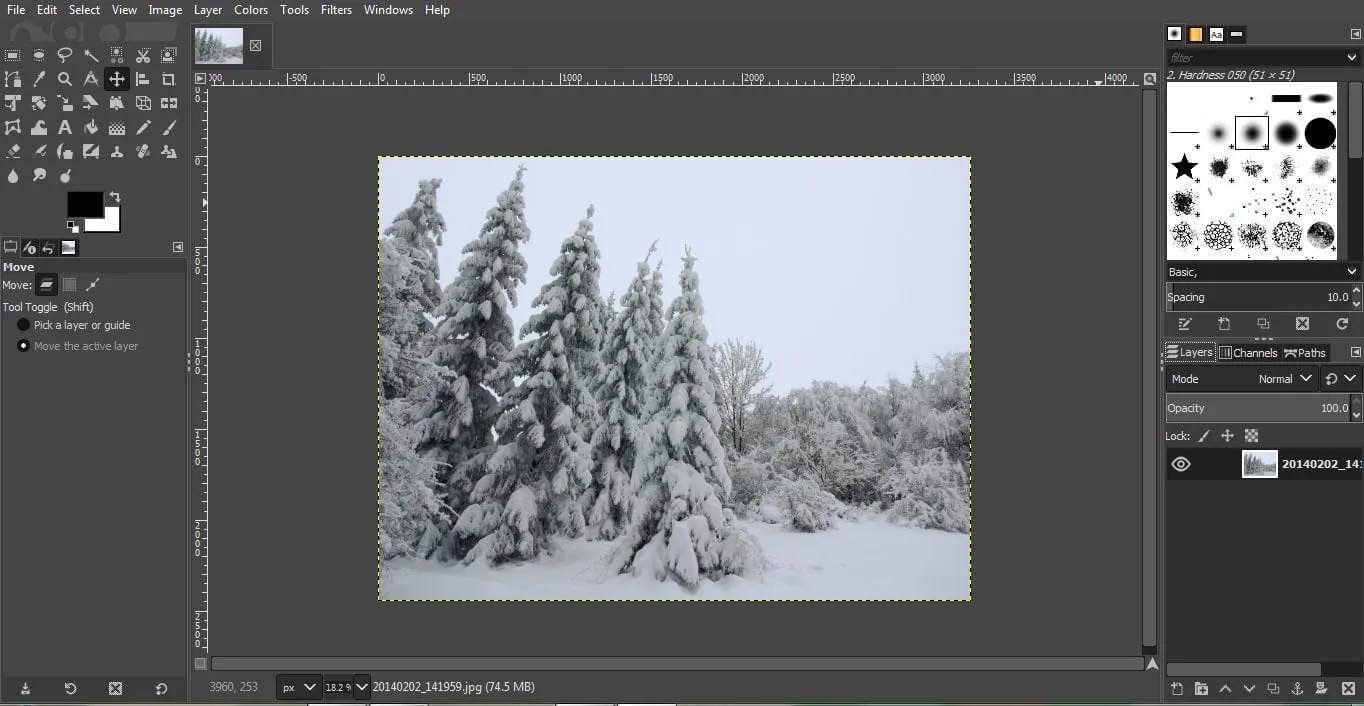
GIMP suits users who need layers, masks, selections, painting, and retouching without a license fee.
It is available on Windows, macOS, and Linux. RAW development is handled through external software such as RawTherapee or darktable, rather than a native RAW development environment.
| Pros | Cons |
| Free and open source | RAW processing requires another application |
| Supports layers, masks, and detailed image manipulation | It does not include a photo-library catalog |
| Can be extended with plugins and scripts | Compatibility and workflows differ from other layered editors |
Choose GIMP if: You need a free pixel editor and are willing to learn its workflow.
Do not assume it duplicates every Photoshop feature or reproduces every PSD document identically. Test files that matter to your work.
9. Photopea: For Browser-Based Layered Editing
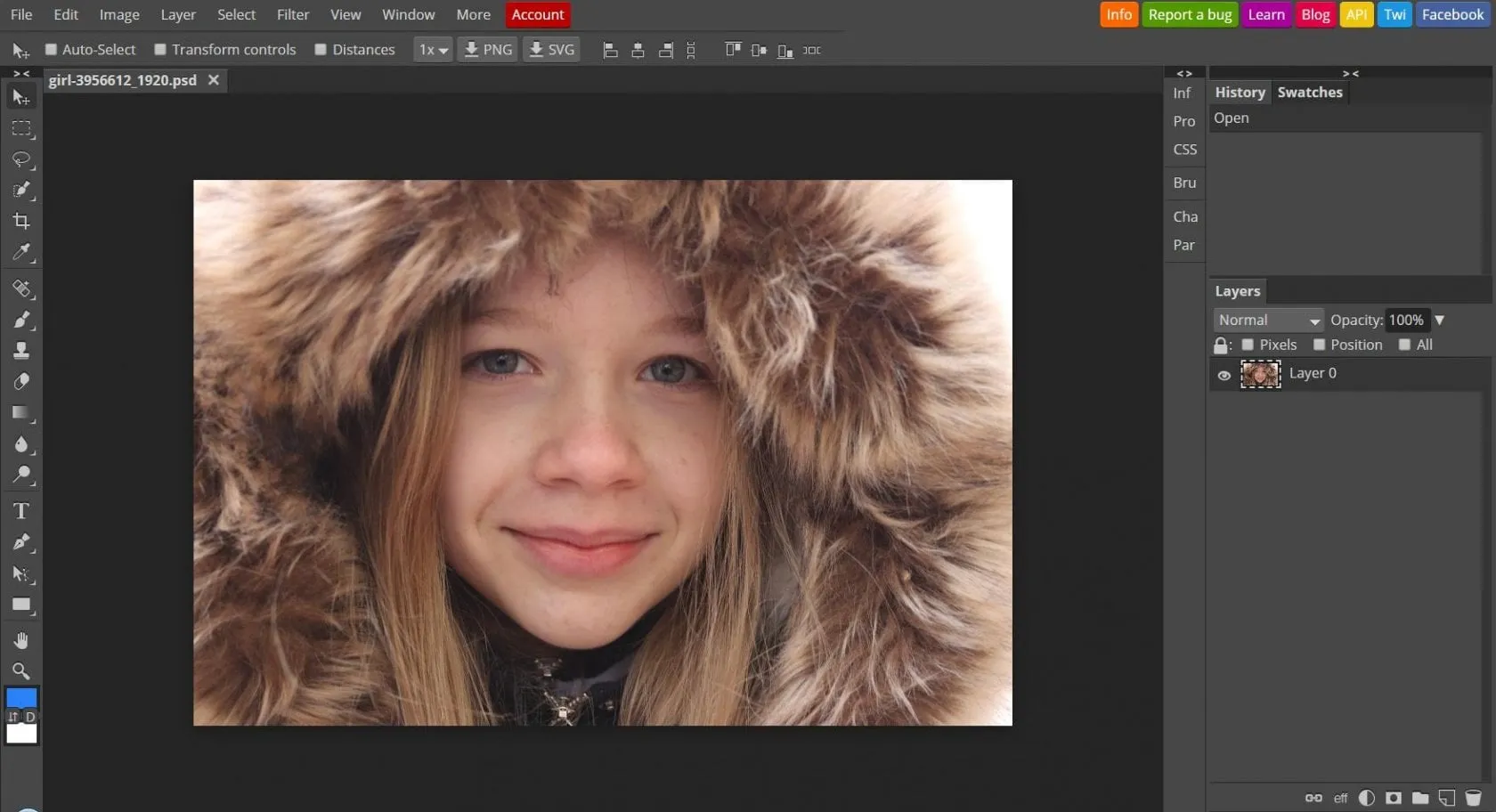
Photopea suits users who need layered editing or PSD access without installing a desktop application.
It provides layers, masks, adjustment layers, selections, and support for opening and saving PSD files. It also opens several RAW formats for development.
| Pros | Cons |
| Runs in a browser without a desktop installation | Large projects depend on device and browser resources |
| Opens and saves PSD documents | Complex imported documents should be checked carefully |
| Provides free access to substantial editing tools | It is not a photo-management system |
Choose Photopea if: You occasionally need to revise a layered document or make a detailed edit on a computer without your usual software.
Browser-based does not automatically mean cloud processing. Photopea states that its core editor processes files locally on your device; assess connected services separately if you use them.
10. Canva: For Photo Editing Within Designs

Canva suits users who want to adjust photographs and place them into social posts, presentations, and other layouts.
It combines image adjustments with templates, text, graphic elements, and collaboration features. Free and paid plans provide different resources and tools.
| Pros | Cons |
| Combines photo adjustments with design templates | It is not primarily a camera RAW development workflow |
| Supports text, layouts, and collaborative design | Some tools and assets require a paid plan |
| Provides web, desktop, and mobile access | Less suited to intricate pixel-level retouching |
Choose Canva if: Your finished output is a design containing photographs rather than a carefully developed photo library.
You may still want a dedicated editor to prepare the photograph before adding it to the layout.
Your AI-Powered Photo Editor for MacOS and Windows
How to Choose the Right Photo Editor
Choose around your most frequent task, then test the complete workflow with your own files.
Match the Editor to Your Main Use Case
A useful shortlist starts with the work you do repeatedly.
| Your main task | Editors to consider |
| RAW development with AI-assisted creative tools | Luminar |
| Photo organization and editing across a collection | Lightroom or Lightroom Classic |
| Detailed retouching and composites | Photoshop or Affinity |
| RAW processing and optical corrections | DxO PhotoLab |
| Studio capture and tethered workflows | Capture One Pro |
| Free RAW development | RawTherapee |
| Free pixel editing | GIMP |
| Occasional browser-based layered work | Photopea |
| Templates and collaborative designs | Canva |
If you mainly adjust camera files, begin with a RAW photo editor. If you frequently combine photographs, prioritize layers, masking, and editable document formats.
Test Your Actual Files
A useful evaluation includes more than opening a sample image.
- Import a small set from your camera.
- Include a high-ISO image and one with difficult highlights.
- Make your usual exposure, color, and local adjustments.
- Apply related settings to several photographs.
- Export at your normal dimensions and format.
- Reopen the project and confirm you can revise the work.
Check both processing time and the number of steps required. A feature-rich application can still be inconvenient for your particular routine.
Compare the Full Cost
Compare license terms, storage, upgrades, and online features—not just the introductory price.
A subscription may include continuing updates but creates a recurring expense. A perpetual license may keep the purchased version usable while charging separately for upgrades or services. A free editor may require additional applications to cover your entire workflow.
Conclusion
Choose a photo editor by testing the work you actually do: developing RAW files, organizing a library, retouching details, or building designs. Compare compatibility and total cost, then keep the application that makes that workflow clear and repeatable.
Frequently Asked Questions
The best starting point depends on the task. Luminar suits photo-focused adjustments with AI assistance, Lightroom suits editing and organization, and Canva suits template-based designs. Test one typical project before committing.
RawTherapee is a useful free RAW processor, GIMP provides free pixel editing, and Affinity offers a free base application for photo editing and design. Photopea is another option when you prefer working in a browser.
No. Lightroom focuses on photo organization and non-destructive development, while Photoshop provides broader pixel editing, retouching, and compositing tools. They can complement each other.
Only if your workflow needs capabilities one application does not cover comfortably. For example, a RAW processor and a layer-based editor can serve different stages of the same project.
AI tools can accelerate selections and other editing tasks, but their results still need review. Check edges, textures, color, and scene accuracy, especially for product images or documentary work.