This post guides you through practical methods to fix blurry iPhone photos! It’s a must-read for anyone looking to enhance their picture quality and avoid common pitfalls that lead to poor image clarity! Hey there! Did you notice that, sometimes, your iPhone photos come out a bit blurry? This guide will walk you through some […]
This post guides you through practical methods to fix blurry iPhone photos! It’s a must-read for anyone looking to enhance their picture quality and avoid common pitfalls that lead to poor image clarity!
Hey there! Did you notice that, sometimes, your iPhone photos come out a bit blurry? This guide will walk you through some straightforward methods on how to make a blurry picture clear on an iPhone!
Let’s jump in and clear things up!
How to Fix Blurry Pictures: Why Your iPhone Photos Are Blurry
Let’s get to the bottom of why your iPhone images might be turning out blurry so you can snap clearer, more vivid images!
1. Your Camera Could Shake
Low light often means your iPhone needs a slower shutter speed to capture more light. If your hands shake even slightly during this time, it can result in a blurry photo.
2. Motion Blur: You Moved Rapidly
If the subject of your photo moves swiftly, or if you’re moving while taking the shot, motion blur is likely. This is more noticeable in situations where the iPhone’s shutter speed is naturally slower.
3. Your Phone Didn’t Focus Accurately
Sometimes, especially in cluttered scenes or where contrast is low, your iPhone might not focus correctly, which makes the main subject blurry.
4. A Smudge on Your Lens
It’s easy to overlook, but a dirty lens can greatly affect photo quality.
5. Several Other Factors Might Be at Play
Issues like poor lighting, incorrect camera settings, or an obstructive iPhone case could also result in blurry photos. Moreover, glitches in your camera app could lead to unexpected blurriness.
Up next, we’ll look at how to use the iPhone’s built-in tools and some third-party apps to sharpen those blurry photos!
How to Fix Blurry Pictures on iPhone via Photos App?
Can you unblur a photo on your iPhone without needing any other apps? Yes—if the issue is mild softness, the Photos app is a good quick fix, since traditional sharpening methods like High Pass filters work best on subtle blur, not severe blur.
- Open Your Photos App: Navigate to the Photos app on your iPhone and locate the blurry picture you want to improve.
- Tap to Edit: Select the image, then hit “Edit” in the top right corner. In the edit mode, swipe right on the bottom menu until you find the “Sharpness” option.
- Adjust the Sharpness: Drag the sharpness slider to sharpen images and make details look sharper. You can also tweak the brightness or contrast here if it helps.
- Save the Edits: Once you’re happy with how it looks, press “Done” to save the changes.
Using Third-Party Apps
If you’re looking to learn how to sharpen a photo on your iPhone, third-party apps can also be incredibly useful. Many online ai powered image tools let you upload a shot and remove blur, improve image clarity, and restore clear images without complicated software or advanced editing skills. They’re especially helpful for older photos that have faded over time, for blurry screenshots or documents where text legibility matters, and for product shots that need to look sharp on Amazon, Etsy, or Shopify.
Smartphone apps often focus on automated, one-tap fixes, and some restoration features now build on technology such as Google’s Photo Unblur AI.
Luminar Neo
Luminar Neo is a robust editing platform available for MacOS, Windows, and iPad, packed with AI tools that enhance photos quickly and efficiently. It’s also one of the specific tools people use to unblur images and recover crisp details from fuzzy photos. Here are the steps that can help you with the blurry pictures:
- Open Luminar Neo: Start by opening Luminar Neo on your MacOS, Windows, or iPad, then upload your image.
- Select SuperSharp AI: Look for the SuperSharp AI feature, which helps specifically to unblur photos. You’ll have options to target general blur or motion blur.
- Adjust Sharpness Settings: Choose from low, middle, or high sharpness settings depending on how much clarity you need. The AI sharpen processing can make a detailed image clearer and help recover fine detail or lost detail.
- Use Background Noise Remover: If your picture is grainy, select the Noiseless AI option. This feature effectively reduces noise without blurring out important details.
- Try Focus Stacking for Multiple Photos: If you have several shots of the same scene with different focus points, use the Focus Stacking tool to merge them into one clear image.
- Utilize Upscale AI: If you need to improve the resolution of your photo, use Upscale AI to enhance it up to six times its original size. This works best when the original image is decent, and the goal is a higher-quality enhanced image rather than inventing detail.
For those who prefer mobile editing, Luminar for Mobile is available for iOS and Android. It offers many of the same powerful features as the desktop version, allowing you to edit photos on the go with precision!
Professional Editing. Now in Your Pocket.
Get Luminar on Mobile
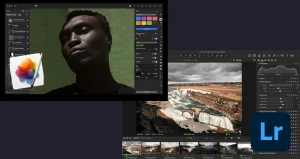
Lightroom Mobile
Adobe Lightroom is a user-friendly photo editing app packed with professional tools, including features to sharpen text and improve blurry text in screenshots, document photos, and regular pictures. What to do:
- Import Your Photo: Start by opening Lightroom Mobile. Import the photo you want to improve into the app.
- Access Sharpening Tools: Tap the picture to enter edit mode, then scroll to find the “Detail” option.
- Adjust the Sliders: Use the sharpening and noise reduction sliders to refine your image. Feel free to experiment with other adjustments like contrast or clarity until you achieve the look you want. Boosting edges and contrast can also help unblur text and make it easier to read.
If you’re looking to learn how to fix blurry images in Photoshop at a professional level, check out our detailed post on the topic!
Also read: How To Open RAW Files on Windows, Mac, and Android?
Snapseed
Snapseed, developed by Google, is a professional photo editing app designed for iPhone users eager to enhance their photography skills, and it can be especially useful for restoring old photos, improving old blurry photos, and cleaning up blurry portraits. Google’s Photo Unblur technology has also helped popularize AI photo restoration, making tools like this especially helpful for precious memories and faded memories. It includes a variety of tools for refining images, such as features for unblurring and smoothing details.
To use Snapseed to sharpen an image:
- Import the Photo: Open Snapseed and upload the photo you want to edit.
- Access Editing Tools: Tap on ‘Tools’ and then ‘Detail’ to access the sharpening options.
- Adjust Sharpness: Slide up and down to switch between ‘Structure’ and ‘Sharpening’. Adjust the levels as needed to restore sharp detail and reach a natural final result, especially on portraits, and confirm by tapping the Tick icon.
- Refine with Masking: If some areas become too sharp, you can mask them. Go to ‘Edit History’, tap ‘View Edits’, select ‘Detail’, and then the ‘Mask’ icon. Paint over areas you want to keep less sharp and tap the inverse icon to apply the mask, finishing with the Tick icon.
For further refinement, tools like ‘Tonal Contrast’ and ‘Drama’ are available to experiment with, helping you achieve the desired clarity and impact in your images!
Exclusive Tools of Endless Possibilities in One AI Editor
Unblur Images Online: Tools for Fixing Blurry iPhone Images
If mobile apps haven’t done the trick or you prefer not to download anything, web-based options can be a great alternative, especially if you want to unblur images online directly in your browser. Many of these tools work as an AI unblur tool to improve image quality and make blurry pictures clear without extra software.
To get started, simply upload your photo and, with just one click, many services can sharpen images online in a few seconds. Some also support batch processing, which is useful when you need to fix multiple files at once.
These platforms can deliver high quality results for images online, including pixelated product photos that need to look cleaner and more professional. They’re also useful for product listings, screenshots, and scanned old photos; if you’re restoring prints, scan them at 600 DPI or higher first for better results.
How to Prevent Blurry Pictures on Your iPhone
Taking great photos with your iPhone doesn’t have to be hit or miss with these tips!
1. Stabilize Your Phone
Using a tripod can be a game-changer, especially in low light or when you’re zooming in for a shot. Even small, pocket-sized tripods can help eliminate that annoying camera shake.
2. Tweak Your Settings for Better Image Clarity
Get to know your iPhone’s camera settings a bit better:
- Focus: Tap on your screen where you want the camera to focus.
- Exposure: If things look too bright or too dark, slide your finger up or down to adjust the light balance.
- Gridlines: Turning these on can help you keep your shots straight and well-composed.
3. Keep Your Lens Clean
A quick wipe with a microfiber cloth can make a world of difference. Dust and fingerprints can blur your photos more than you might think.
4. Fix Common Problems
If blurry photos keep cropping up:
- Try restarting your camera app or your iPhone itself.
- Check to see if your case is getting in the way of the lens.
- If problems continue, it might be time to talk to Apple Support.
These straightforward steps can help you capture clearer photos more consistently and let you focus more on your photography and less on fixing mistakes!
Conclusion
That’s it! You’ve got the tools and tips for how to fix blurry pictures on your iPhone, from prevention to quick edits. With everything we’ve covered, you can now confidently make images clearer, make blurry pictures clear, and improve the quality of your photos. Keep in mind that small steps like stabilizing your camera, cleaning your lens, or tweaking settings can help prevent blurs even before they happen.