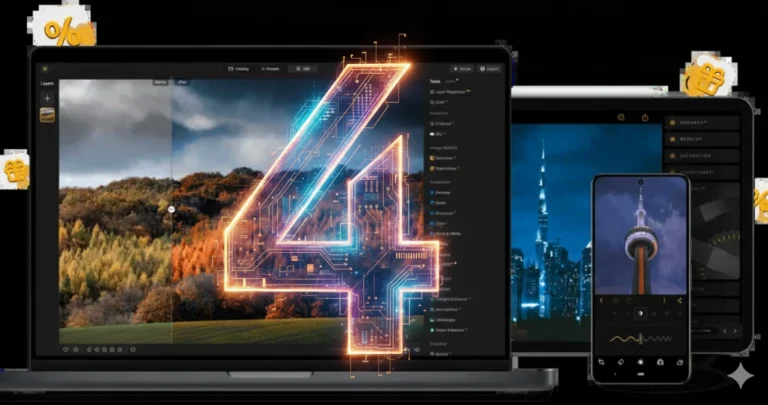
Is Capture One right for your workflow? Explore its RAW editing, color controls, tethering, and file organization tools, plus its key trade-offs.
Being a prominent player in photographic software, Capture One is constantly striking in its reliable features and unsurpassed quality. In this article, you will find an overview of the main intricacies of Capture One and an evaluation of its diverse set of tools, performance, and user experience. We will talk about whether he is worth his price and answer the question, “Is Capture One Better than Lightroom?” Discover its strengths, potential disadvantages, and unique features, and get the answer to the question of why this photo editor is one of the best choices for many photographers.
Don’t feel like reading the whole breakdown? We’ve pulled together a quick summary below.
Key Takeaways
- Capture One Pro is a non-destructive RAW editor with advanced color, tonal, masking, retouching, and tethering tools.
- Sessions and Catalogs serve different purposes: Sessions are well suited to individual shoots and tethered workflows, while Catalogs are designed for larger, searchable photo libraries.
- Color Editor is one of Capture One’s distinctive features, allowing targeted adjustments to hue, saturation, lightness, and skin tones.
- Tethered shooting is a major part of the Capture One workflow, with camera control, Live View, Next Capture Adjustments, and support for hundreds of cameras.
- Capture One now includes several AI-assisted features, including AI masking, Enhanced Denoise, AI Crop, Match Look, and Assisted Review.
- Capture One Live supports real-time collaboration, including ratings, comments, tags, and browser-based image review.
- Capture One is available through subscription or a perpetual license, while its mobile app is available for iPhone and iPad.
- There is no universal answer to whether Capture One is better than Lightroom. The more useful question is which software fits your camera workflow, editing priorities, organization system, and budget.
What is Capture One
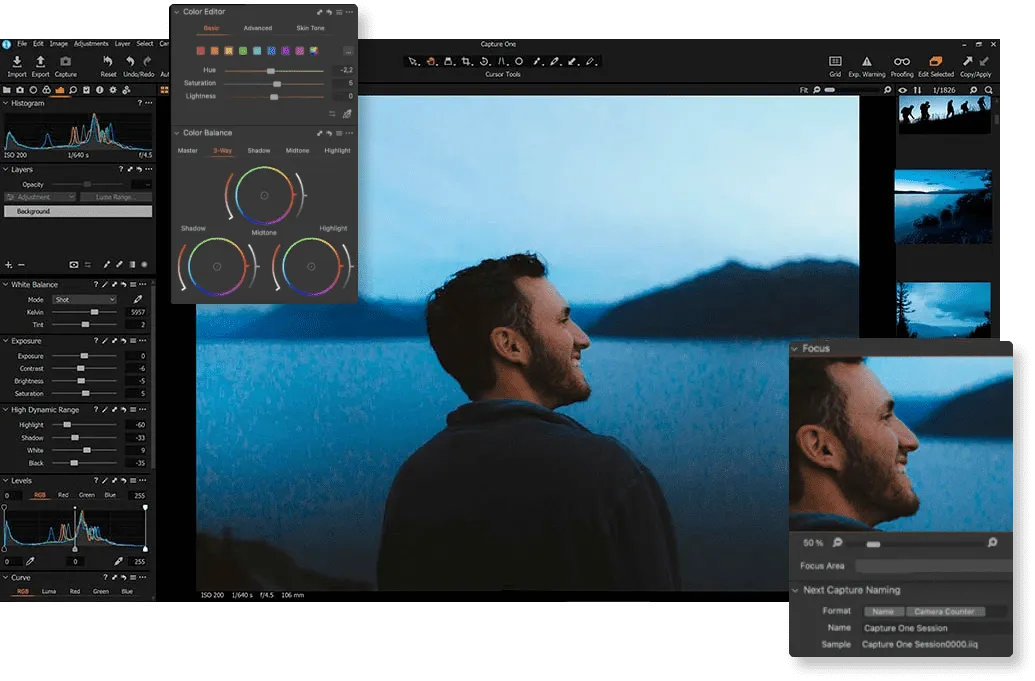 Capture One is a high-quality RAW image processing software. It is ideal for studio and editorial filming, focusing on collaboration, shooting, and color-studied mode.
Developed in 1994 as a RAW image converter for Phase One cameras, this photo editor has become a sectoral standard for competing with Adobe. Its reputation is based on detailed management, tuned workspace, and functions for professional photographers.
Recently, Capture One has become the best choice for color correction, offering unique controls for accurate color adjustment. Let’s examine Capture One’s performance in different areas to determine if this software suits you.
This powerful RAW processing program offers non-destructive photo editing. Many users compare it with Adobe Lightroom because they have similar functionality, including the latest tools. Learn more about the comparative characteristics of these two programs from Lightroom vs Capture One.
Exclusive Tools of Endless Possibilities in One Editor
Capture One Alternatives
In addition to the already mentioned Lightroom, a great alternative to Capture One is the AI photo editing software Luminar, which also has advanced AI features at a lower price. Luminar works on all PCs and has a mobile version.
Luminar can be useful for photographers who want RAW processing alongside AI-assisted editing and a more tool-focused workflow.
For example, Luminar provides RAW development controls such as exposure, curves, camera profiles, distortion correction, and chromatic-aberration correction. It also provides layers and masking for selective adjustments. AI-assisted masking can identify different elements of an image, while Object Select AI can help isolate individual objects for localized editing. For noise reduction, Luminar includes controls for luminance and color noise, with additional settings for adjusting the strength of the effect.
The main difference is workflow: Capture One places particularly strong emphasis on color management, tethering, and structured professional photo workflows, while Luminar puts more emphasis on accessible editing tools, layers, and AI-assisted adjustments.
Capture One vs Luminar

| Feature | Capture One | Luminar |
| RAW editing | Yes | Yes |
| Non-destructive editing | Yes | Yes |
| Layers | Yes | Yes |
| Masking | Manual and AI-assisted | Manual and AI-assisted |
| Color editing | Advanced Color Editor | Color and selective adjustment tools |
| Tethering | Extensive camera tethering workflow | Not the same core focus |
| Sessions | Yes | No equivalent Capture One Session workflow |
| Catalogs | Yes | Different library workflow |
| AI-assisted tools | Yes | Extensive AI-assisted editing |
| Mobile editing | iPhone and iPad | Mobile workflow available through Luminar Mobile |
| Collaboration | Capture One Live | Not a direct equivalent |
There is no need to choose based on feature count alone. Consider how you actually work: whether you shoot tethered, how you organize your archive, how much manual color control you need, and whether AI-assisted editing is a priority.
Capture One Reviews
Capture One Pros and Cons
Capture One has a strong feature set, but it also has trade-offs worth considering before choosing it as your main editor.
| Pros | Cons |
| Precise color editing and color management | The interface can take time to learn |
| Strong tethered-shooting workflow | Subscription costs can add up over time |
| Sessions and Catalogs provide flexible organization | Some advanced features are available only in higher-tier plans |
| Non-destructive editing with layers and masks | Resource requirements can be significant for demanding workflows |
| AI-assisted masking, denoising, and review tools | The feature set can feel complex for casual users |
| Capture One Live supports browser-based collaboration | Some workflows may require additional services or plans |
| Desktop and iPad/iPhone workflows are available | Mobile and desktop capabilities are not identical |
Capture One Features
RAW Processing
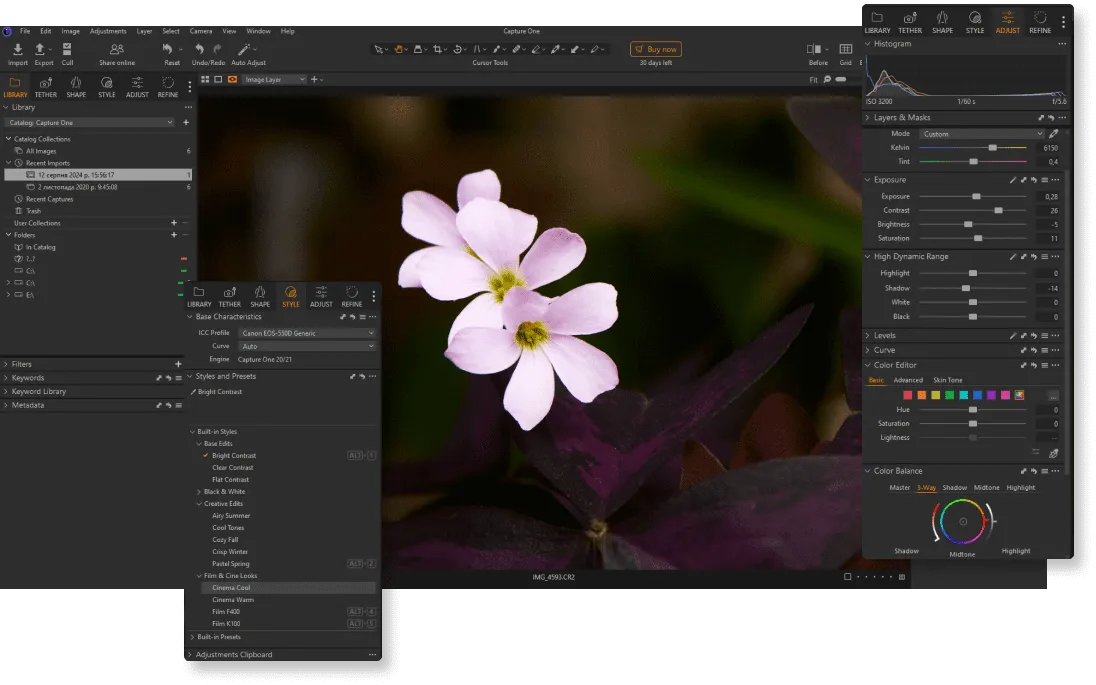
Capture One is designed to process camera RAW files while retaining the flexibility of RAW editing. Its development tools include exposure, white balance, highlights, shadows, curves, sharpening, noise reduction, and color adjustments.
The software also provides camera-specific profiles and supports a wide range of camera systems. Capture One’s current Pro offering lists support for more than 550 cameras.
The exact appearance of a RAW file depends on the camera, profile, processing settings, and editing choices, so it is better to avoid broad claims that Capture One universally produces more saturated or sharper images than Lightroom.
Basic Editing Tools
Capture One includes the fundamental controls expected from a modern RAW editor:
- Exposure
- Contrast
- High Dynamic Range adjustments
- White balance
- Levels and Curves
- Clarity and Structure
- Sharpening
- Noise reduction
- Crop and rotation
- Keystone correction
- Local adjustments
These tools can be combined with layers and masks, allowing adjustments to be applied selectively rather than globally.
Elevate Your Photography with Our Advanced Software
Color Editor
Color Editor is one of Capture One’s most recognizable editing tools. You can select a color directly from the image and then refine its hue, saturation, and lightness. Advanced controls provide additional options for working with complex or mixed colors.
The Skin Tone mode can be used to make skin colors more consistent across an image or series of images. Combined with layers and masks, this makes it possible to target individual subjects or areas rather than changing every color in the frame.
This is particularly useful for portrait, fashion, and commercial photography where consistent color matters across a set.
Layers and Masking
Capture One supports layers for localized editing. Masks can be created and refined to control where adjustments are applied.
Recent versions have expanded AI-assisted masking and introduced Combine Masks, which allows masks to be added, subtracted, or intersected while remaining editable. This makes the software suitable for workflows that require both precise manual control and automated selections.
Styles and Presets
Capture One uses both Styles and Presets, but they are not exactly the same thing.
A Style can contain a collection of adjustments, while a Preset is associated with an individual tool or adjustment. Styles can therefore be used to create a consistent look across multiple images, while individual presets can speed up specific adjustments.
Smart Styles can also combine regular adjustments with Smart Adjustments to adapt exposure and white balance to individual images.
Smart Adjustments and AI-Assisted Editing
Capture One has expanded its use of AI beyond the older Smart Adjustments workflow.
Smart Adjustments can use a reference image to help match exposure and white balance across a series. The feature was designed with workflows such as portrait, wedding, and event photography in mind.
Current versions also include additional AI-assisted features. These include:
- AI-powered masking
- Enhanced Denoise
- AI Crop
- Match Look
- Assisted Review
- AI-assisted retouching
Enhanced Denoise uses AI to reduce noise in high-ISO images while attempting to preserve texture and skin detail. Assisted Review can flag issues such as closed eyes, missed focus, and exposure problems during the review process.
This means the original description of Capture One as having only “limited AI features” is no longer accurate.
Tethered Shooting
Tethering is one of Capture One’s major workflow strengths. A compatible camera can be connected so that photographs appear in Capture One as they are taken, allowing photographers to review, organize, and adjust images during the shoot.
Current versions include features such as Live View, Snap to Eye, Next Capture Adjustments, camera control, and wireless tethering for supported camera systems.
This workflow can be useful in studio, commercial, fashion, product, and portrait photography where immediate image review is important.
Capture One Live

Capture One Live is designed for collaboration during and after a photoshoot. Images can be shared through a web browser, allowing collaborators or clients to review them without installing Capture One.
Depending on the Live setup, viewers can rate, comment on, and tag images. Capture One states that the free version supports one shared session for up to 24 hours, while Live Unlimited provides longer access and multiple sessions.
This makes Live useful when photographers need feedback from clients, art directors, editors, or other team members without having everyone physically present at the shoot.
Your AI-Powered Photo Editor for MacOS and Windows
Capture One Pricing and Licenses
Capture One currently offers more than one purchasing option, so the old description of the software as simply an expensive subscription product is incomplete.
Capture One Pro is available as a subscription, while a perpetual license is also available for photographers who prefer a one-time purchase. A perpetual license does not provide the same ongoing access to future updates and hardware support as a subscription.
There is also an All in One plan that combines desktop Capture One Pro, mobile access, Live Unlimited, and additional services. Capture One Mobile is separately available for iPhone and iPad.
Because prices and offers can vary by country and plan, it is more useful to compare the current license options than to quote a fixed price that may quickly become outdated.
Capture One on iPhone and iPad

Capture One Mobile is available for iPhone and iPad. It is more than a simple viewer: the app supports RAW editing, tethering, masking, retouching, layers, color tools, and other editing functions designed for mobile workflows.
Capture One has also expanded Sessions to its mobile workflow. Sessions can be useful when moving an individual shoot between desktop and mobile while retaining a consistent folder structure.
The mobile app is therefore particularly relevant to photographers who need to review, edit, tether, or organize images while working on location.
Bottom Line
Capture One offers powerful performance with amazing simplicity that makes complex tasks easy. Its flexibility allows you to customize the workspace. Users can benefit from its features despite the high price. Its exceptional RAW processing and color management set it apart, especially for high-end customers. This software is worth considering if color retention and accuracy are paramount. Overall, it deserves recognition, especially if budget is not an issue. And for those looking for the same features at a lower price or more advanced AI tools, you should look at alternative top photo editors like Luminar or Lightroom.
Frequently Asked Questions
Neither is universally better. Capture One may be a strong fit for photographers who prioritize tethered shooting, detailed color control, and Sessions, while Lightroom may suit photographers who prefer Adobe’s ecosystem and library workflow.
Yes. RAW processing is one of Capture One’s core functions, with tools for exposure, white balance, curves, color, sharpening, noise reduction, and localized adjustments.
A Session is designed around an individual project or shoot and uses a portable folder-based structure. A Catalog is better suited to managing and searching a larger collection of images across multiple projects.
Yes. Current versions include AI-assisted masking, Enhanced Denoise, AI Crop, Match Look, Assisted Review, and other assisted editing features.
Yes. Capture One Mobile is available for iPad and iPhone and supports editing, tethering, Sessions, masking, layers, and other photography tools.