Compare Lightroom and Capture One in 2026 to see which photo editor better suits your workflow. Explore their differences in RAW editing, organization, color control, tethering, pricing, and AI tools.
Lightroom and Capture One are professional RAW photo editors, but they are built around different workflow priorities. Lightroom offers an accessible editing environment, cloud-connected apps, strong search and organization, and close integration with Photoshop. Capture One focuses on precise color control, customizable desktop workspaces, Sessions, and a mature tethered-shooting workflow.
So, is Capture One better than Lightroom? For studio, fashion, product, and other tethered production, it often is. For photographers who want easy cross-device access, broad learning resources, and a Lightroom–Photoshop workflow, Lightroom is usually the more practical choice.
This Lightroom vs Capture One comparison reflects the products available in 2026. Features, supported cameras, plans, and regional pricing change regularly, so confirm any purchase-critical detail on the current product pages before subscribing or buying a license.
Don’t feel like reading the whole breakdown? We’ve pulled together a quick summary below.
Key Takeaways
- Lightroom is the better fit for photographers who prioritize cloud sync, mobile and web access, simple organization, and Photoshop integration.
- Lightroom Classic remains the Adobe option for a desktop-centered workflow with local files, catalogs, printing, and more traditional professional file management.
- Capture One is particularly strong for tethered capture, on-set collaboration, Sessions, workspace customization, and detailed color editing.
- Both applications now offer AI-assisted masking and modern automated tools; the old idea that Lightroom has only basic local adjustments is outdated.
- Capture One offers subscription plans and a perpetual desktop license, while Lightroom is sold through subscription plans.
- Neither editor is universally better: camera support, workflow, platform, collaboration needs, and total plan cost matter more than a generic feature count.
- Luminar is worth considering when fast AI-assisted editing and a lower learning curve matter more than deep catalog or studio-tethering workflows.
Lightroom vs Capture One at a Glance
| Category | Lightroom / Lightroom Classic | Capture One | Advantage |
| Learning curve | Generally easier for beginners | More technical and customizable | Lightroom |
| RAW processing | Strong, broad camera support | Strong, known for camera profiles and color rendering | Tie; preference depends on camera and taste |
| Color editing | Powerful global and masked color tools | Highly granular Color Editor and skin-tone controls | Capture One |
| Tethered shooting | Available in Lightroom Classic for supported cameras | Deep tethering, Live View, camera control, and on-set tools | Capture One |
| Organization | Cloud library in Lightroom; catalogs and folders in Classic | Catalogs plus project-based Sessions | Depends on workflow |
| AI masking | Subject, sky, background, people, objects, and range-based masks, depending on app/version | Assisted subject/background masking and combined masks | Tie for most common tasks |
| Layers | Mask-based local edits; no Photoshop-style pixel layers | Adjustment layers with masks and opacity | Capture One |
| HDR and panoramas | Built-in Photo Merge workflows | Not a central native workflow | Lightroom |
| Mobile and web | Mature desktop, mobile, and web ecosystem | iPhone/iPad app available through relevant plans | Lightroom |
| Purchase model | Subscription | Subscription or perpetual desktop license | Capture One for ownership choice |
| Photoshop integration | Direct and central to Adobe Photography plans | PSD workflow available, but not the same ecosystem | Lightroom |
The winner changes with the job. A travel photographer and a studio digitech may value completely different rows in this table.
Your AI-Powered Photo Editor for MacOS and Windows
What Is Adobe Lightroom?
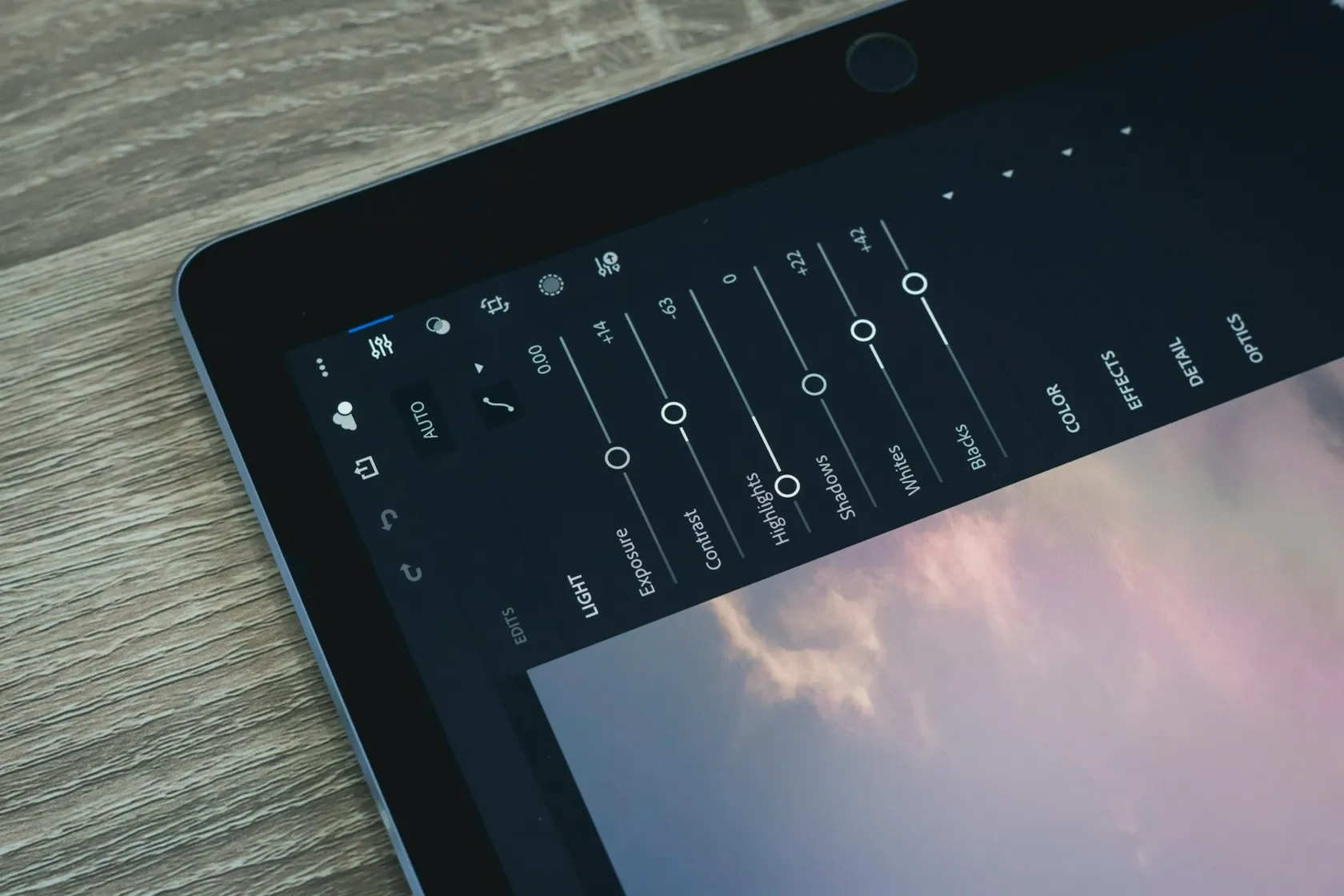
“Lightroom” now refers to two related desktop applications:
- Lightroom is cloud-based and designed to keep originals, edits, and organization available across desktop, mobile, and web.
- Lightroom Classic is optimized for a desktop workflow using local storage, folders, and catalogs.
Both provide non-destructive RAW editing, presets, masking, noise reduction, lens corrections, batch adjustments, and photo organization. Lightroom also includes modern tools such as Generative Remove, Lens Blur, portrait Quick Actions, dust removal, and assisted culling, although exact availability may differ between Lightroom, Lightroom Classic, mobile, and web.
The cloud version is appealing to photographers who want to begin on a phone, continue on a laptop, and access the same library elsewhere. Classic is the more familiar choice for photographers managing large local archives, detailed metadata, printing, plug-ins, and desktop production.
Lightroom Pros and Cons
| Pros | Cons |
| Accessible interface and large tutorial ecosystem | Subscription required |
| Cloud, desktop, mobile, and web options | Product naming and plan differences can be confusing |
| Strong search, organization, presets, and batch editing | Cloud storage can increase ongoing cost and upload requirements |
| Advanced AI masking and removal tools | Lightroom Classic interface is less streamlined than cloud Lightroom |
| Built-in HDR and panorama merging | Tethered workflow is less production-focused than Capture One |
| Close integration with Photoshop | Some advanced features and generative use depend on plan or credits |
What Is Capture One?

Capture One is a professional RAW converter, photo editor, file-management application, and tethered-capture platform. It is widely used in commercial studios because images can appear on a computer as they are captured, receive adjustments automatically, and be reviewed during production.
Its two main organizational approaches are:
- Catalogs, which manage a broader library across shoots and folders;
- Sessions, which provide a portable, project-based structure for an individual job.
Capture One’s current tools include detailed color editing, adjustment layers, assisted masking, face retouching, Match Look, Enhanced Denoise, negative-film conversion, culling tools, and highly customizable workspaces. Live View, camera control, Next Capture Adjustments, and collaboration options strengthen its on-set role.
Capture One Pro is the desktop product. Other plans can add iPhone/iPad editing, online collaboration, shared settings, and studio-oriented functionality. The exact combination depends on the selected plan.
Capture One Pros and Cons
| Pros | Cons |
| Excellent color tools and camera-specific profiles | Steeper learning curve for new photographers |
| Deep tethered-capture and on-set workflow | Mobile and cloud ecosystem is less universal than Lightroom’s |
| Sessions and Catalogs support different organizational needs | Some ecosystem and collaboration features require higher-tier plans |
| Customizable workspaces and shortcuts | Fewer general-purpose tutorials and presets than Lightroom |
| Adjustment layers with masks and opacity | Perpetual licenses do not include unlimited future upgrades |
| Subscription and perpetual desktop options | Not the strongest choice for native panorama and HDR merging |
Lightroom vs Capture One: Detailed Comparison
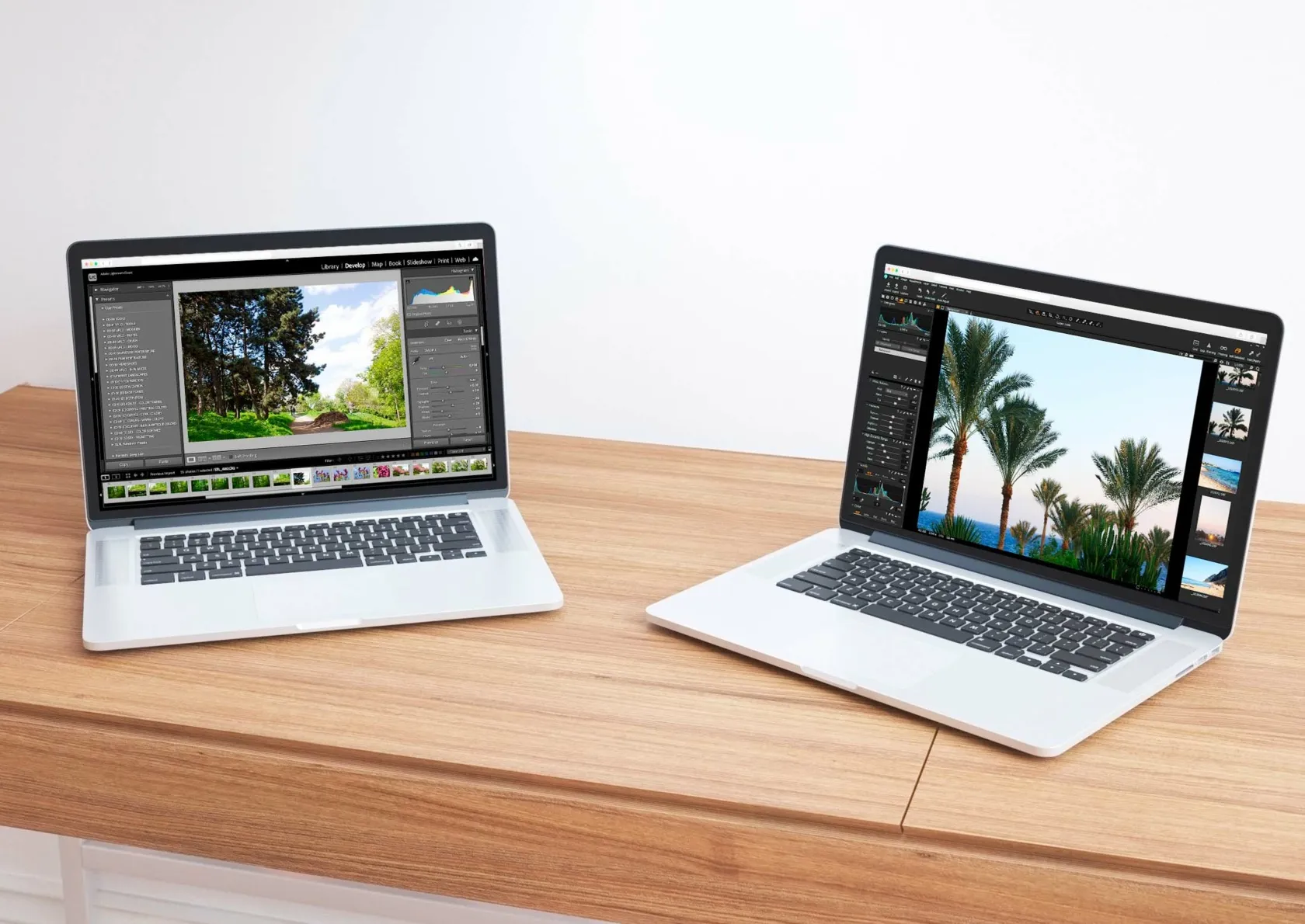
1. Interface and Learning Curve
Lightroom presents most editing tools in a relatively guided, consistent order. Its broad user base also makes it easy to find tutorials, preset packs, camera-specific advice, and troubleshooting information. The cloud version is especially approachable for photographers moving from phone editing to RAW files.
Lightroom Classic is more complex because it separates tasks into modules and includes deeper catalog, metadata, print, and export controls. It is still generally easier to learn than a fully customized Capture One workspace.
Capture One gives experienced users more control over where tools appear, which panels remain visible, and how shortcuts work. This is valuable when building a workstation for tethering, culling, color work, or retouch preparation. The tradeoff is that two photographers may use very different layouts, making tutorials harder to follow exactly.
Verdict: Lightroom for a faster start; Capture One for a workspace tailored to a specific professional role.
2. RAW Processing and Image Quality
Both applications produce professional-quality RAW conversions. Differences in default rendering do not mean that one engine always contains more “real” detail than the other. Camera profile, lens support, sharpening, noise reduction, contrast, and color defaults all influence the first impression.
Capture One is often preferred for its camera-specific color profiles, detailed controls, and polished starting point for supported cameras. Lightroom offers broad Adobe camera support, multiple profiles, lens corrections, and a consistent workflow across a large range of devices.
Before switching software, download the trial and process the same difficult files in both applications:
- one portrait with challenging skin tones;
- one high-ISO image;
- one scene with saturated colors;
- one file with strong highlight and shadow recovery;
- one image made with the camera and lens combination used most often.
Verdict: A practical tie. Test your own RAW files rather than choosing from screenshots of different default edits.
For a clearer explanation of what the file contains, read our guide to RAW vs JPEG.
3. Color Editing
Capture One remains especially strong in precise color work. Its Color Editor can isolate narrow color ranges and adjust hue, saturation, and lightness, while dedicated skin-tone controls help even out variation without forcing every area toward one flat color.
Lightroom also provides capable color grading, point color controls, curves, HSL-style adjustments, profiles, calibration options in Classic, and color adjustments inside masks. The gap is smaller than the old article suggests, but Capture One still gives many color-focused photographers a more direct and granular workflow.
Verdict: Capture One, particularly for fashion, beauty, product, and photographers who build the edit around color precision.
4. Masking and Local Adjustments
Both editors use AI-assisted selection to reduce manual brushing. Lightroom can generate masks for common subjects such as people, sky, background, and objects, then combine or refine them with brush, gradient, color, and luminance-based selections. Availability varies across Lightroom applications and versions.
Capture One supports assisted subject and background masks, adjustment layers, refinement tools, and combinations of multiple masks. Its layer opacity makes it easy to reduce an entire local adjustment without changing every slider.
The important distinction is not “Lightroom has masks while Capture One has layers.” Both can isolate areas. Capture One structures local editing around adjustment layers, while Lightroom structures it around masks attached to groups of adjustments. Neither replaces Photoshop’s full pixel-layer and compositing system.
Verdict: Capture One for layer-oriented control; Lightroom for approachable automated selection and close Photoshop handoff.
5. Tethered Shooting
Tethering is Capture One’s clearest advantage. For supported cameras, photographers can shoot directly into a Session or Catalog, use Live View and camera controls, apply adjustments as new images arrive, organize captures, and show work to a client or creative team.
Lightroom Classic supports tethered capture for compatible cameras, but its workflow is generally less comprehensive for complex commercial production. Support differs by camera brand and model in both applications, so check the current compatibility lists before choosing software for a studio.
Verdict: Capture One for frequent studio and on-set tethering.
Elevate Your Photography with Our Advanced Software
6. Photo Organization: Cloud Libraries, Catalogs, or Sessions
Lightroom’s cloud library removes much of the distinction between devices. Albums, edits, ratings, and originals can remain synchronized, subject to available storage and connectivity. Lightroom Classic instead uses catalogs that reference files stored locally or on connected drives.
Capture One Catalogs suit longer-term libraries, while Sessions keep one shoot in a predictable folder structure that can be moved or delivered as a project. Sessions are particularly convenient for client jobs and tethered work because they separate captures, selects, output, and trash.
Verdict: Lightroom for cross-device access, Lightroom Classic for established local catalogs, and Capture One Sessions for discrete professional shoots.
7. Presets and Styles
Lightroom calls saved looks presets; Capture One calls them Styles. Both can accelerate repetitive edits, provide a creative starting point, and be applied across multiple images. Capture One also allows Styles to interact with layer-based workflows, while Lightroom offers a much larger third-party preset market and many Adaptive Presets that use masks.
Preset and Style files are not directly interchangeable. A visual look can be recreated manually, but copying the file itself between applications will not convert it into the other format.
If you already have an established Adobe workflow, explore compatible Lightroom presets before treating the size of a preset library as a reason to switch editors.
Verdict: Lightroom for marketplace variety; Capture One for users who prefer its Style and layer workflow.
8. AI and Automated Tools
Lightroom currently combines AI masking with Generative Remove, Lens Blur, assisted culling, portrait Quick Actions, dust detection, and other automated features. Some operations use generative credits, and feature availability may differ by platform.
Capture One focuses automation more tightly on professional photo production. Current offerings include assisted masking, face retouching, Match Look, AI Crop in relevant plans, dust removal, Enhanced Denoise, and other workflow accelerators.
The stronger choice depends on the task. Lightroom offers a broader cloud-connected and generative toolset, while Capture One emphasizes controlled editing and production efficiency.
Verdict: Lightroom for broad AI assistance and generative cleanup; Capture One for automation within a tethered or color-critical workflow.
9. HDR, Panoramas, and External Editing
Lightroom and Lightroom Classic include Photo Merge workflows for HDR and panoramas. Adobe users can also send an image or group of files to Photoshop when they need pixel layers, advanced compositing, detailed object removal, or specialized retouching.
Capture One can hand files to an external editor and work with common rendered formats, but native panorama and HDR merging are not its defining strengths. Photographers who regularly bracket landscapes may need another application for merging.
Luminar provides dedicated HDR Merge and panorama stitching tools for photographers who want those workflows within a more AI-oriented editor.
Verdict: Lightroom for built-in merging and direct Photoshop integration.
10. Mobile and Cloud Workflow
Lightroom offers the more mature multi-platform environment: desktop, mobile, web, shared albums, and cloud synchronization. Lightroom Classic can synchronize selected content, but its primary library remains desktop-centered.
Capture One offers mobile editing and tethering on iPhone and iPad through relevant plans, plus online collaboration and shared settings in its broader ecosystem. It can fit a professional mobile workflow, but users should compare exactly what is included in Pro, Mobile, All in One, and Studio before purchasing.
Verdict: Lightroom for the simplest cross-device workflow; Capture One for photographers whose mobile use is connected to Capture One production.
11. Pricing and Licensing
Pricing is difficult to compare with one monthly number because the products use different structures and regional offers.
Lightroom is subscription-only. Depending on the plan, it may include cloud storage, Lightroom Classic, Photoshop, and a monthly allocation of generative credits. The cheapest-looking plan is not necessarily the right comparison if the photographer also needs Photoshop or more storage.
Capture One offers subscriptions for different parts of its ecosystem as well as a one-time perpetual license for the desktop application. A perpetual license allows continued use of the purchased version, but it does not provide unlimited future feature updates or permanent support for new camera hardware.
Compare the full cost over the period you expect to use the software:
- required desktop and mobile applications;
- cloud storage;
- Photoshop or another external editor;
- collaboration tools;
- upgrades for new cameras;
- monthly versus annual commitment;
- cancellation and renewal terms.
Verdict: Capture One provides more purchasing flexibility; Lightroom plans can deliver better ecosystem value when Photoshop and cloud storage are needed.
Lightroom vs Capture One for Different Photographers

| Photographer or workflow | Better starting choice | Reason |
| Beginner learning RAW editing | Lightroom | Gentler learning curve and abundant tutorials |
| Travel or mobile photographer | Lightroom | Cloud sync and mature phone, web, and desktop workflow |
| High-volume local archive | Lightroom Classic | Detailed catalog, metadata, local storage, and output tools |
| Studio product photographer | Capture One | Tethering, Sessions, camera control, and on-set review |
| Fashion or beauty photographer | Capture One | Color precision, skin-tone tools, tethering, and layers |
| Landscape photographer using HDR/panoramas | Lightroom | Built-in Photo Merge workflows |
| Photographer avoiding subscriptions | Capture One | Perpetual desktop license available |
| Adobe/Photoshop user | Lightroom | Direct ecosystem integration |
| Photographer wanting quick AI-led edits | Luminar | Shorter learning curve and photography-focused AI tools |
Exclusive Tools of Endless Possibilities in One Editor
Where Luminar Fits
Luminar takes a different approach from both Lightroom and Capture One. It prioritizes visual, AI-assisted editing and a shorter route from import to finished image. Tools for relighting, sky editing, portrait enhancement, object removal, noise reduction, HDR, and panoramas can reduce the number of manual selections required for common creative tasks.
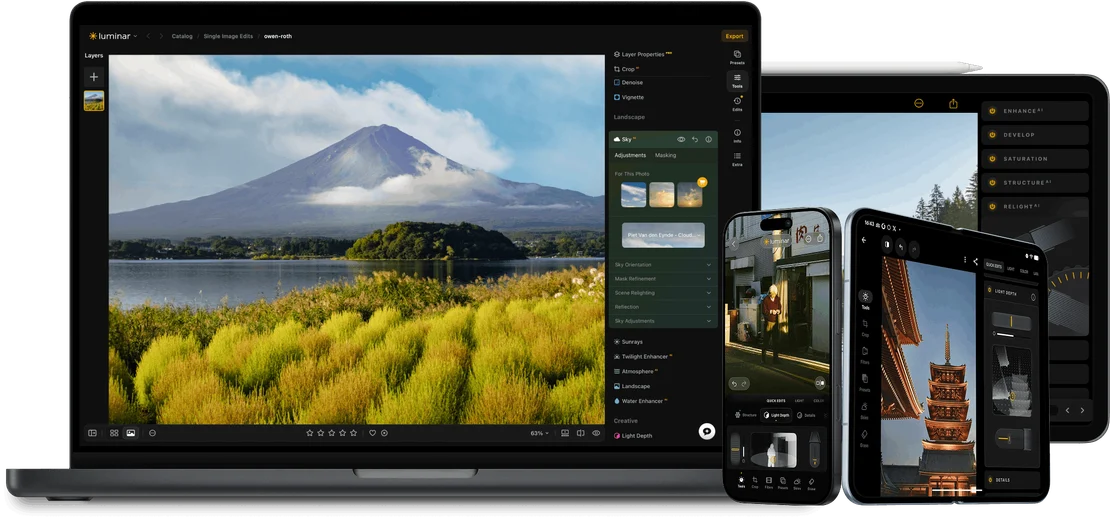
It is especially relevant when:
- you want advanced-looking edits without learning a studio-oriented interface;
- catalog complexity is less important than fast creative editing;
- you prefer a standalone editor but may also want plug-in use with Adobe software;
- you frequently edit landscapes, travel photos, portraits, or social content;
- you want AI tools that remain adjustable rather than a fully automatic one-click result.
Luminar is not a direct replacement for every workflow. Capture One remains the more specialized choice for high-end tethered production, while Lightroom offers a broader cloud library and closer Photoshop integration. The best alternative depends on which parts of those ecosystems you actually use.
Final Verdict: Capture One or Lightroom?

Choose Lightroom if you want an accessible editor, cloud access across devices, broad educational support, built-in panorama and HDR merging, and the option to work closely with Photoshop. Choose Lightroom Classic when you want Adobe’s editing tools but prefer a desktop-centered local catalog.
Choose Capture One if tethered capture, Sessions, customizable workspaces, adjustment layers, and detailed color control are central to your work. It is particularly compelling for studio, commercial, product, fashion, and beauty photography.
Choose Luminar if your priority is a fast, creative, AI-assisted workflow without the deeper production complexity of Capture One or the broader subscription ecosystem of Adobe.
The most reliable decision is to edit the same representative shoot in each trial—from import and culling through local adjustments and export. The editor that removes the most friction from your real workflow is the better one.
Frequently Asked Questions
Capture One is generally better for advanced tethering, Sessions, workspace customization, and detailed color work. Lightroom is generally better for cloud access, mobile editing, ease of learning, HDR and panorama merging, and Photoshop integration.
Professionals use both. Capture One is especially common in tethered commercial studios, while Lightroom and Lightroom Classic are widely used for weddings, events, travel, editorial work, and large photo archives. The genre alone does not determine the best choice.
Yes. Capture One offers a one-time desktop license as well as subscription plans. The purchased version continues to work, but future features and support for newly released cameras may require a paid upgrade.
Capture One can handle RAW development, color work, local adjustments, tethering, organization, and many portrait refinements. It does not replace Photoshop for complex compositing, detailed pixel manipulation, typography, or workflows built around many pixel layers.
Luminar is often easier for photographers who want guided, visual, AI-assisted edits. Lightroom may be easier for managing a cloud photo library, while Capture One offers deeper control for users prepared to learn a more technical production workflow.