Start on your smartphone, finish on your computer. Learn how syncing Luminar Neo with the mobile version of Luminar lets you edit photos anywhere, on any device.
Turning a RAW file into a photo ready for publication is no longer tied to a specific location. All photos you import and changes you make are automatically synced across the Luminar ecosystem via your account. Forget about cables or manually transferring files via memory cards: the Skylum photo library displays all changes in real time across different devices.
Don’t feel like reading the whole breakdown right now? Here’s a tighter, more practical summary of what actually changed.
Key Takeaways
- Editing no longer depends on a single device. Photos and edits automatically sync between Luminar Mobile and Luminar Neo, making it possible to start editing on your phone and continue later on your computer.
- Mobile and desktop versions are built for different tasks. The Luminar app focuses on quick touch-based adjustments, while Luminar Neo offers advanced retouching, layer editing, masking, and generative AI tools.
- All edits transfer in real time through Luminar Space. Changes made on one device instantly appear across the entire ecosystem without cables, memory cards, or manual exports.
- Desktop editing provides more advanced creative control. Features like GenSwap, GenExpand, Sky AI, HDR Merge, and multi-layer workflows are available only in Luminar Neo for Windows and macOS.
- Offline editing still works smoothly. Even without internet access, Luminar saves all edits locally and uploads them automatically once the connection returns.
- Luminar Spaces doubles as a private cloud gallery. Users can organize albums, share collections via secure links, control downloads, and hide metadata from public access and search engines.
- The Skylum ecosystem creates a more flexible workflow. Photographers can edit RAW files on the move, refine images later with AI-powered tools, and manage their entire library across multiple devices without interruptions.
Editing on Multiple Devices at the Same Time
The Luminar ecosystem consists of apps that perform exceptionally well on their own, but work even better together. Photographers can start editing in the Luminar app right on location. By adjusting shadow temperature, exposure, saturation, and brightness to prepare perfect source images, which will later be refined in the desktop version.
Nothing is stopping you from editing on your phone, but the desktop version offers a broader and more powerful set of features. So if you plan to make major edits to your image, such as removing objects and filling in the space or replacing a gloomy sky with a warm sunset, the macOS or Windows version is the better choice.
When the settings are configured correctly, photos and any changes you’ve made are transferred automatically. To find files uploaded from your phone in Luminar Neo, simply go to the “Luminar Mobile” folder in the left-hand side menu. All settings configured on your phone will remain active for each item in the collection within the editing menu. This enables users to resume editing from exactly where they left off.

Comparison of Platform Features
The main difference between these products lies in their intended use and computational power. Luminar Neo is a full-featured professional studio for Windows and macOS, built for creative image editing, commercial retouching, and managing large photo libraries. It is equipped with powerful generative AI tools for image completion (GenExpand) or object replacement (GenSwap), and supports working with layers, masks, and professional plugins such as HDR merging.
Luminar app, on the other hand, is a lightweight app for smartphones and tablets, optimized for quickly enhancing photos on the go using touch controls. The mobile version lacks complex layer editing and generative AI, but retains Skylum’s core automatic features: “Skin AI” portrait beauty correction, “Portrait Bokeh” background blur, cinematic film looks filters, and “Enhance AI” for intelligent lighting enhancement
| Features and Functions | Luminar Mobile App | Luminar Neo |
| Layer Management | Basic texture overlay | Full multi-layer editing |
| Object Removal | Manual erasing of small details | Smart one-click removal of dust spots and power lines |
| Professional AI Extensions | Not available | Noiseless AI, Supersharp AI, HDR Merge extensions |
| Masking | Manual brushes and gradients | Automatic object selection via Mask AI |
| Batch Processing | Single-frame filter application | Simultaneous adjustment synchronization for a series of shots |
| Background Replacement | Not supported | Automatic sky replacement via Sky AI |
Skylum is actively optimizing its AI-powered features to make them equally effective across different platforms. As a result, editing on multiple devices simultaneously will only get better in the future.
Elevate Your Photography with Our Advanced Software
How to Activate the Data Exchange Ecosystem
Luminar versions for computers and mobile phones are synchronized via the “Luminar Space” cloud storage service. The online gallery stores all uploaded photos, as well as their edit history, making it possible to edit a scene simultaneously from different devices.
Automatic synchronization may be disabled by default. To bridge the gap between the Luminar App and desktop editors, simply follow these three easy steps:
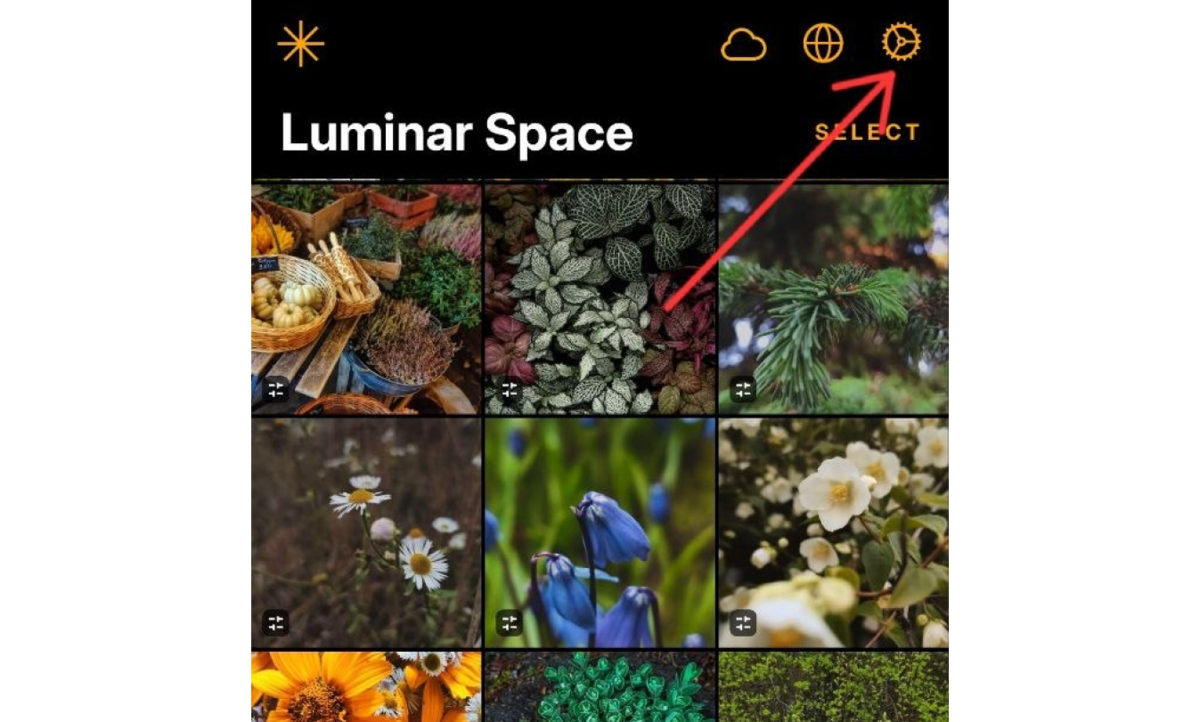
- App Settings. In the upper-left corner of the interface, tap the cloud icon with three dots inside it to access the main settings menu.
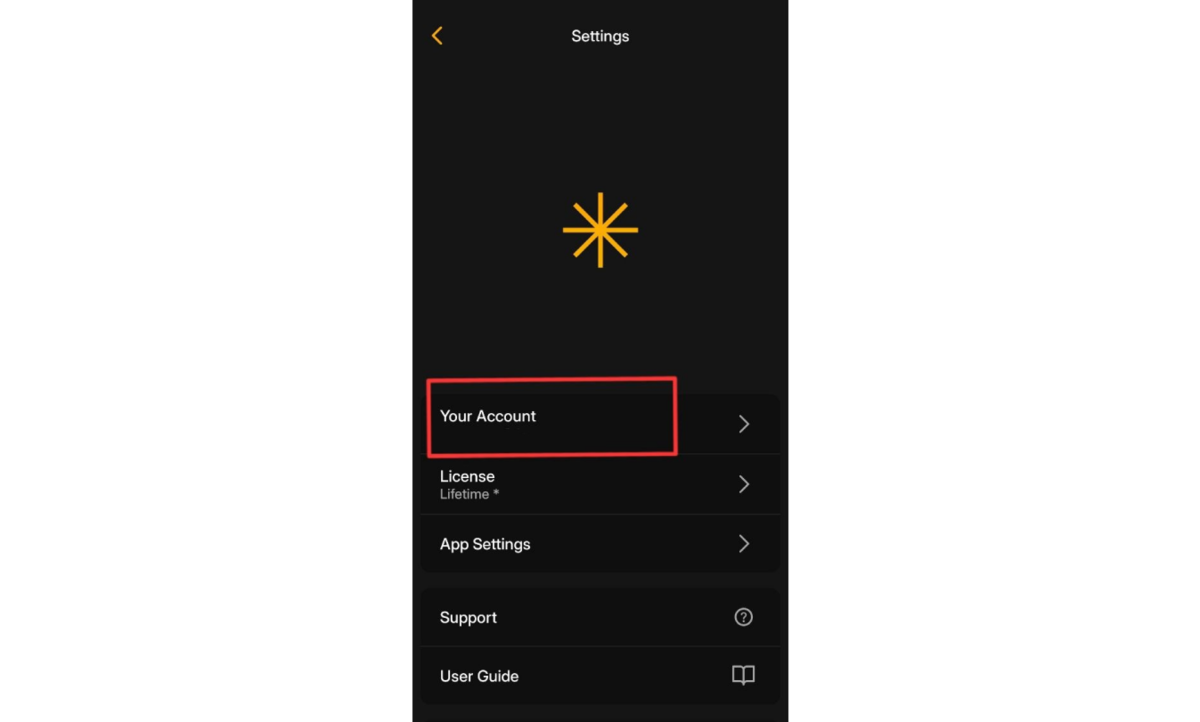
- Virtual storage settings. In the context menu that appears, locate the “Luminar Space” section. Select it and wait for it to load.
- Select the desired feature. Enable “Sync Across Devices” to be able to edit photos on different devices.
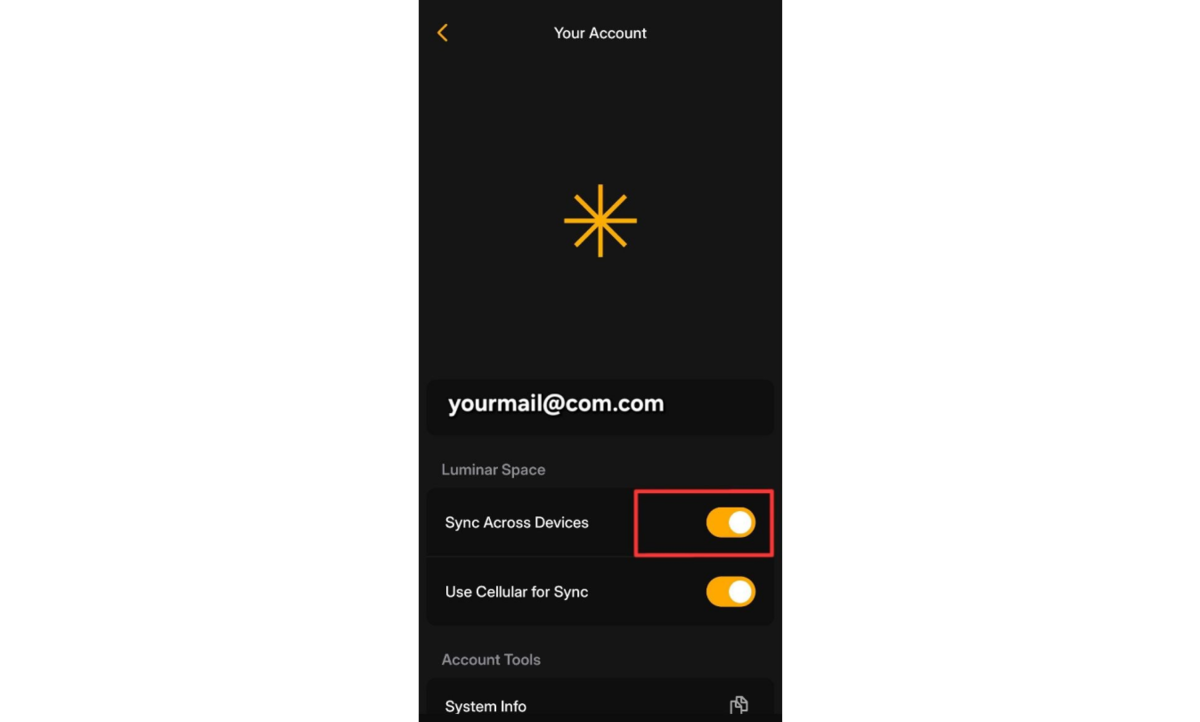


In this section, you can enable the use of mobile internet for syncing changes. This means that if Wi-Fi is unavailable, network traffic can be used to transfer data. If you want to save on megabytes, it’s best to leave this setting as is.
Apart from the ability to sync changes across different versions, Luminar Spaces also lets you create your own online galleries.

You can place all or some of your photos into a separate collection, which you can later share with family, friends, colleagues, or clients. If needed, the contents of the album can be edited or deleted at any time. The author can also add new text captions, hide the photo’s description and metadata, or prevent the files from being saved.
Access to your virtual albums is available only via a direct, unique link generated by the system. Outsiders will not be able to find these photos through Google or other search engines—Luminar Spaces pages are fully protected from search engine crawlers and hidden from indexing.
Professional Editing. Now in Your Pocket.
Download Luminar on your Mobile Device
How Does Offline Work?
For those who travel regularly and enjoy landscape photography away from urban networks, there are two pieces of news. Luminar Mobile will continue to work even if you don’t have internet access. However, offline synchronization is paused: the entire edit history is saved to the phone’s internal memory, creating a local update queue.
Any changes you make will be synced to “Luminar Space” as soon as your smartphone connects to the internet. Accumulated data packets are sent to the server in the background, updating your entire media library without any action required on your part. The same rules apply to the desktop version of the photo editor. The only difference is that your computer’s local library will remain fully accessible for use.
Merging Skylum Accounts
One of the main features of Luminar’s synchronization system is that users don’t need to have licenses for both apps linked to the same account. For example, if the Luminar app is registered to one email address and the desktop version to another, you can link them to create a unified editing environment. To do this, go to your account settings and find the “Linked Accounts” section. After you enter the second email address, you’ll receive a confirmation email.
Creativity Without Limits and Cables

The Skylum ecosystem completely transforms your workflow: the integration of the desktop version and the mobile app blurs the lines between devices. Start editing RAW files on your smartphone while on the go, perfect your shots with powerful AI tools on your PC, and instantly share the results via the secure Luminar Spaces cloud. Your creativity is no longer tied to cables and a desk.