Give your Mac a different background with an Apple wallpaper or your own photograph. Follow these steps to set an image, rotate a collection, and understand your lock screen options.
To change wallpaper on Mac, open Apple menu → System Settings → Wallpaper, then select a built-in background or add your own image. You can also set a picture directly from Finder, Safari, or Photos.
The steps below apply to recent macOS versions. Some labels and available options differ between releases.
Don’t feel like reading the whole breakdown? We’ve pulled together a quick summary below.
Key Takeaways
- Change your Mac desktop background through System Settings → Wallpaper.
- In Finder, Control-click an image and choose Set Desktop Picture.
- In Photos, select a photograph and use Share → Set Wallpaper.
- Dynamic wallpapers change their appearance over time; photo rotation switches between separate images.
- Choose a photograph with enough resolution and a suitable aspect ratio to avoid unwanted cropping or softness.
- The lock screen and initial login screen are different states, so their backgrounds may behave differently.
- Luminar can help prepare a photograph, but macOS sets it as your wallpaper.
Choose a Wallpaper for Your Mac
Start with an Apple background, a solid color, or a photograph you want to see every day.
| Wallpaper option | What it does | Useful when |
| Still image | Displays one photograph or illustration | You want a consistent background |
| Dynamic wallpaper | Changes appearance according to the selected mode | You prefer a background that changes during the day |
| Aerial wallpaper | Uses an Apple aerial scene with related animation or screen saver options | You enjoy landscape or city views |
| Photo rotation | Switches between images from a collection | You want several photographs |
| Solid color | Displays a plain background | You prefer minimal visual detail |
For your own wallpaper, choose an image with room around the subject. Desktop icons, the Dock, and widgets may cover parts of the composition.
If you want to edit a photograph first, our guide to photo editing software for Mac explains the available approaches.
Do You Know All the Functions of Your Mac Photo Editor?
Learn moreHow to Change Your Mac Desktop Background
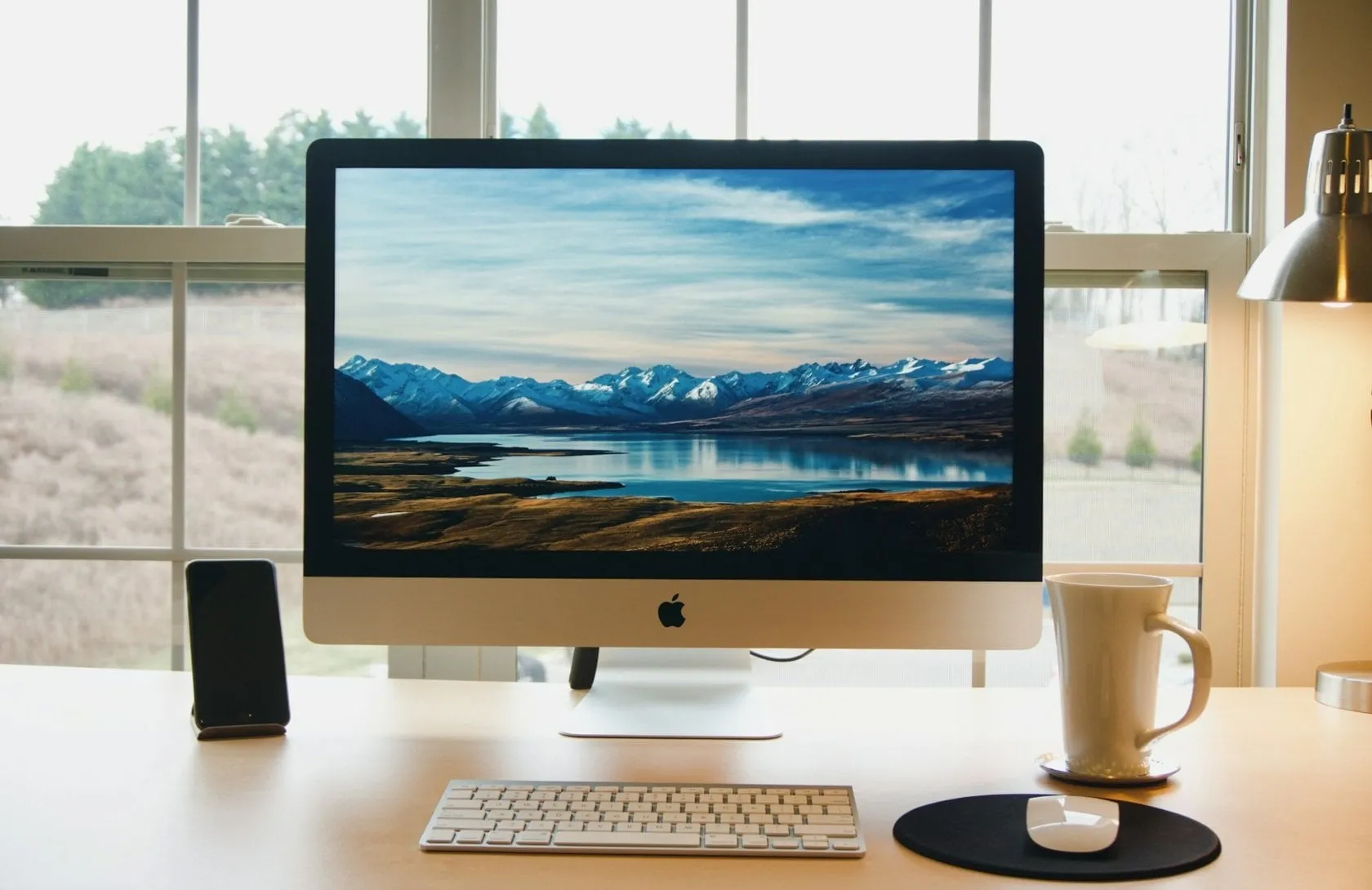
Open System Settings → Wallpaper to choose a built-in background or a custom image.
Use an Apple Wallpaper
- Open the Apple menu and select System Settings.
- Click Wallpaper.
- Choose an image or color.
- Adjust any options shown beside its name.
Some Apple backgrounds need downloading before use. A normal wallpaper change does not require restarting your Mac.
Set Your Own Picture as Wallpaper
In Wallpaper settings, find Your Photos and click Add Photo. Then choose a file, a photo from your library, or a folder.
On older versions, equivalent options may appear as Add Folder or Add Photo Album. Adjust the image’s size and position if the available controls allow it.
Use Finder
Locate the image in Finder, Control-click it, and choose Set Desktop Picture.
This is a convenient shortcut when the photograph is already saved on your Mac.
Use Safari
Control-click an image in Safari and choose Use Image as Desktop Wallpaper, when available.
If the command is missing, save the image and use Finder instead. Choose the full-size image rather than a small preview.
Use Photos
Select a photograph in Photos, click Share, and choose Set Wallpaper. Older versions may call this Set Desktop Picture.
How to Rotate Wallpapers on Mac
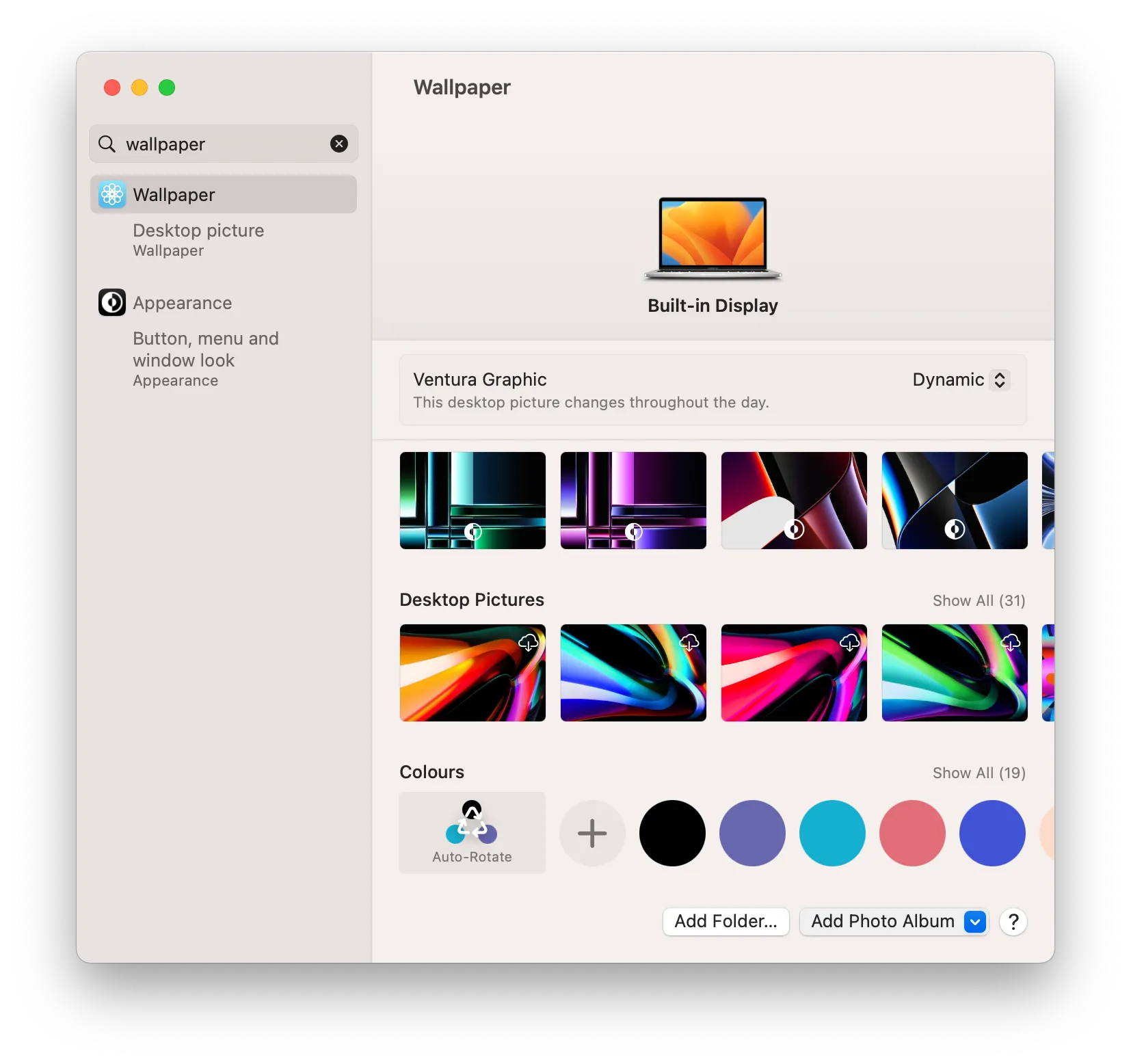
Add a folder or photo album in Wallpaper settings, select its rotation option, and choose an available interval.
- Collect the photographs in a folder or Photos album.
- Add that collection under Wallpaper.
- Select its shuffle or rotation control.
- Choose how often the background changes.
The labels and intervals depend on your macOS version and selected collection. Apple’s Shuffle Aerials offers a separate way to rotate built-in aerial backgrounds.
Dynamic wallpaper works differently: it changes the appearance of a supported background rather than cycling through your photographs. Select Dynamic, Automatic, or a still appearance when those options are available.
Exclusive Tools of Endless Possibilities in One Editor
Prepare a Custom Wallpaper in Luminar
Luminar can help you crop and edit a photograph before setting it as your desktop picture. A restrained edit often works well for an image displayed behind icons and windows.
Crop and Straighten the Photograph
Choose a crop that suits your display’s proportions. Mac displays do not all use the same aspect ratio, so a universal 16:9 crop is not always appropriate.
Keep the main subject away from areas occupied by the Dock or desktop icons. If a horizon is tilted, straighten the photograph before refining the crop.
Preserve the original and export a separate wallpaper version so you can try another composition later.

Refine Brightness and Color
Use Luminar’s Develop and Color tools to adjust exposure, highlights, and saturation.

For example, soften a bright sky that dominates the background or reduce a saturated color that competes with your icons. The aim is a comfortable composition, not matching the photograph to a particular screen’s color settings.
Make Targeted Adjustments
Enhance AI can provide a starting point, but compare the result with the original and reduce its strength when necessary.

If only one area needs attention, use local masking in Luminar to restrict an adjustment. For example, darken a distracting corner without changing the subject.
Export a JPEG or PNG with sufficient pixel dimensions for your display, then set it through Finder or Wallpaper settings.

How to Change the Lock Screen Background on Mac
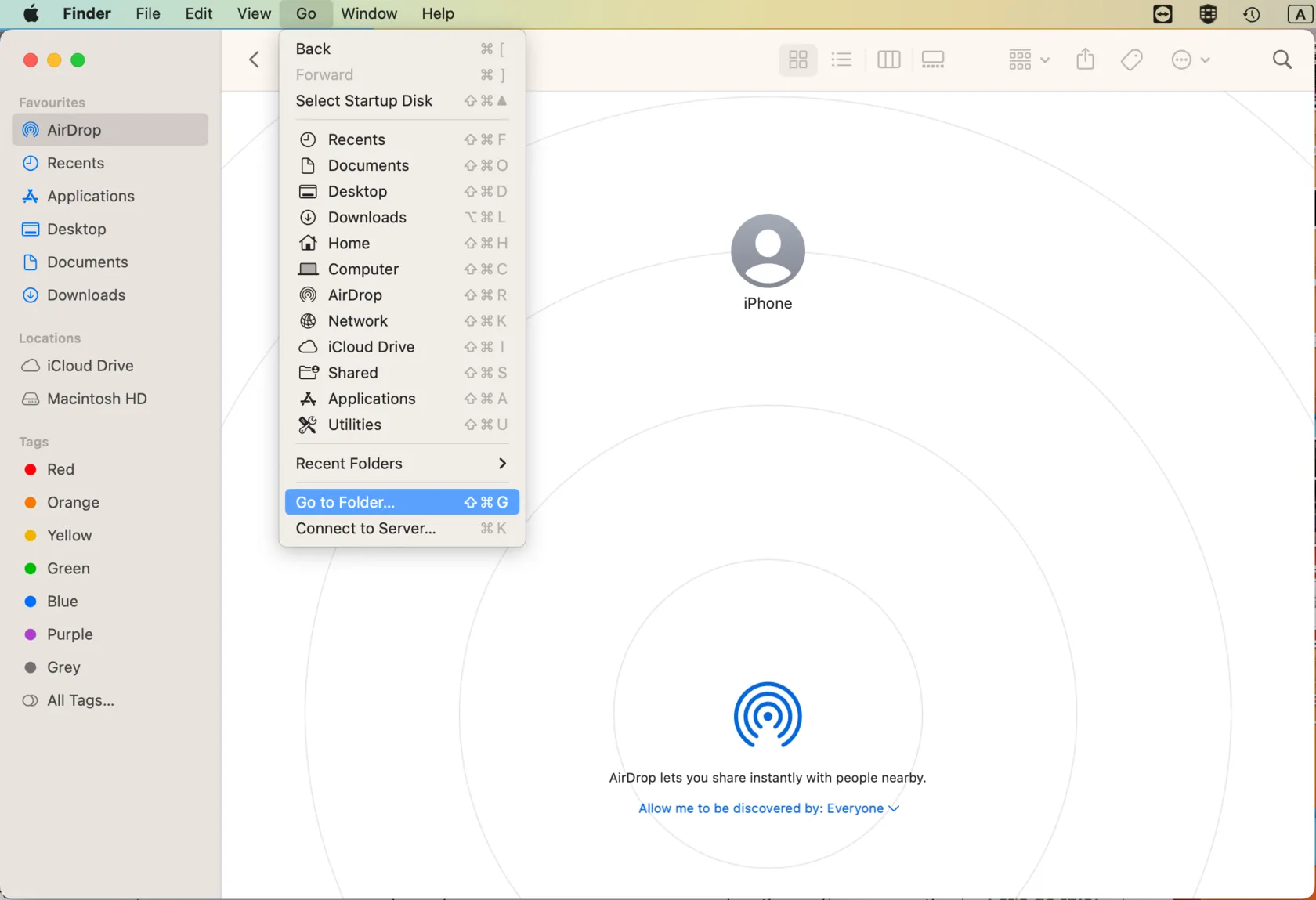
Start by changing your wallpaper, then lock the Mac to check its appearance. Depending on your macOS version and selected background, the lock screen can display the wallpaper or related screen saver imagery.
The lock screen appears when you lock an existing session. The initial login screen appears before you enter that session, and its appearance may differ.
There is no universal separate lock screen wallpaper picker across macOS versions. Replacing a cached lockscreen.png file is not a reliable general method.
For supported customization, open System Settings → Lock Screen. You can adjust relevant timing settings or enable Show message when locked. Changing your user picture affects the account avatar, not the wallpaper.
Your AI-Powered Photo Editor for MacOS and Windows
Troubleshoot Wallpaper Problems
Check the selected image and display before restarting or changing other settings.
| Problem | What to try |
| The wallpaper looks blurry | Use the original full-resolution file rather than a thumbnail |
| The subject is cropped | Adjust the sizing option or export a crop closer to the display’s proportions |
| The background changes unexpectedly | Check whether shuffle or a dynamic mode is enabled |
| Another display shows a different image | Check its wallpaper selection and the Show on all Spaces option |
| The image does not appear | Make sure the file is available locally, then select it again |
If a custom image fails, try an Apple wallpaper. This helps distinguish a file problem from a broader settings issue.
Conclusion
Choose a background in Wallpaper settings or use Finder for a saved photograph. Enable rotation if you want a collection, or select a supported dynamic background for changes throughout the day.
For a personal wallpaper, prepare the crop and color in Luminar, export a separate copy, and check how it looks behind your desktop icons.
Frequently Asked Questions
Open Apple menu → System Settings → Wallpaper, then choose a background or add a photograph. The basic process is the same on MacBook and desktop Mac models.
Older macOS versions use System Preferences instead. Look for Desktop & Screen Saver to change the background.
Use an image with an aspect ratio close to your display and enough pixels for its native resolution. There is no single wallpaper size suitable for every Mac.
Yes. Check each display’s wallpaper selection and disable the option that applies one background across all Spaces and displays when necessary.
No. A normal desktop wallpaper change takes effect without a restart. If it does not appear, check the selected image and display first.