Thank you for taking part, you are in!
Bellow you will find the steps of the testing process. After following them and submitting your feedback (preferably until May 21) we will contact you to deliver 3 premium preset packs for free.
Uninstall
Please uninstall your
current version of Luminar 2018 and delete a file with a license.
- Open Control Panel -> Programs -> Programs and Features -> Uninstall a program
- Find “Luminar 2018” and click [Uninstall].
Confirm that you agree to uninstall the app. - Delete the folder “Luminar 2018”.
Default location is ThisPC -> Local Disk (C:) ->Program Files ->
Skylum -> Luminar 2018. - Delete a file “UserSettings.xml”.
Destination C:\Users\UserName\AppData\Roaming\Luminar 2018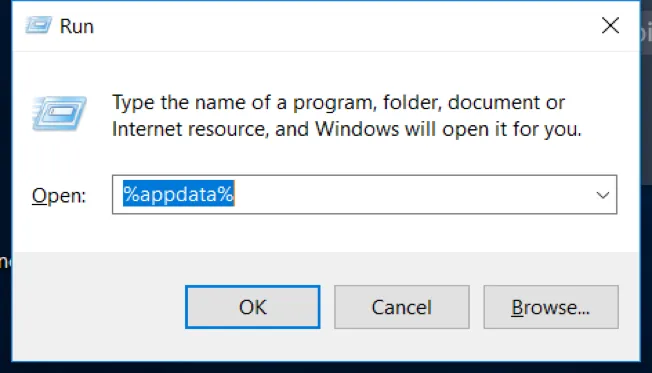
Install
- Make sure that Luminar app is uninstalled on your PC.
- Download the file following the link:
https://skylum.com/luminar-trial-betatesters - Check the size of downloaded file: should be approximately 23 Mb.
- Check the folder C:\Program Files\Skylum:
Luminar 2018 should not be there yet. - Unpack and open the downloaded file.
Launch the file “Luminar2018.exe”. - Keep the default destination: C:\Program Files\Skylum
- Click [Install]. Wait till the installation is completed.
- Check the folder C:\Program Files\Skylum again.
Folder “Luminar 2018” should be automatically created. - Launch the app. Luminar starts with a trial version. Click [Continue trial].
- Check your inbox, you should receive an email with your personal coupon code for a 100% discount on Luminar 2018.
- Follow this link to get the new Luminar 2018
- Enter the same email which you used for downloading a trial version, and your personal coupon code for purchasing the full version.
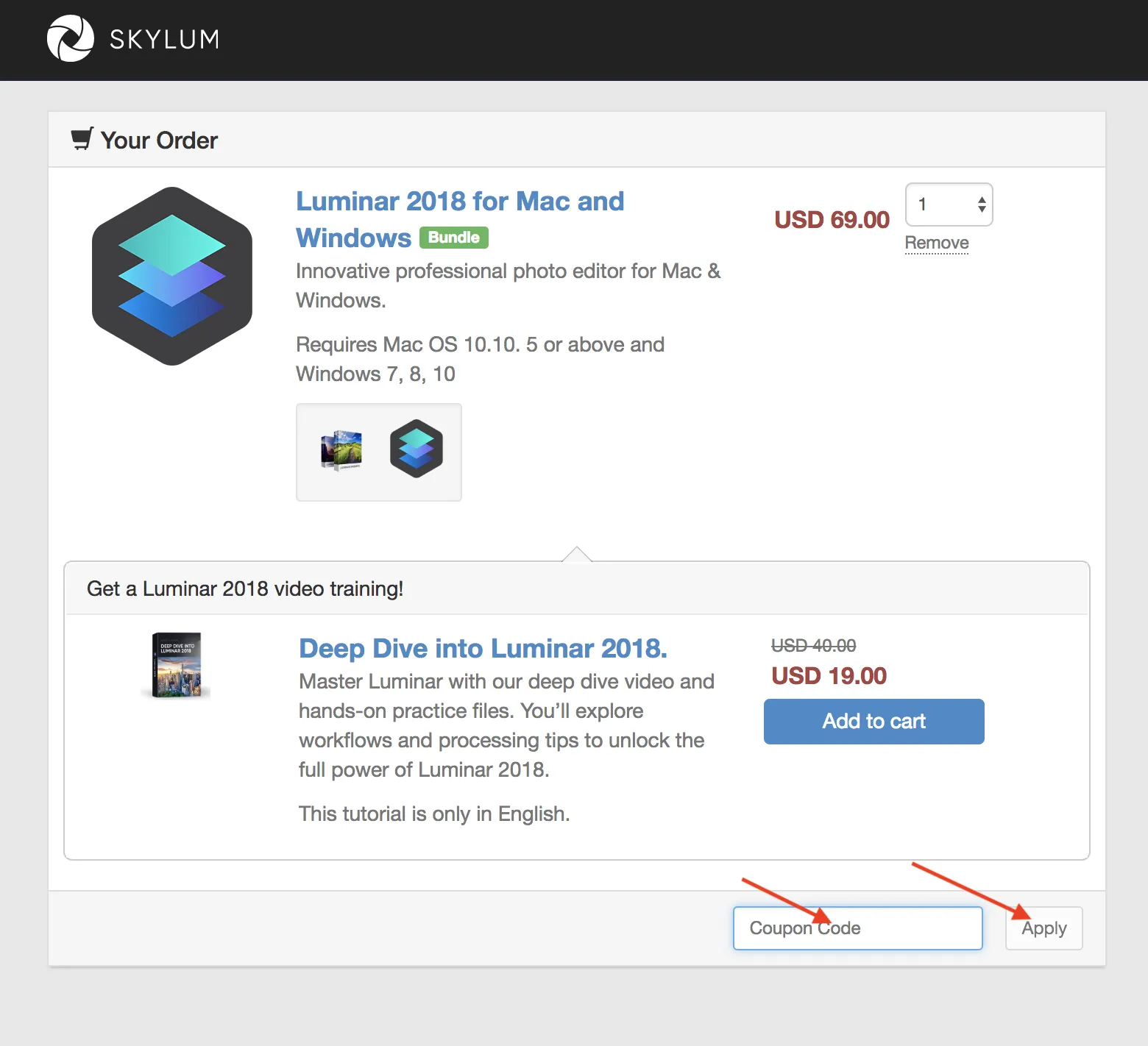
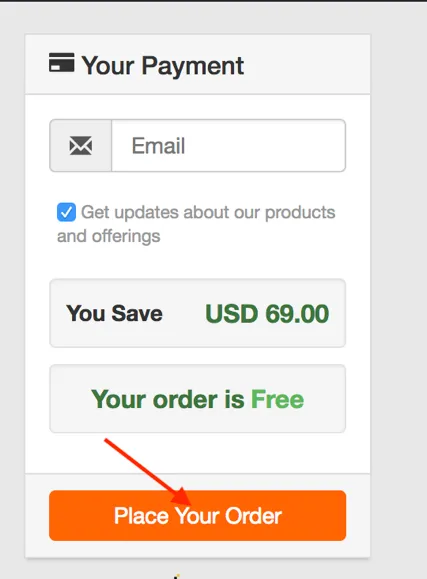
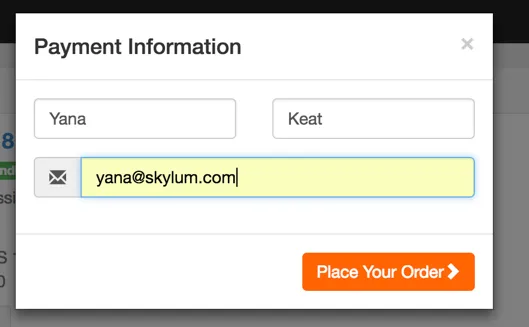
- Open your inbox.
You have received an Activation Code for the full version of Luminar. - Go back to Luminar app. Close it and launch again.
Click on [Activate]. Enter your email and Activation Code which you have received. - Open any image and check the editing ability.
- Check the plugins:
Plugins
- Make sure that Photoshop and Lightroom are closed.
- In Luminar click File -> Install Plugins -> Install (Photoshop and Lightroom).
- Check if Luminar is available as a plugin in Ps and Lr (yes)
- File -> Install Plugins -> Uninstall (Photoshop and Lightroom).
- Check if Luminar is available as a plugin in Ps and Lr (no).
- Uninstall the new version of Luminar (downloaded with new installer).
Delete the folder “Luminar 2018”. (Steps 1-3 from this manual). - Delete an icon of Luminar 2018 (on your desktop).
- Download the newest available version of Luminar:
https://luminar2018.s3-accelerate.amazonaws.com/Luminar_2018_Setup.exe - Install the app.
Cases when installation might fail
- The internet connection was interrupted.
- Not enough memory on a disk.
Thank you for your help with testing!
Please share your opinion about a new installation process with us by filling in the form: https://goo.gl/forms/c0G9u2KNSK8DiZHE2
In case you need any help with the testing, please contact our QA specialist valeria.savkova@skylum.com with “Installer testing” in the subject line.
Have a good day!
QA team