Compare Photoshop and Illustrator to understand their key differences and choose the right tool for photo editing, logos, illustrations, typography, and other creative projects.
Photoshop and Illustrator are both professional Adobe applications, but they are designed around different types of graphics. Photoshop is primarily a raster image editor built for photographs and pixel-level manipulation. Illustrator is primarily a vector graphics editor built for scalable artwork such as logos, icons, typography, and illustrations.
Neither application is universally better. The right choice depends on what you are creating, how it needs to scale, and whether the work begins with pixels, paths, or both.
Don’t feel like reading the whole breakdown? We’ve pulled together a quick summary below.
Key Takeaways
- Photoshop is the stronger choice for photo editing, retouching, raster painting, compositing, and pixel-based effects.
- Illustrator is better suited to logos, icons, typography, diagrams, packaging, and other graphics that must scale cleanly.
- Raster images use pixels and have a fixed resolution; vector graphics use mathematical paths and remain sharp at different sizes.
- Photoshop can work with vector shapes and Illustrator can place raster images, but those are not their primary strengths.
- Both applications support layers, masks, multiple artboards, cloud workflows, and AI-assisted creation, so several claims in the older comparison are no longer accurate.
- Many professional workflows use both: Illustrator for scalable graphic assets and Photoshop for photographs, textures, and detailed image effects.
- Photographers who do not need full-scale graphic design may prefer a dedicated editor such as Luminar for a more focused photo workflow.
Photoshop vs Illustrator at a Glance

| Feature | Adobe Photoshop | Adobe Illustrator |
| Core graphics type | Raster, or pixel-based | Vector, or path-based |
| Best for | Photo editing, retouching, compositing, raster painting | Logos, icons, typography, illustrations, diagrams, packaging |
| Scaling | Raster content can lose quality when enlarged beyond its available resolution | Native vector objects can scale without pixelation |
| Main editable elements | Pixels, layers, masks, selections, channels, smart objects, paths | Paths, anchor points, fills, strokes, shapes, type, layers, artboards |
| Native format | PSD; PSB for very large documents | AI |
| Common output formats | JPEG, PNG, WebP, TIFF, PDF and others | SVG, PDF, EPS, PNG, JPEG and others |
| Multiple artboards | Yes | Yes |
| Photo retouching | Extensive | Limited |
| Vector drawing | Available, but not the primary workflow | Core strength |
| Generative AI focus | Adding, removing, extending, and modifying image content | Generating and recoloring editable vector artwork |
Exclusive Tools of Endless Possibilities in One Editor
The Main Difference: Raster vs Vector Graphics

The most important difference between Photoshop and Illustrator is not the interface, speed, or number of tools. It is how each application represents visual information.
How Raster Graphics Work in Photoshop
A raster image is built from a grid of pixels. Digital photographs, scanned artwork, screenshots, and many web images are raster files. Every pixel stores color and brightness information, allowing Photoshop to make detailed tonal, color, texture, and local corrections.
Raster editing is ideal when the source is a photograph or when the final image depends on natural texture and complex color variation. The limitation is resolution: enlarging a raster image beyond the detail it contains can make edges soft or visibly pixelated.
Photoshop reduces this limitation with tools such as Smart Objects, resampling, and AI-assisted enlargement, but it cannot turn every low-resolution photograph into unlimited-resolution artwork. If you need to enlarge a file, an AI image enlarger can improve its usable size, but the result still remains raster-based.
How Vector Graphics Work in Illustrator
Vector artwork is defined by paths, anchor points, curves, fills, and strokes rather than a fixed grid of pixels. A circle remains a mathematical circle whether it is printed on a business card or a billboard.
This makes Illustrator the better environment for graphics that need to appear at many sizes. Text, logo shapes, icons, line art, and diagrams remain editable as separate vector objects and can be recolored or reshaped without repainting pixels.
Vector graphics are not automatically more detailed or more realistic. Photographic texture, skin, clouds, and complex natural light are usually easier to edit as raster content.
Photoshop vs Illustrator: Detailed Comparison

Image Scaling
Illustrator has the clear advantage when native vector artwork must be resized. A properly constructed vector logo can be scaled from a small app icon to large signage without pixelation.
Photoshop documents have pixel dimensions and resolution. Vector shape layers and type can remain scalable inside Photoshop, but rasterized photographs, brushwork, and effects depend on the document’s available pixels. Creating the file at the correct dimensions remains important.
Photo Editing and Retouching
Photoshop offers the deeper toolset for precise selections, masks, local corrections, frequency-based workflows, compositing, color work, and pixel-level retouching. It is intended for complex image manipulation as well as photography.
Illustrator can place, crop, mask, and apply some effects to raster images, but it is not designed for detailed RAW development or photographic retouching. A photographer would normally edit the image first, then place the finished or linked file into an Illustrator layout.
Drawing and Illustration
Illustrator is ideal for clean linework, geometric shapes, flat illustrations, typography-led artwork, and graphics that need editable curves. Tools such as the Pen, Shape Builder, Pathfinder, brushes, gradients, and pattern features support vector construction.
Photoshop is better for raster painting, textured brushes, concept art, matte painting, and illustrations that need a natural-media or photorealistic finish. Many illustrators sketch or paint in Photoshop and create clean vector assets in Illustrator.
Layers and Object Structure
Both programs use layers, but they organize artwork differently.
In Photoshop, a layer can contain raster pixels, type, a vector shape, an adjustment, a smart object, or another specialized element. A single object does not always equal one layer, and groups, clipping masks, layer masks, and smart filters can create complex structures.
In Illustrator, one layer may contain many paths, groups, text objects, linked images, and sublayers. Individual vector objects remain selectable within that hierarchy. The stacking order determines which objects appear in front.
The old claim that every Photoshop object requires exactly one layer is therefore too simplistic.
Artboards and Canvas Area
Illustrator is known for multi-artboard workflows, which are useful for logo variations, packaging panels, icon sets, campaign assets, and related designs in one document. Unused objects can remain on the pasteboard outside an artboard without appearing in the exported artboard.
Photoshop also supports multiple artboards. Designers can use them for screen layouts, social formats, and variations within one document. Therefore, “Photoshop has only one workspace” is no longer a valid distinction.
Performance
Illustrator is not universally faster than Photoshop. Performance in either application depends on document complexity, effects, linked assets, pixel dimensions, available memory, GPU support, fonts, and storage.
A large Photoshop composite with many high-resolution layers can be demanding. An Illustrator file containing thousands of anchor points, complex appearances, raster effects, embedded images, or multiple artboards can also become slow and large. Choose the application according to the task rather than assuming vector work is always lighter.
Elevate Your Photography with Our Advanced Software
Linked and Embedded Files
Illustrator can place a raster image as either a linked or embedded file. A linked image keeps the Illustrator document smaller and can be updated when the source file changes, but the link must remain available. An embedded image becomes part of the Illustrator document, which improves portability but usually increases file size and breaks the live connection to the original source.
Photoshop can place external content as linked or embedded Smart Objects. This makes it possible to preserve reusable assets and update linked artwork across compatible workflows.
AI Features
Photoshop includes generative tools focused on raster images and composites, such as adding or removing content, extending a canvas, and producing variations. Generated content should still be inspected for incorrect details, edge artifacts, lighting inconsistencies, and suitability for commercial use.
Illustrator’s generative tools focus on editable vector graphics and color variations. This aligns with its role in logo exploration, icons, pattern development, packaging, and illustration. AI does not remove the need to inspect paths, simplify geometry, correct typography, and verify that artwork works at its final size.
Photoshop vs Illustrator: Which Is Better for Each Task?

Logo Design: Illustrator
Illustrator is normally the better choice for a logo because a logo must work at many sizes and across print, digital interfaces, embroidery, signage, and packaging. Vector masters can be resized and exported into the formats required for each use.
Photoshop may contribute textures, presentation mockups, or raster effects, but the primary logo artwork should usually remain vector-based.
Photo Editing: Photoshop
Photoshop is the stronger Adobe application for detailed photographic editing and compositing. It offers more control over pixels, selections, masks, layers, and local retouching than Illustrator.
If your work is focused on photography rather than broad graphic design, Luminar provides a dedicated alternative with RAW development, masking, portrait tools, creative adjustments, and AI-assisted editing in a more photography-centered interface.
Vector Illustration and Icons: Illustrator
Illustrator is designed for editable paths, precise shapes, scalable strokes, and reusable color systems. It is the practical choice for icon families, diagrams, infographics, lettering, and illustrations that need multiple sizes or variations.
Digital Painting: Usually Photoshop
Photoshop is often better for textured brushwork, painting, concept art, and images that resemble natural media. Illustrator works better when the intended result relies on clean vector lines, shapes, and flat or controlled gradients.
Print Design: Often Illustrator, Sometimes Both
Illustrator is well suited to single-page graphics, labels, posters, packaging, and other print assets built from vectors and type. Photoshop is useful for preparing and retouching the photographs used within those designs.
For long multipage documents, neither is the ideal primary layout application; dedicated page-layout software is generally more appropriate.
Web and UI Graphics: Illustrator for Assets, Photoshop for Images
Illustrator is useful for icons, logos, SVG graphics, and scalable interface assets. Photoshop is useful for preparing photographs, textures, banners, and raster campaign graphics.
Modern interface design is commonly handled in dedicated UI tools, so the claim that Photoshop is automatically the best application for complete website design is outdated. Choose Photoshop or Illustrator for the image assets they handle best.
Social Media Graphics: It Depends
Photoshop works well for photo-heavy posts, composites, and platform-specific raster designs. Illustrator works well for branded templates, type-led graphics, icons, and reusable vector elements.
If the project combines both, build the vector identity in Illustrator and finish photo-based assets in Photoshop or a dedicated photo editor.
Pros and Cons of Photoshop

| Pros | Cons |
| Extensive photo editing and retouching tools | Raster artwork depends on resolution |
| Precise selections, masks, layers, channels, and compositing | The interface and feature depth can feel overwhelming to beginners |
| Strong raster painting and textured brush workflows | Complex layered files can become large and hardware-intensive |
| Supports vector shapes, type, artboards, and Smart Objects | Not the most efficient environment for complex scalable vector systems |
| Broad import, editing, and export support | Available primarily through a subscription ecosystem |
| Generative tools for adding, removing, and extending image content | AI results still require close review and may involve usage limits or credits |
Pros and Cons of Illustrator
| Pros | Cons |
| Native vector artwork scales without pixelation | Not designed for detailed photo retouching or RAW development |
| Excellent control over paths, strokes, fills, type, and shapes | Pen-tool and path concepts require practice |
| Multiple artboards support related design variations | Complex paths, effects, and embedded images can affect performance |
| Strong choice for logos, icons, diagrams, and packaging | Photographic textures often need preparation in another editor |
| Can place linked or embedded raster files | Raster effects are still resolution-dependent |
| AI-assisted generation and recoloring of vector artwork | Generated vectors still need cleanup and design judgment |
Photoshop and Illustrator File Formats

The native file format is only one part of the workflow. Save an editable master before exporting a delivery format.
| Purpose | Photoshop formats | Illustrator formats |
| Editable master | PSD or PSB | AI |
| High-quality print exchange | TIFF, Photoshop PDF | PDF, EPS |
| Web photograph | JPEG, WebP | Usually exported as JPEG or WebP when raster output is needed |
| Web transparency | PNG, WebP | PNG or SVG, depending on the artwork |
| Scalable web graphic | Limited; vector elements should be exported carefully | SVG |
| Transfer between applications | PSD, PDF, Smart Objects | AI, PDF, SVG, linked or embedded assets |
JPEG and PNG are both raster formats, but they solve different problems. JPEG is commonly used for photographs where smaller files matter, while PNG supports transparency and lossless compression. Read the full JPEG vs PNG comparison before choosing a final web format.
Can You Use Photoshop and Illustrator Together?
Yes. They are complementary rather than mutually exclusive.
A typical combined workflow might look like this:
- Edit and retouch a photograph in Photoshop or Luminar.
- Create the logo, icons, typography, or vector illustration in Illustrator.
- Place the photograph into Illustrator as a linked asset for a poster or packaging layout.
- Place Illustrator artwork into Photoshop as a Smart Object when a raster composite or realistic mockup is needed.
- Export separate files for print, web, and future editing.
Keep master files, fonts, links, and color settings organized. If a linked source file is moved or renamed, the application may need the link to be restored.
When Luminar Is the More Focused Choice
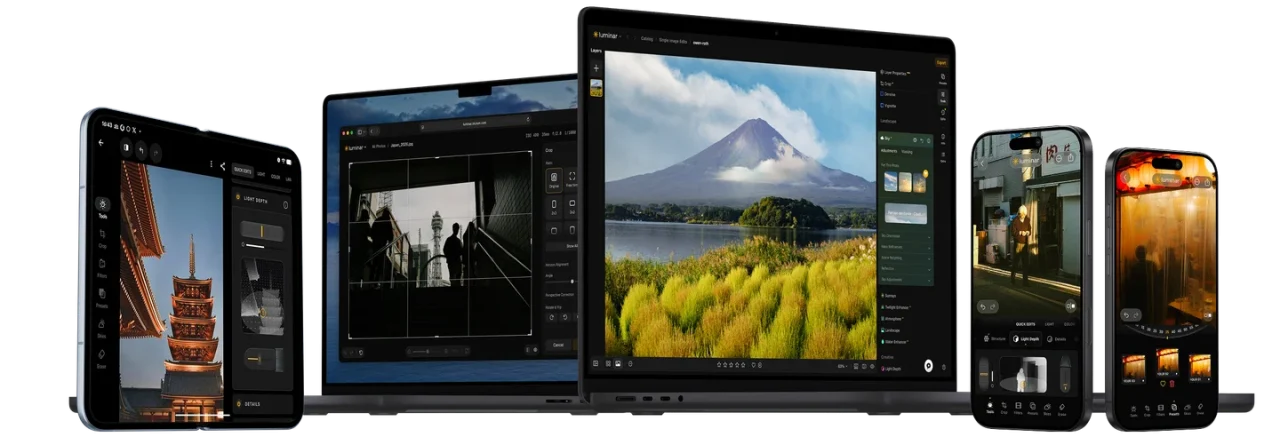
Photoshop and Illustrator cover broad professional design workflows, but many photographers do not need both. If your priority is developing RAW files, improving portraits, adjusting light and color, removing distractions, and creating polished photographs, Luminar may provide a shorter path from import to final image.
With AI-powered photo editing, you can combine automatic starting points with manual adjustments and masking. This makes Luminar relevant as a Photoshop alternative for photography—not as a replacement for Illustrator’s vector logo, typography, or illustration tools.
That distinction matters. Choose Luminar for focused photo editing, Photoshop for deep raster manipulation and complex compositing, and Illustrator for scalable vector design.
Your AI-Powered Photo Editor for MacOS and Windows
Which One Should You Choose?
Choose Photoshop if most of your work involves:
- Photographs and RAW-derived images
- Detailed retouching
- Raster painting
- Complex image composites
- Pixel-based effects and textures
Choose Illustrator if most of your work involves:
- Logos and brand marks
- Icons and SVG assets
- Typography and lettering
- Vector illustration
- Diagrams, packaging, and scalable print graphics
Choose both if your projects regularly combine photographs with scalable branding, illustration, or print assets.
Choose Luminar if your priority is an accessible, dedicated photo-editing workflow and you do not require Illustrator’s advanced vector design environment or Photoshop’s complete compositing toolset.
Final Verdict
The Photoshop vs Illustrator comparison does not have one winner. Photoshop is primarily a raster editor; Illustrator is primarily a vector editor. Their overlapping features do not eliminate that fundamental difference.
Start with the type of content you need to create. If it is photographic and pixel-based, choose Photoshop or a dedicated editor such as Luminar. If it must remain clean and editable at any size, choose Illustrator. When a project combines both types of graphics, using the applications together is often the most efficient solution.
Frequently Asked Questions
Illustrator is better for scalable vector graphics such as logos, icons, typography, and diagrams. Photoshop is better for photographs, raster painting, retouching, and detailed pixel-based composites.
Use Illustrator for the master logo because native vector artwork can scale to different print and digital sizes without pixelation. Photoshop can be used later for raster effects and mockups.
Photoshop can create vector shapes, paths, and type, but it is not as complete or efficient as Illustrator for complex vector systems. Raster effects applied to those elements may also introduce resolution dependence.
Illustrator can place, crop, mask, and apply limited adjustments or effects to raster images. It is not a replacement for a dedicated photo editor when detailed retouching, RAW development, or pixel-level corrections are required.
Not always. The required software depends on the work. Designers combining photography with branding or illustration often use both, while specialists may work primarily in one application.