Pixelmator Pro handles both photo editing and design. See how Luminar compares if you want a workflow focused on photography and AI editing.
Pixelmator has long been associated with image editing on Apple devices, combining photography tools with graphic design, illustration, painting, and layer-based workflows. Today, the product has evolved significantly: Pixelmator Pro is available on both Mac and iPad, supports RAW editing, nondestructive layers, retouching, vector design, digital painting, and AI-powered features.
But Pixelmator Pro isn’t the only option for photographers looking for a flexible image editor. Depending on your workflow, you may prefer software that focuses more heavily on photography, automated adjustments, AI-assisted editing, or cross-device work.
One option to consider is Luminar, Skylum’s photo editing software designed around photography workflows and AI-assisted tools.
Don’t feel like reading the whole breakdown? We’ve pulled together a quick summary below.
Key Takeaways
- Pixelmator Pro combines photo editing, graphic design, illustration, and painting.
- In 2026, Pixelmator Pro is available for both Mac and compatible iPad models.
- Pixelmator Pro supports RAW files, layers, masks, retouching, vector tools, and generative AI.
- Luminar focuses more specifically on photography and AI-assisted image editing.
- Luminar includes tools for enhancement, retouching, object removal, generative editing, and creative adjustments.
- The right alternative depends on whether you prioritize graphic design, detailed manual editing, or a photography-focused workflow.
- Both applications can fit into different creative workflows rather than serving exactly the same purpose.
What Is Pixelmator Pro?

Pixelmator Pro is a Mac and iPad application for photo editing, graphic design, digital painting, and illustration. Its current toolset includes more than 40 tools covering image editing, composition, layout, design, and painting.
For photographers, Pixelmator Pro provides RAW processing, color adjustments, retouching, layer compositing, masking, automatic background removal, noise reduction, sharpening, and image upscaling.
It also goes beyond conventional photo editing. Users can work with vector shapes, typography, customizable brushes, and design layouts within the same project.
Recent versions have also introduced generative AI features, Content Hub, shape generation, and tools such as Warp. Pixelmator Pro can also work with Apple apps such as Keynote, Pages, and Numbers.
This combination makes Pixelmator Pro particularly relevant to people who move between photography and graphic design.
Exclusive Tools of Endless Possibilities in One Editor
Pixelmator Pro Editing Tools

Photo Editing and Color Adjustments
Pixelmator Pro includes tools for exposure, color, contrast, clarity, and other image adjustments. Automatic enhancements can provide a starting point, while manual controls allow more detailed editing.
Its nondestructive layer-based workflow means you can experiment with adjustments while keeping the original image intact.
Retouching
Retouching tools can be used to remove unwanted details, repair parts of an image, clone areas, and make localized changes.
Brush-based adjustments also allow photographers to brighten, darken, sharpen, soften, saturate, or desaturate selected areas.
Selection and Masking
Pixelmator Pro offers automatic and manual selection tools, vector masks, blend modes, and background removal.
These features are useful when you need to isolate a subject, replace part of an image, or build a more complex composite.
Painting and Illustration
For artists and designers, Pixelmator Pro includes customizable brushes, pressure-sensitive painting, vector drawing, typography, and shape tools.
This is one of the major distinctions between Pixelmator Pro and photography-first editors: you can use the application for both image manipulation and original artwork.
AI-Powered Features
Current versions of Pixelmator Pro include several intelligent tools. Super Resolution can enlarge images while preserving detail, while automatic background removal helps isolate subjects. Other tools address image quality, denoising, compression artifacts, and selective adjustments.
Generative AI has also been added for creating images and graphics from descriptions, with additional AI-powered creative features available on compatible Apple hardware and software.
Pixelmator Pro on Mac and iPad

One important change compared with older versions of this article is that Pixelmator Pro is no longer a Mac-only application.
Apple introduced Pixelmator Pro for iPad in 2026, with an interface adapted for touch and Apple Pencil. Projects can move between Mac and iPad, making it possible to continue working across devices.
Pixelmator Pro currently requires macOS 26 or later on Mac. The iPad version requires iPadOS 26 and compatible Apple hardware.
The Mac version is also available as a one-time purchase, while Pixelmator Pro is included in Apple’s Apple Creator Studio subscription.
Why Look for a Pixelmator Alternative?
Pixelmator Pro covers a broad range of creative tasks, but photographers sometimes want a more photography-centered workflow.
For example, you might be looking for software that:
- puts photo enhancement ahead of graphic design;
- provides AI-assisted adjustments for common photography tasks;
- makes object removal quick;
- offers specialized portrait or landscape tools;
- supports creative photo transformations;
- works across multiple operating systems;
- reduces the amount of repetitive manual editing.
This is where an alternative such as Luminar can fit a different type of workflow.
Elevate Your Photography with Our Advanced Software
Luminar as a Pixelmator Alternative
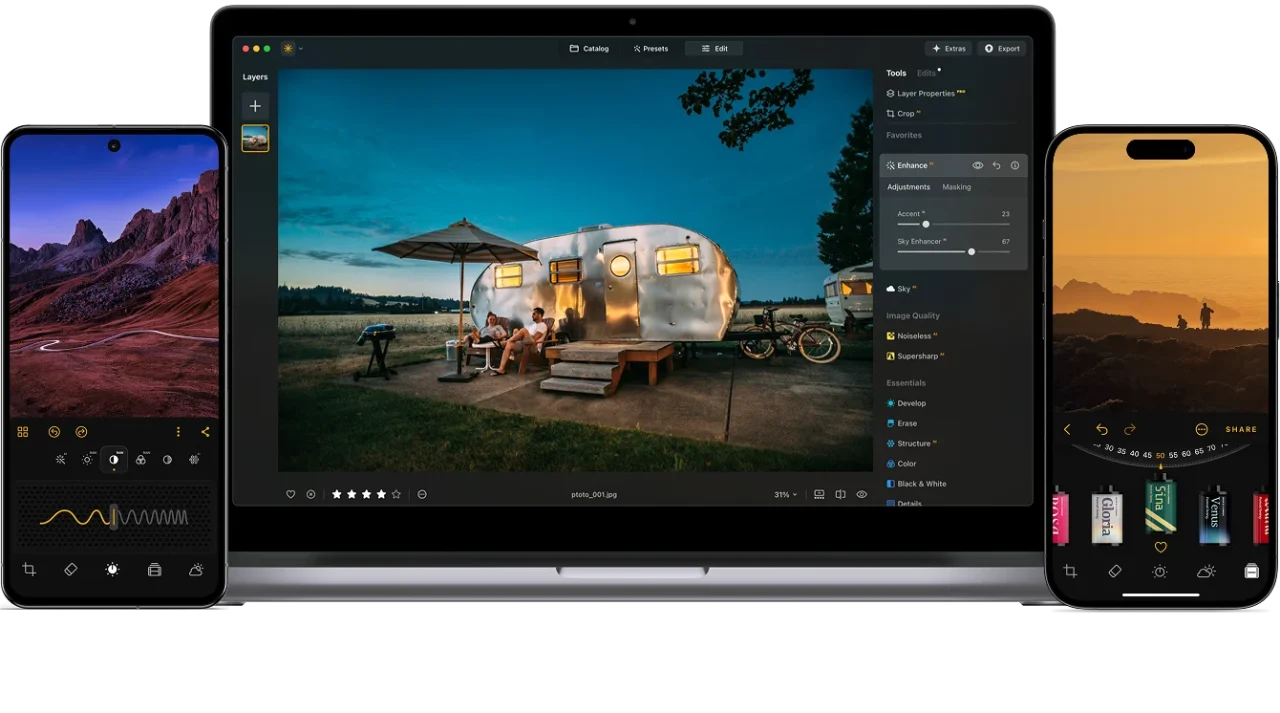
Luminar is designed primarily around photography rather than general-purpose graphic design.
It supports RAW editing, layers, masking, color adjustments, retouching, batch processing, and AI-assisted tools. Unlike Pixelmator Pro, which combines photography with illustration and design, Luminar puts the photographic image at the center of the workflow.
Luminar is available for Windows and macOS, with mobile versions for iOS, Android, and ChromeOS. Cross-device editing is also available with supported plans.
AI-Assisted Photo Enhancement
Luminar includes AI-powered tools designed for common photographic adjustments. Depending on the task, these can help with lighting, details, portrait retouching, noise, composition, and other aspects of an image.
For example, Structure AI can emphasize detail and texture while taking image content into account. This can be useful for landscapes, architecture, travel images, and other photographs where detail matters.
Removing Unwanted Objects
Removing distracting objects is a common part of photography editing.
Luminar includes GenErase, a generative tool for removing unwanted elements from an image. This can be useful for cleaning up backgrounds, removing distractions, or simplifying a composition.
Expanding and Replacing Image Content
Luminar also includes generative tools for situations where conventional editing may not be enough.
GenExpand can extend the boundaries of an image, while GenSwap can replace selected elements with new content.
These tools can be particularly useful when an image needs a different composition or when you want to experiment with a creative variation.
Pixelmator Pro vs. Luminar
The two applications overlap in several areas, but their priorities are somewhat different.
| Feature | Pixelmator Pro | Luminar |
| Photo editing | Yes | Yes |
| RAW editing | Yes | Yes |
| Layers | Yes | Yes |
| Masking | Yes | Yes |
| Graphic design | Strong | Limited compared with design-focused software |
| Vector tools | Yes | Not a primary focus |
| Digital painting | Yes | Not a primary focus |
| Typography | Yes | Not a primary focus |
| AI-assisted editing | Yes | Yes |
| Generative editing | Yes | Yes |
| Object removal | Yes | Yes |
| Cross-platform desktop support | Apple platforms | Windows and macOS |
| Mobile editing | iPad | iOS, Android, ChromeOS |
| Photography-focused workflow | Yes | Strong focus |
The biggest difference is the overall workflow. Pixelmator Pro is a broad creative application, while Luminar is centered more closely on photography.
Which Editor Fits Your Workflow?
Choose Pixelmator Pro If You Need:
- photo editing and graphic design in one application;
- vector shapes and typography;
- digital painting;
- detailed layer-based compositions;
- strong Apple ecosystem integration;
- Mac and iPad workflows;
- advanced design and illustration capabilities.
Pixelmator Pro can be especially useful when a project combines photographs with text, illustrations, graphics, or other design elements.
Consider Luminar If You Need:
- a photography-focused editor;
- AI-assisted photo adjustments;
- quick enhancement of landscapes, portraits, travel photos, and everyday images;
- generative object removal and image expansion;
- RAW editing alongside creative AI tools;
- editing across Windows and macOS;
- a workflow centered on photographs rather than graphic design.
What About the Old Skylum Creative Kit?
Older versions of this article described the Skylum Creative Kit, which included applications such as Tonality, Focus, Noiseless, Snapheal, FX Photo Studio, and Intensify.
Those products belonged to an earlier generation of Skylum’s software lineup and should not be treated as current alternatives to Pixelmator Pro.
Today, Skylum’s photography tools are consolidated into products such as Luminar, with dedicated AI and editing features available inside the current ecosystem.
This change also makes the old comparison between Pixelmator and six separate Creative Kit applications outdated.
Your AI-Powered Photo Editor for MacOS and Windows
A Practical Photo Editing Workflow
Regardless of which editor you choose, a simple workflow can make editing more predictable.
1. Start With the RAW File
When possible, work from a RAW file to retain more information for exposure, color, and detail adjustments.
2. Correct the Basic Image
Start with exposure, white balance, highlights, shadows, and overall contrast before applying more creative effects.

3. Improve Local Details
Use masks or localized adjustments to guide attention toward the important parts of the image.

4. Remove Distractions
Look around the edges of the frame as well as the main subject. Small objects, bright spots, or unwanted people can pull attention away from the composition.

5. Apply Creative Adjustments Carefully
Color grading, filters, textures, and AI tools can change the character of an image. Apply them according to the purpose of the photograph rather than simply adding more effects.

6. Export for the Final Use
A photograph prepared for Instagram, a website, print, or a large display may require different dimensions, sharpening, and file settings.

Final Thoughts
Pixelmator Pro has changed considerably since the early versions of Pixelmator. In 2026, it is a full creative application for photo editing, design, illustration, and digital painting, available across Mac and iPad.
That makes it a different proposition from a photography-focused editor.
If your projects frequently combine photographs with typography, vector graphics, painting, and layered compositions, Pixelmator Pro offers a broad toolkit. If your main priority is editing photographs with AI-assisted tools, RAW support, retouching, and generative image adjustments, Luminar provides an alternative workflow worth exploring.
The most useful comparison is therefore not simply which application has more features, but which set of tools matches the way you actually work with images.
Frequently Asked Questions
Yes. Pixelmator Pro is currently available for Mac and iPad. It is offered as a standalone Mac purchase and as part of Apple Creator Studio.
No. It also supports graphic design, illustration, digital painting, vector graphics, typography, and layered compositions.
Yes. Luminar can serve as an alternative for photographers who want a photography-focused workflow with RAW editing, AI-assisted adjustments, retouching, and generative tools.
Yes. Pixelmator Pro supports a wide range of RAW formats, including Apple ProRAW.
Photographers who primarily want to enhance, retouch, organize, and creatively transform photographs may find Luminar’s photography-focused workflow useful. It is also available on Windows and macOS, unlike Pixelmator Pro’s Apple-focused ecosystem.