Purple or green outlines can distract from fine details in a photo. Learn how to identify chromatic aberration, reduce it while shooting, and correct remaining color fringes in Luminar.
Chromatic aberration is the unwanted color fringing you may notice around tree branches, hair, window frames, or other details against a bright background. It happens when a lens does not bring different wavelengths of light into the same focus or alignment.
The right correction depends on the type of aberration. This guide explains how to recognize the difference, make useful adjustments while shooting, and reduce remaining fringes without stripping genuine colors from your photo.
Don’t feel like reading the whole breakdown? We’ve pulled together a quick summary below.
Key Takeaways
- Chromatic aberration results from wavelength-dependent differences in a lens’s focusing or magnification.
- Longitudinal chromatic aberration produces differently colored blur in front of and behind the focus plane.
- Lateral chromatic aberration creates displaced color edges, usually becoming more visible toward the corners.
- Stopping down can reduce longitudinal aberration; it generally does not resolve lateral aberration.
- High-contrast backgrounds make fringing easier to see, but contrast itself does not cause optical dispersion.
- In Luminar for desktop, use Auto Fix Chromatic Aberrations for RAW files and assess Auto Defringe separately.
- Keep manual corrections local: strong global desaturation can damage colors in clothing, flowers, foliage, and skin.
What Is Chromatic Aberration?
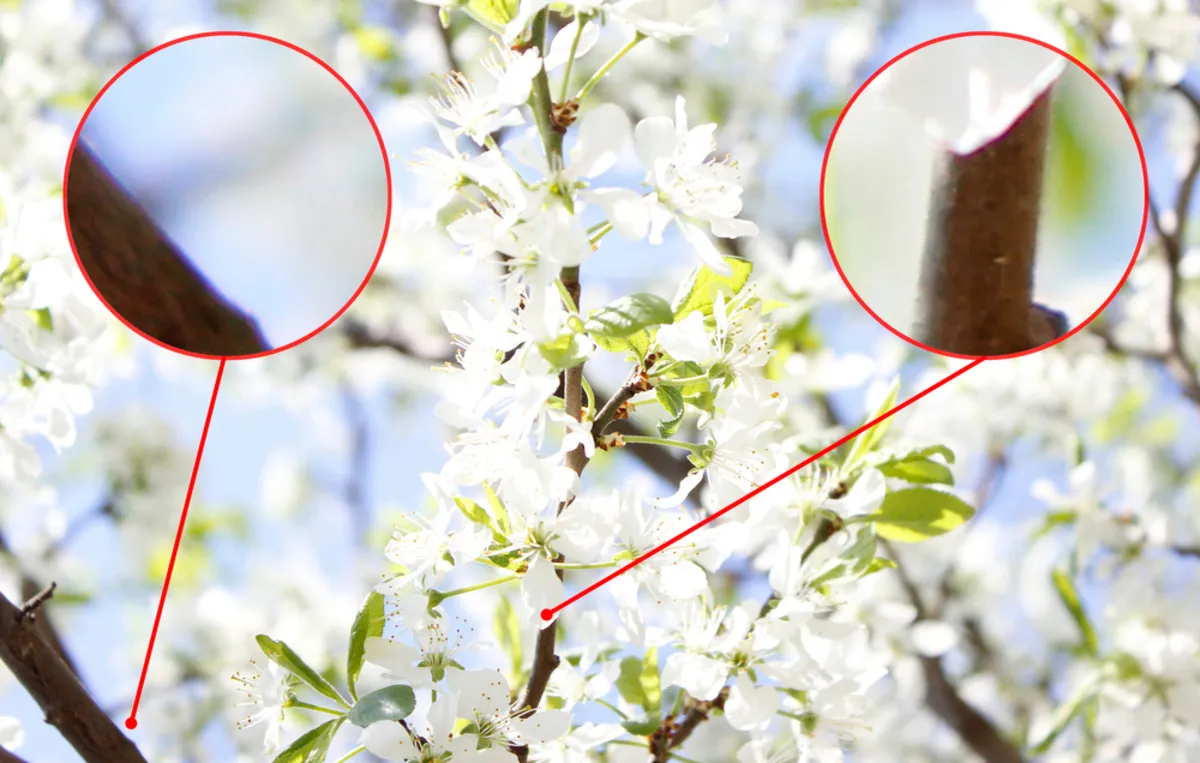
Chromatic aberration is an optical error in which different wavelengths of light form images at different focus distances or slightly different sizes. These differences can produce colored outlines and reduce clarity around edges.
The underlying process is dispersion: a lens material refracts different wavelengths by different amounts. Lens designers combine materials and optical elements to reduce the resulting color separation.
In photographs, look for:
- Thin red, cyan, blue, yellow, purple, or green fringes around contrasting edges.
- Colored blur around out-of-focus details.
- Fine edges that look less distinct because their color components do not align.
Not every colored edge is chromatic aberration. Reflected light, the subject’s actual color, and editing artifacts can also create colored outlines. Inspect the surrounding detail before applying a correction.
Slide into Superior Edits with Enhance AI
Types of Chromatic Aberration
The two main types are longitudinal and lateral chromatic aberration. They can occur together, but their appearance and correction methods differ.
| Characteristic | Longitudinal chromatic aberration | Lateral chromatic aberration |
| Other name | Axial chromatic aberration | Transverse chromatic aberration |
| Optical difference | Colors focus at different distances along the optical axis | Colors form images at slightly different magnifications |
| Typical appearance | Purple or magenta and green blur around details at different focus distances | Paired colored fringes along edges |
| Typical location | Can appear throughout the frame | Usually more visible toward the edges and corners |
| Effect of stopping down | Often reduces its visibility | Generally has little effect |
| Editing approach | Defringing or careful local color adjustments | Automatic chromatic aberration correction |
Longitudinal Chromatic Aberration
Longitudinal chromatic aberration occurs when different wavelengths reach their sharpest focus at different distances along the lens axis.
You may see magenta or purple fringing on details in front of the focus plane and green fringing behind it, although the exact colors vary. Backlit hair, jewelry, and blurred highlights can reveal the effect.
It is often most noticeable at wide apertures. Closing the aperture can reduce the colored blur, making this a useful adjustment when your desired depth of field allows it.
Lateral Chromatic Aberration
Lateral chromatic aberration occurs when different wavelengths produce slightly different image sizes. Their edges become displaced relative to one another.
Look for red/cyan or blue/yellow outlines near the sides and corners, particularly around branches or architectural details. Unlike longitudinal aberration, it generally does not improve substantially when you close the aperture.
Automatic correction can often reduce lateral fringing by bringing the color components into better alignment.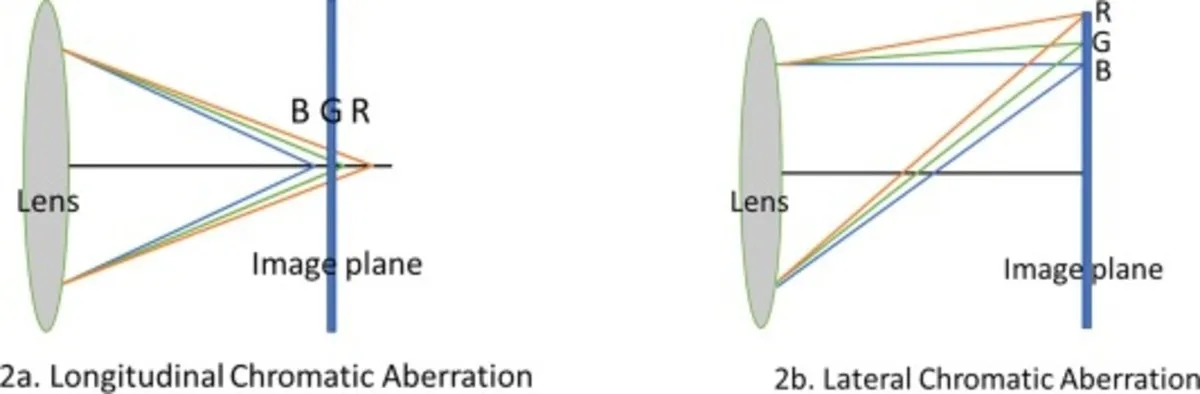
What Causes Chromatic Aberration in Photography?
Chromatic aberration originates in the lens’s optical design and the dispersive properties of its materials. Shooting conditions affect how clearly you see it.
Three factors are especially useful to consider:
- Lens correction. Different designs control chromatic aberration to different degrees. Price, age, or a prime-versus-zoom label alone does not tell you how a particular lens will perform.
- Aperture, focal length, and focus distance. These can change the amount or appearance of aberration. On a zoom lens, performance may vary across the zoom range.
- Scene contrast. Dark branches against a bright sky or metal against a white background reveal fringes that may be difficult to notice elsewhere.
A bright background makes the problem visible; it does not create the lens’s dispersion.
How to Reduce Chromatic Aberration While Shooting
You cannot always eliminate chromatic aberration in-camera, but you can reduce its visibility and capture a file that is easier to correct.
1. Check the Lens’s Actual Performance
Low-dispersion glass and fluorite elements help lens designers control chromatic aberration. However, their presence is not a guarantee that a lens will show no fringing.
Compare sample images taken at the apertures and focal lengths you expect to use. Inspect both the center and corners, including high-contrast edges.
You can also test your existing lens before considering a replacement. Photograph the same scene at several apertures and compare the results at 100%.
2. Stop Down for Longitudinal Aberration
Try closing the aperture by one or two stops when you see colored blur around details in front of or behind your subject. For example, compare f/2.8 with f/4 and f/5.6.
Check the trade-offs: a smaller aperture changes background blur and requires a longer exposure, higher ISO, or more light. Do not keep stopping down solely to chase lateral fringes.
Exclusive Tools of Endless Possibilities in One Editor
3. Adjust the Background or Lighting
A less contrasting background can make fringing less distracting. For portraits, moving the subject away from bright sky or changing your shooting angle may help.
Avoid unnecessarily clipping important highlights. Better exposure preserves useful detail, although it does not correct the lens’s optical error.
4. Use Available In-Camera Corrections
Check whether your camera offers chromatic aberration compensation for the attached lens.
Its effect on JPEGs, RAW previews, and RAW processing depends on the camera and software. A corrected preview does not guarantee that another RAW editor will reproduce the same correction.
5. Consider Where Critical Details Sit
Lateral aberration generally increases away from the optical center. If corner fringing is distracting, placing an important detail closer to the center can help.
Use this selectively. A strong composition may still be worth keeping when its edges need correction afterward.
How to Fix Chromatic Aberration in Luminar
Start with automatic correction, then inspect the remaining fringes before making local adjustments.
Working from the original RAW file retains more capture information than editing an exported JPEG. A RAW photo editor also gives you access to corrections that may be unavailable for other file types.
Apply Automatic Correction First
In Luminar for desktop:
- Open the image and inspect contrasting edges at 100% zoom.
- Open Develop RAW for an unedited RAW file, or locate its existing adjustment in the Edits panel.
- Expand the Optics section and enable Auto Fix Chromatic Aberrations. This option is available for RAW files.
- Compare the result with the original. If distracting halos remain, try Auto Defringe.
- Check several areas, including corners and genuinely purple or green objects.
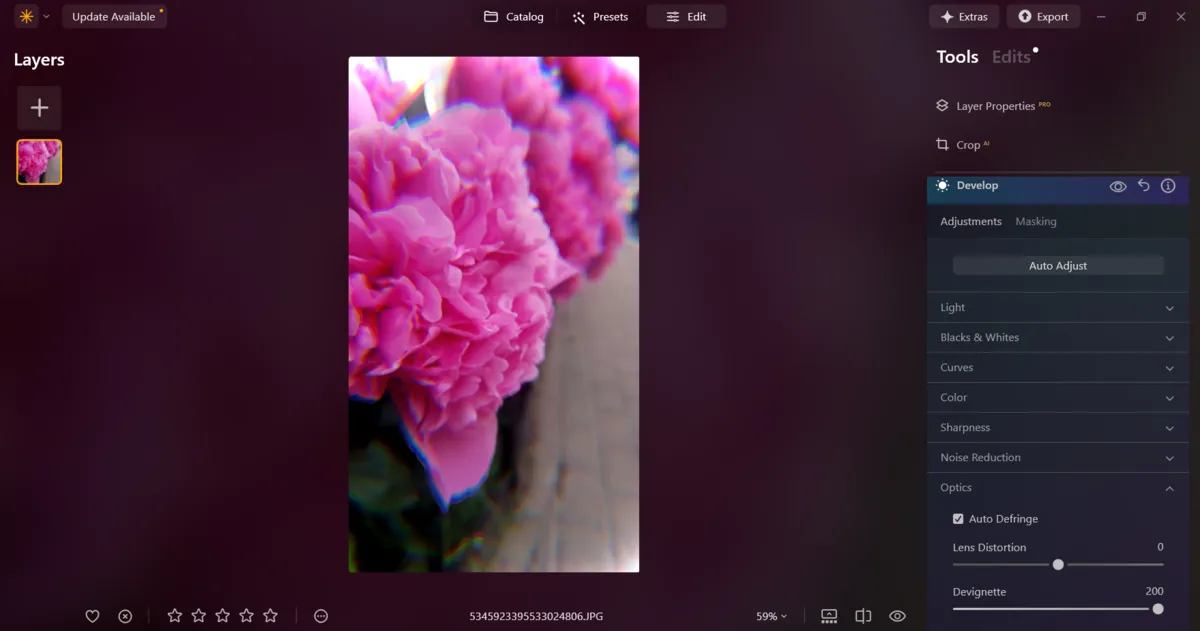
For JPEGs and other non-RAW files, inspect the available controls in Develop and try Auto Defringe where appropriate. The exact controls differ between RAW and standard files.
Use Local Adjustments for Remaining Fringes
For small areas that automatic correction does not resolve, a masked color adjustment can make the remaining fringe less noticeable.
- Open the Color tool.
- Under HSL, choose Saturation and gently reduce the relevant color range, such as Purple or Magenta.
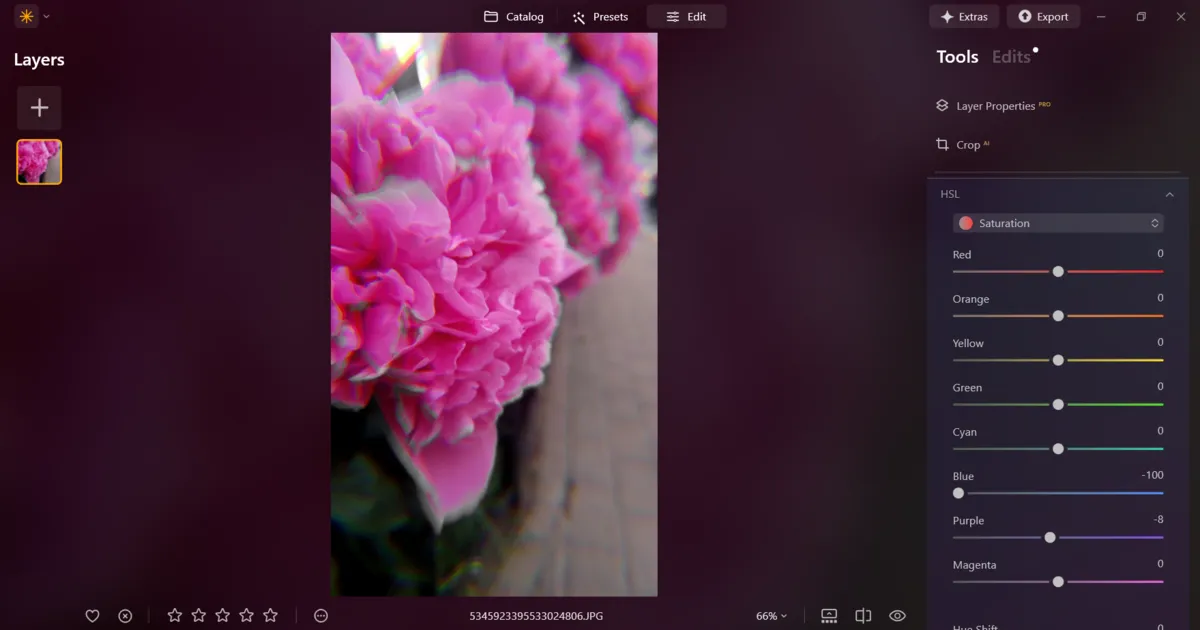
- Open the tool’s Masking tab and use Brush to apply the adjustment along the unwanted fringe.
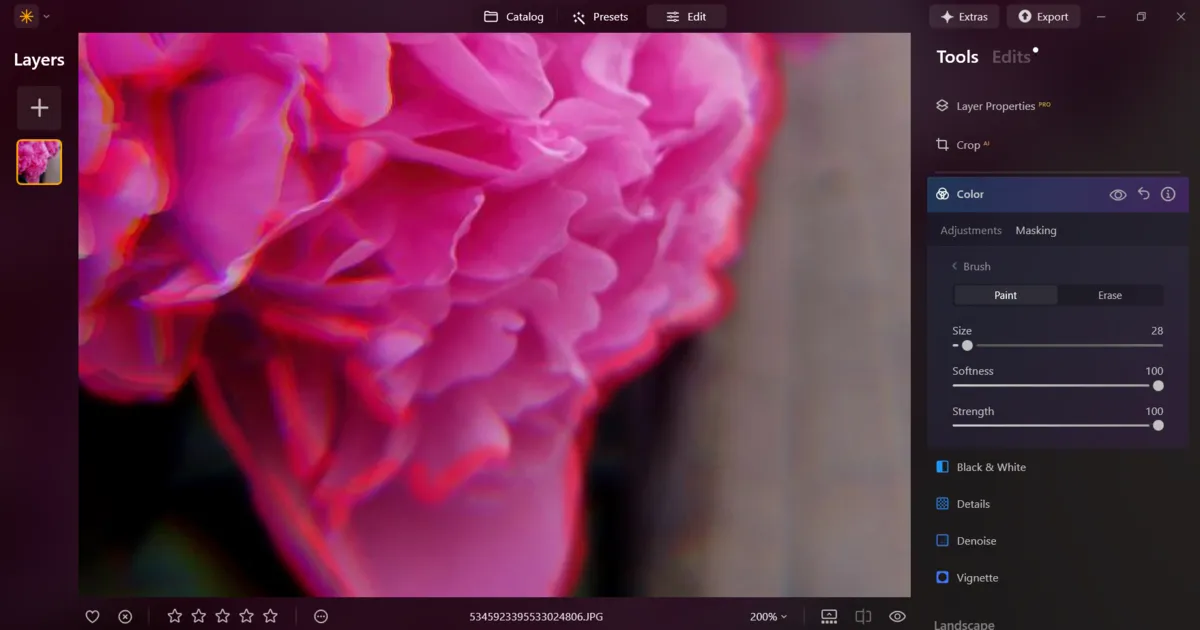
- Adjust the brush size and softness to follow the edge. Erase any mask that spills onto genuine subject colors.
- Compare before and after at 100% and at the intended viewing size.
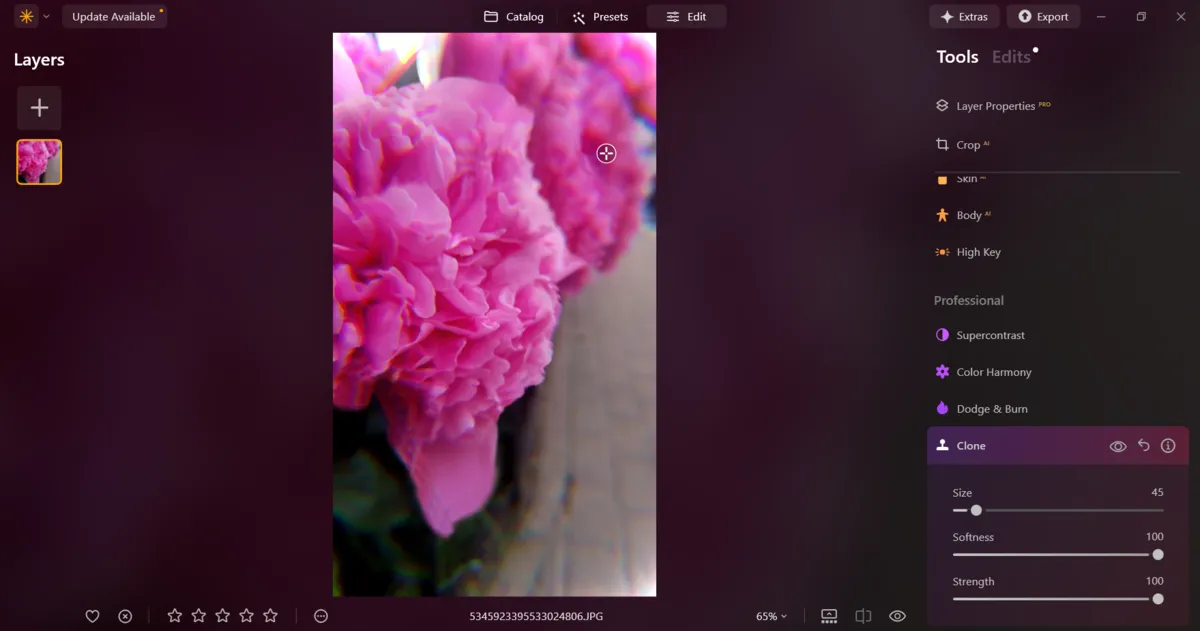
This method reduces the fringe’s color; it does not realign channels or recover detail lost to optical blur. Avoid full desaturation unless it is necessary, and check for gray rims or uneven transitions.
Check the Finished Image
Before exporting, examine:
- Hair, branches, and other fine details for remaining colored rims.
- Purple and green objects for unintended desaturation.
- Edited edges for gray halos or visible brush boundaries.
- The image at its final display size to judge whether further correction is useful.
Apply sharpening conservatively afterward. Excessive sharpening can make residual fringes and other edge artifacts more noticeable.
Your AI-Powered Photo Editor for MacOS and Windows
Common Chromatic Aberration Correction Mistakes
The most common mistake is applying a strong correction everywhere when only a few edges need attention.
| Mistake | Better approach |
| Stopping down to fix corner color separation | Use automatic correction for lateral aberration |
| Assuming every purple edge is a lens defect | Check whether the color belongs to the subject or surrounding light |
| Desaturating purple or green across the whole image | Restrict the adjustment with a local mask |
| Cloning along intricate hair or branches | Try optical correction and local color reduction first |
| Expecting defringing to restore all lost sharpness | Assess color cleanup and detail separately |
| Editing only at extreme magnification | Recheck at 100% and the intended output size |
Conclusion
Identify the type of chromatic aberration before choosing a fix. Test a smaller aperture for longitudinal fringing and use automatic correction for lateral color separation.
In Luminar, start with the available optics controls, then make small local adjustments only where needed. Finish by checking that unwanted fringes are reduced and the subject’s genuine colors remain intact.
Frequently Asked Questions
No. Some residual chromatic aberration can occur in a normally functioning lens, especially under demanding shooting conditions.
Compare photographs taken at different apertures and focal lengths. If performance changes suddenly or seems unusually poor, further testing may help distinguish normal lens behavior from a problem.
Yes, although the available corrections depend on the editor. Defringing and local color adjustments can reduce visible fringes in JPEGs.
In Luminar, Auto Fix Chromatic Aberrations is RAW-only, while Auto Defringe is available for standard files as well.
Purple fringing can be associated with chromatic aberration, but its color alone does not identify the exact cause.
Check whether the fringe changes with focus distance, appears mainly near the corners, or surrounds bright reflections. These patterns help you choose between optical correction and targeted defringing.
No. A smaller aperture can reduce longitudinal chromatic aberration, but it generally has little effect on lateral aberration.
Compare a few settings rather than assuming the smallest aperture will give the best result.
Not completely in every case. Aligning color components can improve edge clarity, while defringing mainly reduces unwanted color.
Strong longitudinal blur may leave detail that color correction alone cannot recover.