Find an AI photo editor that fits your workflow. Explore Luminar, Topaz Photo, Adobe tools, and browser editors, including free-plan limitations.
An AI photo editor can help select a subject, reduce noise, remove a distraction, or make an initial light adjustment. Those are different jobs, and an application that excels at one may be unsuitable for the others.
I’d start by deciding what the finished photograph needs. A RAW portrait collection calls for different controls than a product cutout or a social post. Paying for more AI features only makes sense when they solve a problem in that workflow.
This is my shortlist based on documented features, supported workflows, and practical tradeoffs. It is an editorial comparison, rather than a hands-on benchmark: the recommendations do not imply that every application has been tested on the same images or hardware. I’ve included full editors and specialist tools, with that distinction made clear throughout.
Don’t feel like reading the whole breakdown? We’ve pulled together a quick summary below.
AI Photo Editors at a Glance
The categories below describe where I would begin evaluating each tool. They are not rankings of measured image quality.
| Editor | What I’d consider it for | Main access route | Cost consideration |
| Luminar | General editing with photographic AI tools | Desktop; separate mobile options | Paid licenses; check the included AI features and their access period |
| Topaz Photo | Noise reduction, sharpening, and upscaling | Desktop | Subscription |
| Adobe Lightroom | Developing and organizing photo collections | Desktop, mobile, and web | Paid plans; features vary across platforms |
| Adobe Photoshop | Detailed retouching and layered compositing | Desktop, with other versions available | Paid plans; generative allowances depend on the plan and feature |
| Adobe Photoshop Express | Quick mobile edits and collages | Mobile | Free access with paid features |
| Autoenhance.ai | Automated real estate photo processing | Web and API | Paid plans; compare image volume and delivery options |
| Canva | Photo edits inside social and marketing designs | Web and apps | Free and paid access; AI availability varies |
| Pixlr | Browser editing with AI cleanup and creative tools | Web | Free and paid access; check AI credits and export limits |
| Fotor | Guided enhancement and creative image edits | Web and apps | Free and paid access; limited free AI credits |
| remove.bg | Automatic background removal | Web, integrations, and desktop utility | Free previews; credits for full-resolution downloads |
How I’d Choose an AI Photo Editor
I’d judge an editor by the complete task: importing the source, making an adjustment, correcting the automatic result, and exporting a usable file. A fast preview is helpful, but it does not establish that the final image meets the brief.
The most useful checks are:
- File support: Does it support the exact camera RAW format or image type?
- Control: Can the automatic result be reduced, masked, or corrected?
- Output: Are the required dimensions and formats available?
- Workflow: Does it handle a collection, an individual image, or a design?
- Cost: Are AI credits, export restrictions, or ongoing access involved?
I also separate enhancement from generation. Denoising and automatic masking can assist a photographic edit. Generative replacement can introduce content that was never recorded. Both can be useful, but they answer different needs.
1. Luminar: My Starting Point for General AI Photo Editing
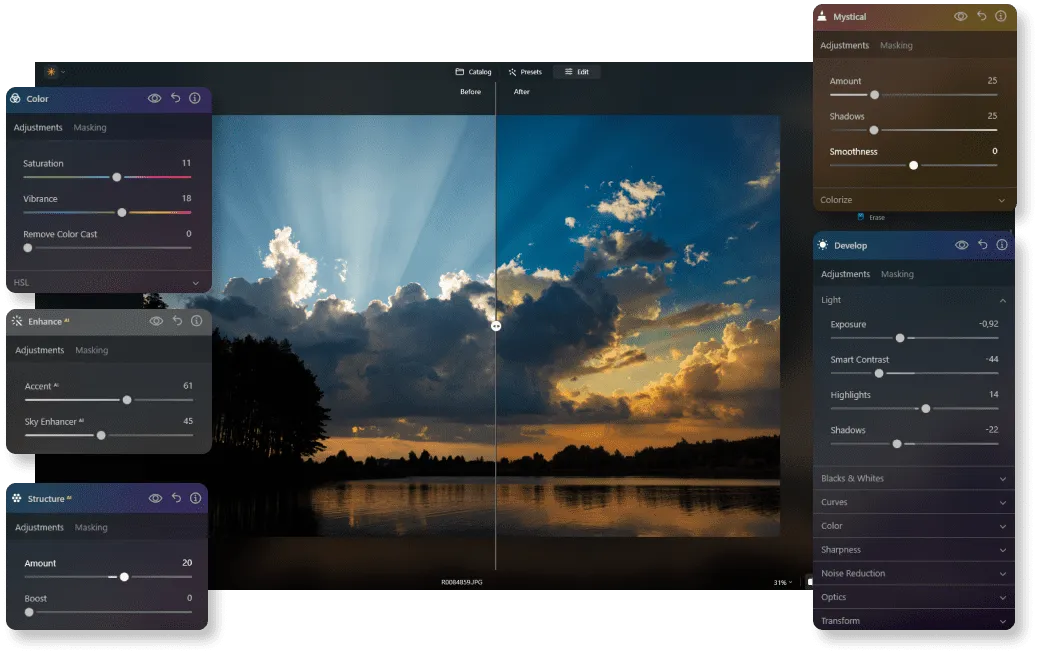
What it offers: A photographic editor with RAW development, light and color adjustments, layers, masking, and AI tools for specific subjects and tasks.
I’d put Luminar on the shortlist for someone who wants help with common edits while retaining control over the finished image. Its appeal is the connection between an automatic starting point and the adjustments that follow. You can improve the overall balance, address a distraction, and continue refining the photograph in one editor.
The desktop toolset includes Enhance AI, portrait tools, Sky AI, noise reduction, and generative options. For portraits, I’d look at Skin AI as a targeted adjustment rather than a reason to remove all skin texture. For landscapes, I’d begin with exposure and color before deciding whether creative changes such as sky replacement suit the image.
I would also check the particular license. Ongoing access to the editor and access to generative services can have different terms. Mobile and desktop editions should be compared separately rather than assumed to contain identical tools.
| Pros | Cons |
| Broad photographic adjustments alongside AI assistance | Advanced tools still require learning and judgment |
| Options for portraits, landscapes, and local cleanup | Strong automatic settings can make an image look overprocessed |
| Manual controls for refining the overall edit | Feature availability and generative access depend on the edition and plan |
My take: I’d choose it for a varied photo collection that needs more than a single enhancement operation.
Your AI-Powered Photo Editor for MacOS and Windows
2. Topaz Photo: My Pick to Evaluate for Dedicated Enhancement
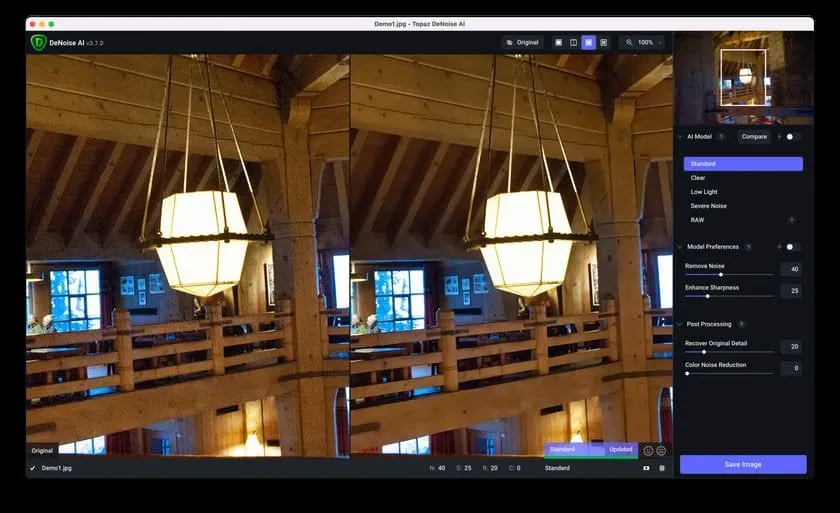
What it offers: A desktop application centered on image quality tasks, including denoising, sharpening, face recovery, and upscaling.
I’d consider Topaz Photo when the difficult part of the job is a noisy frame, limited resolution, or softness that deserves a closer assessment. That makes it a specialist addition to an editing workflow rather than an automatic replacement for every other editor.
The important naming distinction is that Topaz Photo is the current application. Older reviews of Topaz Studio, Sharpen AI, DeNoise AI, or Photo AI describe different products. Their features, licensing, and compatibility should not be transferred to this one.
I’d compare the result with the original at full size, especially on hair, feathers, lettering, and distant detail. Some processing can reconstruct apparent texture, so extra detail should not automatically be interpreted as accurate recovered information. Hardware requirements also vary with the selected model.
| Pros | Cons |
| Focused tools for several image quality problems | Subscription cost may be hard to justify for occasional use |
| Useful as a specialist processing stage | More demanding models need suitable hardware |
| Enhancement beyond basic exposure and color correction | Added apparent detail can require careful verification |
My take: I’d evaluate it on difficult representative files before committing to an additional processing stage.
3. Adobe Lightroom: My Choice for a Collection-Based Workflow

What it offers: Photo organization and development, with AI-assisted masking, removal, blur, and noise reduction features whose availability depends on the version and platform.
I’d consider Lightroom when consistency across a collection matters as much as improving one frame. A portrait session or travel shoot usually involves selection, exposure balancing, color adjustments, and delivery. Keeping those steps connected can be more valuable than adding another standalone AI tool.
AI masking can help target a subject or background, while Denoise can assist with eligible source files. Check the format requirements for the actual edition: importing an image does not establish that every AI enhancement supports it. Lightroom, Lightroom Classic, mobile, and web also have different interfaces and feature coverage.
If choosing a RAW photo editor is the main goal, I’d compare camera support and the full development workflow before comparing creative extras.
| Pros | Cons |
| Organization and development in a connected workflow | Subscription commitment |
| AI assistance for selected photographic tasks | Feature and file eligibility vary by platform |
| Useful for maintaining consistency across a shoot | Detailed compositing may require another application |
My take: I’d start here if managing and delivering collections is the main job.
4. Adobe Photoshop: My Choice for Detailed Retouching

What it offers: Layer-based image editing, selections, masks, sampled retouching, automatic removal, and generative tools.
I’d choose Photoshop when a photograph needs close control over individual elements. Examples include repairing an edge after object removal, combining exposures, building a composite, or keeping multiple corrections independently editable.
AI can help establish a selection or fill an area, but the surrounding editing tools are what make a complex repair manageable. A generated replacement may still need a mask adjustment, a cloned edge, or a separate tonal correction. That is why I would assess Photoshop as an editing system rather than a one-click enhancer.
It also requires more learning than a guided mobile app. These photo retouching techniques provide useful context for understanding why healing, cloning, and local adjustments remain relevant alongside AI.
| Pros | Cons |
| Detailed control through layers, masks, and selections | Substantial learning curve |
| Manual tools for correcting automatic results | Can be excessive for a simple enhancement task |
| Generative and conventional editing in one environment | Paid access and feature-specific generative conditions |
My take: I’d choose it for complex retouching where revisable control matters more than a minimal interface.
5. Adobe Photoshop Express: My Mobile Option for Quick Edits

What it offers: A mobile-focused workflow for adjustments, Looks, collages, and image cleanup, with additional features depending on the platform and subscription.
I’d consider Photoshop Express for a phone photograph that needs a modest cleanup, a crop, and a finished presentation without opening a desktop project. Its narrower workflow makes sense for a single image intended for sharing.
Adobe documents mobile denoising and other quick adjustments, while its iOS documentation includes generative features. I would check the installed version before assuming the same tools appear on every device. Photoshop Express is also distinct from the main Photoshop app; an Adobe name does not mean the applications share the full desktop toolset.
For a portrait, I’d keep the correction restrained and inspect fine detail before saving. A small preview can hide excessive smoothing that becomes obvious in the export.
| Pros | Cons |
| Convenient mobile workflow for individual images | Fewer controls than a detailed desktop workflow |
| Adjustments, Looks, and collage tools together | Some features require paid access |
| Useful for preparing an image for sharing | Tool availability differs between platforms and versions |
My take: I’d shortlist it for quick mobile work rather than a large RAW editing project.
The Photo Perspective Correction Tool You've Been Waiting For
6. Autoenhance.ai: My Specialist Option for Real Estate

What it offers: Automated property photo processing through a web application and API, with features such as perspective correction, relighting, sky replacement, and HDR merging.
I’d consider Autoenhance.ai for a property photography workflow that repeats similar corrections across many images. Straight verticals, balanced interiors, and consistent delivery are more relevant here than portrait beauty effects or artistic filters.
Its specialization is the reason to evaluate it. An editor built around property shoots can offer a better workflow fit than a general creative app, even if the latter has more features overall. I would compare a representative set containing interiors, exteriors, windows, and difficult mixed lighting.
The final images still need review. A replacement sky should fit the lighting, perspective correction should preserve plausible proportions, and processing should not obscure meaningful property details. Compare current plans by expected volume and delivery requirements rather than relying on an old fixed free-image allowance.
| Pros | Cons |
| Focused on recurring real estate editing tasks | Limited appeal for unrelated photography genres |
| Web and API routes for repeatable processing | A finished shoot still requires quality control |
| Multiple property corrections in one service | Plan value depends on volume and required output |
My take: I’d evaluate it for a recurring property workflow, rather than occasional general photo edits.
7. Canva: My Choice for Photos Inside a Design

What it offers: A design platform with photo adjustments and AI tools such as Magic Edit, Magic Eraser, and image expansion, subject to access conditions.
I’d choose Canva when the finished deliverable is a social graphic, presentation, invitation, or marketing layout. In that situation, editing the photograph is one part of arranging text, visual elements, and output dimensions.
Its attraction is continuity between the image and the design. You can modify an element, clean up a distraction, and assess the photograph in the actual layout. That is more useful for this task than repeatedly exporting between a photo editor and a separate design application.
I would not choose it primarily for detailed RAW development or pixel-level repair. Check which AI tools are included in the intended account, because the free design workflow does not imply unlimited access to every AI feature.
| Pros | Cons |
| Photo tools within a full layout workflow | Less suited to detailed photographic development |
| Useful for social and marketing deliverables | Some AI tools require paid access or have usage limits |
| Easy to assess an edit alongside text and graphics | Generated changes may need correction outside the design workflow |
My take: I’d choose it when the photograph needs to become part of a designed asset.
8. Pixlr: My Browser-Based Option for Flexible Editing
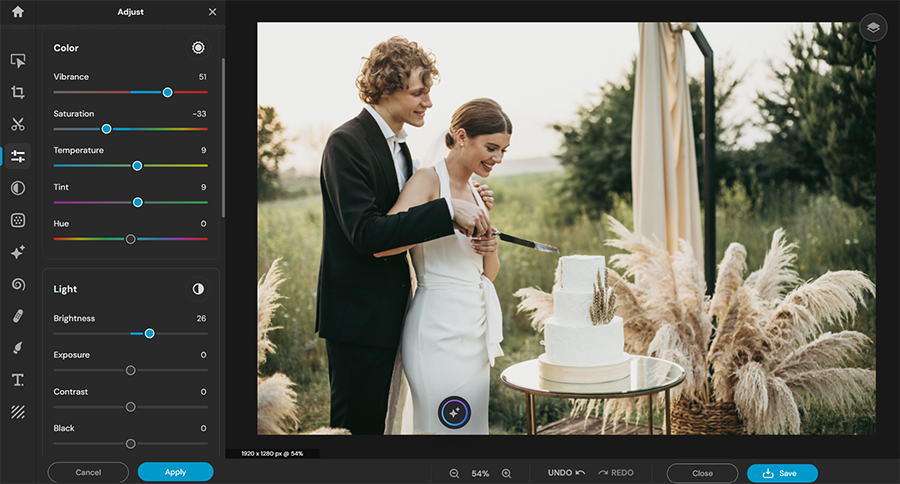
What it offers: Browser editors alongside AI tools for background removal, object removal, generative fill, expansion, and image enhancement.
I’d consider Pixlr when I want browser access and a mixture of conventional editing and AI actions. Its different interfaces matter: Pixlr Express emphasizes accessible edits, while Pixlr Editor provides a more detailed editing environment.
That makes it worth evaluating for an image that needs more than a cutout but does not justify starting a full desktop workflow. A user can clean up part of a photograph, adjust its appearance, and prepare a simple composition.
I would check the current plan’s AI credits, save allowance, and export conditions before beginning a time-sensitive job. Also compare the actual image after processing; an accessible interface does not remove the need to inspect edges or generated textures.
| Pros | Cons |
| Browser access with several editing approaches | Feature access and allowances depend on the plan |
| Conventional controls alongside generative tools | Different interfaces take some orientation |
| Useful for quick cleanup and creative modifications | Less directly suited to managing a complete photography collection |
My take: I’d shortlist it for flexible browser editing rather than a single-purpose service.
9. Fotor: My Option for Guided Enhancement and Creative Edits

What it offers: Enhancement, background and object tools, upscaling, and creative image transformations through a guided editing service.
I’d consider Fotor for someone who prefers choosing a task over building an elaborate editing process. The relevant starting point might be improving an image’s appearance, removing a background, or preparing a different version for a small project.
It offers a broad range of AI functions, so I would separate photographic enhancement from creative generation when comparing the results. A more detailed-looking face or a stylized transformation is not necessarily a more accurate version of the original photograph.
Its pricing structure combines free access with limited free credits and paid options. I would check the exact export and tool conditions rather than treating the word “free” on a feature page as a promise of unrestricted processing.
| Pros | Cons |
| Guided tools for several common image tasks | Free AI usage is limited |
| Enhancement and creative options in one service | Export conditions vary with the plan |
| Suitable for evaluating individual edits without a complex setup | Automatic transformations can change important details |
My take: I’d consider it for approachable, task-based edits and compare the saved result before processing a larger collection.
10. remove.bg: My Specialist Choice for Background Cutouts

What it offers: Automatic subject isolation and background removal, with web access and integrations for repeatable processing.
I’d choose remove.bg when the requirement is specifically a cutout. A product image for a layout, a portrait for a profile graphic, or an isolated subject for another composition can benefit from a focused tool.
The important tradeoff is scope. Removing a background does not complete exposure correction, retouching, or color matching. I would also inspect hair, transparent materials, narrow gaps, and reflective objects against the replacement background.
Free website previews and full-resolution downloads have different conditions. A preview can help assess the selection, but it should not be mistaken for a production-sized export. Check credit requirements against the dimensions needed for the final design or print.
| Pros | Cons |
| Focused workflow for automatic background removal | Not a general photo editor |
| Integrations for repeated cutout tasks | Fine edges and transparent objects can need correction |
| Free previews help assess a result | Full-resolution downloads generally require credits |
My take: I’d choose it for cutouts and finish the wider photographic edit elsewhere.
Exclusive Tools of Endless Possibilities in One Editor
Can AI Photo Editors Really Save Time?
They can reduce repetitive work, but I would not promise a fixed editing time. Finding a subject mask automatically may be useful; correcting an inaccurate mask can still take longer than expected. Processing time also varies with the file, computer, network, and selected model.
I’d compare the complete workflow on a small representative set:
- Choose a portrait, a textured scene, a noisy image, and a difficult edge.
- Apply the correction the application is being considered for.
- Inspect the result at full size and intended viewing size.
- Make the necessary manual corrections.
- Export and check the saved file.
For example, compare a dedicated denoiser with the noise reduction tools already available in the main editor. An extra application is worthwhile only when its output or workflow offers a useful advantage for the actual photographs.
Which AI Photo Editor Would I Choose?
I’d begin with the job. For general photographic editing, I’d compare Luminar and Lightroom. For detailed compositing, I’d consider Photoshop. For difficult enhancement tasks, I’d evaluate Topaz Photo alongside the tools already owned.
For smaller projects, I’d narrow the choice further: Photoshop Express for a mobile edit, Canva for a designed asset, Pixlr or Fotor for browser-based work, Autoenhance.ai for property images, and remove.bg for cutouts.
The most useful editor is the one that produces a convincing finished file with controls you understand and costs that fit the workload. A longer AI feature list is less valuable than getting that particular task right.
FAQ
I’d shortlist Luminar for general photography, Photoshop Express for mobile edits, and Canva for images used in layouts. The best starting point depends on whether the main task is developing a photograph, sharing a phone image, or producing a design.
Several services offer free access or previews, including Pixlr, Fotor, Canva, Photoshop Express, and remove.bg. I’d check AI credits, eligible features, export size, and paid restrictions before choosing one for a finished project.
It can sometimes improve the appearance through sharpening or upscaling, but it cannot guarantee accurate recovery of missing detail. I’d compare fine structures with the original and treat generated texture as an interpretation rather than proof of what was captured.
They can assist with selections, cleanup, and initial adjustments. I would still review skin texture, edges, colors, and generated content. Manual controls remain useful when the automatic result misses the intended appearance.
I’d choose according to file support, upload requirements, hardware, and the full editing workflow. Browser tools suit many focused tasks; desktop applications can suit more extensive photographic work. Check whether particular AI features require an internet connection in either case.