One tap can make a photo brighter. The right app can make you wonder why you ever took it any other way.
Finding a good iPhone photo editor in 2026 is no longer about settling for basic filters, with today’s apps offering everything from intelligent retouching to detailed color and RAW control. We narrowed the crowded field down to five apps that stand out for image quality, creative control, AI features, RAW support, speed, and value, so you can find the best photo editor for iPhone for the way you actually shoot.
The Five Editors That Made Our List
If you are comparing the best photo editing apps, these are the five worth putting on your shortlist in 2026.
| App | Best suited to | Standout capability | Pricing snapshot |
| Luminar | AI-assisted enhancement and creative retouching | Sky AI, Relight AI, Skin AI, Erase, RAW | From at $4.99/week, $23.99/year, $39.99 lifetime |
| Photomator | Apple users and RAW workflows | 750+ RAW formats, AI masking, batch adjustments | $34.99/year, $7.99/month, or $119.99 lifetime |
| Adobe Lightroom | Serious photographers | RAW processing, masking, Generative Remove, syncing | From $11.99 per month when billed annually |
| Darkroom | Fast iPhone-native workflow | RAW/ProRAW, batch editing, curves, and presets | $9.99/month, $39.99/year, or $99.99 lifetime |
| Snapseed | Powerful free editing | 30+ tools, masking, film effects | Free, no subscription or watermark |
Pricing can vary by country, taxes, promotions, and subscription options.
What Are the Best Photo Editing Apps for iPhone?
There is no single winner for every photographer. Luminar for Mobile is a great all-round choice if you want both hands-on controls and smart tools, while Lightroom and Photomator give you more room to fine-tune your images. Darkroom keeps things quick and closely tied to the iPhone, and Snapseed is the obvious pick if you want a solid free option.
In other words, the best photo editing apps iPhone users should consider are not necessarily the most famous ones. The useful distinction is between apps designed for quick enhancement, detailed RAW work, creative retouching, or a combination of all three. If you mainly shoot in challenging low light, for example, these Tips for Taking Awesome Night Sky Photos on iPhone can help you get a cleaner shot before you start working on it.
1. Luminar: Best for AI-Powered Editing Without a Complicated Workflow
Luminar for Mobile is our first choice if you want to get more out of your photos without doing a lot of the work by hand.

Why It Stands Out
Where it really helps is with the little adjustments that can otherwise take a while. Relight AI can brighten a darker subject, Sky AI can replace a dull sky, and Skin AI handles minor portrait cleanup without making skin look overly smooth. Bokeh AI gives you a similar shortcut for background blur, without manual masking.
The app currently requires iOS 17 or later. Luminar for Mobile pricing starts at $23.99/year or $39.99 lifetime, with a weekly plan also available at $4.99/week. For more detailed comparisons, see Why Luminar Is The Best Photo Editing App.
Professional Editing. Now in Your Pocket.
Download Luminar on your Mobile Device
2. Photomator: Best for RAW Photographers Inside the Apple Ecosystem
Photomator is a strong choice for iPhone photographers who want more control over color and RAW files while keeping their photos in Apple’s Photos and iCloud ecosystem.

Where It Excels
It can handle everything from 750+ RAW formats, including Apple ProRAW, to AI-powered selection of subjects, skies, and backgrounds. You also get support for masking, Repair, Denoise, Super Resolution, Curves, Levels, Selective Color, and LUTs. For a larger shoot, you can copy adjustments across photos or apply them to hundreds of images at once, making the workflow much faster.
The current US App Store lists $34.99/year, $7.99/month, and a $119.99 lifetime option, with promotional offers also available. Photomator requires iOS 17 or later. This makes it an especially strong best photo editing app for iOS choice for photographers who want more control without moving to Adobe’s ecosystem. If you are still figuring out how to edit photos on iPhone, Photomator is also a good place to learn the basics while having room to grow into more advanced tools.
3. Adobe Lightroom: Best for a Serious Photography Workflow
Lightroom remains the reference point when editing consistency, RAW control, and cross-device work matter more than simplicity.

What Sets It Apart
The iPhone app is free for core tools, capture, organization, and sharing. Premium adds tools such as Masking, Lens Blur, Generative Remove, healing, geometry, batch and RAW editing, and cloud synchronization.
Lightroom requires iOS 18 or later. Prices are from $11.99 per month when billed annually. Choose Lightroom if your photos need repeatable color treatment, detailed RAW adjustments, or synchronization with desktop Lightroom. For a more focused comparison, our guide to a Lightroom mobile alternative is useful.
4. Darkroom: Best for Fast, Native iPhone Editing
Darkroom feels particularly well-suited to people who dislike importing photographs into a separate catalog before editing them.

Its Biggest Strengths
Darkroom is built around the way many iPhone users already manage their photos. You can open images directly from Apple Photos, work with RAW and ProRAW files, save your own presets, make batch adjustments, and even use the app for video. There is no need to move everything into a separate photo library first.
The current App Store listing shows $9.99/month, $39.99/year, and a $99.99 lifetime purchase. Darkroom requires iOS 18.4 or later. For an iPhone-first photographer who wants to edit a batch of images quickly without a desktop-style interface, Darkroom is one of the strongest options.
5. Snapseed: Best Free Editor With Serious Tools
Google’s Snapseed remains relevant in 2026 precisely because it avoids the subscription model that dominates much of the photo-editing market.
What Makes It Different
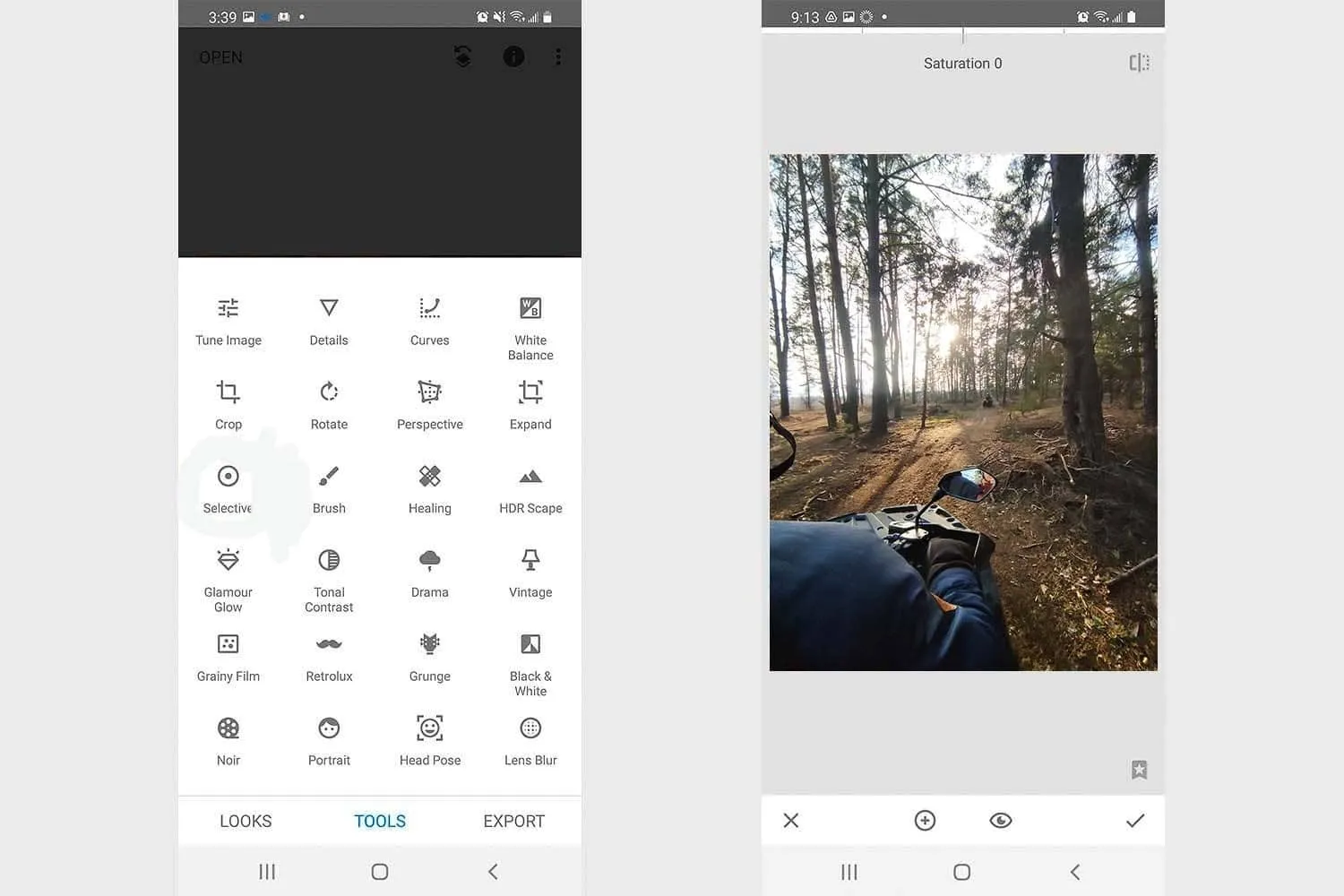
Snapseed provides more than 30 tools and filters, including curves, selective adjustments, healing, film-style effects, grain, masking, and batch editing. The current App Store listing states that it has no subscriptions, purchases, advertising, or watermarks. It requires iOS 17 or later and is particularly useful when you need to make a specific correction rather than apply a complete AI-driven makeover.
For anyone searching for the best iOS photo editor without paying, Snapseed is still an unusually convincing answer. You can also compare Snapseed with Luminar Mobile to see how their approaches to work differ.
How to Choose the Right iPhone Editor
The right choice comes down to what you shoot and how you like to work, so here’s a quick look at which app makes the most sense for your workflow, from a versatile iPhone picture editor to more focused tools.
| Your Main Need | Best App | Why Choose It |
| AI-powered enhancements and fast creative edits | Luminar | Best for improving lighting, skies, portraits, backgrounds, and unwanted objects with AI-assisted tools. |
| RAW and ProRAW editing | Photomator | Supports 750+ RAW formats and offers masks, Curves, LUTs, selective adjustments, and AI-powered selections. |
| Professional workflow across devices | Adobe Lightroom | Strong RAW processing, AI masking, cloud syncing, and a workflow that works across iPhone, iPad, Mac, and other devices. |
| Fast adjustments directly from your photo library | Darkroom | Opens your Photos library directly and provides curves, presets, batch editing, RAW/ProRAW support, and AI tools. |
| Powerful editing for free | Snapseed | A long-standing free option with extensive adjustment and retouching tools and no subscription requirement. |
Before You Download Another Photo Editor
For 2026, Luminar for Mobile is our top pick for most iPhone photographers. It brings together RAW support, familiar photo controls, and AI tools for things like lighting, skies, portraits, and object removal, without making the workflow feel overly technical. Photomator is a strong choice for Apple-focused RAW work, Lightroom for a more professional cross-device setup, Darkroom for fast iPhone-based workflows, and Snapseed for a capable free option.
If you want one app that can handle everything from uneven lighting and distracting objects to portrait touch-ups and color adjustments, Luminar for Mobile offers a particularly well-rounded set of tools. It is designed for quick results on a phone while still giving you enough control to fine-tune the image rather than simply applying a preset. If you are looking for the best photo editor app for iPhone, this balance is one of the main reasons Luminar for Mobile comes out on top. For a closer look at what it offers, these Best Features Of Luminar For Mobile give you a useful look at what the app can actually do in practice.