Create clearer black-and-white photographs by controlling light, separating tones, and editing contrast without losing important shadow or highlight detail.
Contrast in black and white photography is the difference between lighter and darker tones. It helps separate a subject from its surroundings, describe texture, and give shapes a sense of depth.
Strong contrast can suit a graphic street scene, while subtle tonal differences may work better for a misty landscape or a softly lit portrait. The goal is to choose contrast that supports the photograph, then preserve the details that matter.
Don’t feel like reading the whole breakdown? We’ve pulled together a quick summary below.
Key Takeaways
- Tonal contrast separates light and dark areas; color contrast comes from differences in hue.
- Different colors can become similar gray tones during conversion, making a subject harder to distinguish.
- High contrast emphasizes strong tonal differences, while low contrast preserves gentler transitions.
- Hard light produces defined shadow edges, but image contrast also depends on fill light, subject tones, and exposure.
- Global contrast affects the whole photograph; local adjustments let you refine selected areas.
- Black-and-white color-mix controls change how original colors become gray, helping separate skies, foliage, clothing, and skin.
- Avoid clipping important highlights or crushing useful shadow detail unless that loss is an intentional part of the image.
- Use a monochrome preview to assess composition, and retain RAW color data when your camera supports it.
What Is Contrast in Black and White Photography?
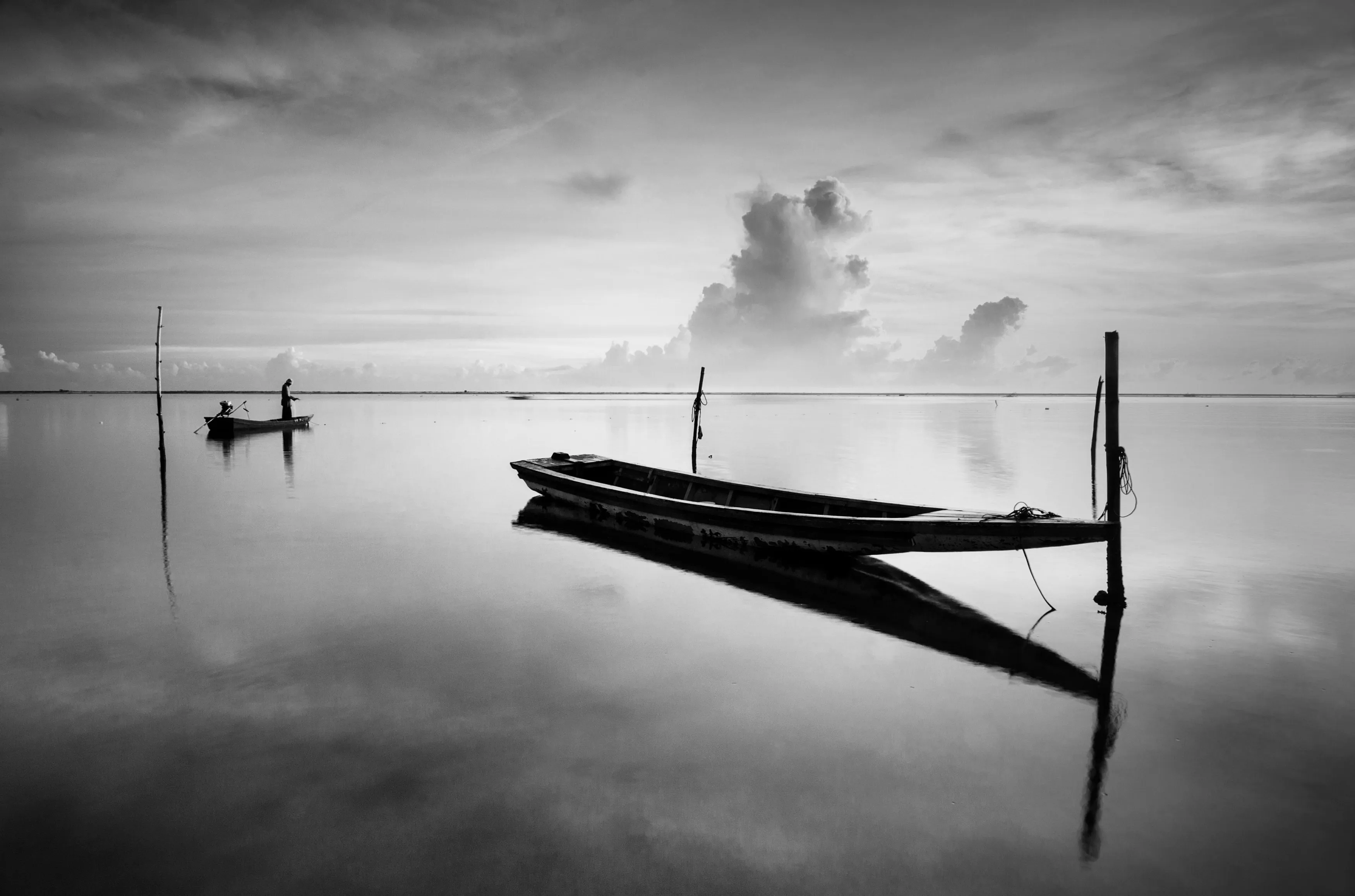
Black-and-white contrast describes differences in brightness between areas of an image. A pale face against a dark background has strong tonal separation; a gray subject against a similarly gray background has less.
Three related terms help explain the effect:
| Term | Meaning | Practical example |
| Tonal contrast | Difference between light and dark tones | A bright doorway beside a shaded wall |
| Global contrast | Tonal differences across the overall image | Deepening shadows and brightening highlights throughout a photograph |
| Local contrast | Tonal differences within a smaller area | Making the texture of a stone wall more distinct |
A photograph can have a broad overall tonal range while its main subject still blends into the background. Check the tones immediately around the subject, not only the darkest and brightest points in the frame.
For a broader explanation of tonal and color relationships, see our guide to contrast in photography.
Your AI-Powered Photo Editor for MacOS and Windows
Are Black and White Contrasting Colors?
Yes, black and white provide strong brightness contrast. In a grayscale image, they represent opposite ends of the tonal scale rather than opposing hues.
Real black objects can reflect light, and white objects do not reflect every bit of light that reaches them. Their appearance depends on illumination, material, exposure, and the way the image is displayed or printed.
A successful black-and-white photograph does not need large areas of pure black or pure white. Midtones can carry most of its detail and visual interest.
High Contrast vs. Low Contrast: Which Should You Choose?
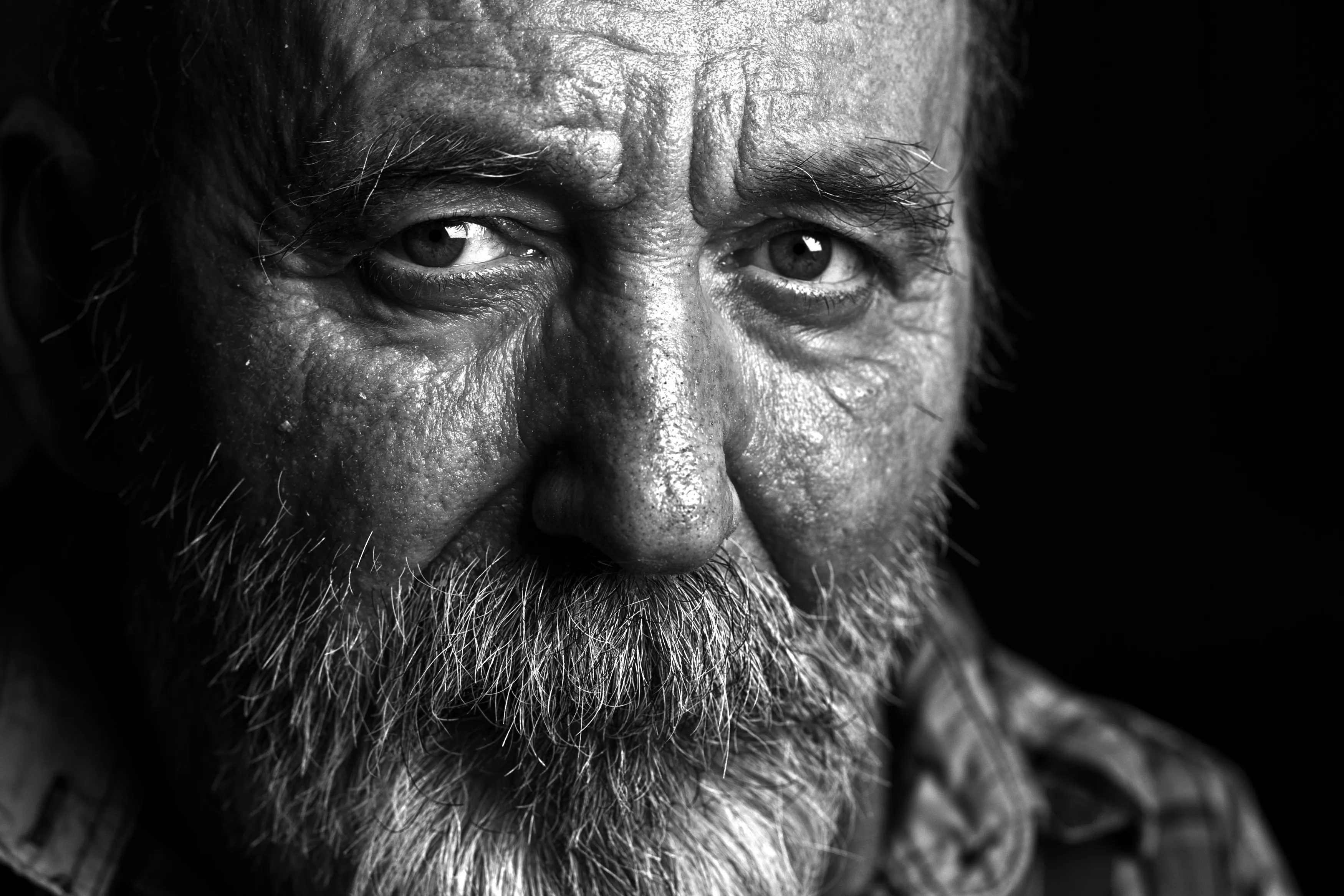
Choose high or low contrast according to the subject and the tonal relationships you want to emphasize. Neither approach is inherently better.
| Approach | Typical appearance | Useful applications | What to watch |
| High contrast | Strong differences between bright and dark areas | Silhouettes, graphic architecture, dramatic portraits, street scenes | Lost texture in highlights or shadows |
| Moderate contrast | Clear separation with visible midtones | Everyday portraits, documentary images, detailed landscapes | A subject that blends into its surroundings |
| Low contrast | Gentle tonal transitions, often concentrated in gray tones | Fog, overcast landscapes, subtle portraits | Weak separation where the subject needs emphasis |
High-contrast black-and-white photography can simplify a scene into bold shapes. However, increasing contrast too far may remove the textures and expressions that make the image interesting.
Low-contrast photography can retain delicate transitions in mist, skin, or soft light. It still needs enough separation for the viewer to understand the subject.
How Does Color Affect Black-and-White Conversion?
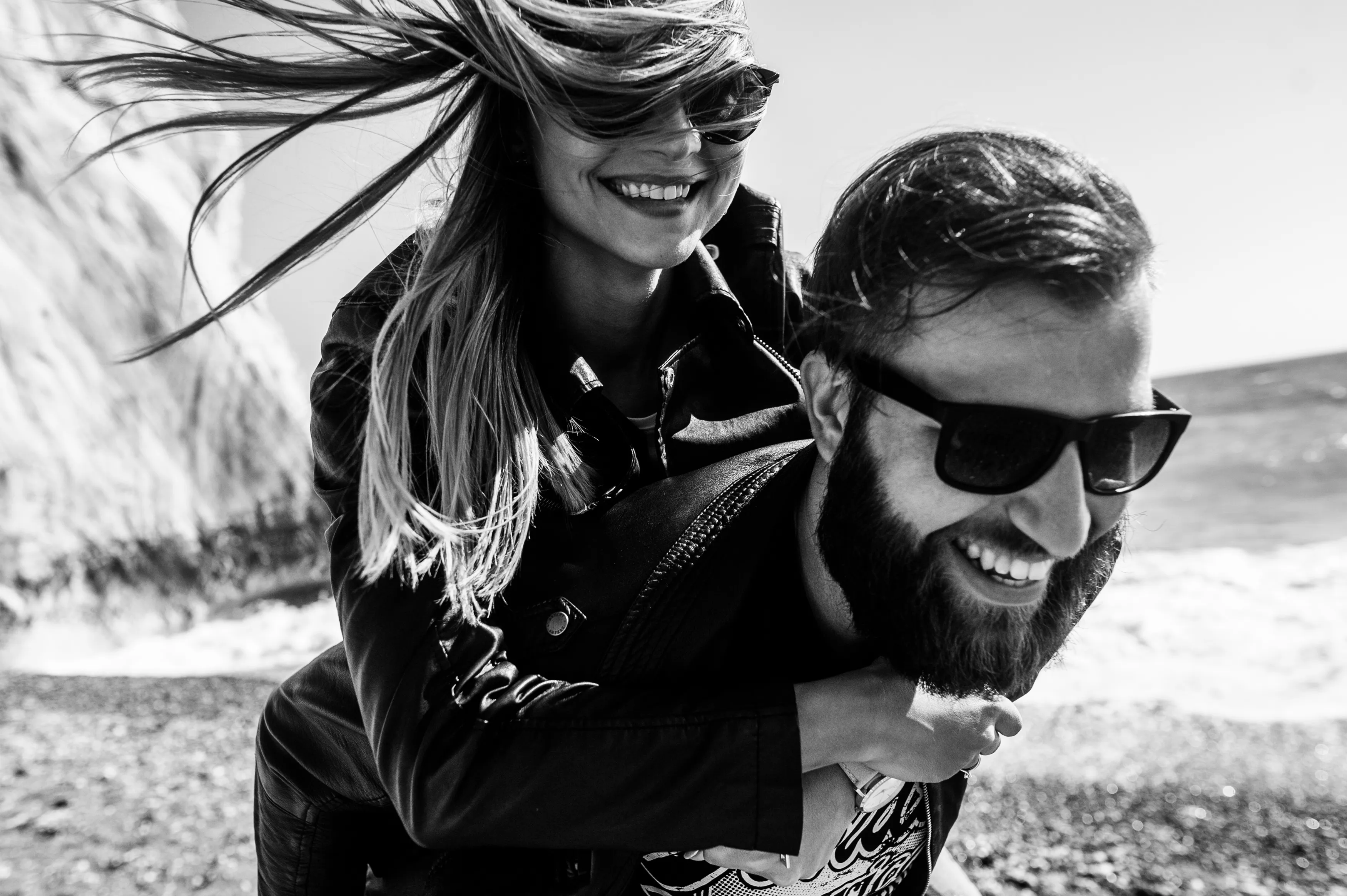
Original colors influence the gray tones produced during conversion. Two visibly different colors can become nearly identical shades of gray, reducing the contrast that separated them.
For example, a colored jacket may stand out against foliage in the original photograph but blend into it after conversion. A black-and-white color mix lets you adjust the brightness assigned to those original color ranges.
| Original image area | Possible conversion adjustment | What to inspect |
| Blue sky | Darken blue-derived gray tones | Halos around clouds and building edges |
| Green foliage | Lighten or darken green-derived tones | Separation from clothing or nearby objects |
| Warm skin tones | Adjust red- and yellow-derived tones gently | Natural facial detail and transitions |
| Colored clothing | Adjust the corresponding color range | Unwanted changes elsewhere in the photograph |
These controls affect every matching color within the adjustment area. If skin and clothing share similar colors, use a local adjustment when you need to treat them differently.
How to Create Better Contrast While Shooting
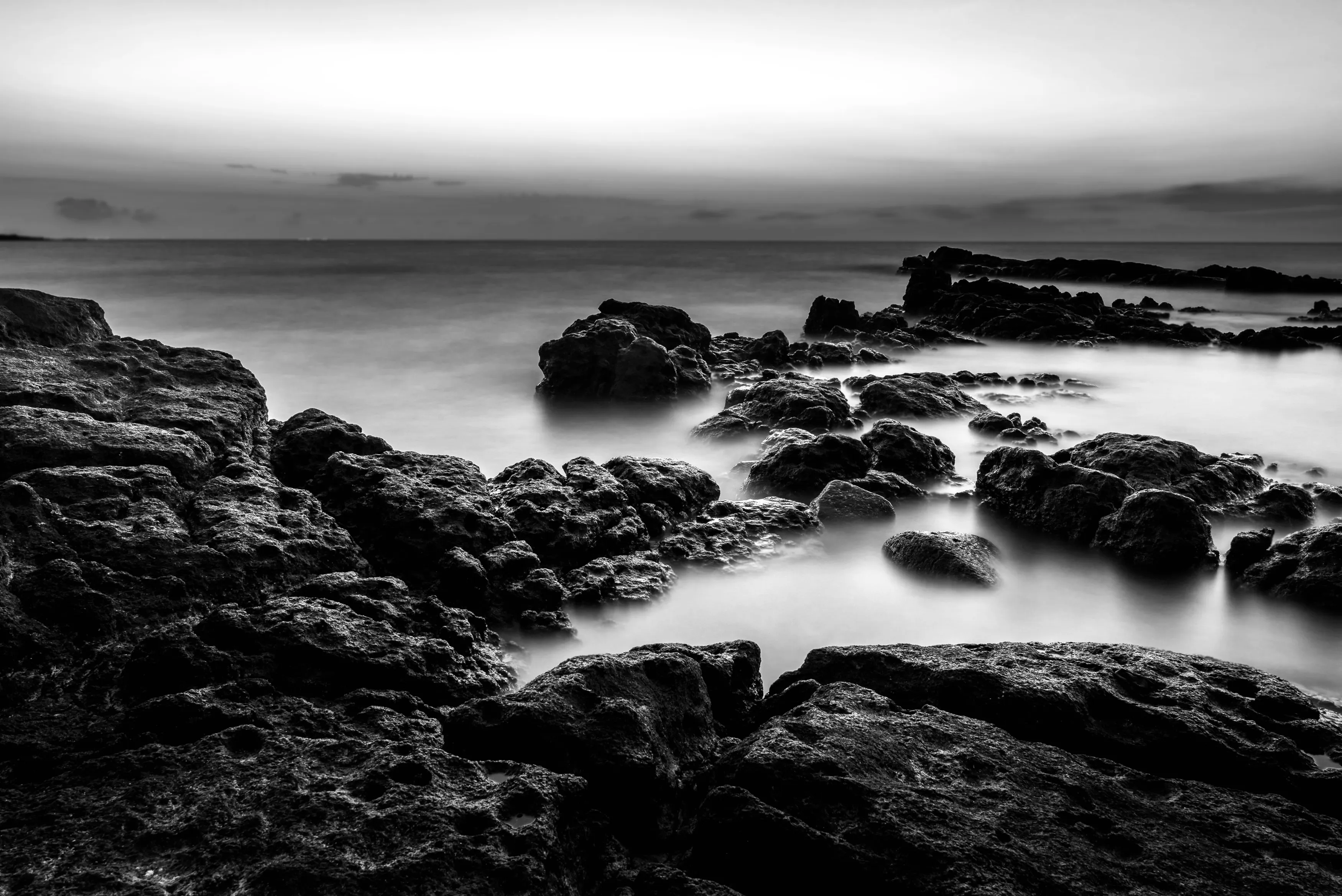
Start with the light and the relationship between subject and background. Editing can refine those relationships, but it cannot reliably recover detail that was never captured.
Choose Light for the Effect You Want
Directional light can reveal shape by illuminating one side of a subject more than the other. Side lighting is particularly useful for showing surface texture.
Hard light creates sharply defined shadow edges. Soft light creates more gradual transitions. The size of the light source relative to the subject influences this difference.
Soft light can still produce strong contrast when little light reaches the shadow side. Conversely, fill light can reduce contrast even when the main light is hard.
Early or late sunlight can create long shadows, but low sun is not automatically soft. Look at the actual shadow edges and surrounding reflected light.
Separate the Subject from the Background
Position a light subject against a darker area, or a dark subject against a brighter one. A small change in viewpoint may achieve this more effectively than increasing contrast across the entire photograph.
Before shooting, check:
- Whether the face or main object is distinct from its background.
- Whether bright patches compete with the subject.
- Whether overlapping shapes merge into one tone.
- Whether a shadow adds useful structure or hides important information.
For after-dark scenes, illuminated windows, streetlights, and silhouettes offer useful starting points. Our guide to black-and-white night photography explores these situations further.
Protect Important Highlight Detail
Use the histogram and highlight warnings to check bright areas that need texture, such as clouds, pale clothing, or reflective surfaces.
Do not underexpose automatically to create dark shadows. Excessive underexposure can make later shadow recovery noisy. Expose for the information you need, then refine the tonal balance during editing.
Elevate Your Photography with Our Advanced Software
Use Composition to Organize Contrast
Composition determines where tonal differences appear and how they guide attention. It does not increase contrast by itself.
Leading lines, repeated shapes, and negative space can make the image easier to read. A centered composition may work well for symmetry; an off-center subject may suit a scene with directional movement.
Choose the arrangement that supports the photograph rather than applying the rule of thirds to every frame.
How to Edit Black-and-White Contrast in Luminar
Use Luminar’s Black & White tool to establish the conversion, then refine overall and local tones. Adjust one element at a time so you can see which change improves the photograph.
1. Begin with a Usable Exposure
Open the image and use Develop or Develop RAW to correct overall brightness. Review Highlights and Shadows where important detail needs attention.

Keep the original file available. A color source gives you more flexibility when deciding how different areas should appear in monochrome.
2. Convert with the Black & White Tool
Open Black & White and select Convert to B&W. Treat the initial result as a starting point.

Compare the subject with its surroundings. Identify any areas that have become too similar in brightness.
3. Adjust Luminance by Original Color
Select Luminance to control the brightness of the original Red, Yellow, Green, Cyan, Blue, and Magenta color ranges.

Move the relevant sliders gradually. You might darken a sky or lighten clothing, but inspect all affected areas before keeping the change.
The tool’s Saturation controls reintroduce original colors. Leave those controls unchanged when creating a fully black-and-white image.
4. Refine Global Contrast
Use Develop’s Contrast, Blacks, Whites, and Curves controls to adjust the overall tonal balance. Each control serves a different purpose.
| Control | Main purpose | Common mistake |
| Exposure | Changes overall brightness | Using it to solve a local problem |
| Contrast | Changes broad tonal separation | Applying more than the image needs |
| Highlights and Shadows | Refine lighter and darker regions | Flattening the image through excessive recovery |
| Whites and Blacks | Adjust tonal endpoints | Clipping important detail |
| Curves | Shape selected tonal ranges | Creating abrupt or excessive tonal changes |
A gentle S-curve can deepen darker tones and brighten lighter ones. Watch the midtones, especially in faces and textured surfaces.

5. Make Local Corrections
If the subject needs more separation, adjust that area rather than increasing contrast everywhere. Luminar’s AI photo masking can help select areas for targeted edits; inspect and refine the selection.
Use Dodge & Burn for subtle lightening or darkening. A small correction to a face, foreground shape, or distracting bright patch may be enough.

6. Check Texture and Output
Review the image at 100% for noise, harsh sharpening, and halos. Then view it smaller to judge whether the composition remains clear.

For print, inspect the result at the intended size and consider a test print. Fine tonal differences can reproduce differently on paper than on a bright screen.
Enhance Light and Shadows for More Professional Photos
Common Black-and-White Contrast Problems
Correct the specific problem before adding more global contrast. Many weak conversions need better separation in one area rather than a stronger overall effect.
| Problem | Likely cause | Practical correction |
| Subject blends into the background | Similar converted gray tones | Adjust the color mix or make a local brightness correction |
| Shadows become featureless | Blacks or contrast pushed too far | Reduce the adjustment where detail matters |
| Bright areas lose texture | Capture clipping or excessive editing | Check the original and reduce edits if detail remains |
| Bright outlines appear around edges | Strong local contrast or poorly blended adjustments | Reduce strength and refine transitions |
| Skin looks harsh | Excessive texture, sharpening, or contrast | Use gentler settings on the face |
| Image looks flat after conversion | Weak tonal separation | Adjust selected color ranges and refine midtone contrast |
Conclusion
Build black-and-white contrast around the subject: choose useful light, check its separation from the background, and preserve important detail. During editing, refine how colors become gray before increasing global contrast. Small, targeted changes often give you clearer results than pushing every tone toward black or white.
Frequently Asked Questions
Tonal contrast is a difference in brightness; color contrast is a difference in hue. In a grayscale photograph, the original colors matter through the gray tones assigned to them during conversion.
Use your camera’s monochrome preview, or review color photographs with a temporary black-and-white conversion. Look for subject separation, light direction, and shapes that remain clear without color.
On a conventional color camera, a monochrome picture style generally affects the preview and processed JPEG while the RAW file retains color data. Dedicated monochrome cameras are different, so check your camera’s documentation.
Look for strong differences between illuminated and shaded areas, and place the subject against a contrasting background. Monochrome contrast settings can change the JPEG rendering, but exposure should still preserve the detail you need.
No. A photograph can work with a restrained range of gray tones. Use the tonal range that suits the subject rather than forcing every image to reach both extremes.