Learn how light, backgrounds, and color create contrast in photos, plus how to adjust tones in Luminar without losing important detail.
A white flower against a dark wall stands out through brightness. A red umbrella in a green landscape stands out through color. Both use contrast to make a subject easier to recognize, but they do it in different ways.
Contrast in photography is the visible difference between elements in an image, especially their brightness or color. It helps separate subjects, describe surfaces, and establish a visual emphasis. Strong contrast can produce a bold graphic image; subtler differences can preserve a gentle transition between tones.
Neither approach is automatically better. The useful question is whether the contrast supports the subject and the atmosphere you want. This guide explains the main types, how to recognize them while shooting, and how to refine them during editing.
Don’t feel like reading the whole breakdown? We’ve pulled together a quick summary below.
Key Takeaways
- Tonal contrast describes brightness differences; color contrast describes differences between colors. An image can use either or both.
- High contrast does not require oversaturated colors or lost detail. Low contrast does not automatically mean an unsuccessful photograph.
- High-key and low-key describe an image dominated by light or dark tones. They are not interchangeable with high and low contrast.
- Light direction, subject choice, and background often matter more than a contrast slider. Small changes at capture can make separation clearer.
- Use global and local adjustments deliberately. Preserve the detail that matters while allowing the photograph to retain its intended mood.
What Is Contrast in Photography?

Contrast is a relationship. A medium-gray object can appear relatively bright against a dark background and relatively dark against a pale one. Its surroundings affect how clearly you see it.
The same applies to color. Two objects may have similar brightness but different hues, allowing them to remain distinct in a color photograph. Convert the image to black and white, and that separation may weaken.
Contrast does not determine the number of shades a photograph contains. A strongly contrasting image can still show smooth gradients, and a low-contrast image can contain fine detail. Problems arise when capture or editing removes distinctions that the photograph needs.
For example, darkening a jacket until all its folds disappear may strengthen its outline while losing information about its surface. That can be intentional in a silhouette, but less useful when the photograph needs to show the garment.
What Does Contrast Do in a Photograph?
Separates the Subject
Differences between a subject and its surroundings help establish what to notice. A bright subject against a dark background is one familiar arrangement, but a small dark subject against a pale background can be equally clear.
Check for competition elsewhere in the frame. A bright sign or a saturated patch near the border may draw attention away from the main subject even when that subject is well exposed.
Describes Texture and Volume
Light and shadow can show the curve of a face or the ridges of a textured surface. The transitions matter: increasing contrast until they disappear can make the result less descriptive.
Side light often reveals surface detail through small shadows. Light closer to the camera’s viewing direction may reduce those shadows. The effect depends on the subject, source size, and angle rather than a single lighting rule.
Contributes to Mood
Deep shadows and bright highlights can support drama, tension, or a graphic style. Narrower tonal differences may suit mist, quiet interiors, or a softer portrait.
These are possibilities rather than fixed emotional codes. A high-contrast photograph can be playful, and a low-contrast photograph can feel unsettling. Subject matter, expression, color, and composition also shape the response.
Types of Contrast in Photography
Tonal Contrast
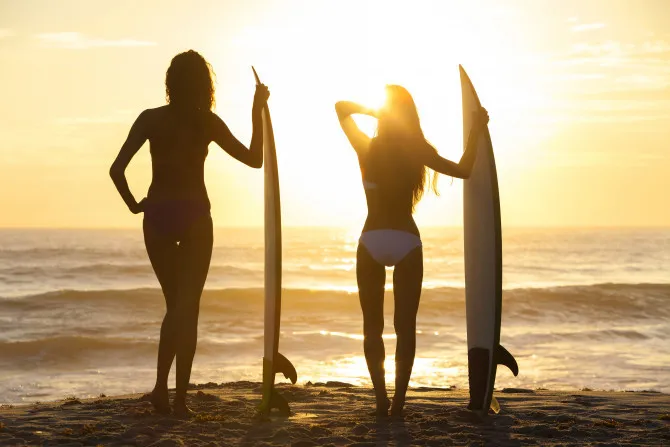
Tonal contrast is the difference in brightness between areas of an image. It exists in both color and black-and-white photography.
A dark coat against snow demonstrates tonal contrast. So does a lit doorway within a dim room. The contrast can occur across a large part of the frame or between nearby details.
Try it: Photograph a light-colored object against two backgrounds, one pale and one dark, while keeping the object similarly lit. Compare how strongly its outline separates from each background.
High Contrast
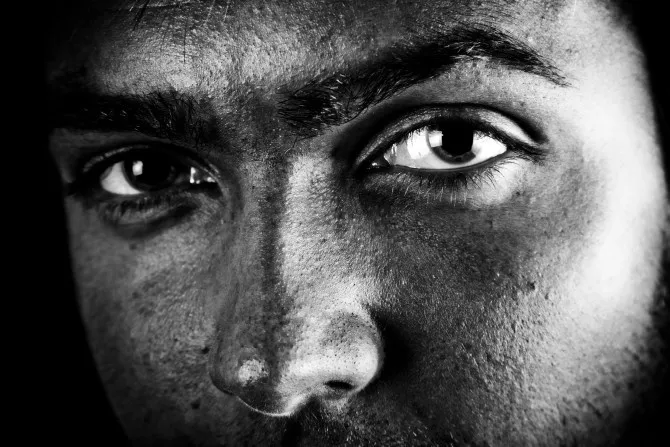
A high-contrast photograph has pronounced differences between important bright and dark areas. Examples include a sunlit figure crossing a shaded street or a spotlight illuminating a performer against darkness.
High contrast does not mean every photograph must contain pure black and pure white. Nor does it require intense color. A monochrome image can be strongly contrasting, while a colorful image may have relatively gentle tonal differences.
The main risk is losing useful distinctions. If the face becomes featureless or a bright dress loses its texture, reconsider exposure or editing unless that simplification is deliberate.
Low Contrast
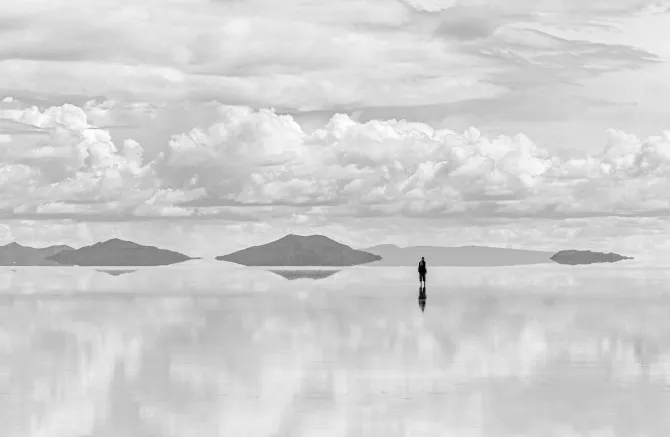
A low-contrast photograph has smaller brightness differences across much of the image. Foggy landscapes, softly lit interiors, and subjects surrounded by similar tones provide common examples.
Low contrast can preserve subtle gradations and an atmospheric sense of distance. It can also leave a subject difficult to distinguish when there is no clear arrangement or focal point.
Color does not have to disappear. A photograph can have gentle tonal contrast while still containing distinct or saturated hues. Decide separately how much brightness difference and color intensity the scene needs.
Color Contrast
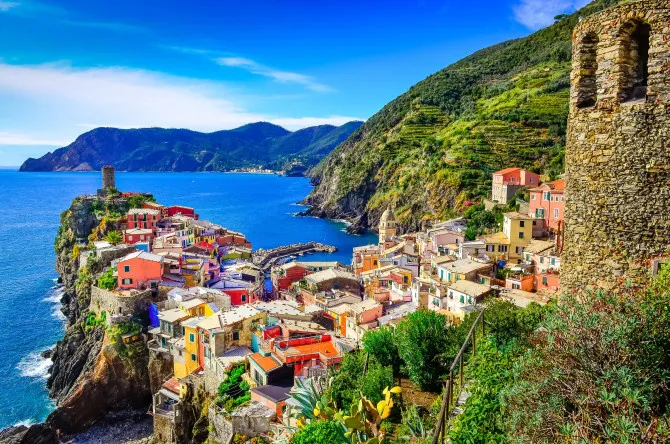
Color contrast comes from differences in hue, saturation, or lightness. Familiar combinations such as blue and orange or red and green can produce clear separation, but they are not the only options.
A vivid subject surrounded by less saturated colors can also stand out. So can a warm-colored subject in cooler surroundings. The result depends on the size, brightness, and placement of each color area.
Increasing saturation everywhere is not the same as improving color contrast. It may make competing colors equally prominent. Sometimes reducing a distracting background color strengthens the subject more effectively.
For intentional color relationships, explore the principles of color grading while keeping essential skin and product colors believable.
Global and Local Contrast

Global contrast concerns broad tonal relationships across the image. Local contrast concerns differences within a smaller region or between nearby details.
A misty landscape can have gentle overall contrast but a clearly defined foreground rock. A dramatic portrait can have a dark background while retaining soft transitions across the face.
This distinction matters during editing. If only the subject needs more separation, a selective adjustment may work better than increasing contrast throughout the photograph.
Contrast Through Subject Matter

Contrast can also refer to a visual or conceptual difference: smooth fabric beside rough stone, an old building beside a new one, or a small figure within a large structure.
These relationships go beyond the usual contrast slider. You create them through subject choice and framing. They can work alongside tonal or color contrast without requiring a stronger edit.
High-Key and Low-Key Are Different From Contrast
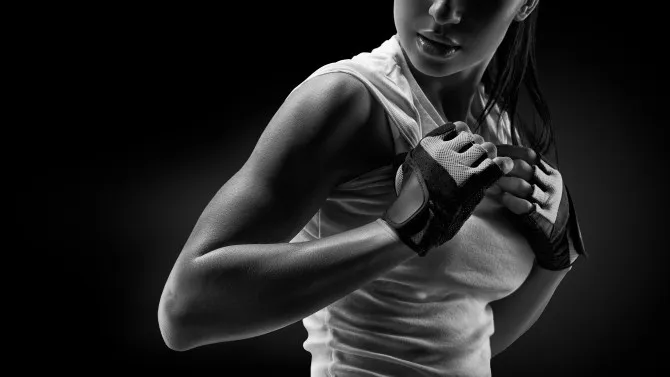
High-key photographs are dominated by light tones. Low-key photographs are dominated by dark tones. Contrast describes the differences within those tonal arrangements.
High-key lighting commonly uses gentle shadow differences, while low-key lighting often produces stronger separation between illuminated and shaded areas. Still, an image’s overall brightness does not fully describe every local contrast relationship within it.
| Appearance | What defines it | Example |
| High-key | Most of the image consists of light tones | A pale subject in a bright, softly lit setting |
| Low-key | Most of the image consists of dark tones | A dark portrait with selected features illuminated |
| High contrast | Pronounced differences between bright and dark areas | A dark silhouette against a bright sky |
| Low contrast | Relatively small tonal differences | A misty scene with gentle transitions |
A bright image can contain a small, sharply contrasting dark feature. A predominantly dark scene can contain large areas with only subtle differences.
High-key does not simply mean accidentally overexposed, and low-key does not simply mean underexposed. Build the intended tonal arrangement while retaining detail where the subject requires it.
Your AI-Powered Photo Editor for MacOS and Windows
Contrast, Exposure, and Dynamic Range

Exposure affects the brightness recorded by the camera. Changing it does not automatically change the lighting relationship between a bright sky and a shaded foreground.
If their difference exceeds what the camera can record usefully in one exposure, you may need to change the conditions. Add fill light, move the subject, choose a different viewpoint, or consider exposure bracketing for a suitable scene.
RAW files generally provide more processing flexibility than finished JPEGs, but they cannot guarantee recovery of fully clipped highlights or clean detail from severely underexposed shadows.
What the Histogram Can Tell You
A histogram shows the distribution of recorded brightness values. Dark tones appear toward the left, bright tones toward the right.
It can help you assess whether the image contains tones near either endpoint. However, a concentration on one side is not automatically an exposure mistake: a snow scene and a dark interior should not necessarily have matching histograms.
Use clipping warnings and inspect the relevant areas of the image. A small bright reflection may reasonably contain no detail, while a featureless patch across a face may be a problem.
The histogram does not show where tones occur within the composition. Two photographs with similar histograms can still have very different subject separation and visual impact.
Practical Contrast Photography Ideas

1. Photograph Sunlight Meeting Shade
Look for a boundary between a sunlit area and a shaded wall, doorway, or pavement. Wait for a subject to enter a position where its outline remains clear.
Direct sunlight can create distinct shadows at different times of day; the sun’s angle changes their direction and length. Study the actual scene rather than assuming midday or golden hour always produces the right result.
This guide to light in landscape photography explains useful ways to assess light direction and separation outdoors.
2. Make a Readable Silhouette
Position a subject against a brighter background and expose so the background retains the appearance you want. Let the subject become dark enough for its outline to carry the photograph.
Look for recognizable shapes and clear gaps. A person’s arm merging into their torso may weaken the silhouette, while a small change in pose can make it readable.
Silhouettes do not require sunset. Bright windows, open sky, and other luminous backgrounds can work when the brightness relationship is suitable.
3. Change the Background
Before adjusting the camera, move sideways or change height. A few steps may place a pale flower against a shaded hedge or a dark-haired subject against a lighter wall.
Check the entire outline, especially where the subject merges with similar tones. A change in framing can improve separation without making the lighting harsher.
Use these photography composition techniques to assess competing elements and guide attention through the frame.
4. Find Color Relationships
Choose a visible color connection: orange leaves against blue water, a red coat among green surroundings, or a bright object in an otherwise muted scene.
Take one frame with the color relationship dominant and another with more surrounding detail. Compare whether the added context strengthens the image or introduces competing colors.
A temporary black-and-white preview can reveal how much the image depends on hue rather than brightness differences. That is a diagnostic exercise, not a requirement to convert the final photograph.
5. Preserve a Naturally Soft Scene
Photograph mist, an overcast landscape, or a portrait in soft light without immediately trying to make it more dramatic.
Look for a clear subject and subtle separation. Overlapping layers, a darker foreground detail, or a simple outline can provide structure while preserving the low-contrast atmosphere.
The aim is to make the existing relationships readable, rather than forcing every image to use the full tonal range.
6. Compare Different Interpretations
Make two edits from the same original: one with stronger tonal separation and another with softer transitions. Keep the crop and overall color treatment reasonably similar so the comparison stays useful.
If experimenting with a vintage preset, assess what it actually changes. Some looks lift blacks and soften contrast; others use deep shadows and strong color. Neither film nor a vintage style has one universal contrast level.
How to Adjust Contrast in Luminar
Luminar on desktop provides broad tonal controls, curves, selective masking, and tools for adjusting particular tonal ranges. This makes it useful when the photo needs overall separation, a gentler finish, or a targeted change that leaves the rest of the scene intact.
Start by deciding what is wrong, if anything. “The subject merges into the background” calls for a different correction from “the entire image looks too harsh.” The following workflow keeps those decisions separate.
1. Establish the Basic Brightness
Open Develop or Develop RAW, depending on the image and version. Adjust Exposure to establish the main subject’s brightness, then review Highlights and Shadows for useful detail.
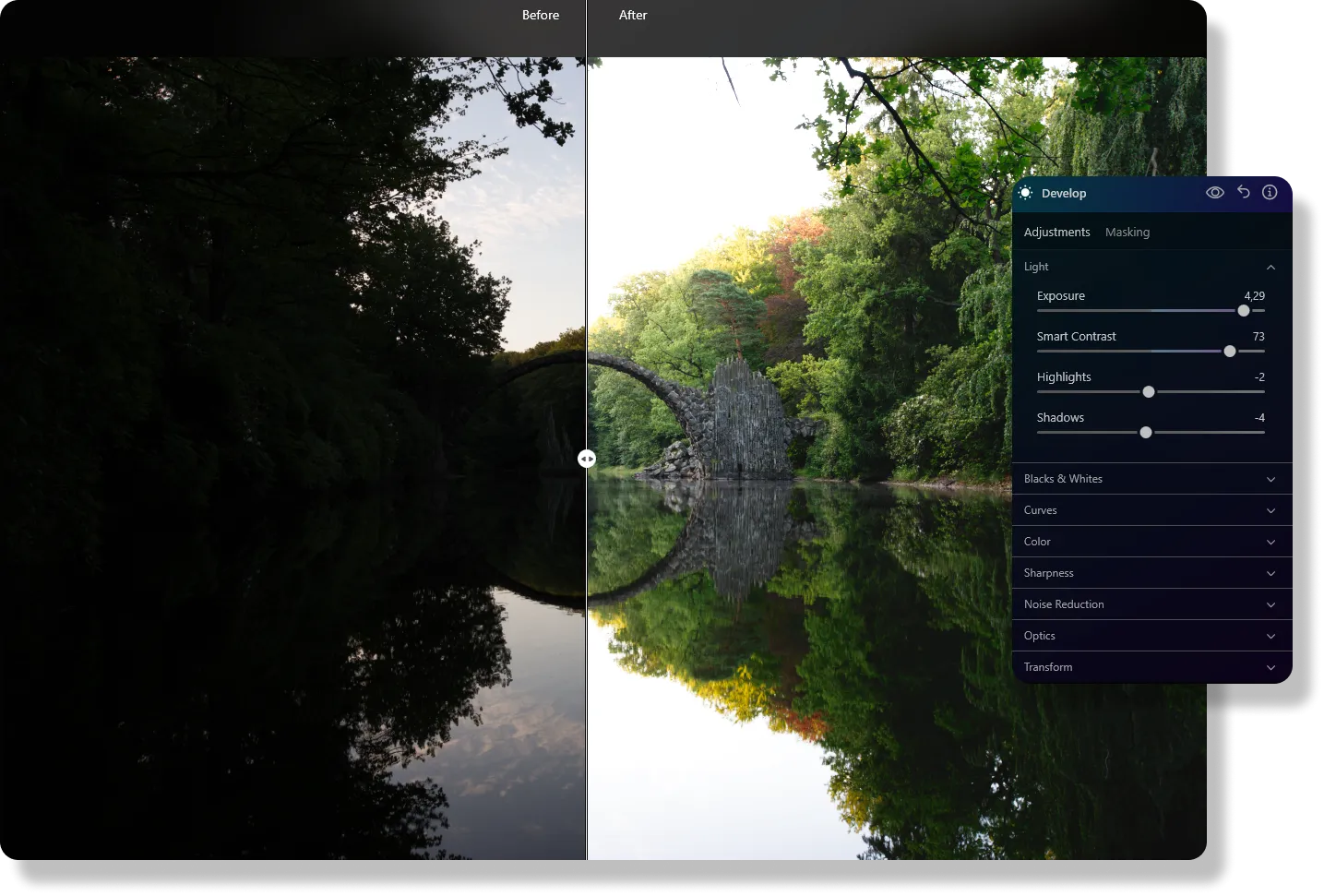
Avoid opening every shadow simply because the slider allows it. Some shaded areas are necessary to describe the lighting and preserve the intended mood.
2. Set Overall Tonal Separation
Make a restrained adjustment with Smart Contrast, or the contrast control shown in your version. Then review Whites and Blacks to refine the brightest and darkest tones.
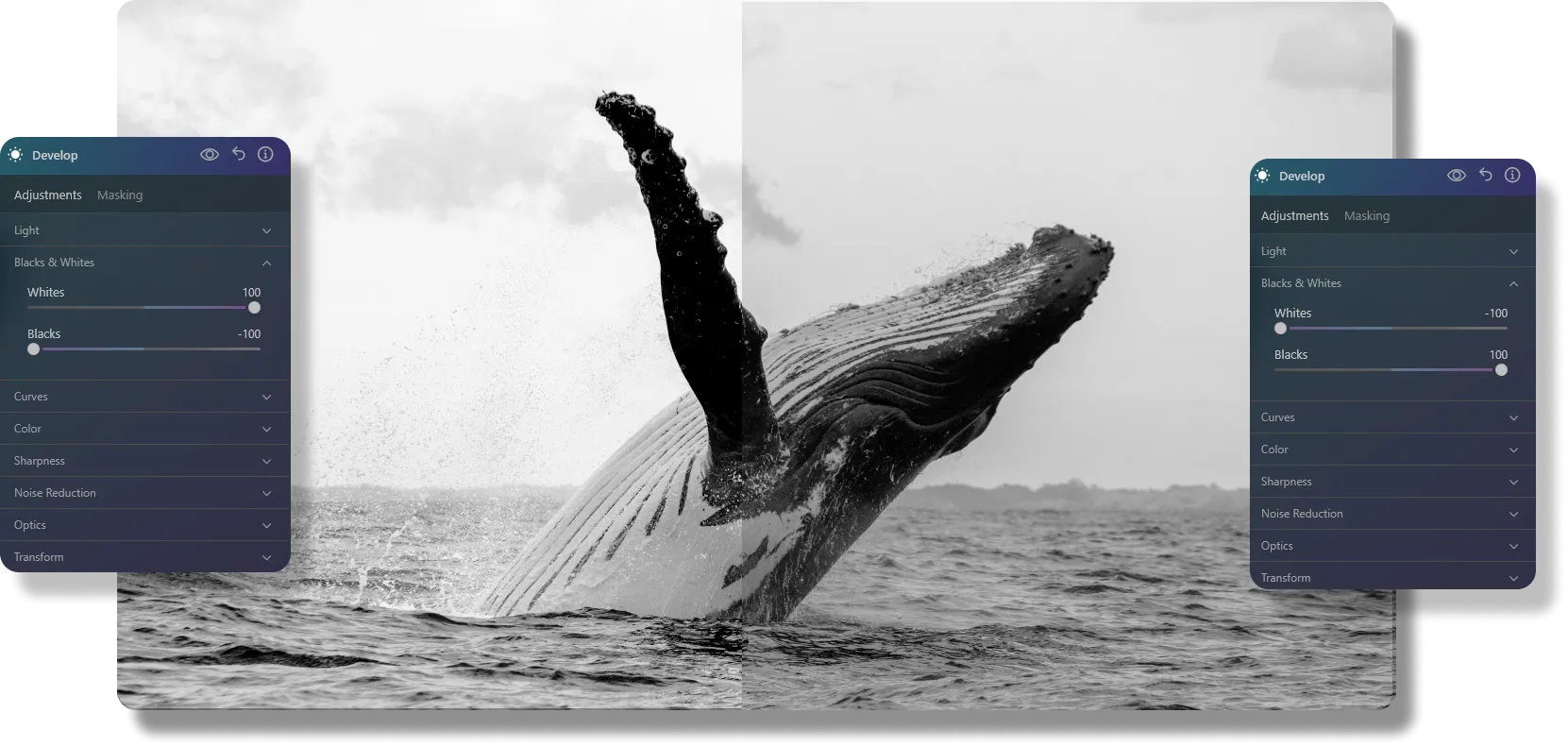
These controls affect tonal ranges; they are not restricted to objects that are physically white or black. Check important texture and gradients as you adjust them.
3. Use Curves for Finer Control
Curves let you change how input tones map to output tones. For a conventional upward-sloping curve, a gentle S shape can increase contrast by darkening some lower tones and brightening some higher tones.
Keep changes small and inspect the whole photograph. Curve adjustments can also affect color, and an extreme shape may produce abrupt transitions.
Create Cinematic Colors and Professional-Looking Edits
4. Adjust Specific Tonal Ranges
Luminar’s Supercontrast controls let you work on contrast within highlights, midtones, and shadows independently. This is useful when one range needs more definition but an overall increase would make another too harsh.

For example, a landscape may need clearer midtone separation while already having sufficiently deep shadows. Review each change individually instead of increasing every control together.
5. Make Local Corrections
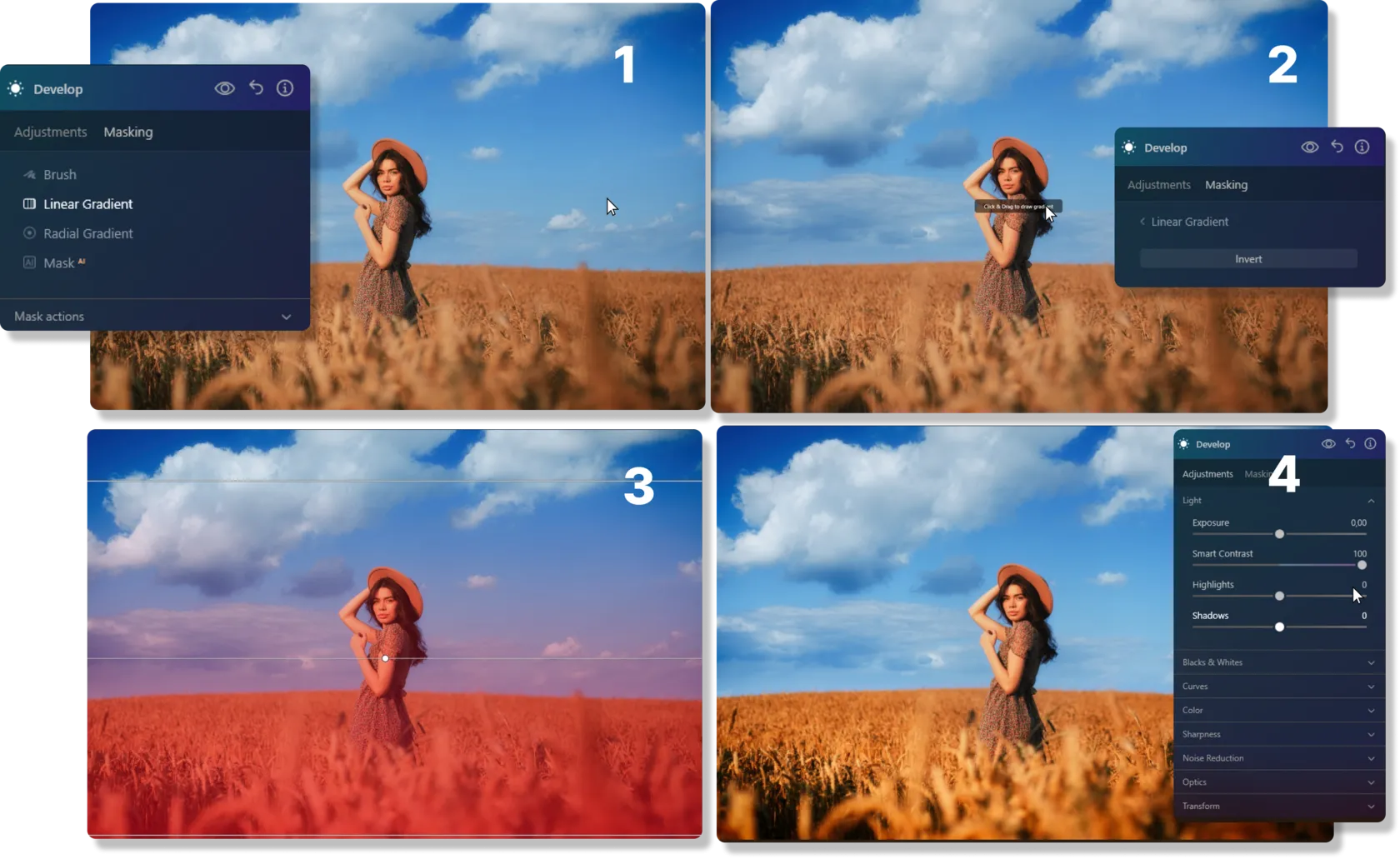
Use a suitable mask when only part of the frame needs attention. A linear gradient can suit a broad transition across a sky or foreground; other masks may suit an individual subject better.
Blend the adjustment carefully. Visible borders, halos, or an implausibly bright subject often indicate that the correction needs refinement.
6. Review Color Separately
If the tonal arrangement works but competing hues distract, use photo color editing tools to refine the relevant colors. Avoid treating a global saturation increase as the solution to every flat-looking image.
Compare the result with the original at both a normal viewing size and a closer detail view. Check skin, skies, smooth gradients, and important dark surfaces before exporting.
| Pros | Cons |
| Broad tonal controls and curves support different contrast styles | Combining several strong adjustments can make the result harsh |
| Supercontrast offers separate control over tonal ranges | Tonal ranges still need to be judged in relation to the whole image |
| Masks allow targeted changes instead of altering every area | Poorly blended local edits can produce halos or obvious transitions |
| Color controls help refine separation beyond brightness alone | Editing cannot fully restore information missing from the capture |
Choose Contrast to Suit the Photograph
Start with the subject and the light, then decide which differences need emphasis. A bold silhouette, a softly lit face, and a foggy landscape ask for different tonal relationships.
At capture, try a better background or lighting angle before relying on processing. During editing, make the smallest change that improves the intended result. The goal is a photograph whose important relationships are clear, whether its contrast is strong, subtle, or somewhere between.
FAQ
Contrast is the visible difference between elements in a photograph, particularly their brightness or color. It helps distinguish subjects and organize attention within the frame.
Tonal contrast describes differences in brightness. Color contrast describes relationships between colors, including hue, saturation, and lightness. A photograph can use both at once.
No. Strong contrast can suit bold shapes and dramatic light; gentler contrast can preserve soft transitions and atmosphere. Choose according to the subject and the result you want.
No. High-key images are dominated by light tones, while low-key images are dominated by dark tones. Low-key lighting often uses strong contrast, and either type of image can contain local differences of varying strength.
Make restrained adjustments, review important highlights and shadows, and use selective corrections when only part of the image needs attention. Preserve the original file and remember that clipped information may not be recoverable.