Keep personal pictures out of your everyday gallery with your iPhone’s built-in privacy tools. This guide explains how to hide photos, check the album lock, and bring images back when you need them.
To hide a photo on iPhone, open Photos, touch and hold its thumbnail, tap Hide, and confirm. The picture moves to the Hidden album. On iOS 16 and later, this album is locked by default.
Whether you’re keeping a surprise gift out of sight or separating personal pictures from holiday snaps, you can do it without installing another app. Start with the Hidden album; use a locked note if you prefer to keep a picture alongside private text.
Don’t feel like reading the whole breakdown? We’ve pulled together a quick summary below.
Key Takeaways
- Hide photos directly in Photos. Touch and hold a picture or video, tap Hide, and confirm.
- Keep the Hidden album locked. On iOS 16 and later, it is locked by default. Keep authentication enabled in Photos settings.
- Hide the album itself. Open Settings > Apps > Photos and turn off Show Hidden Album to conceal it without deleting its contents.
- Use locked Notes for photo copies. Add a picture, choose Lock, and tap the lock icon to close the note. The original remains in Photos.
- Unhide pictures whenever needed. Open Photos > Collections > Utilities > Hidden, authenticate, and choose Unhide.
How to Hide Photos on iPhone
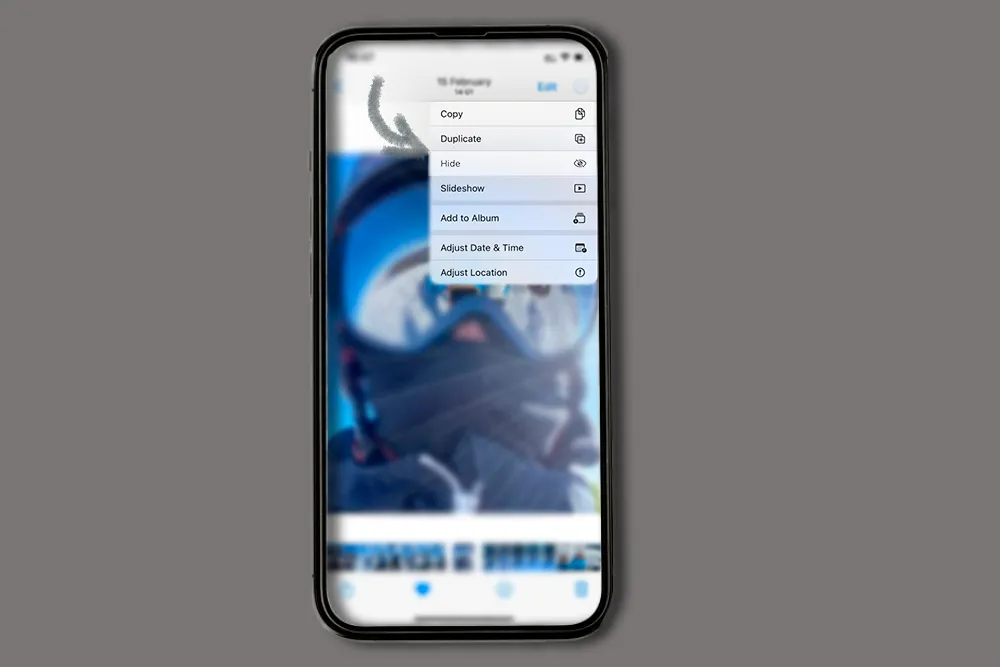
The Hidden album removes selected pictures and videos from your library, other albums, and the Photos widget.
- Open Photos.
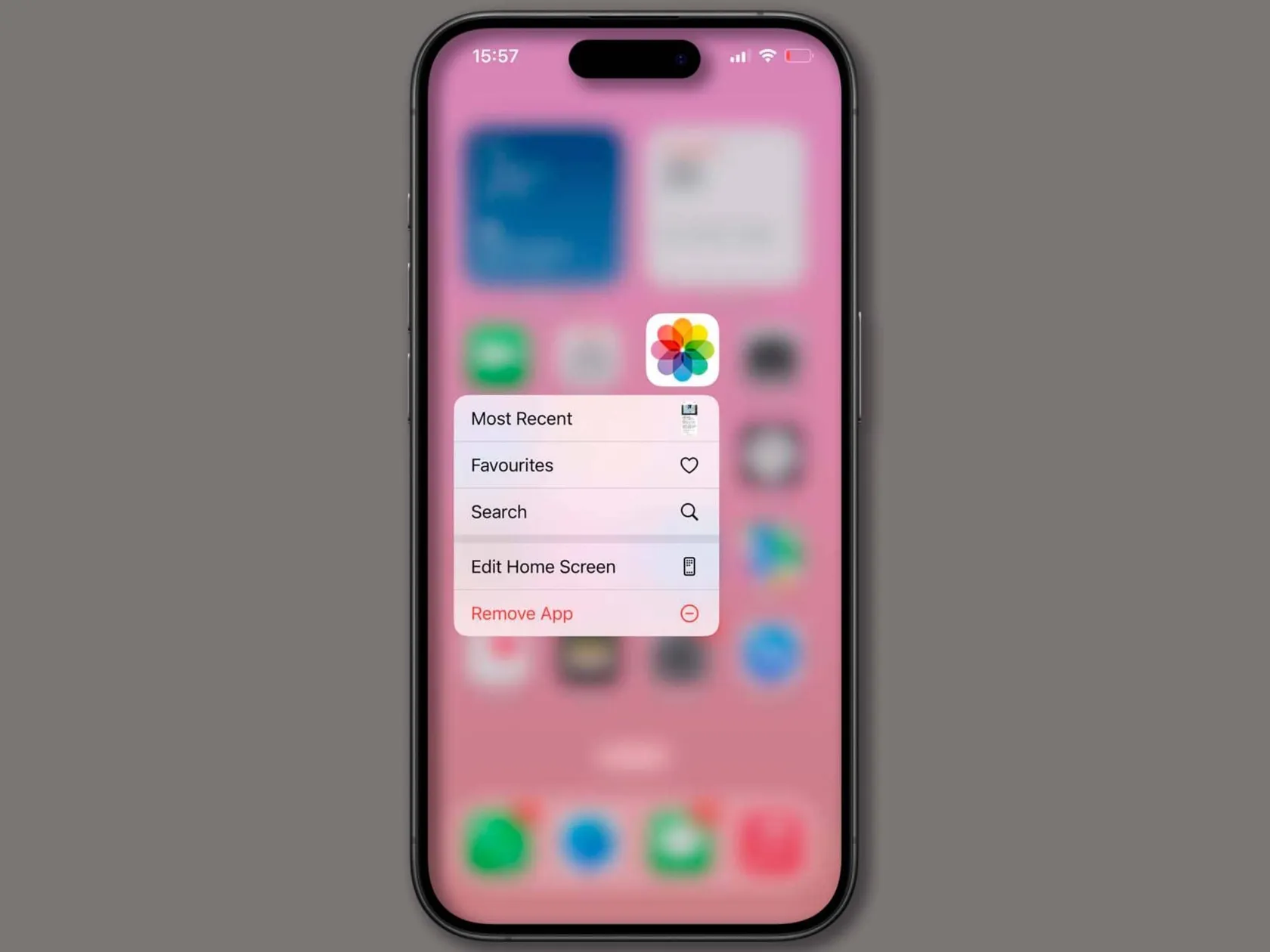
- Find the picture or video you want to hide.
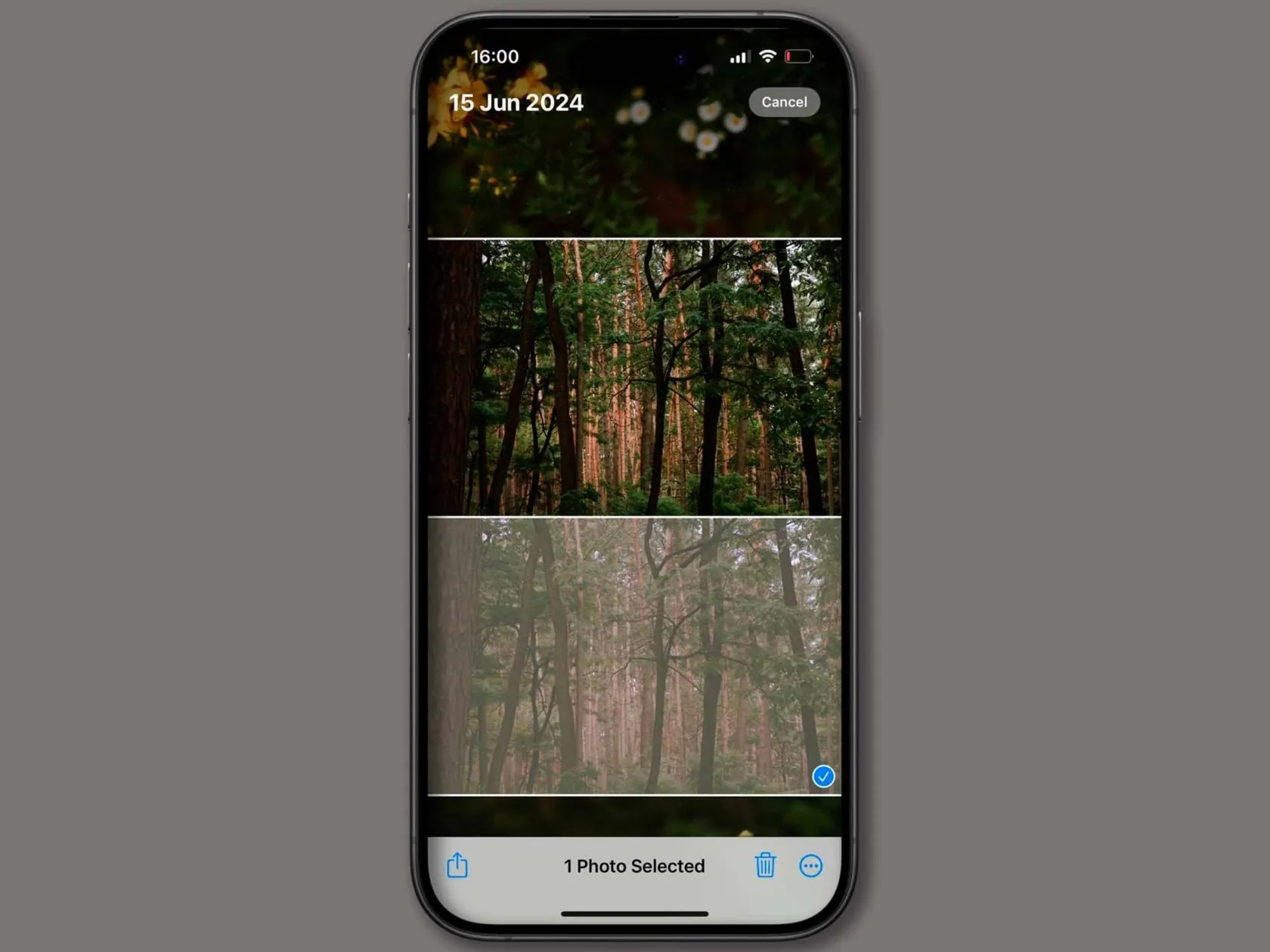
- Touch and hold its thumbnail.
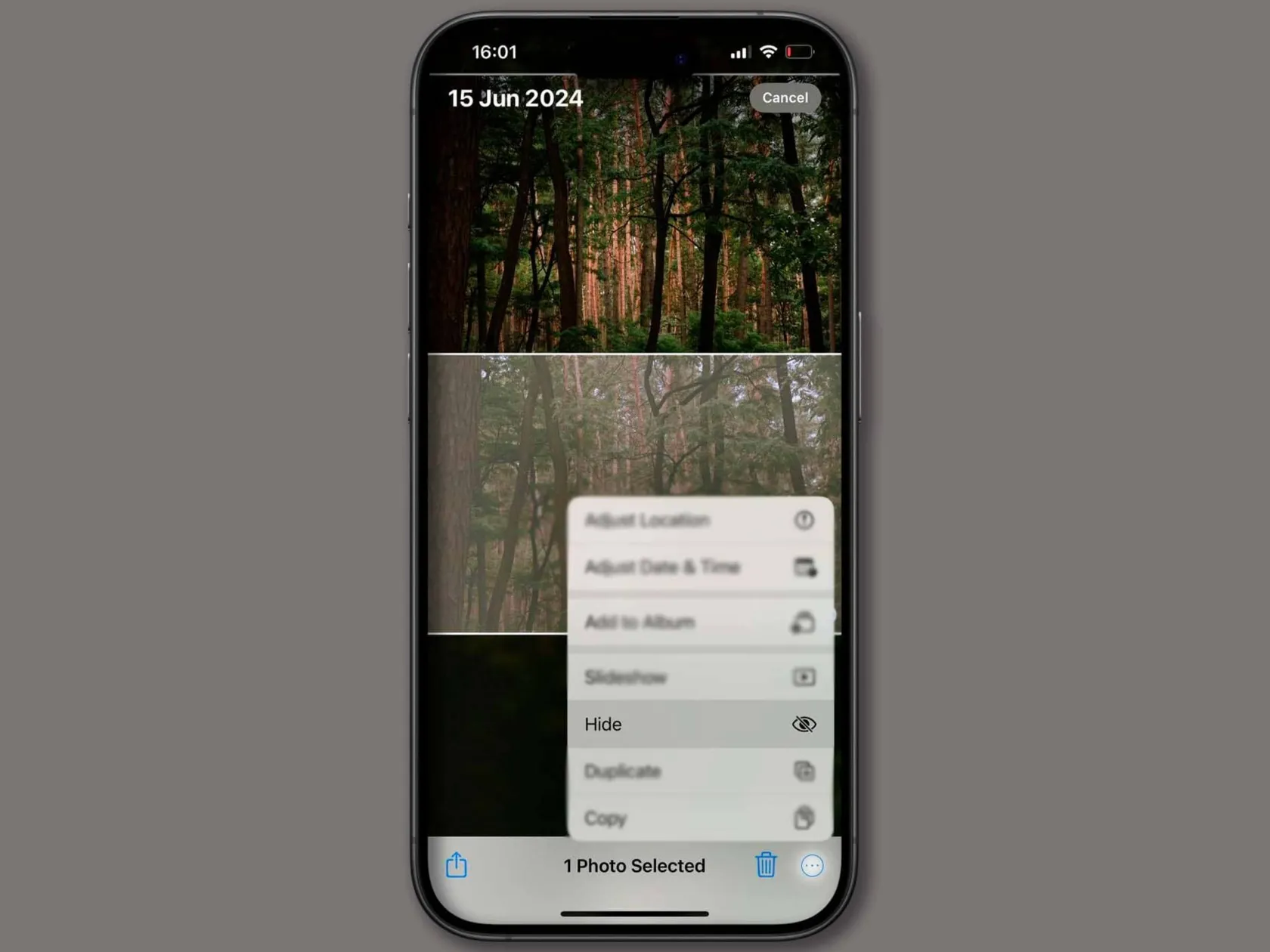
- Tap Hide and confirm.
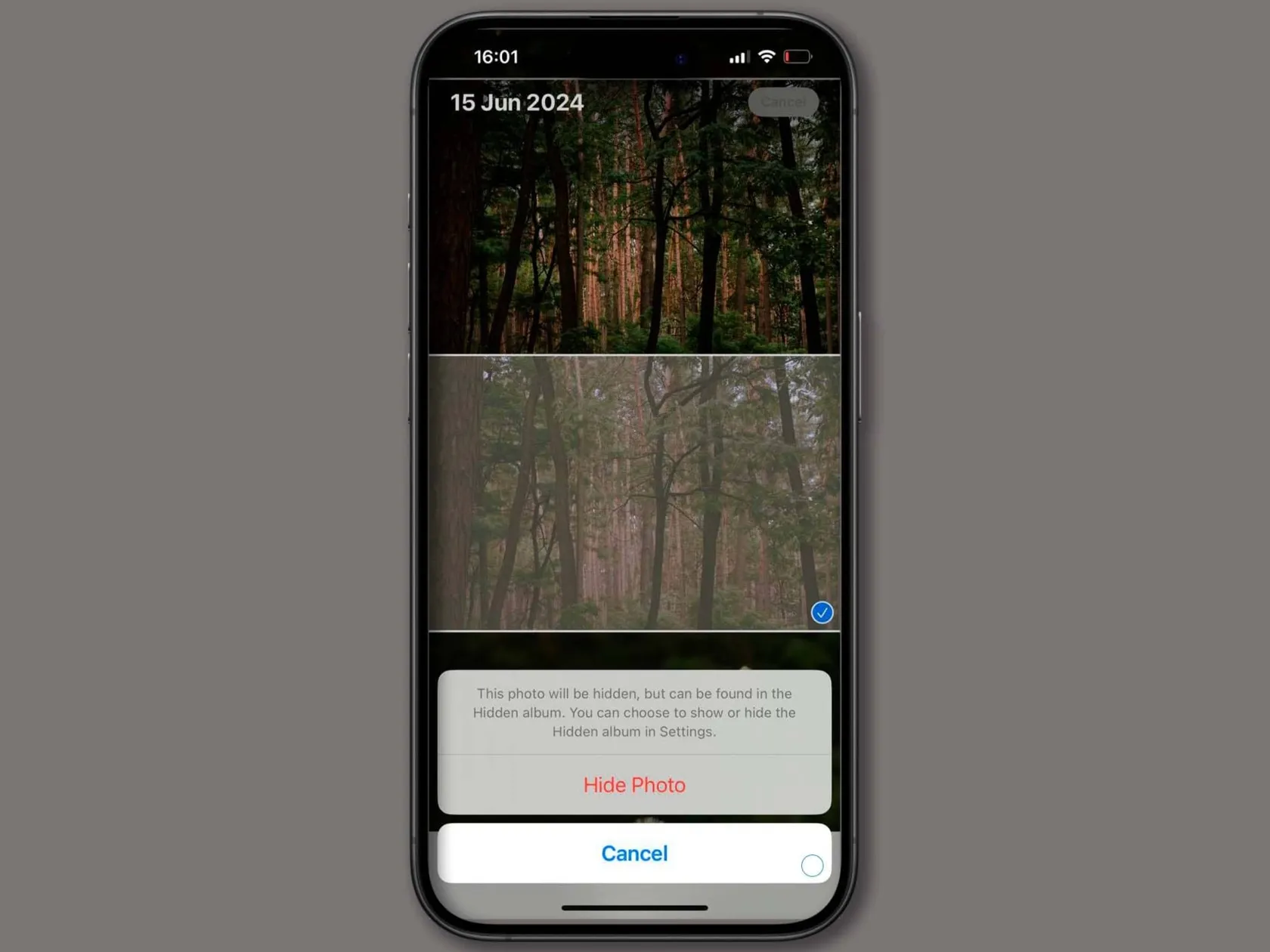
You can also open a picture and choose More (…) > Hide.
How to Hide Multiple Photos
For a batch of pictures:
- Open your library or a collection in Photos.
- Tap Select and choose the items.
- Tap More (…) > Hide.
- Confirm if prompted.
Hiding keeps your pictures in Photos; deleting sends them to Recently Deleted instead.
Professional Editing. Now in Your Pocket.
Download Luminar on your Mobile Device
How to Hide the Hidden Album
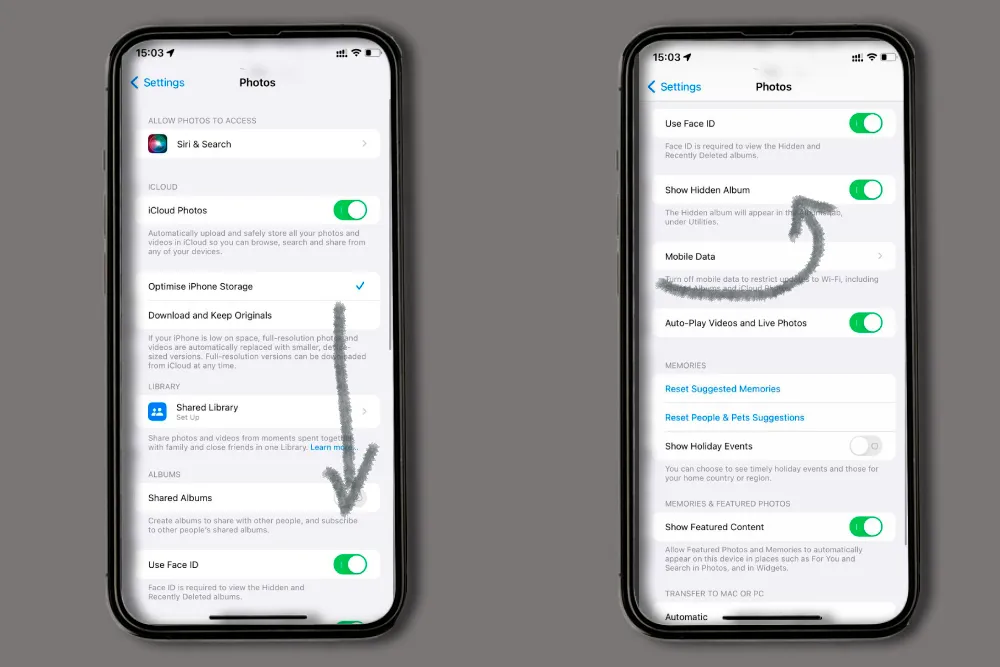
You can also remove the Hidden album from view:
- Open Settings > Apps > Photos.
- Turn off Show Hidden Album.
This conceals the album’s entry in Photos. It does not delete its contents or replace authentication. Turn the setting back on when you want to access the album again.
How to Keep Hidden Photos Locked
The Hidden and Recently Deleted albums are locked by default on iOS 16 and later. Depending on your device, you can open them with Face ID, Touch ID, or your passcode.
To check the setting, open Settings > Apps > Photos and keep Use Face ID, Use Touch ID, or Use Passcode enabled. The label depends on your device.
Someone who knows your iPhone passcode may be able to access these albums. Removing the Hidden album from view makes it less visible during casual browsing, but does not create a separate password.
How to Lock Photos in the Notes App
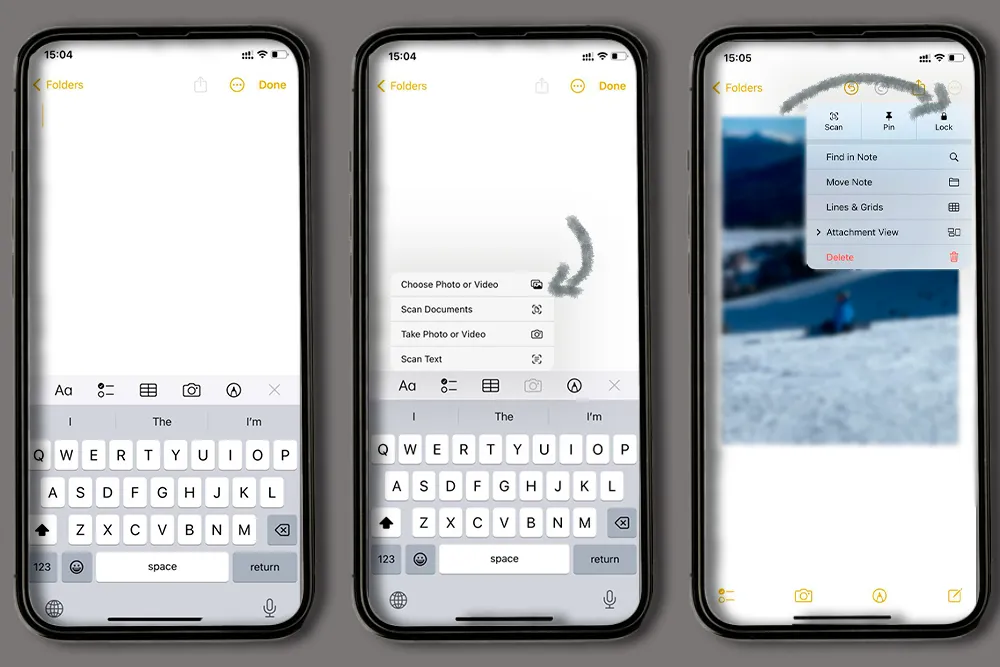
Notes is useful when you want to keep a picture together with private text.
- Open Notes and create a regular note in iCloud or On My iPhone.
- Use the attachment menu to add a picture from your photo library.
- Tap More (…) > Lock.
- Follow the prompts to use your iPhone passcode or create a separate Notes password.
- Tap the lock icon to close the note’s contents.
Adding a lock does not immediately close an open note. Check that its contents are hidden before handing over your phone.
What to Check Before Using Notes
A locked note protects the copy inside it; the original remains in Photos. Hide that original separately if you want to keep it out of your gallery.
Use a neutral note title, because the title remains visible after locking. Notes containing videos, audio, PDFs, or file attachments cannot be locked. Shared notes and notes synced through other accounts also have restrictions.
If you choose a separate Notes password, remember it: resetting a forgotten password does not unlock notes protected by the old one.
How to Find and Unhide Photos on iPhone
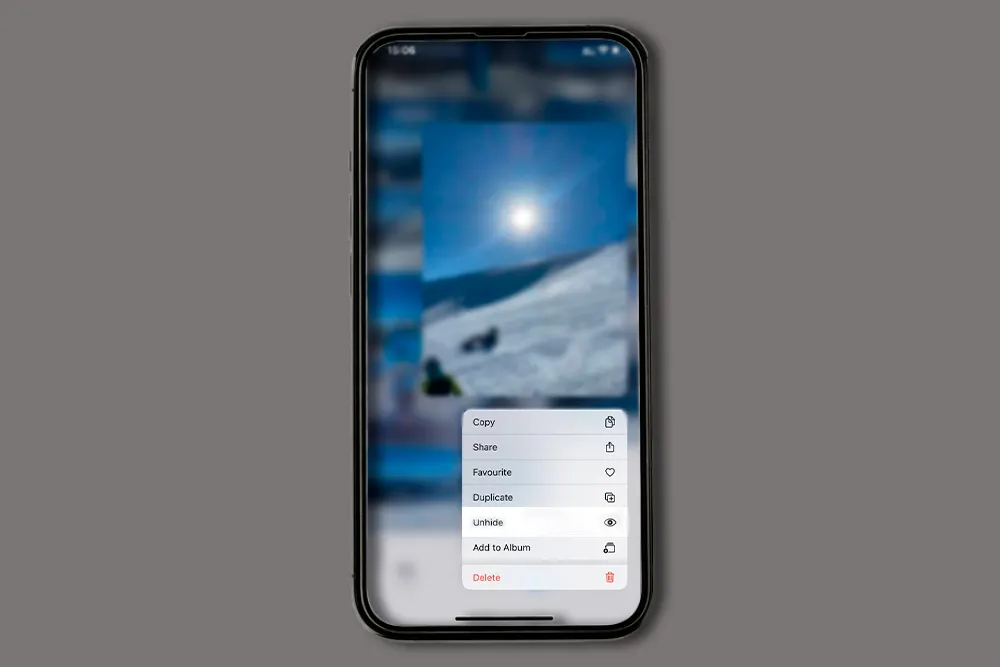
To view a hidden picture:
- Open Photos > Collections.
- Find Utilities > Hidden.
- Tap View Album and authenticate.
- Touch and hold a picture, then tap Unhide to return it to your library.
If Hidden is missing, turn on Show Hidden Album in Photos settings first. Viewing the album alone does not unhide its contents.
Editing Photos Before Sharing Them
When you’re ready to prepare a picture for sharing, Luminar for iPhone offers tools for adjusting exposure, contrast, and color.
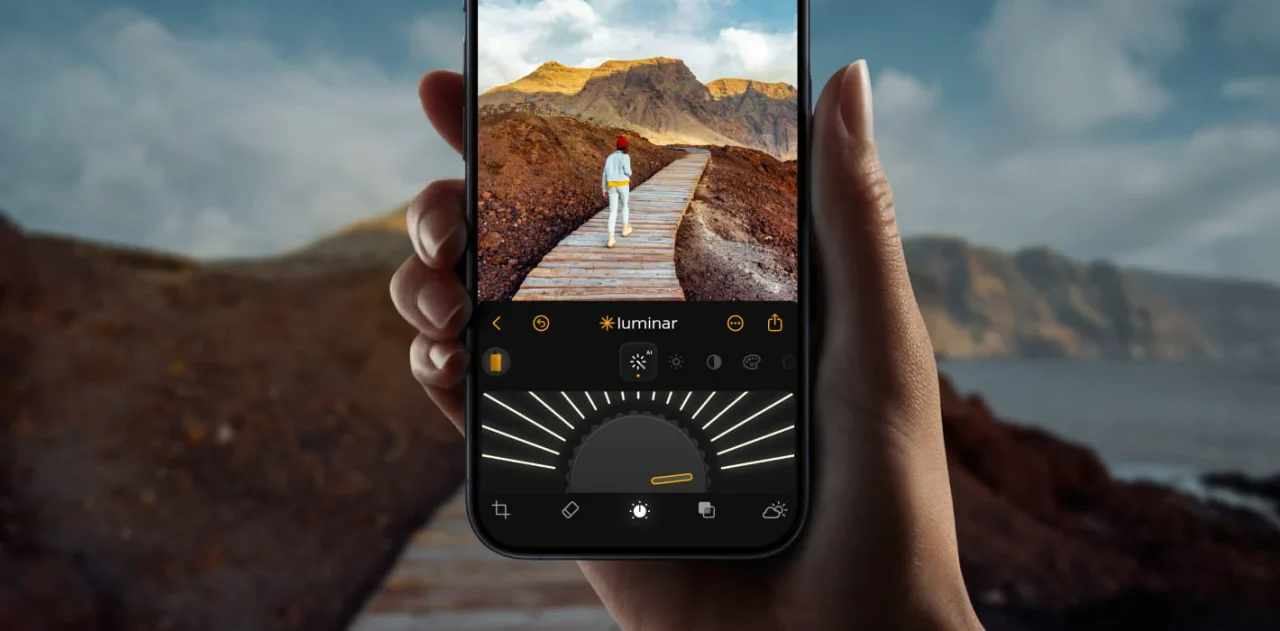
After editing, check any saved copies in Photos and hide the versions you want to keep private. Treat each exported picture as another image to review.
Keep Personal Pictures Out of Your Gallery
For everyday photo privacy, use Hide in Photos and keep album authentication enabled. You can also conceal the album’s entry or use locked Notes for pictures stored with private text. Before sharing your screen or handing over your phone, check that any copies you saved elsewhere are also out of view.
FAQ
Yes. Select a video in Photos and use Hide, just as you would for a picture.
No. Hidden pictures remain in the Hidden album until you unhide or delete them.
If you use iCloud Photos, hiding an image on one device also hides it on your other devices using that library.
Check Settings > Apps > Photos > Show Hidden Album. Enable it, then look under Utilities in Photos.
The built-in album uses your device’s authentication. For a separate password, you can place supported pictures in a locked note and choose a Notes password.