Add emoji, custom cutouts, or PNG stickers to your photos using built-in tools, Luminar, and online editors. Follow these simple steps.
To add a sticker to a photo, open the image in an editor, choose its sticker tool or import a graphic as a layer, position it, and save an edited copy. On iPhone, start with Photos and Markup. On Samsung Galaxy, look in Gallery’s Decorations tools. For more control, use a dedicated photo editor.
The important final step is saving the decorated image itself. A sticker sent beside a photo in a chat is different from a sticker embedded in that photo. This guide explains the available approaches and how to check the result.
Don’t feel like reading the whole breakdown? We’ve pulled together a quick summary below.
Key Takeaways
- iPhone has a built-in option: Open a photo in Photos, enter Markup, and choose Add Sticker from the plus menu.
- Android tools vary by manufacturer. Samsung Gallery includes stickers, but that path does not apply to every Android phone.
- Luminar on desktop uses image layers for custom graphics. A PNG with real transparency can be placed over your photo without removing its background again.
- Online editors provide searchable sticker collections. Check the chosen asset and export options before spending time on the design.
- Save and inspect a separate finished image. Keep the original, and confirm that the stickers appear in the file you intend to share.
Choose the Right Method
| What you want to do | A suitable starting point | Main consideration |
| Add a sticker on iPhone | Photos and Markup | Uses your available sticker collection |
| Decorate a Samsung Galaxy photo | Samsung Gallery | Menus depend on the device and software version |
| Position your own graphic precisely | Luminar on desktop | Prepare or import the sticker image |
| Browse a ready-made collection | Picsart or Fotor | Asset availability and export access can vary |
| Work in a desktop browser | Pixlr Express | Interface differs from Pixlr’s other editors |
| Decorate content for a social platform | Instagram or Snapchat | Saving and interactive features differ from a normal photo editor |
| Add a quick sticker before sending a photo | Editing is part of the message attachment workflow |
Buttons and layouts change between app versions. The instructions below identify the relevant tools; their exact positions may differ on your screen.
Exclusive Tools of Endless Possibilities in One Editor
How to Add Stickers to Photos on iPhone
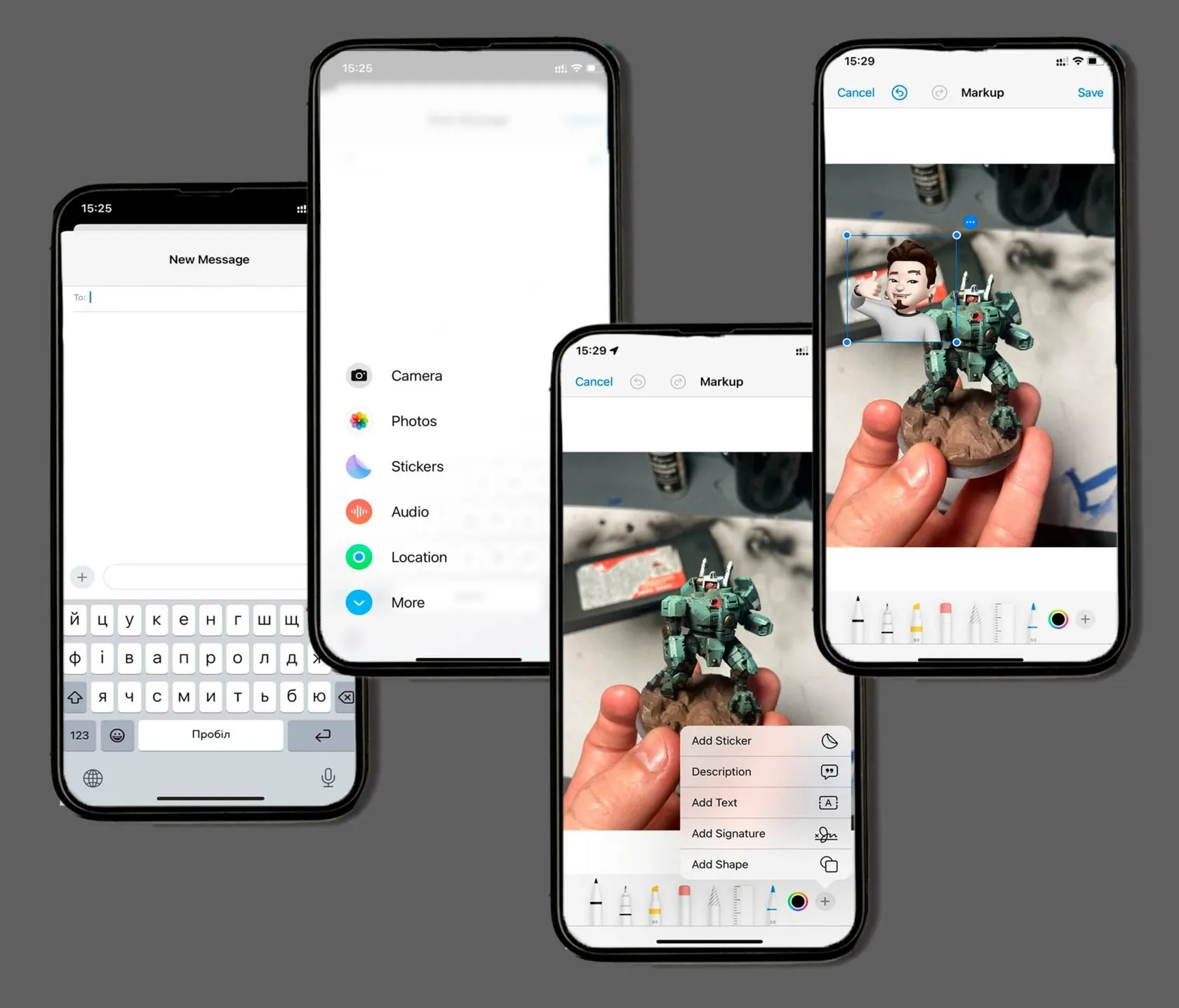
Use Photos and Markup
For a picture you want to keep in your photo library, this is a straightforward starting point:
- Open Photos and select the image.
- Tap Edit, then the Markup button, shown as a pen tip inside a circle.
- Tap +, then Add Sticker.
- Choose a sticker and drag it onto the photo.
- Select it to reposition it. Drag a blue bounding-box dot to resize, or use two fingers to rotate.
- Tap Done to finish Markup, then confirm the photo edit if prompted.
Duplicate the photo first if you want the decorated and undecorated versions visible separately in your library. After saving, open the edited version to check placement.
Make a Sticker From Your Own Photo
You can also turn a recognizable subject into a reusable sticker on a supported iPhone:
- Open the source photo full screen in Photos.
- Touch and hold the subject, then release.
- Tap Add Sticker.
- Optionally choose Add Effect for a treatment such as an outline.
- Open the destination photo and add the new sticker through Markup.
A clearly separated subject is a useful starting point. Check the cutout around hair, fur, and narrow details before using it at a large size. Creating the sticker adds it to your collection; placing it on another image is a separate step.
What About Messages?
Messages can use stickers in conversations and offers creative photo features, but attaching a sticker to a message does not necessarily produce a new image containing that sticker.
If the goal is a decorated picture you can save and reuse elsewhere, finish it in Photos or another editor first. Then attach the saved result to Messages. This avoids relying on a conversation effect to become part of the image file.
How to Add Stickers to Photos on Android
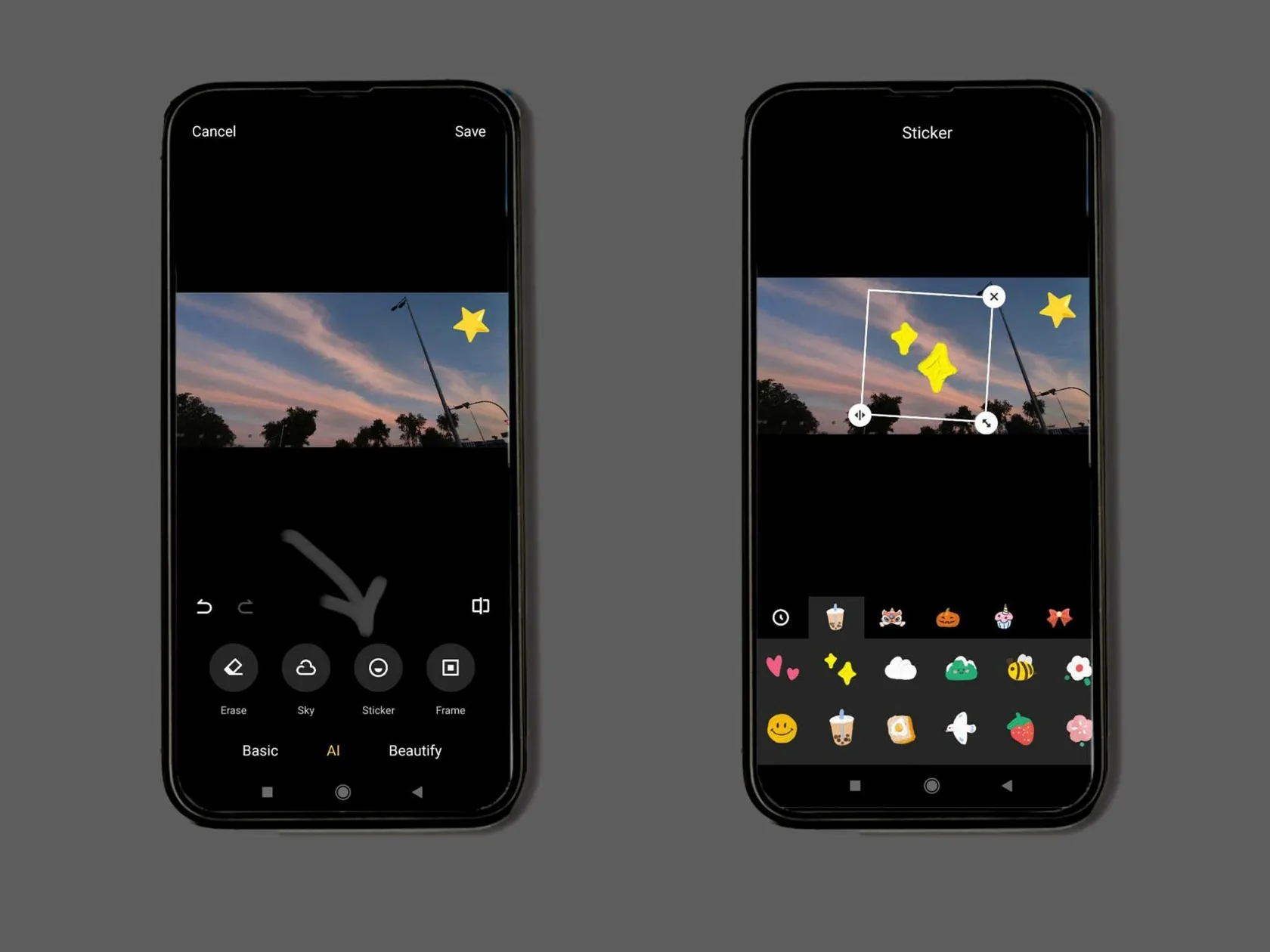
Android phones do not all share the same photo editor. Check the tools included with your particular device before following manufacturer-specific instructions.
Use Samsung Gallery
On a compatible Samsung Galaxy phone or tablet:
- Open Gallery and select a photo.
- Tap Edit, usually the pencil icon.
- Open Decorations, represented by a smiley-face icon.
- Tap Stickers and choose a preloaded or custom sticker.
- Position and resize it using the available controls.
- Save the edit. Use Save as copy if that option appears and you want a separate version.
Samsung also supports creating custom stickers on compatible devices. Available tools and menus depend on the software version, so use the options shown in your Gallery app.
If Your Gallery Has No Sticker Tool
Use a dedicated editor such as Picsart or Fotor, or open a browser-based editor. A drawing or text tool is not automatically a sticker tool, and your phone may use a different app for each task.
For a one-off edit, check whether the app can import an image over another image. That feature can accept a prepared sticker graphic even without a built-in sticker library.
Your AI-Powered Photo Editor for MacOS and Windows
How to Add a Custom Sticker in Luminar
Luminar on desktop is useful when you already have a logo, illustration, or cutout and want to control its size, position, and opacity alongside normal photo adjustments. It uses an image layer for this workflow, rather than a chat-style sticker drawer.
Prepare a sufficiently large PNG with a transparent background. Transparency matters: a graphic surrounded by white pixels will cover that part of the underlying photo. This comparison of JPEG and PNG explains the format distinction.
Add the Graphic as a Layer
- Open the base photo in Luminar’s desktop editor.
- In the Layers panel, click + and import the sticker image.
- Select the added layer and use its on-image controls to resize and position it.
- Check Layer Properties and adjust opacity if needed.
- Export the finished photograph as a separate file.

For the current import controls, see the guide to adding an image layer.
Keep opacity at full strength for a solid graphic unless transparency is part of the design. A sticker does not need to look like a naturally occurring object; a clear illustrated edge may be the intended style.
If the graphic already has transparency, skip background removal. If it has an unwanted background, remove or mask that area before final placement. Inspect fine edges so you do not accidentally remove part of the graphic.
Use photo color editing tools to finish the photograph when needed, while checking whether adjustments affect the base image or the graphic layer. Avoid applying an overall treatment that changes important logo colors unintentionally.
How to Add Stickers With Online and Mobile Editors
Picsart: Searchable Stickers and Custom Designs
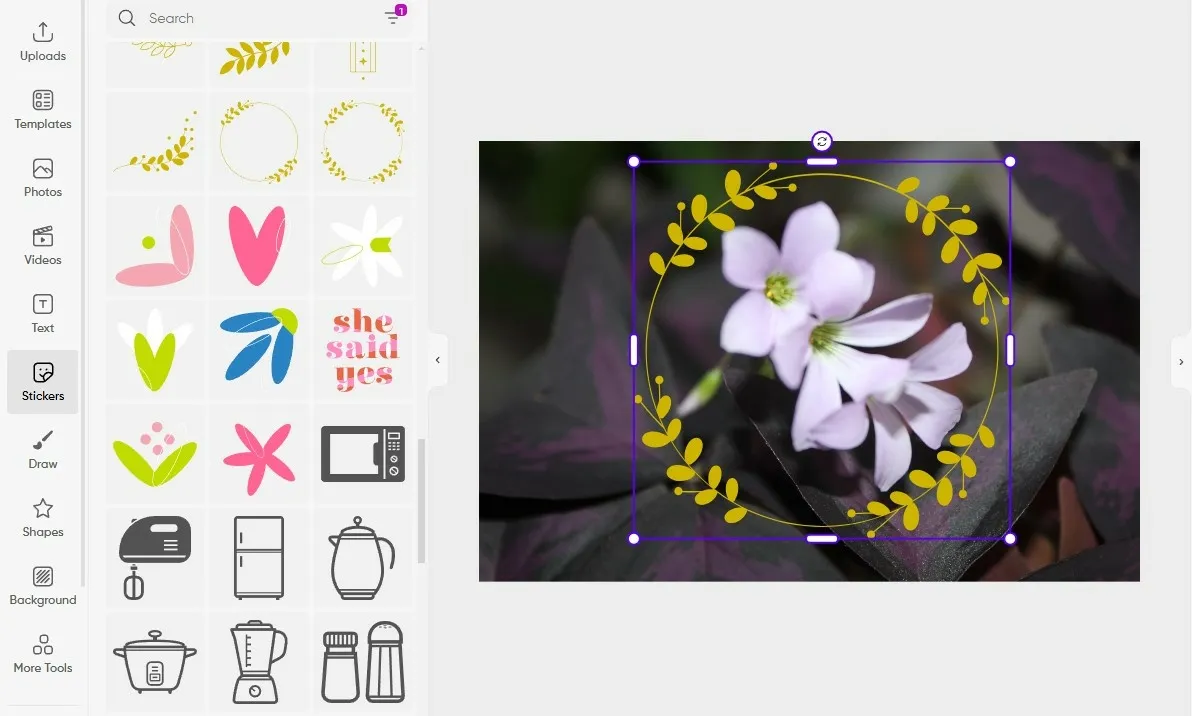
Picsart suits edits built around illustrations, decorative elements, and custom cutouts. Its sticker collection gives you a starting point when you do not already have a graphic, while its wider editing tools help combine stickers with text and other design elements.
To make an edit:
- Open or upload your photo in the Picsart editor.
- Open Stickers and search for a relevant subject or style.
- Add a sticker, then adjust its placement and scale.
- Repeat if needed, keeping the main subject readable.
- Download or export the completed image.
Choose a consistent style rather than combining unrelated graphics simply because they appear in search. Check access to the selected asset and the final export before building a complicated layout.
| Pros | Cons |
| Searchable collections help when you need ready-made artwork | Asset availability and access can vary |
| Supports custom sticker creation as well as placement | A large collection can make it easy to overcrowd the image |
Fotor: Quick Decoration in a Photo or Design Workflow
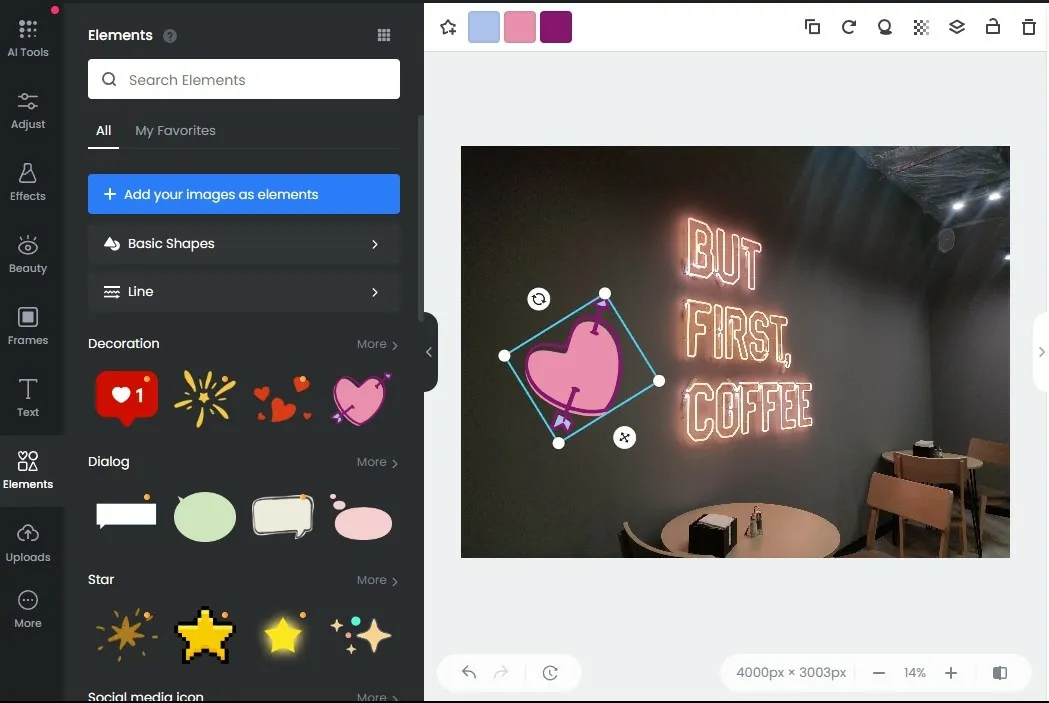
Fotor is a practical option for adding decorative elements while making ordinary photo adjustments or preparing a simple greeting image. Its web editor groups stickers with other design elements, which is useful when you want a graphic and a short message in the same composition.
In the web editor:
- Upload the photograph.
- Open Elements and browse or search for stickers.
- Add a graphic to the image.
- Resize and position it with the available controls.
- Download the result using the export options shown.
Fotor also has a mobile app, but its controls may differ from the website. Follow the sticker or element tools available in your installed version rather than expecting the web layout to match exactly.
| Pros | Cons |
| Combines decorative elements with photo and layout tools | Web and mobile instructions are not interchangeable |
| Useful for straightforward cards and social graphics | Check the selected asset and download options before finishing |
Pixlr Express: Browser-Based Graphic Placement
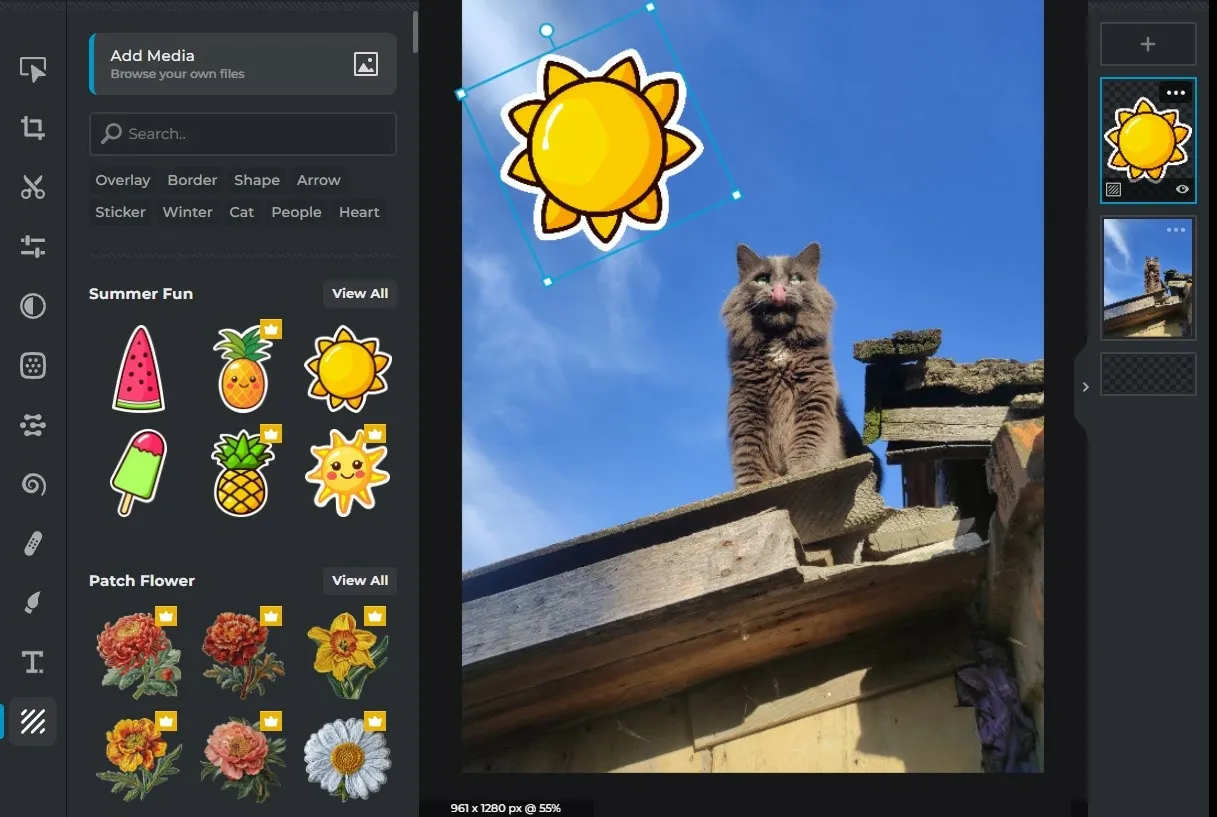
Pixlr Express works well when you want to add a graphic without installing a desktop editor. Its Elements options include decorative assets, while imported media lets you use artwork you already have.
For this workflow, use Pixlr Express; Pixlr offers several editors with different interfaces.
- Open the base photograph in Pixlr Express.
- Choose an item from Elements, or import your own graphic through the media options.
- Adjust the graphic’s position and size.
- Check the overall composition and export the image.
A transparent graphic is useful here for the same reason it is useful in a layered desktop edit: it lets the original photograph remain visible around the artwork.
| Pros | Cons |
| Runs in a browser and supports imported graphics | Other Pixlr editors use different controls |
| Provides ready-made elements alongside photo tools | Available assets and export conditions should be checked in the current editor |
Adding Stickers in Social and Messaging Apps
These methods are convenient when the destination is already a story, Snap, or chat. For a reusable high-resolution image, a photo editor gives you a clearer export workflow.
Instagram Stories
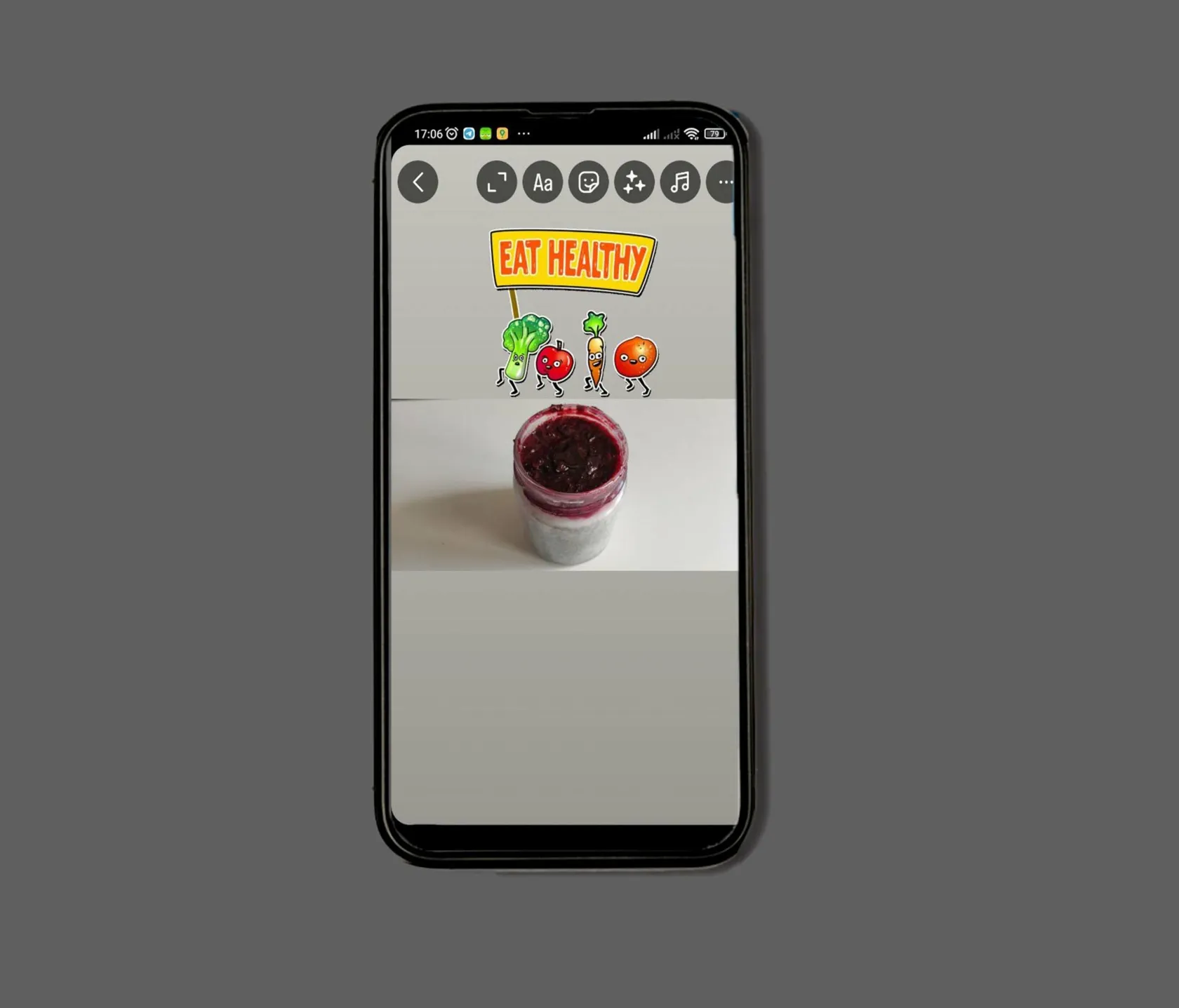
Instagram’s sticker tools suit content intended for Stories, including decorative graphics and platform-specific interactions. A question box or poll has a function inside Instagram that a downloaded image cannot reproduce.
- Open the Story composer and choose your photo.
- Tap the sticker icon.
- Select a sticker and adjust its position and size.
- Review the story before publishing.
- If you need a local copy, check the available save or download control and inspect the exported result.
Keep important graphics away from areas covered by the story interface. Animated elements may affect the exported media type; do not assume the download will be an ordinary still photo.
| Pros | Cons |
| Convenient for decorating an Instagram Story | Interactive stickers do not remain interactive in an exported image |
| Offers story-specific creative tools | The story canvas may crop the original photograph |
Snapchat
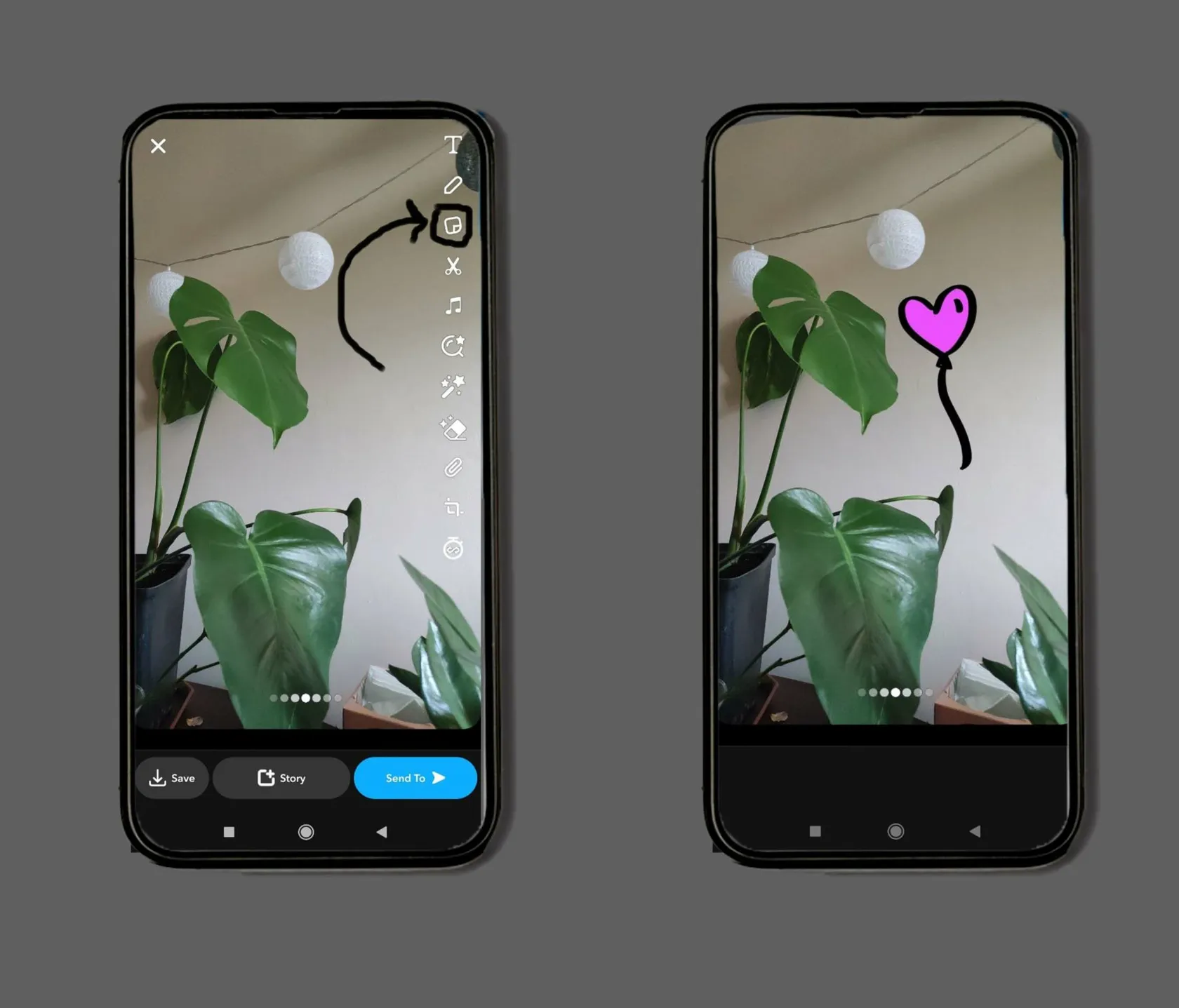
Snapchat is useful for playful edits using its sticker drawer and custom stickers. It is particularly convenient if the finished image will be used within Snapchat.
- Open or capture a photo in Snapchat’s editing workflow.
- Tap the sticker icon on the preview screen.
- Choose a sticker and position it.
- Use the save control when finished.
- Check whether the result went to Memories, Camera Roll, or both.
Saving to Memories and saving to your phone’s photo library are different destinations. Confirm that the image is accessible in the place you need before leaving the workflow.
| Pros | Cons |
| Includes a sticker drawer and custom sticker tools | Saving may target Memories rather than the phone library |
| Convenient for Snapchat-focused sharing | Less suited to maintaining a reusable layered photo project |
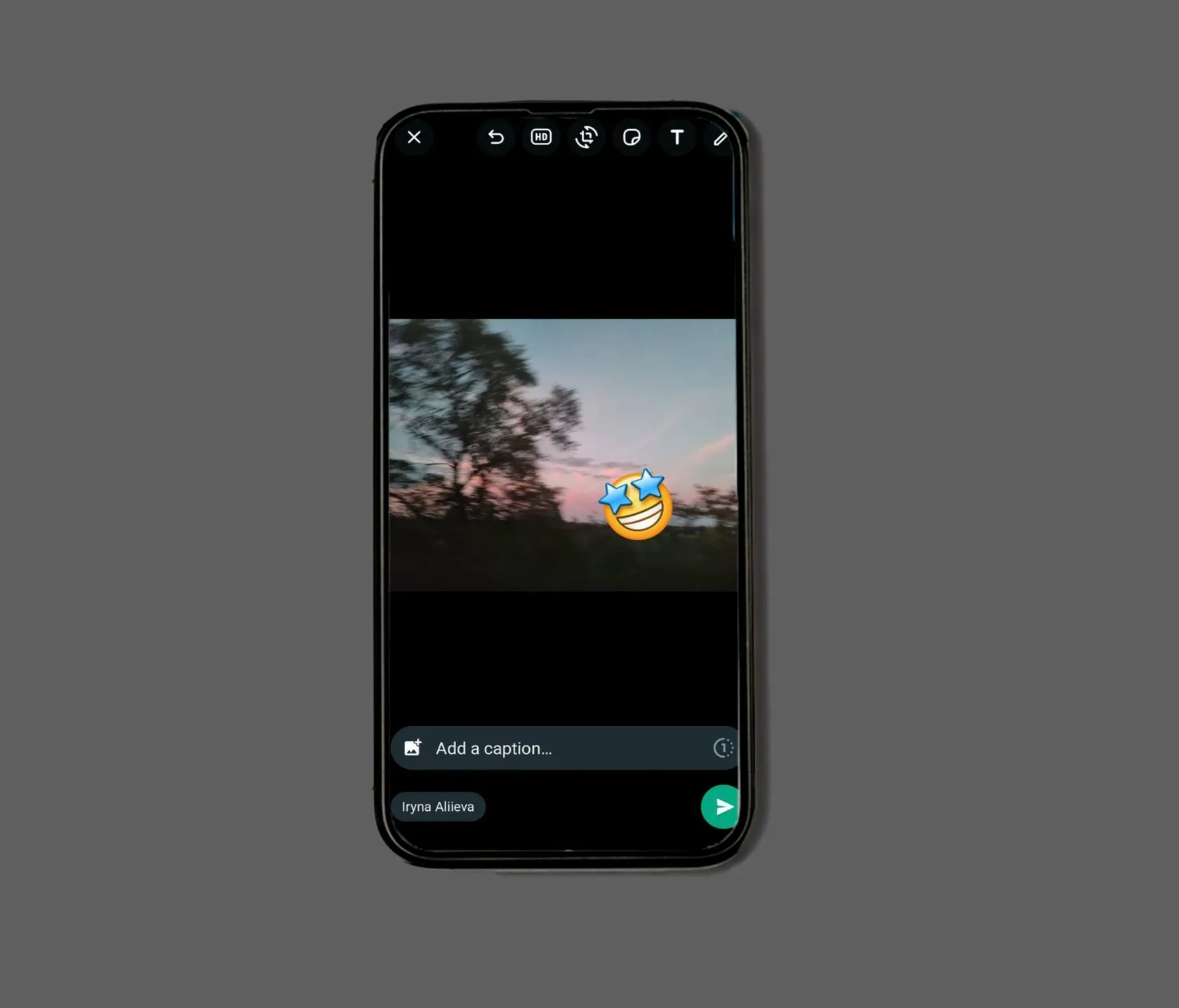
WhatsApp can decorate a photo while you prepare an attachment. Use it for a quick image sent in a conversation, rather than as the main editor for a detailed design.
- Open the intended chat and choose a photo through WhatsApp’s attachment controls.
- In the media preview, open the sticker or emoji tool.
- Choose an item, then resize and position it.
- Review the image and the recipient before sending.
On iPhone, select the photo from within WhatsApp if you need its editing tools; directly sharing media into WhatsApp from another app can bypass editing. If you also need a local decorated copy, check the available save options. Sending a message should be a deliberate choice, not a workaround for exporting an image.
| Pros | Cons |
| Adds stickers during normal photo attachment preparation | The workflow centers on sending media rather than exporting a design |
| Handy for a quick decorated message | Controls and saving behavior differ across platforms |
The Photo Perspective Correction Tool You've Been Waiting For
Make the Stickers Fit the Photo

Choose a Clear Role
Use a sticker to add a message, highlight something, or establish a theme. A small arrow can identify a detail; a larger illustration can become part of the main design.
Avoid placing several unrelated graphics over the subject. The principles of photo composition still apply: the viewer should be able to recognize what matters first.
Match Scale and Placement
A sticker should be large enough to read at the final viewing size. Check the image as a small preview, especially when the graphic includes text.
Crop the base photograph before doing detailed placement when possible. Use photo cropping tools to establish the final framing, then leave enough room for the artwork and any platform interface.
Keep the Original and Export Once
Preserve the undecorated photo and, where available, the editable project. An exported image usually combines the photo and sticker into one flat result, which is convenient for sharing but less flexible for later changes.
Use a suitable output size for the destination. Avoid repeatedly downloading, editing, and recompressing the same image through several apps. Start from the original again when you need a substantially different version.
Save a Finished Image You Can Reuse
Start with the simplest tool that meets the task. Photos and Samsung Gallery handle quick device-based edits; dedicated editors offer more choice and control; social apps are convenient for content intended for those platforms.
Choose the graphic, make its purpose clear, and check the final saved file. A restrained design with readable placement usually works better than adding more stickers to compensate for an unclear idea.
FAQ
Open the photo in Photos, tap Edit, and enter Markup. Choose the plus button, then Add Sticker. Position the sticker and save the edit.
Yes. Compatible iPhones support stickers through Photos and Markup, and compatible Samsung Galaxy devices include them in Gallery. Other Android phones may have different tools.
Create a cutout using a supported device feature, or prepare a graphic with a transparent background. Add it through a sticker collection or import it as an image layer in a compatible editor.
A PNG can contain transparency, but it does not have to. Your file may contain white pixels or even a visible checkerboard. Renaming a JPEG to PNG does not remove its background.
You can usually reposition or delete it while it remains a separate element in an editable project. After a normal image export flattens it into the photo, returning to the original or project is the most reliable way to remove it cleanly.