Choosing a Canva alternative gets easier when you know what each tool actually delivers. Here is my take on 23 options, with clear use cases and the trade-offs I would weigh before choosing one.
I judge a design tool by the work it helps me finish. For social posts and quick promotions, I would start with Adobe Express or VistaCreate. For a presentation built around data, Visme makes more sense to me. If the photograph itself needs attention, I would choose dedicated AI photo editing software.
That is how I approach this comparison: what I would choose, why I would choose it, and where I would draw the line. A tool can be excellent for one task and a poor fit for another. Below, I explain the practical differences so you can decide which features are worth paying for—and which you can skip.
Top Canva Alternatives at a Glance
| Tool | Main focus | Choose it for |
| Luminar | Photo editing | Enhancing photographs before using them in a design |
| Visme | Presentations and visual content | Reports, charts, and interactive business materials |
| Adobe Express | General design | Social graphics, short videos, and branded content |
| VistaCreate | Template-based design | Social posts, promotional graphics, and animations |
| Snappa | Online graphics | Blog headers, ads, and social media images |
| PicMonkey | Photo editing and design | Photo-led graphics, touch-ups, and thumbnails |
| Fotor | Photo editing and collages | Image adjustments and simple creative layouts |
| Easil | Brand templates | Keeping team-created marketing materials consistent |
| Design Wizard | Image and video templates | Customizing ready-made promotional designs |
| Pixlr | Browser-based image editing | Editing images and creating visual assets online |
| Movavi Video Editor | Desktop video editing | Building videos from clips, titles, and effects |
| Figma | Collaborative design | Interfaces, prototypes, and reusable design components |
| Affinity | Professional creative work | Vector illustration, photo editing, and page layout |
| CorelDRAW | Vector design and layout | Logos, signage, typography, and print graphics |
| BeFunky | Photos, collages, and graphics | Combining image editing with simple design projects |
| Vectr | Vector graphics | SVG artwork, logos, and image-to-vector workflows |
| Desygner | Visual content and documents | Marketing graphics, presentations, and PDF work |
| Kapwing | Collaborative video editing | Captioned clips, video repurposing, and shared projects |
| PlayPlay | Business visual content | Branded videos and communications materials |
| Pixazo | AI creative assets | Generating and editing images, video, and audio |
| DocHipo | Business design templates | Flyers, presentations, infographics, and social posts |
| Design.com | Branding and marketing design | Logos and coordinated business materials |
| BrandCrowd | Logos and design templates | Customizing brand assets and promotional graphics |
Free access differs between products. A free plan, a limited trial, and a free preview are not interchangeable. Before choosing a tool, check whether you can export your finished work in the format and quality you need.
My Review of Each Canva Alternative
1. Luminar: My Pick for Improving the Photograph Itself

What draws me to Luminar is the amount of control it gives me over the actual photograph. Exposure, color, portrait retouching, sky replacement, and layers address problems that a good template cannot fix. If the image in a campaign looks flat or the subject disappears into the background, I would work on the photo first.
For a photographer, online seller, or creator whose designs depend on strong images, that is a useful distinction. I see Luminar as a way to prepare the photograph for the finished graphic: adjust the light, clean up the portrait, or build a layered composition, then move it into a layout tool.
I would not buy it expecting a replacement for Canva’s presentations or document templates. Its value is photo editing, and the desktop and mobile editions have different capabilities. That is the reason I would choose this photo editing software.
| Pros | Cons |
| Dedicated tools for light, color, portraits, and sky editing | Does not replace a presentation or document-layout platform |
| Layers support photo compositions with multiple elements | Desktop and mobile features are not identical |
| Useful for preparing photography for campaigns and portfolios | Paid software; the plan needs to match the tools you want |
Free or paid? Paid plans; desktop and mobile editions.
Your AI-Powered Photo Editor for MacOS and Windows
2. Visme: My Pick for Explaining Data Visually

I would put Visme near the top of my list for reports, infographics, and presentations that need to explain something. Its charts, interactive elements, branded templates, and collaboration tools make more sense to me for a quarterly report than an editor chosen mainly for attractive social posts.
A useful example is a sales deck with performance charts, product information, and a consistent brand identity. Visme brings those pieces into one workspace. It also supports shared feedback, which matters when the people checking the numbers are different from the people designing the slides.
The trade-off is that interactive content needs a suitable delivery format. I would decide whether the audience will open a web link, PDF, or presentation file before building the project. Some features and export formats depend on the plan.
| Pros | Cons |
| Charts and interactive elements suit information-rich content | Interactivity needs a compatible viewing format |
| Templates cover reports, presentations, and infographics | Some export formats and team features require paid plans |
| Brand and collaboration tools support business workflows | More functionality than I need for a single basic social graphic |
Free or paid? Free Basic plan and paid plans.
3. Adobe Express: My Starting Point for a Broad Canva Replacement

Adobe Express is one of the first tools I would compare with Canva because it covers many of the same everyday jobs. Templates, image tools, short-video editing, and branded content creation sit in a workspace intended for quick production.
I especially see the appeal for someone already working with Adobe assets. Creative Cloud connections can make it easier to reuse content rather than rebuild it in an unrelated platform. Browser and mobile access also suit a creator who starts a design at a desk and needs to make a small change from a phone.
My reservation is about depth. Express is designed to make common tasks approachable; it is not the tool I would choose for detailed Photoshop-style compositing or a complex video edit. I would shortlist it for recurring posts, promotional graphics, and short clips.
| Pros | Cons |
| Graphics, images, and short videos in one workspace | Not a substitute for a specialist image or video editor |
| Connections to Adobe’s creative ecosystem | Some brand and resizing tools are premium features |
| Browser and mobile access suit everyday content work | AI access and allowances differ between plans |
Free or paid? Free and paid plans.
4. VistaCreate: My Pick for Template-Led Social Content

VistaCreate appeals to me when the goal is to get from a message to a finished social graphic with minimal setup. Its templates cover social, web, and print formats, and its animation options give a promotional post more movement without requiring a separate motion-design workflow.
I would consider it for a small business publishing offers, event announcements, and seasonal posts. The important work is adapting the layout: replacing the stock image, changing the typography, and making the colors feel like the brand. A template is useful only if I can make the result recognizable as my own.
The limitation is the same one I see in most template-based tools. They speed up familiar layouts, but detailed illustration or custom photo editing calls for another application. Premium content and advanced features also depend on the plan.
| Pros | Cons |
| Templates cover recurring social and promotional formats | Templates need customization to avoid a generic appearance |
| Animation options suit short visual announcements | Not my choice for detailed illustration or photo work |
| Free Starter plan provides a way to assess the workflow | Advanced tools and premium content require Pro access |
Free or paid? Free Starter and paid Pro plans.
5. Snappa: My Pick for Straightforward Online Graphics

I like the focus of Snappa’s offering: preset dimensions, ready-made layouts, stock images, and tools for adding text and graphics. It addresses a specific problem well on paper—turning a headline and an image into a blog header, advertisement, or social post.
For a content marketer, that narrow focus can be an advantage. I would rather have a direct workflow for a recurring banner than navigate features I never use. Its preset sizes also reduce the setup involved in producing several kinds of online graphic.
I would choose Snappa for a steady stream of relatively simple visuals. I would look elsewhere if the same subscription needed to cover long presentations, detailed vector artwork, and substantial video editing. The free tier is a starting point; I would check its download allowance against my publishing schedule.
| Pros | Cons |
| Preset dimensions reduce setup for common online formats | Not a broad replacement for every Canva content type |
| Templates, stock photos, and graphic elements work together | Download allowances matter for frequent publishing |
| Focused scope suits repeatable blog and social graphics | Template-led design offers less scope for complex custom artwork |
Free or paid? Free entry-level access and paid plans.
6. PicMonkey: My Pick for Photo-Based Marketing Graphics

PicMonkey sits between a photo editor and a graphic-design platform, which makes it relevant when the same image needs both retouching and a finished layout. Its touch-up tools, background removal, text, graphics, and templates support that combination.
I would consider it for a portrait-based announcement, a YouTube thumbnail, or a product promotion. Instead of treating the photo and the typography as separate projects, I can assess a tool built to handle both. Brand kits add another reason to consider it for recurring promotional work.
Where I would be cautious is paying for the overlap. If I already have a photo editor and only need to add a headline, PicMonkey may duplicate tools I own. Its trial is useful for comparing that combined workflow with a dedicated editor plus a simpler layout platform.
| Pros | Cons |
| Photo tools and graphic layouts share one platform | May duplicate a photo editor I already pay for |
| Touch-up and background tools suit image-led content | Paid access makes occasional simple graphics harder to justify |
| Templates and brand assets support recurring promotions | Not my choice for detailed vector illustration |
Free or paid? Paid plans with a free trial.
7. Fotor: My Pick for Quick Photo Edits and Collages

Fotor makes sense to me for someone who starts with photographs and wants a finished image without learning a full professional editing workflow. It brings together light and color adjustments, retouching, collage layouts, text, and AI-assisted image tools.
I would shortlist it for a holiday collage, a simple promotional image, or a portrait that needs a few adjustments before posting. The combination matters more than any single feature: a user can edit the source photographs and arrange them into a visual in the same platform.
My expectation would stay realistic. AI enhancement is a starting point to inspect, particularly around faces, small details, and text. I would also check the cost of the specific AI features I intend to use. Free basic editing does not mean every creative tool is included.
| Pros | Cons |
| Photo editing, collages, and decoration in one platform | AI results need inspection rather than automatic approval |
| Basic adjustments suit everyday image preparation | Advanced features can require an upgrade |
| Free access allows a practical first comparison | Less suited to complex publications or interface design |
Free or paid? Free and paid plans.
8. Easil: My Pick for Keeping Team Designs on Brand

Easil stands out to me for a problem that basic design comparisons often miss: letting colleagues update a graphic without changing everything that makes it recognizable. Brand assets, editing restrictions, and approval workflows are central to its offering.
I would consider it for a marketing team producing local offers, event posters, or announcements from shared templates. A designer can establish the layout, while another team member changes the date, photograph, or message. The value is in controlling which parts can change.
That makes Easil more compelling to me as a team system than as a casual personal editor. If I work alone and only need a few attractive posts, permissions and approvals add little value. For a growing team, I would compare the relevant plan with the cost of repeatedly fixing inconsistent designs.
| Pros | Cons |
| Editing restrictions help protect approved layouts | Governance features offer less value to a solo creator |
| Shared brand assets support consistent team output | Team controls require choosing the appropriate plan |
| Approval workflows can reduce off-brand publishing | Not a specialist tool for detailed photo or vector work |
Free or paid? Free access and paid plans.
9. Design Wizard: My Pick for Simple Promotional Templates
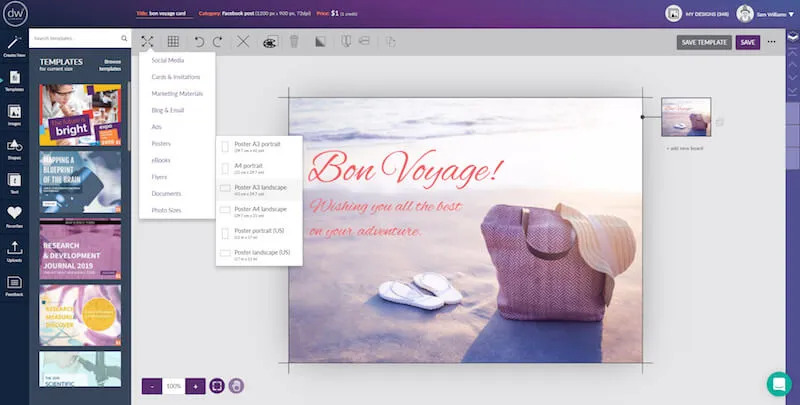
Design Wizard interests me as a practical template resource for image and video designs. Its editable layouts, uploaded assets, fonts, and color palettes suit familiar jobs such as announcing an event or creating a promotional graphic.
I would look at it when the bottleneck is deciding where the headline, image, and supporting details should go. Starting from an existing layout can save that work, provided the template accommodates the actual message. I would compare designs in my preferred format rather than judge the entire library from a few previews.
The reason I would hesitate is specialization. If I need detailed image corrections, advanced vector editing, or a demanding video timeline, a template platform is unlikely to be the whole solution. I would also check whether the assets and downloads I need are included before committing to a design.
| Pros | Cons |
| Ready-made layouts provide a starting point for promotions | Template fit matters more than the size of the library |
| Supports image and video template workflows | Premium assets and downloads can affect the overall cost |
| Uploaded fonts, logos, and colors help personalize designs | Not my pick for complex image, vector, or video editing |
Free or paid? Free signup, with paid content and plan options.
10. Pixlr: My Pick for Browser-Based Image Work

Pixlr is relevant when I need to work on an image rather than choose a finished page layout. Its browser-based tools cover photo editing, background removal, collages, and AI-assisted generation or modification.
I would consider it for preparing a product photograph, creating a composite image, or removing a distracting element before using the result elsewhere. Browser access is convenient when I want an image-editing workspace without setting up another traditional desktop application.
The distinction from Canva matters here. Pixlr’s image tools can help make an asset ready, but I would not choose it mainly for a long presentation or a multi-page business report. I would also save important work carefully and check the export and AI allowances. Convenience is useful only if I can reliably keep the file and produce the output I need.
| Pros | Cons |
| Browser access avoids a traditional desktop installation | Not my first choice for presentations or long documents |
| Image tools suit asset preparation and creative editing | Saving and export requirements deserve attention |
| Background removal and AI tools broaden the editing options | AI feature access can depend on account and plan limits |
Free or paid? Free tools and paid options.
11. Movavi Video Editor: My Pick for Editing Recorded Footage

I would choose Movavi Video Editor when my starting point is a collection of clips that need to become a coherent video. Its desktop timeline, titles, transitions, and effects are more relevant to that task than a library of graphic templates.
Think of a product demonstration, a travel montage, or an interview assembled from several recordings. The question is where to cut, which clip comes next, and how titles or sound support the story. A dedicated video workspace makes sense when those decisions form most of the project.
Movavi is therefore a partial Canva alternative: it covers video work, while another tool handles posters or presentations. I would also distinguish the editor from Movavi’s screen recorder and other products. Buying one application does not automatically mean getting every feature advertised across the company’s bundles.
| Pros | Cons |
| Dedicated timeline suits projects built from recorded clips | Does not replace Canva’s static graphic and document tools |
| Titles, transitions, and effects support finished videos | Other Movavi applications may require a separate purchase |
| Desktop versions are available for Windows and macOS | Trial restrictions make it different from a permanent free plan |
Free or paid? Paid software with a limited trial.
12. Figma: My Pick for Collaborative Interface Design

Figma belongs on my list when the work involves interfaces, reusable design elements, or a team refining the same visual project. Shared files, components, and product-design tools address a different level of collaboration from simply passing around a finished graphic.
I would choose it for a website interface, app screen, or design system that needs feedback and iteration. A button should remain consistent across screens; spacing and typography should follow a common structure. That is the kind of problem where Figma’s approach becomes useful.
For an occasional birthday invitation or quick social post, I would probably choose a template-led editor instead. Figma rewards learning how its design structure works. Its broader product family also makes the exact plan important: I would identify the tools and seats the team needs before comparing costs.
| Pros | Cons |
| Shared design files support feedback and iteration | Requires learning a more structured design approach |
| Reusable components help keep interfaces consistent | More setup than I want for a one-off simple graphic |
| Well suited to website and app design workflows | Products, seats, and team features affect plan selection |
Free or paid? Free entry-level access and paid plans.
Elevate Your Photography with Our Advanced Software
13. Affinity: My Pick for Detailed Creative Control

Affinity is the option I would examine when a template starts getting in the way of the design. The current app combines vector work, photo editing, and page layout, so the focus is on constructing the artwork rather than adapting a predefined arrangement.
I would consider it for an illustrated poster, a carefully typeset publication, or a logo that needs precise shapes. That control comes with a learning commitment: paths, layers, typography, and layout decisions become my responsibility. For quick recurring posts, that may be more work than I want.
The current core app is free, which changes its value compared with older reviews of the paid Affinity Designer license. It is owned by Canva and requires a Canva account for activation. I would choose it for a different working style, not to leave Canva’s corporate ecosystem.
| Pros | Cons |
| Vector, photo, and layout work in one professional app | More learning and manual design work than a template editor |
| Precise tools support original artwork and publications | Canva ownership matters if company independence is the goal |
| Core creative app is free | Platform and optional connected-feature requirements need checking |
Free or paid? Free core app; Canva account required for activation.
14. CorelDRAW: My Pick for Vector and Print Production

CorelDRAW makes sense to me when the deliverable needs to function as production artwork. Vector illustration, typography, layout, and the suite’s photo tools support work such as signage, logos, and print graphics.
I would consider it for a business creating designs that must work at different sizes or move into a print workflow. The appeal is control over the artwork, not just getting a good-looking preview. I would still confirm the printer’s file requirements rather than assume any exported design is automatically production-ready.
The downside for a casual creator is commitment. Learning a professional toolset and paying for it is difficult to justify if all I need is a weekly social post. Corel also offers different products and editions, so I would compare the exact application rather than treat every CorelDRAW-branded package as identical.
| Pros | Cons |
| Vector and typography tools suit original production artwork | Learning investment is substantial for occasional users |
| Combines layout and photo tools in the Graphics Suite | Paid software may be excessive for simple social graphics |
| Relevant to logos, signage, and print-focused design | Capabilities vary across Corel products and editions |
Free or paid? Paid products with trial options.
15. BeFunky: My Pick for Photo-Centered Creative Projects

BeFunky appeals to me because its photo editor, collage maker, and graphic designer cover a complete small project. I can assess it for the whole job: improve the photographs, arrange them, and add the text or layout needed for the final visual.
I would consider it for a family collage, an invitation, a simple business flyer, or a social post built around several pictures. Its creative effects also suit a user who wants a stylized result rather than only a technically corrected photograph.
My limit would be project complexity. I would not make it my first choice for a detailed vector identity or a publication requiring extensive typography control. I would also compare the free tools with the paid feature set using my own project; an attractive preview does not establish which tools are included.
| Pros | Cons |
| Photo editing, collages, and graphic templates work together | Not my choice for detailed vector branding |
| Creative effects support stylized image projects | Less relevant to complex publication design |
| Suitable for small projects centered on personal photographs | Desired editing features may require paid access |
Free or paid? Free and paid options.
16. Vectr: My Pick for Focused SVG Work

Vectr is worth considering when the output needs to be vector artwork. Its browser-based tools cover SVG editing, logos, and image-to-vector workflows, with AI-assisted features alongside them.
I would shortlist it for a simple icon, scalable graphic, or logo experiment. The reason is practical: a vector design can be resized without treating every enlargement as a new photograph. SVG output also matters when the receiving workflow specifically requires that format.
I would be careful with automated conversion, though. Turning a photograph into vectors does not automatically create a clean, thoughtfully constructed illustration. The result still needs inspection, and the original image influences what is possible. I would choose Vectr for its focused output, then check the current feature and export access rather than rely on an old description of it as entirely free.
| Pros | Cons |
| SVG editing matches workflows that require vector files | Converted artwork can need cleanup and simplification |
| Browser access suits focused artwork tasks | A vector tool is not a full presentation platform |
| Conversion and logo tools provide several starting points | Current feature access should not be assumed from older reviews |
Free or paid? Account and paid feature options depend on the current offering.
17. Desygner: My Pick for Mixed Business Content

Desygner interests me when a small business needs more than social graphics. Its offering spans promotional designs, presentations, documents, and PDF tools, making it relevant to work that moves between marketing and everyday administration.
I would consider it for a company producing a flyer, updating a presentation, and handling a business document in the same week. Templates across those formats can reduce the need to start every project in a separate application.
The breadth is useful, but I would not assume it replaces every specialist tool equally well. If detailed photo editing or vector illustration makes up most of my work, I would compare a dedicated application first. For a team, I would also look beyond the individual free tools and check how sharing, brand management, and enterprise requirements are handled.
| Pros | Cons |
| Covers graphics, presentations, documents, and PDF work | Broad coverage is not the same as specialist editing depth |
| Templates suit recurring small-business materials | Team needs can differ from individual free access |
| Free tools provide a way to assess common tasks | A focused tool may fit better if one task dominates |
Free or paid? Free tools and additional plan options.
18. Kapwing: My Pick for Captioned Social Video

Kapwing is one of the tools I would compare first for turning longer footage into short, captioned content. Its browser-based timeline, subtitle tools, translation options, and collaboration features address several parts of that process together.
For example, a team might trim a recorded interview, add captions, adjust the format for a social channel, and prepare a version for another audience. I see the value in keeping those steps within a shared video workspace rather than sending files between several separate tools.
My reservation is about delivery limits and automation. AI-generated captions and translations still need a human check, particularly for names and technical terms. I would also confirm the free plan’s export rules before editing a long project. Kapwing is a video-focused choice, not the platform I would buy mainly for print layouts.
| Pros | Cons |
| Timeline editing, subtitles, and translation in one workflow | Automatic captions and translations need proofreading |
| Collaboration supports team-produced clips | Plan limits can affect export and processing |
| Useful for repurposing recordings for social content | Not my primary choice for print design or vector artwork |
Free or paid? Free entry-level access and paid plans.
19. PlayPlay: My Pick for Repeated Business Communications

PlayPlay is most compelling to me when content production is a recurring organizational task. Its branded templates and visual workflows cover marketing, internal communications, employer branding, and other business materials.
I would consider it for a communications team creating employee stories, product announcements, or updates for different departments. The value is helping more colleagues produce recognizable content while keeping the brand and approval process organized.
That is a different buying decision from choosing an editor for occasional personal videos. I would assess PlayPlay against the volume of work, the people involved, and the time spent reviewing materials. If I am a solo creator who publishes infrequently, a lighter tool may be easier to justify. For a business, I would ask for a demonstration using one of its actual communication tasks.
| Pros | Cons |
| Templates are oriented toward recurring business content | Team-focused offering may be excessive for occasional use |
| Brand workflows support consistent organizational output | Commercial terms need to fit the organization’s workload |
| Covers communications needs across several departments | Not my first choice for detailed illustration or photographic work |
Free or paid? Business plans; confirm the terms for your team.
20. Pixazo: My Pick for Generating Creative Assets

Pixazo, the current platform reached through the former Appy Pie Design site, is relevant when the starting point is an idea rather than finished media. Built by Appy Pie, it offers AI workflows for images, videos, logos, animations, and audio.
I would consider it for exploring a campaign concept, producing a draft visual, or experimenting with different directions before committing to a design. Its appeal is the range of media it can generate or modify through one platform.
What I would not assume is that a generated asset arrives ready for publication. Faces, lettering, small details, and consistency need review. Repeated generations can also consume paid usage. I see Pixazo as an asset-creation option; if the main job is maintaining a carefully controlled layout, I would compare a more conventional design editor.
| Pros | Cons |
| Supports generation across several types of creative media | Generated details and consistency need manual review |
| Useful for exploring visual directions from prompts | Iterations can consume credits or other paid usage |
| Can generate or modify assets for another design workflow | Not the same workflow as a precise template or layout editor |
Free or paid? Free entry points and paid usage options.
21. DocHipo: My Pick for Business Templates Without a Blank Canvas

DocHipo makes sense to me for business users who know what they need to communicate but do not want to construct the layout from scratch. Its templates cover presentations, infographics, flyers, social posts, and other materials, with collaboration and integrations supporting the process.
I would consider it for a recruiting announcement, a promotional flyer, or a short business presentation. The practical question is whether the template fits the message: the headline length, the amount of information, and the images available.
My preference would be to compare templates in those specific formats rather than count the total library. A template platform can make standard projects easier, but it does not replace a professional illustration or photo workflow. Free and premium templates also differ, so I would check the intended output before deciding whether to upgrade.
| Pros | Cons |
| Templates target practical business communication formats | Template quality is useful only when it fits the message |
| Drag-and-drop editing supports users without layout experience | Premium assets and output options depend on the plan |
| Collaboration suits shared marketing projects | Not my pick for specialist photo or vector editing |
Free or paid? Free and paid plans.
22. Design.com: My Pick for Building Around a Business Identity

Design.com is most relevant to me when a business needs a starting identity and several matching materials. Its offering connects logo creation with business cards, websites, social graphics, and other marketing formats.
I would consider it for a new service business that needs to get a usable visual presence together. Rather than treat the logo as an isolated file, I would look at how the same colors, typography, and identity translate to the other materials. Its prompt-based logo tools provide another route for exploring and adjusting a direction.
The distinction I would keep clear is between convenience and originality. A template or generated logo does not automatically amount to exclusive custom branding. I would inspect the design, confirm the download formats, and read the rights attached to the selected package before treating it as a long-term identity.
| Pros | Cons |
| Logo tools connect with supporting marketing materials | Template-based branding is not automatically exclusive |
| Useful starting point for a new business identity | Download formats and rights depend on the package |
| Customization covers typography, color, and layout | Less relevant when I already have a finished brand identity |
Free or paid? Free starting options and selected templates; paid packages and services.
23. BrandCrowd: My Pick for Adapting an Existing Logo Direction

BrandCrowd appeals to me when I want to browse visual directions rather than begin with a blank artboard. Its logo templates and supporting design formats provide a starting point that can be adapted with different fonts, colors, layouts, and images.
I would consider it for a freelancer or small business that wants a recognizable logo and practical promotional assets. Browsing existing designs can help clarify a preference: a typographic mark, a symbol, or a combination. The important step is choosing a direction that fits the business rather than simply selecting the most attractive preview.
My caution is about expectations. Changing the colors on a template is different from commissioning an identity built around a detailed brief. I would check the license and file package carefully, particularly if exclusive ownership or future editing matters.
| Pros | Cons |
| Existing logo directions help narrow visual preferences | Customization does not guarantee an exclusive design |
| Customization supports a usable small-business starting point | Rights and editable file availability require a package check |
| Supporting templates extend the identity to promotional assets | Less tailored than branding developed around a detailed brief |
Free or paid? Free starting options and selected templates; paid packages.
Exclusive Tools of Endless Possibilities in One Editor
How I Would Choose a Canva Alternative
I would shortlist two tools based on a project I create regularly, then rebuild the same design in both. A finished export tells me more than an impressive homepage: can I get the result I want, in the right format, without an awkward workaround?
I Start With the Main Job
For social graphics, I would compare Adobe Express, VistaCreate, and Snappa. For presentations and business visuals, I would look at Visme and DocHipo. For original vector artwork, I would consider Affinity, CorelDRAW, or Vectr. For video, my shortlist would depend on whether I need desktop editing, online collaboration, or a business communications workflow.
I would also separate image preparation from layout when that improves the result. If a product photograph needs a cleaner setting, I can change a photo background before adding the image to a promotional design.
I Check the Export Before Committing
A free editor is useful to me only if its output suits the project. I would check watermarks, resolution, file formats, download allowances, and premium assets before putting hours into the design.
The source material matters as well. If I need to use a small photograph in a larger layout, an AI image upscaler can help prepare it, although the result still depends on the original image. That is a different task from simply changing the canvas size.
I Pay for Features I Will Actually Use
For a team, I would prioritize shared templates, brand assets, permissions, and feedback. For print work, I would prioritize file requirements and control over the artwork. For a solo creator producing a few posts a month, I would keep the workflow simpler.
I would also consider how the assets reach the layout. A cut-out photo editor is useful when I need an isolated subject for a composition; a template tool then handles the text and arrangement. Two tools are worth considering if each removes a recurring problem.
My Final Verdict
My first shortlist for a broad Canva replacement would be Adobe Express and VistaCreate. I would choose Visme for information-rich presentations, Easil for controlled team templates, and Figma for collaborative interface design.
Luminar would be my choice when the main issue is the quality of the photograph. Affinity and CorelDRAW would enter my shortlist when I need precise creative control. For video, I would compare Movavi, Kapwing, and PlayPlay according to the footage, collaboration needs, and publishing workload.
I would make the final decision using one real project. The best choice is the tool whose strengths match the work I repeat—and whose limitations I can live with.
Canva Alternatives FAQ
Canva is a visual design platform for graphics, presentations, documents, videos, and other content. Its templates and drag-and-drop tools help users create layouts without building every element from scratch.
I would start with Adobe Express, VistaCreate, or Snappa for everyday template-based graphics. I would compare templates in the actual format you need, then check how easily you can customize and export them.
Yes. Adobe Express, VistaCreate, Fotor, and Desygner offer free access. Affinity offers its core professional creative app for free. I would still check premium features and output limits, because “free” means different things across these products.
Luminar focuses on editing photographs, while Canva covers a wider range of layouts and visual content. I would use Luminar to improve the image and a design platform to assemble the presentation, flyer, or promotional graphic around it.
For interface design, I would consider Figma. For controlled brand templates, I would look at Easil. For business presentations and reports, Visme would be on my shortlist. For video collaboration, I would compare Kapwing and PlayPlay with the team’s actual workflow.