Compare the best alternatives to key Photoshop features, from generative AI and object removal to layers, masks, PSD editing, and browser-based tools.
The best Photoshop alternative depends on the feature you need. Luminar is a strong choice for AI-powered photo editing and object removal, Affinity offers advanced layer-based editing, GIMP provides free desktop tools, and Photopea handles PSD files directly in a browser. Pixlr and PaintShop Pro are also useful for specific workflows.
Instead of searching for one app that copies everything Photoshop does, start with the tasks you perform most often. This guide compares alternatives for generative editing, layers, masks, retouching, browser-based work, and other key Photoshop features.
Don’t feel like reading the whole breakdown? We’ve pulled together a quick summary below.
Key Takeaways
- Luminar is best for photographers who want fast AI-assisted edits. GenErase removes distractions, GenSwap replaces or adds objects, and GenExpand extends the edges of a photo.
- Affinity is a strong option for detailed layer-based editing. It combines photo editing, vector design, and page layout tools in one application.
- GIMP is the best-known free, open-source desktop alternative. It supports layers, masks, selections, filters, and extensive customization.
- Photopea is useful when you need to open or edit PSD files in a browser. It supports layers, masks, blending, and common professional file formats without a desktop installation.
- Pixlr works well for quick browser-based edits and AI tools. Its tools cover tasks such as background removal, generative fill, image expansion, and object removal.
- No Photoshop alternative is best at every task. The right choice depends on whether you prioritize photography, graphic design, PSD compatibility, browser access, price, or workflow simplicity.
Photoshop Feature Alternatives at a Glance
|
Photoshop feature or workflow |
Recommended alternative |
Best for |
Main consideration |
|
Generative Fill and Generative Expand |
Luminar |
Photographers who want to remove, replace, or add visual content with AI |
Focused on photography rather than full graphic design |
|
Layers, masks, and advanced compositing |
Affinity |
Creators who need detailed, non-destructive editing |
Interface and workflow differ from Photoshop |
|
Free desktop image editing |
GIMP |
Users who want layers, masks, filters, and manual control without paying |
Steeper learning curve and less integrated generative AI |
|
PSD editing in a browser |
Photopea |
Editing layered Photoshop files without installing software |
Browser performance depends on the device and project size |
|
Fast online AI editing |
Pixlr |
Social media graphics and quick browser-based edits |
Some tools and usage levels require a paid plan |
|
Windows photo editing and graphic design |
PaintShop Pro |
Windows users who prefer traditional desktop software |
Available only for Windows |
Definition: A Photoshop alternative is an image editor that can replace some or most of the tasks a user normally performs in Adobe Photoshop. It does not need to reproduce every Photoshop tool to be the best option for a particular workflow. If you need a broader software roundup rather than a feature-by-feature comparison, explore these free Photoshop alternatives.
Which Photoshop Alternative Should You Choose?
Choose a Photoshop alternative according to the work you actually do:
- Choose Luminar if you primarily edit photos and want AI tools that reduce manual selections and retouching.
- Choose Affinity if you need layers, masks, compositing, vector tools, and detailed design control.
- Choose GIMP if you want a free, open-source desktop editor and do not mind learning a more technical interface.
- Choose Photopea if PSD compatibility and browser access matter more than a native desktop workflow.
- Choose Pixlr if you need fast online editing for social media, marketing, or occasional creative tasks.
- Choose PaintShop Pro if you use Windows and prefer a conventional desktop editor with photo and design tools.
The following sections explain which Photoshop features each option can replace and where its limitations begin.
Exclusive Tools of Endless Possibilities in One Editor
1. Luminar: An Alternative to Photoshop AI Features for Photographers

Luminar is best suited to photographers who want to complete complex-looking edits without building a long manual workflow. Its AI tools analyze the photo and help target common editing tasks such as object removal, image expansion, sky replacement, relighting, and portrait enhancement.
Three generative tools are especially relevant as alternatives to Photoshop’s generative photo-editing features:
- GenErase, an AI object removal tool, removes unwanted elements and reconstructs the selected area using the surrounding image.
- GenSwap, an AI object replacement tool, adds or replaces elements according to a written prompt and a selected area.
- GenExpand, an AI image extension tool, expands the canvas and generates new content beyond the original frame.
Photoshop’s Generative Fill can add, remove, or modify image content through prompts, while Generative Expand extends the canvas. Luminar approaches these jobs through separate, purpose-specific tools, which can make the workflow easier to understand for photographers who do not need Photoshop’s broader design environment. For a closer look at Adobe’s wider toolset, see our Photoshop review.
When is Luminar a useful Photoshop alternative?
Luminar is a practical choice when you want to:
- remove tourists, wires, signs, or other distractions from a photo;
- replace an unwanted object with a more suitable element;
- extend a landscape or portrait to fit a different aspect ratio;
- replace a sky while automatically adapting the scene and reflections;
- enhance portraits, landscapes, and travel photos with fewer manual selections;
- keep photography tools in a simpler interface than a full graphic design application.
Luminar is not intended to reproduce every Photoshop workflow. Photoshop remains more suitable for complex graphic design, typography, pixel-level compositing, and projects that depend on advanced PSD collaboration. Luminar is the stronger fit when the main goal is efficient photo enhancement. Mac users can also compare more options in our guide to choosing a Photoshop alternative for Mac.
2. GIMP: A Free, Open-Source Photoshop Alternative

GIMP is a free desktop image editor for users who want layers, masks, selections, filters, and extensive manual control. It runs on Windows, macOS, Linux, and other operating systems.
GIMP supports many core image-editing tasks:
- working with multiple layers;
- using layer masks for non-destructive visibility control;
- correcting color and exposure;
- retouching with clone and healing tools;
- applying filters and blend modes;
- extending the application through plugins and scripts.
Layer masks in GIMP modify a layer’s transparency without changing the original layer itself. This makes GIMP capable of many selective-editing and compositing workflows associated with Photoshop. Our complete GIMP review examines where the free editor performs well and where its workflow can feel less accessible.
However, GIMP should not be presented as having a native equivalent to every Photoshop AI feature. Some content-aware workflows associated with GIMP rely on additional plugins, and its generative AI ecosystem is less integrated than the systems in Photoshop, Luminar, or Pixlr.
Choose GIMP when cost, open-source software, customization, and traditional desktop editing matter more than a streamlined AI workflow.
3. Affinity: An Alternative for Layers, Masks, and Compositing

Affinity is a strong Photoshop alternative for creators who want detailed control over layers, masks, selections, RAW development, and compositing. It is closer to a traditional professional editor than an automated photo enhancer.
Affinity can handle workflows that involve:
- layered image compositions;
- non-destructive masks and adjustments;
- object and subject selections;
- RAW photo development;
- retouching and frequency separation;
- vector graphics and page layouts;
- opening and editing PSD files.
Affinity’s current application combines pixel, vector, and layout workspaces. The core creative tools are free, while Canva AI features available inside Affinity require an eligible Canva plan. Platform availability should always be checked before recommending it for a specific device; the current version supports macOS and Windows, with an iPad version in development. For a broader evaluation of its strengths and limitations, read our guide to choosing an Affinity alternative.
Choose Affinity when you want a deeper manual editing environment and do not need your workflow to match Photoshop exactly.
4. Photopea: A Browser-Based Alternative for PSD Editing

Photopea is one of the most practical Photoshop alternatives when you need to open and edit a PSD file without installing desktop software. It runs in a web browser and uses PSD as a central part of its workflow.
Photopea includes:
- layered editing;
- masks and blending modes;
- selections and adjustment layers;
- text and vector tools;
- support for PSD and other common creative formats;
- RAW file support;
- AI-assisted background and object editing.
Photopea can open and save PSD files while preserving many common editable elements. This makes it particularly useful on shared computers, Chromebooks, or devices where installing a full editor is not practical. See our guide to finding a Photopea alternative if browser access is only one of your requirements.
Photopea is not always the best choice for very large or resource-heavy projects because performance depends on the browser and available hardware. It is nevertheless one of the closest options for quick, familiar PSD editing online.
Elevate Your Photography with Our Advanced Software
5. Pixlr: An Alternative for Fast Online AI Editing

Pixlr is best for quick browser-based edits, social media graphics, and AI-assisted tasks that do not require a complex desktop setup. It offers both conventional editing controls and dedicated AI tools.
Pixlr’s current toolset includes options for:
- generative fill and image expansion;
- AI background removal;
- object removal;
- image generation;
- sharpening and noise reduction;
- filters, effects, text, and design layouts.
Pixlr is easier to access than a full desktop editor and works well for occasional editing, marketing graphics, and fast content production. The service offers free and paid access, so availability and usage limits vary by tool and plan. For a direct comparison of its workflow, see Pixlr vs Photoshop.
Choose Pixlr when speed and browser access matter more than advanced PSD collaboration or detailed professional compositing.
6. PaintShop Pro: A Photoshop Alternative for Windows

PaintShop Pro is a Windows-focused photo editor and graphic design application with layers, masks, retouching tools, and content-aware editing features. It follows a more traditional desktop workflow and can suit users who prefer Windows software outside the Adobe ecosystem.
Useful PaintShop Pro features include:
- layers and masks;
- RAW photo editing;
- selections and retouching tools;
- Magic Fill and Magic Move;
- SmartClone for combining content from multiple images;
- text and graphic design tools.
PaintShop Pro is worth considering when you want broad photo and design functionality in one Windows application. It is less suitable for users who work across macOS and mobile devices.
How Do Photoshop Alternatives Compare by Use Case?
What is the best Photoshop alternative for photographers?
Luminar is a strong option for photographers who prioritize fast enhancement, generative object edits, portrait tools, sky replacement, and other AI-assisted photo workflows. Affinity is better when the photographer needs more manual compositing and layer control.
What is the best free Photoshop alternative?
GIMP is a strong free desktop alternative for traditional image editing. Affinity currently provides professional pixel, vector, and layout tools for free, while Photopea offers accessible browser-based editing with free and paid options. The best choice depends on the required platform and workflow.
What is the best Photoshop alternative for PSD files?
Photopea is particularly convenient for opening and editing PSD files in a browser. Affinity is a stronger choice for a native desktop workflow, although complex Photoshop-specific effects may not transfer perfectly between applications.
What is the best Photoshop alternative for AI object removal?
Luminar is designed around photography-specific AI tools. GenErase removes unwanted objects, GenSwap replaces selected elements, and GenExpand extends image boundaries. Pixlr also offers browser-based object removal and generative editing tools.
What is the easiest Photoshop alternative for beginners?
Luminar is easier for beginners who mainly want to improve photographs, while Pixlr is convenient for quick online edits. Photopea, GIMP, and Affinity provide more manual control but generally require more time to learn.
Your AI-Powered Photo Editor for MacOS and Windows
Can a Photoshop Alternative Replace Photoshop Completely?
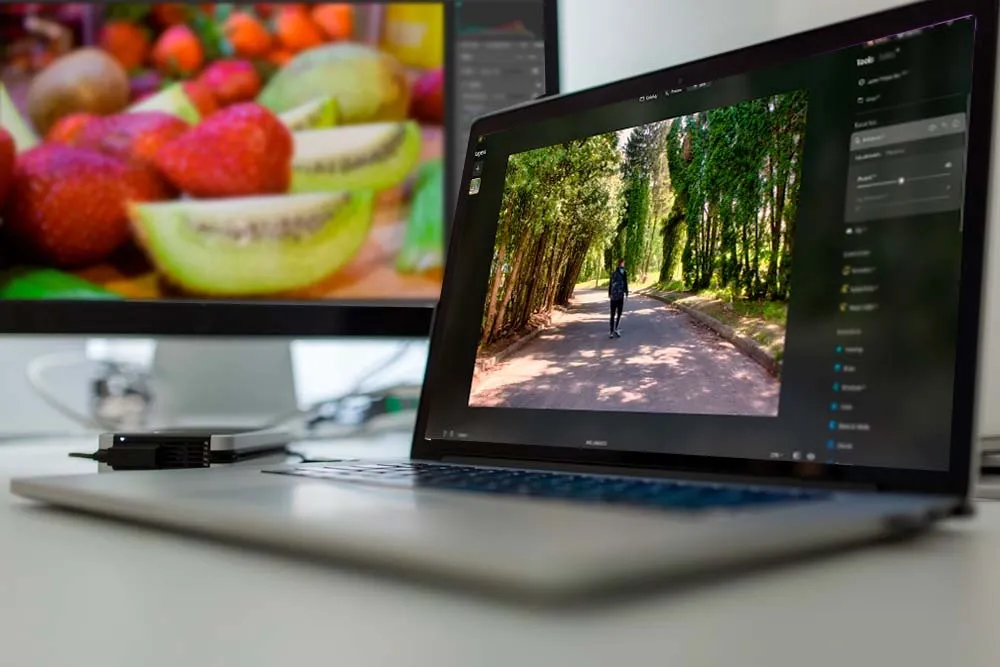
A Photoshop alternative can replace Photoshop completely only when it covers the user’s actual workflow. A photographer who mainly retouches portraits and removes distractions may not need Photoshop’s full design toolset. A designer who exchanges complex PSD files with a team may still depend on Photoshop-specific features.
Before switching, test the alternative with real projects and check:
- Whether it opens your existing files correctly.
- Whether layers, masks, text, and effects remain editable.
- Whether the application supports your operating system and hardware.
- Whether required AI tools are included in the selected plan.
- Whether collaborators can open and continue editing exported files.
The safest approach is to choose software around repeatable tasks rather than the total number of advertised features.
We suggest focusing on individual features that Photoshop and its alternatives have to make the right choice.
Bottom Line
The best alternative to Photoshop is the editor that replaces the features you use most often. Luminar is a strong choice for fast AI-powered photo editing; Affinity provides deeper layer-based creative control; GIMP offers a customizable open-source desktop workflow; and Photopea makes PSD editing accessible from a browser. Pixlr and PaintShop Pro cover additional online and Windows-focused use cases.
Start with your most common task, test the relevant editor on a real project, and check file compatibility before moving your full workflow. This approach is more reliable than searching for a single application that promises to copy every Photoshop feature.
Frequently Asked Questions
A useful Photoshop alternative should include the tools required for your main workflow. These may include layers, masks, selections, RAW processing, retouching, PSD support, generative AI, background removal, or graphic design controls.
Luminar is a practical alternative for photographers because GenErase removes objects, GenSwap replaces or adds elements, and GenExpand extends the canvas. Pixlr also provides online generative fill and expansion tools. These applications organize the workflow differently from Photoshop, so results and control are not identical.
Luminar can replace Photoshop for many photography tasks, including AI object removal, image expansion, sky replacement, portrait enhancement, and general photo correction. Photoshop remains more suitable for advanced graphic design, typography, complex compositing, and workflows built around Adobe-specific files and integrations.