Skip the monthly subscriptions. Compare 2026’s best AI photo editors under $100 by price, features, and workflow to find the exact tool your photos need.
In the past, editing photos using artificial intelligence meant paying a monthly fee. In 2026, the situation changed. Several powerful editors are now available for a one-time fee of around $100, and some are even free. In this guide, we compare them based on price, AI features, and how they fit into your regular editing workflow, so you can choose the one that best suits your budget and photos.
Don’t feel like reading the whole breakdown? We’ve pulled together a quick summary below.
Key Takeaways
- Luminar: AI-first editor with quick, creative tools.
- ON1 Photo RAW 2026: Comprehensive Lightroom alternative for RAW workflows.
- Affinity: Free, layer-based editor (similar to Photoshop).
- Photoshop Elements 2026: Beginner-friendly with guided edits (3-year license, ~$100).
- Luminar on Web: Browser-based editor with free core tools and premium AI features.
- Hardware compatibility: AI relies heavily on your GPU; test the software on your machine first.
- RAW support: Be sure the editor correctly opens RAW files from your specific camera model.
Detailed Reviews of AI Photo Editors Under $100
Your AI-Powered Photo Editor for MacOS and Windows
Each of these editors addresses a slightly different problem. Some save time with one-click AI-powered tools, others offer a complete workflow for RAW files, and still others are completely free. Pricing and licensing terms determine the true value, so each review includes information on how much you pay, what you get, and where the tool falls short.
Luminar: Best AI-First Editor

Luminar is a one-time purchase that includes over 24 AI tools, such as sky replacement, relighting, and portrait retouching. It works both as a standalone application and as a plugin for Lightroom Classic and Photoshop.
In the U.S., the Desktop license costs $129, the All Platforms license costs $159, and the Max license costs $199; the 2026 Black Friday sale reduces these prices to $99, $139, and $159, respectively. Generative tools such as GenErase, GenExpand, and GenSwap are included for one year from the date of purchase.
https://skylum.com/luminar/pricing
ON1 Photo RAW 2026: Best Lightroom Alternative

ON1 combines a browser, RAW processor, layers, AI masking, and export capabilities into a single application. The Standard Edition costs $99.99 and can be installed on two computers. The MAX edition costs $169.99 and adds support for Photoshop and Lightroom Classic plugins. It’s a good fit for photographers looking for a subscription-free alternative to Lightroom, and ON1 offers upgrades to later versions at a discounted price for existing ON1 owners.
Affinity: Best Free Editor

After Canva acquired the company, the Affinity suite became free. It offers a set of tools for working with layers, much like in Photoshop, and handles RAW editing well, but it isn’t a full-fledged photo organizer. It’s great for retouching and compositing, and it works well in tandem with another app for sorting photos.
Photoshop Elements 2026: Best for Beginners
Elevate Your Photography with Our Advanced Software
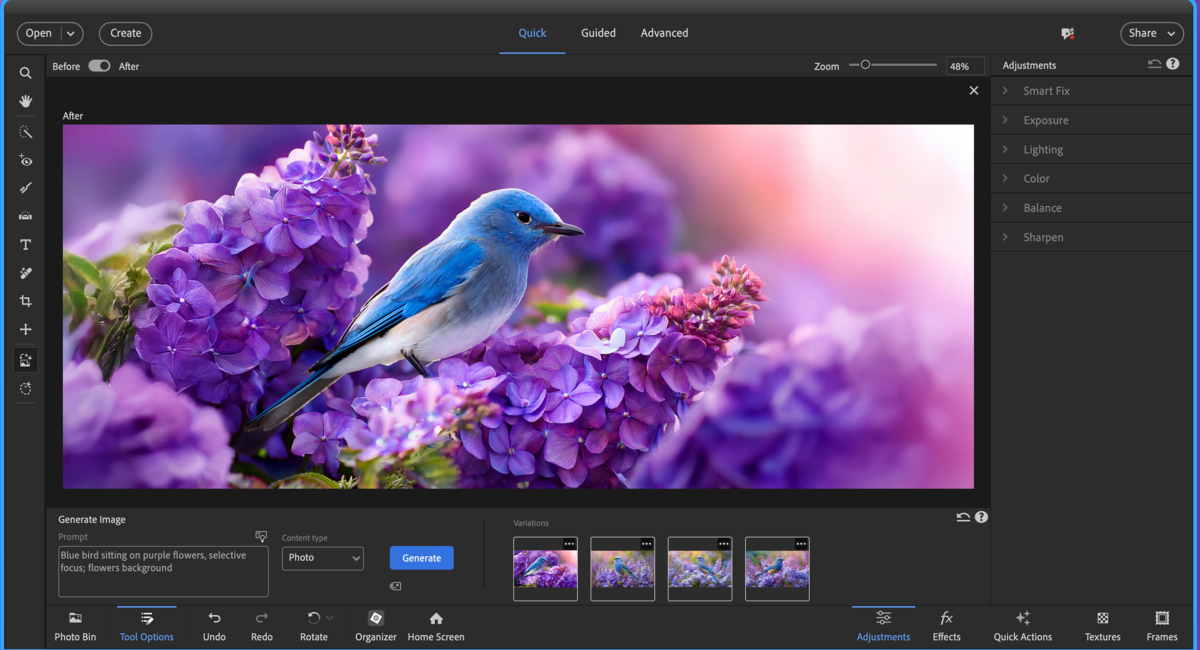
It is geared toward beginners, featuring an intuitive interface and step-by-step editing tutorials. The 2026 version adds generative AI, an AI-powered photo restoration feature, and a “Remove” tool that can isolate people from the background.
The program costs $99.99 for a 3-year license, so it will stop opening after three years, although the Organizer library will remain accessible. Weaknesses include limited RAW support and the AI credit system.
Luminar on Web: Best for Editing Without Installing
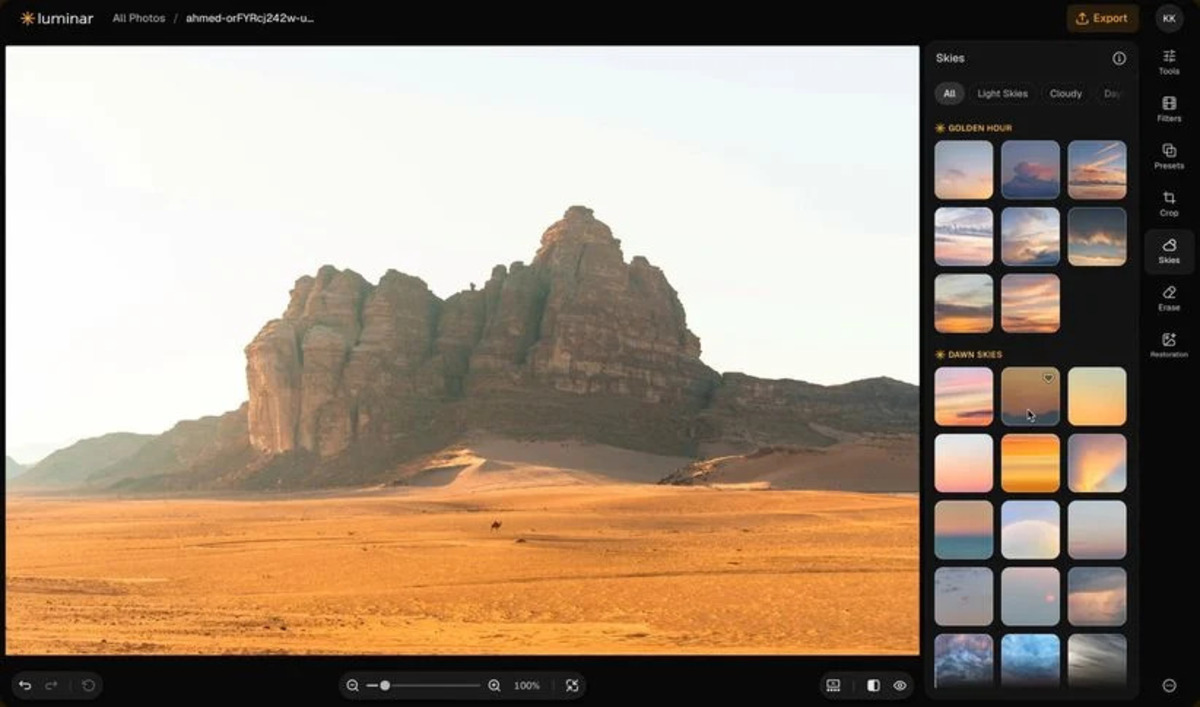
It runs in a browser, so no installation is required. Luminar on Web processes RAW files and offers tools such as Light, Color, Details, Curves, and Monochrome for free, while Structure AI and several portrait AI tools require a premium subscription. Changes are synced across devices, so you can start on one computer and finish on another.
Top Affordable AI Photo Editing Tools for 2026

Most budget-friendly photo editors fall into three categories. The first category offers a one-time license purchase. The second category is free. The third group consists of beginner-friendly software that costs just under $100 for a multi-year license.
- Luminar. An AI-first editor is sold as a one-time purchase (currently marketed simply as Luminar). The desktop license costs $129 at regular prices in the U.S. and $99 during the Black Friday 2026 sale.
- ON1 Photo RAW 2026. A comprehensive RAW editor for $99.99 with no subscription required.
- Affinity. A Photoshop-style layer-based editor from Canva that became free in 2026.
- Adobe Photoshop Elements 2026. A beginner-friendly program for $99.99 with a 3-year license, offering step-by-step editing and generative AI.
- Luminar on Web. A browser-based editor with a free set of basic tools and paid AI features.
Since sale prices change quickly, it’s a good idea to check the developer’s website on the day of purchase. Compare license terms as well as price, since update cycles, expiration dates, and the number of activations vary by product.
4 Features to Look for in Budget AI Photo Editors

A low price won’t help if the tool lacks the features you need for your daily tasks. Before you pay, check how the software handles your actual files and what part of the work the AI can take over. Photographers who shoot in RAW need high-quality conversion, while casual users value speed and ease of use more.
- RAW support. Make sure your camera is supported and that the conversion produces clean results.
- AI masking. Automatic selection of the sky, objects, and background saves the most time.
- AI Assistant. An AI assistant that suggests editing options or applies them with a simple request helps beginners get started quickly.
- Generative tools. Object removal and background replacement are useful, but some of these tools have time limits or operate on a credit basis.
AI tools rely on the graphics card, and ON1 specifies a graphics card with 4 GB of VRAM in its system requirements. An older laptop may run these editors, yet slowly, so test the free trial before purchasing.
Comparison of Usability and Performance in AI Software

Usability varies more than price does. Luminar Neo is designed for quick visual editing, and many tools work with a single slider or a single click. ON1 Photo RAW is closer to Lightroom and includes a photo browser and a RAW processor, so it takes longer to learn.
| Editor | Price model | AI strengths | Best for |
| Luminar Neo | One-time, $129 regular, $99 in Black Friday sale | Sky, relight, portrait, generative tools | Fast, creative edits |
| ON1 Photo RAW 2026 | One-time, $99.99 | AI masking, Sky Swap, Resize AI | RAW workflow and cataloging |
| Affinity | Free | Layers, RAW editing | Retouching and compositing |
| Photoshop Elements 2026 | $99.99, 3-year term license | Guided edits, generative AI, photo restoration | First-time editors |
| Luminar on Web | Free tools plus premium AI | Browser access, synced edits | Quick edits on any computer |
The best choice depends on what you value most: speed, control, or price. A user who edits a few vacation photos a month has different needs than a wedding photographer who processes hundreds of RAW files every weekend.
How AI Enhances Photo Editing on a Budget
AI takes care of the time-consuming steps of editing. Manually selecting the sky can take several minutes, while an AI mask does it in seconds. The same goes for noise reduction, sharpening, and removing small objects from the frame.
- open a photo and apply automatic light and color corrections;
- use the AI mask to adjust the sky or an object separately;
- remove unwanted details using the object removal tool;
- finish with a few minor manual adjustments and export.
You can start with Enhance AI and then fine-tune the result by hand. AI gives you a strong first pass, and your own eye still decides when the picture looks right, so lower the strength of an effect when it looks heavy.
https://skylum.com/luminar/enhance-ai
Dozens of Adjustments in One Tool
Tips for Choosing the Right AI Photo Editor for Beginners

Start by considering how you actually take photos, rather than focusing on the longest list of features. A beginner who edits photos from a phone needs different tools than someone with a mirrorless camera who shoots in RAW. A quick trial using your own photos will quickly show you which interface feels most natural.
- Test two or three free trials on the same five photos and compare the results.
- Choose a one-time license if you edit photos throughout the year, and a free tool if you do so only occasionally.
- Read the license terms, as some expire after three years, while others include only one year of access to generative tools.
- Before paying, check whether the editor opens RAW files from your camera.
Once you’ve found a favorite, spend a week working with it before purchasing additional plugins or add-ons. Most people tend to use a small set of tools, and mastering those tools is far more important than knowing every single feature.
Integration and Compatibility with Popular Platforms
Compatibility determines how well a budget-friendly editor will integrate with the tools you already use. Luminar Neo and ON1 Photo RAW MAX work as plugins for Lightroom Classic and Photoshop, so you can add their AI tools to your usual workflow. Affinity opens PSD files and supports Photoshop plugins.
On the other hand, Luminar Web requires no installation and runs in a browser on any computer; it opens RAW files and syncs your edits across devices. You can start editing on a laptop and finish on a desktop. Always check your camera’s format support and compatibility with your operating system, as some editors still lack certain features on one platform or another.
Future Trends in Affordable AI Photo Editing Technology
Several trends stand out in 2026 products. Generative tools are moving toward time-limited access or credit-based models, such as Luminar’s one-year generative tools and AI credits in Elements. Browser-based editors are gaining more features for working with RAW files and AI, reducing the need for a powerful computer. AI assistants are better at handling requests written in plain language, making complex editing easier for beginners.