How to choose the right free photo editor for iPhone—the best apps for selfies, backgrounds, color correction, and quick fixes
You took a great photo on your iPhone, yet the lighting looks a little flat. You open the App Store, and suddenly every photo editor demands an expensive weekly subscription for the ability to adjust the brightness slider. In this guide, you’ll take a look at some of the best free photo editing apps for iPhone that are easy on your wallet.
Don’t feel like reading the whole breakdown? We’ve pulled together a quick summary below.
Key Takeaways
- Start with Apple Photos: The default gallery handles ProRAW files natively and covers basic exposure and color tweaks without eating up extra storage.
- Use Snapseed for zero-cost edits: It remains free app offering curves, selective adjustments, and perspective tools without ads or subscriptions.
- Turn to Lightroom for RAW depth: Adobe’s mobile version provides superior control over shadow recovery and individual color channels on complex shots.
- Streamline background cleanups: The native iOS clean-up tool handles simple distractions, while dedicated tools like TouchRetouch deal with heavy wire fences and crowds.
- Fix geometry before publishing: Straightening leaning buildings and skewed horizons takes a minute but instantly gives photos a polished, professional look.
Essential Features to Look for in iPhone Photo Editing Apps
Although there are thousands of photo editors in the App Store, most people end up using the same three or four basic features. Check how the app handles RAW files. Newer iPhone models capture large amounts of data in ProRAW format, and basic editors often lose these details during import.
Then, pay attention to hidden export limitations. The best free iPhone photo editor lets you save high-resolution files without adding watermarks to your work. Finally, test out the sliders. Touch controls should respond instantly to even the slightest changes. If selecting a specific color shade on a small screen feels awkward, uninstall the app and try another one.
Top Free Photo Editing Apps for iPhone in 2026
Every year, it becomes harder and harder to find a reliable photo editor that’s free. Sometimes you have to test out several options to figure out which ones you can actually use to edit a photo from start to finish. And that’s not even counting the extra costs, a million subscriptions, and other little quirks.
Snapseed

It remains a favorite and maybe one of good photo editing apps for iPhone free for one simple reason. Zero ads and no hidden paywalls. You get access to advanced tools like RGB curves and selective adjustments without paying a dime. The interface works perfectly for pulling details out of dark shadows or fixing building perspectives.
Luminar Mobile

Sometimes you want to fix a boring sky or adjust the lighting without messing with curves for ten minutes. If you need fast, AI-driven tools that actually look natural, Luminar Mobile handles complex masking automatically, saving you a ton of time when editing on the go.
Adobe Lightroom Mobile

The app supports heavy RAW files on an iPhone Pro. You will hit a paywall if you try to use their masking features. However, the basic color sliders cost nothing. People found it incredibly useful for recovering blown-out skies and managing large batches of photos.
Advanced Editing: Best Apps for RAW Photos on iOS

Shooting in ProRAW format offers tremendous flexibility in adjusting exposure and colors, but it also creates large files with a high volume of data that can overwhelm underpowered photo editing apps. To work with uncompressed data without causing your phone to freeze or losing detail in the shadows, you need software designed specifically for processing large files.
Adobe Lightroom Mobile
The best free iOS photo editor for serious RAW editing on a mobile device. This app effortlessly recovers details in overexposed skies and deep shadows. The color sliders provide precise control over individual hues, making it easy to correct white balance issues on the go.
Apple Photos.
Don’t overlook the built-in gallery. iOS instantly decodes its own ProRAW files as soon as you open the app. You can control the black point, shadow depth, and brightness without downloading third-party software or waiting for files to render.
Working with large RAW files on a tiny screen often leads to eye strain, and precise masking with your fingers can be awkward. If you prefer to finish complex edits on a desktop monitor, you can use Luminar Mobile Link. You’ll save time by sending uncompressed ProRAW files directly from your photo gallery to your desktop.
Removing Unwanted Objects: Leading Apps for Photo Cleanup
Power lines, strangers in the background, and random debris can easily ruin an otherwise great shot. You don’t need a desktop system to clean up your photos—several mobile apps can easily remove objects right on your phone.
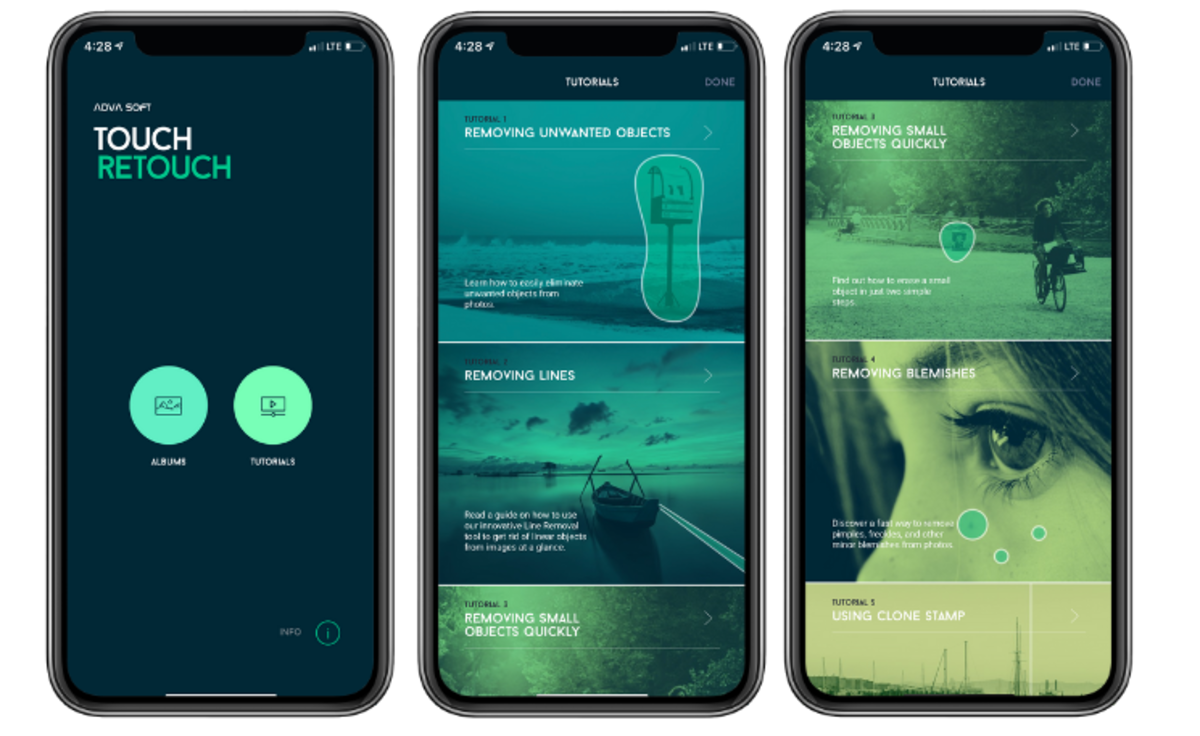
- TouchRetouch—removes power lines, chain-link fences, and unwanted objects;
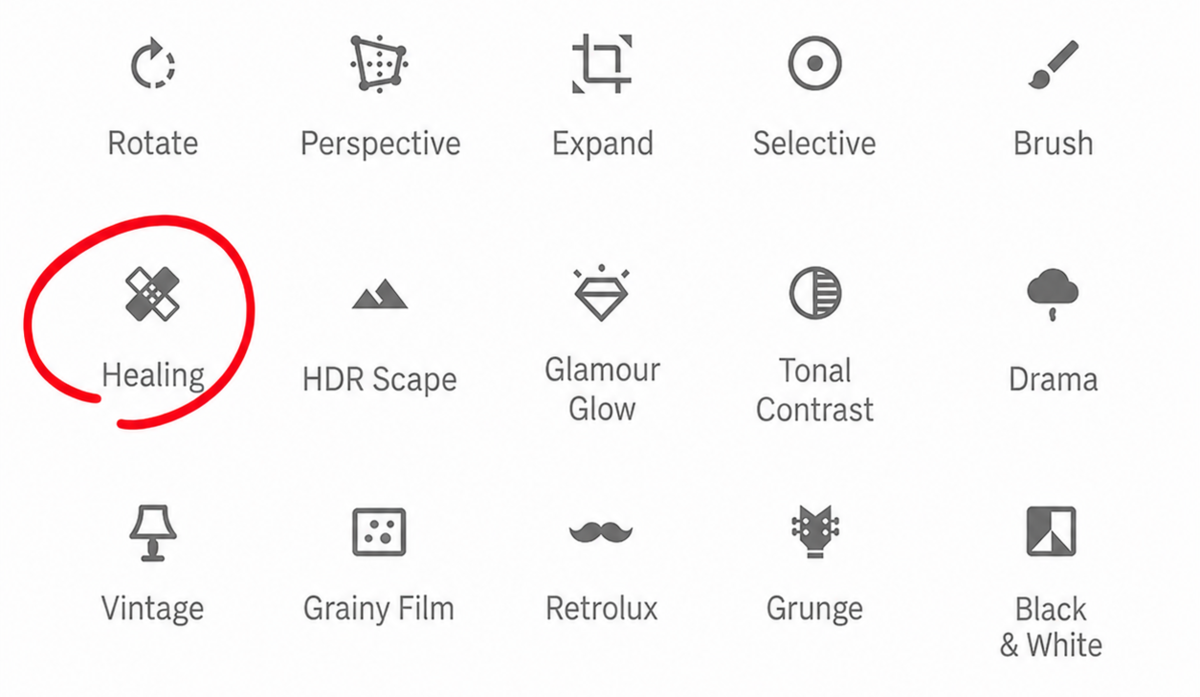
- Snapseed—the built-in “Heal” tool works well for small dust spots or minor imperfections;
- Apple Photos—the latest iOS updates include an automatic object removal tool.
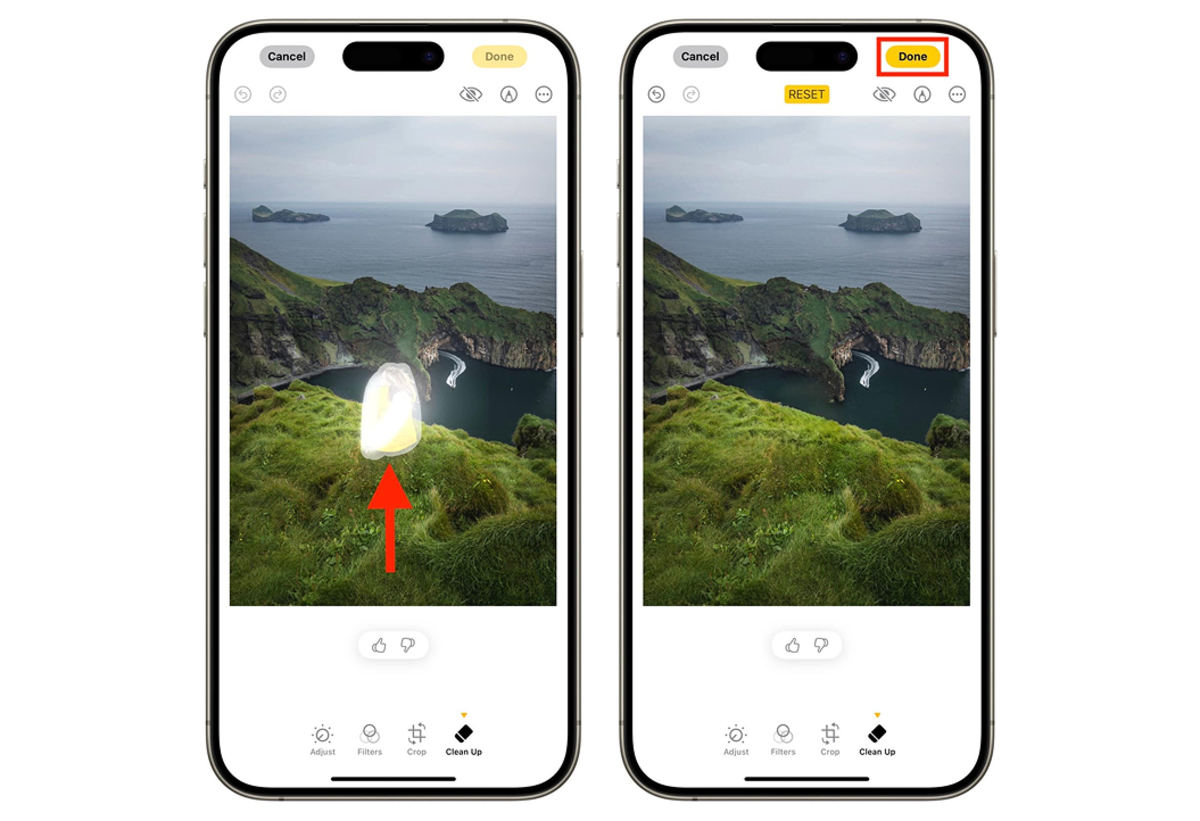


You do not need a single, perfect app for every situation. Keep the default Apple Photos app ready for quick, everyday distractions. For the really messy backgrounds, opening a dedicated removal tool takes an extra minute.
Correcting Perspective and Distortions in iPhone Photos

When photographing architecture or tall trees with the iPhone’s wide-angle lens, buildings often appear to be leaning backward. Correcting these distorted lines substantially improves the quality of the final image.
SKRWT was designed specifically to correct lens distortions. If you frequently photograph buildings, the dedicated sliders let you align vertical and horizontal lines with absolute precision. The app focuses exclusively on geometry.
Darkroom is ideal if you prefer a visual and minimalist workspace. The transformation panel lets you effortlessly adjust the tilt and rotation of your photo, and the app automatically crops empty edges while you edit the image.
Luminar Mobile for iPhone streamlines the process of correcting framing and polishing lighting into a single, quick workflow. It bypasses cluttered menus, letting you level the scene and adjust colors with a few taps.
You don’t need a professional background in architecture to spot a crooked horizon. Choose an interface that fits your daily editing habits, straighten vertical lines, and see how much better your cityscapes look before you post them.
Using the Built-in iOS Photos App for Basic Edits

Before searching the App Store for third-party tools, give the default gallery a fair try. People constantly ask what the best free photo editor for iPhone is, completely ignoring the software already sitting on their home screen. Over the last few iOS updates, Apple quietly packed its native app with surprisingly strong color grading and exposure sliders.
If you transferred a quick JPEG from a Fujifilm camera or snapped a moody afternoon shot along Lychakivska Street, the built-in tools handle the basic adjustments brilliantly. You can drop the highlights, pull up the black point, and add a bit of warmth in seconds. The edits save non-destructively directly to your iCloud. You never have to worry about exporting a duplicate file or watching an annoying ad before saving your work. Sometimes, the most practical solution does not require a download at all.
Professional Editing. Now in Your Pocket.
Download Luminar on your Mobile Device
Noteworthy Photo Editing Apps to Watch for Future Updates
For now, the standard sliders in the Apple Store and basic retouching brushes are more than enough to handle our daily tasks. However, the following software is largely focused on artificial intelligence and processing uncompressed data. Developers have finally begun to fully harness the power of the iPhone’s new neural processors.
The team behind Pixelmator created Photomator specifically for Apple hardware.
Generative fill and instant background processing used to cause older phones to freeze. Pixelcut optimizes these resource-intensive AI tasks for mobile screens.
Summary of the Best Free Photo Editing Solutions for iPhone
You don’t have to spend money on a subscription to find the right tool. You can set up a fully functional editing workflow using free software. For daily exposure adjustments and quick color tweaks, use the built-in Apple Photos app. It natively supports ProRAW files and provides basic settings without cluttering your phone’s memory with unnecessary downloads.
If you need more in-depth control, Snapseed offers curves, selective masking, and geometric correction without any hidden paid restrictions or ads. Photographers who shoot large RAW files will get the best results with Lightroom Mobile, which effortlessly restores detail in shadows and handles color correction with ease. If your main goal is an atmospheric, cinematic aesthetic, VSCO offers reliable analog presets even in its basic version.
Ultimately, it’s your editing habits that determine which apps will be on your home screen. You don’t need a folder filled with dozens of photo editors. Choose two or three that match your style, get familiar with their sliders, and start working on your shots.